By
By 
WhatsApp gives you two ways to use your account on a computer: WhatsApp Web, which runs in a browser tab, and the WhatsApp desktop app for Windows and Mac. For years the choice was easy, because the desktop app could make calls and the browser couldn’t. In 2026 that’s no longer true, so the answer depends on how you actually use your computer.
Short answer: WhatsApp Desktop is the app you install on Windows (Microsoft Store) or Mac (Mac App Store); WhatsApp Web is the browser version at web.whatsapp.com, with nothing to install. Both link to your phone by scanning a QR code, and both can now make calls. Install the desktop app on a computer you own and use every day; use WhatsApp Web on computers you don’t own, or ones you only use occasionally.
Applies to: WhatsApp Web in Chrome, Edge, Firefox and Safari, and the WhatsApp desktop app for Windows 10/11 and macOS, October 2026.
Side by side
| WhatsApp Web | Desktop app | |
|---|---|---|
| Install needed | No, open web.whatsapp.com | Yes, from the Microsoft Store or Mac App Store |
| Voice and video calls | Yes, since mid-2026 (rolling out) | Yes |
| Notifications | Only while the tab is open | Even with the window closed |
| Starts with your computer | No | Optional |
| Works on any computer | Yes, any modern browser | Only where you can install it |
| Best on shared computers | Yes | No |
| Login method | QR code or phone number | QR code or phone number |
| Needs phone online after linking | No | No |
How to use WhatsApp Web in your browser
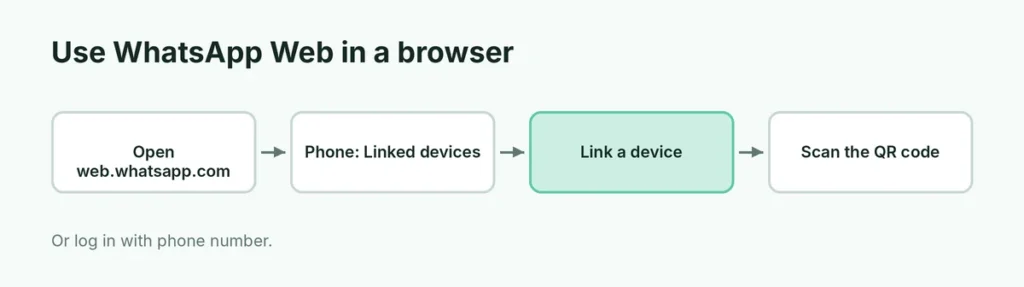
The browser version needs no download and works on Windows, Mac, Linux and Chromebooks:
- On your computer, open web.whatsapp.com in Chrome, Edge, Firefox or Safari. A QR code appears.
- On your phone, open WhatsApp. On Android, tap the three dots → Linked devices. On iPhone, tap Settings → Linked devices.
- Tap Link a device and point your phone at the QR code. Your chats load in a few seconds.
Prefer not to scan? Tap Log in with phone number under the QR code on the computer, then type the 8-character code it shows into your phone. On a public computer, untick Stay logged in first. For a step-by-step walkthrough with fixes, see our WhatsApp Web login guide.
What changed in 2025 and 2026
Two changes closed most of the gap between the two.
WhatsApp Web got calling. In late July 2026 WhatsApp started rolling out voice and video calls in the browser, including group calls. This used to be the main reason to install the app. Because it is a gradual rollout, you may not see the call buttons in your browser yet even if a friend does.
The Windows app became a web app. In 2025 Meta began replacing the native Windows app with a version built on Microsoft’s WebView2, which is essentially WhatsApp Web running inside an app window. Early tests by Windows Latest found it used around 30% more memory than the old native app. The upside is that the app and the browser now look and behave almost the same. The downside is that the Windows app is no longer the lightweight option it used to be.
Memory use
Exact numbers depend on your computer and on how many chats and photos are loaded. To compare on your own PC, open WhatsApp Web in your browser, press Ctrl + Shift + Esc to open Task Manager and note the memory used. Then close it, open the desktop app and do the same, adding up all of its WhatsApp processes, because the WebView2 version runs several.
If your computer has 4 GB of RAM or less, keep an eye on this. On low-memory laptops, either option can slow things down when a browser with many tabs is also open, and closing WhatsApp when you’re not using it makes a noticeable difference.
When to choose the desktop app
- It’s your own computer and you use WhatsApp daily. You get notifications even when the window is closed, and you can set it to start with Windows so you never miss a message.
- You keep many browser tabs open. A separate app is easier to find with Alt + Tab than one tab among twenty, and closing your browser won’t close WhatsApp.
- You make a lot of calls. Both now support calling, but the app has had it for years. If the call buttons haven’t appeared in your browser yet, the app is the way to call from a computer today.
When to choose WhatsApp Web
- The computer isn’t yours. Office PCs, cyber cafés, a friend’s laptop. Nothing gets installed, and logging out leaves no app behind.
- You can’t install software. Many work computers block installs. A browser is always available.
- You only need it occasionally. If you check WhatsApp on your computer once a week, there’s no reason to keep an app installed and starting up in the background.
- You use Linux or a Chromebook. There’s no official WhatsApp desktop app for Linux, and on a Chromebook the browser is the simplest option, so WhatsApp Web is the way to go.
WhatsApp Desktop download and install (Windows and Mac)
- On Windows, open the Microsoft Store and search for WhatsApp. On a Mac, use the Mac App Store. You can also start from whatsapp.com/download. Avoid download sites that offer WhatsApp as a setup file: those are a common way to spread malware.
- Install and open it. A QR code appears.
- On your phone, open Linked devices → Link a device and scan the code, or use Log in with phone number on the app’s start screen.
Linking works exactly the same way as WhatsApp Web. If the code won’t scan, the same fixes apply: see 9 fixes for a WhatsApp QR code that won’t scan.
Can you use both at the same time?
Yes. Each one counts as a separate linked device, and WhatsApp allows up to four linked devices alongside your phone. You could have the desktop app on your home laptop and WhatsApp Web open on your office computer at once, with messages syncing between them. Just remember that every linked device is another way into your chats, so log out of the ones you no longer use. Our guide on checking your linked devices shows how.
Related guides
- How to check which devices are linked to your WhatsApp
- How to log out of WhatsApp Web remotely
- How to schedule a WhatsApp message
The short version
Your own computer, used every day: install the desktop app for notifications that work when the window is closed. Someone else’s computer, or occasional use: WhatsApp Web, and log out when you’re done. Since 2026 both can make calls, and since the Windows app now runs on web technology, the difference is smaller than it has ever been. For first-time setup, start with our WhatsApp Web login guide. Juggling a work number and a personal one? Here’s how to use two WhatsApp accounts on one phone.