By
By 
Getting photos off your iPhone and onto a Windows PC should be simple, but AirDrop doesn’t work with Windows and the first attempt often ends with an empty folder or a pile of strange .HEIC files. Here are the methods that actually work, from a plain USB cable to wireless options, plus how to fix the most common problems.
Short answer: connect your iPhone to the PC with a USB cable, unlock the iPhone and tap Trust. Then open the Photos app on Windows, click Import and choose your iPhone. To send photos without a cable, install iCloud for Windows and turn on iCloud Photos, or use Google Photos or OneDrive. To get JPG files instead of HEIC, go to Settings → Apps → Photos → Transfer to Mac or PC → Automatic.
Last updated: October 2026. Works with iOS 17, iOS 18 and iOS 26 and with Windows 10 and Windows 11.
Which method should you use?
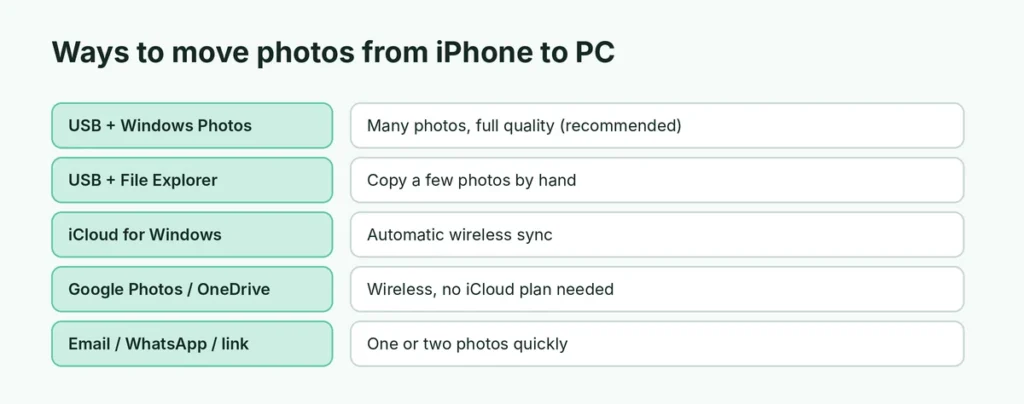
| Method | Best for | Needs |
|---|---|---|
| USB cable + Windows Photos app | Many photos at once, full quality | Cable, Windows 10 or 11 |
| USB cable + File Explorer | Copying a few photos by hand | Cable |
| iCloud for Windows | Automatic sync of every new photo | iCloud storage space |
| Google Photos or OneDrive | Wireless, no iCloud plan | The app on your iPhone |
| Email, WhatsApp or a share link | One or two photos quickly | Internet |
Method 1: USB cable and the Windows Photos app (recommended)

This is the fastest way to move a large number of photos and videos at full quality.
- Connect your iPhone to the PC with a USB-C or Lightning cable. A data cable is needed; some cheap cables only charge.
- Unlock your iPhone. When it asks Trust This Computer?, tap Trust and enter your passcode.
- On the PC, open the Photos app (search for “Photos” in the Start menu).
- Click Import (top right), then choose your iPhone from the list.
- Windows shows all your photos. Select the ones you want, or Select all, choose a folder, and click Add or Import.
Keep the iPhone unlocked and the cable connected until the import finishes. Large libraries can take a while.
Method 2: Copy photos with File Explorer
If you just want a few photos, or the Photos app gives you trouble:
- Connect and unlock the iPhone, and tap Trust.
- Open File Explorer and click Apple iPhone in the left panel (under This PC).
- Open Internal Storage → DCIM.
- Your photos are in folders such as 100APPLE and 101APPLE. Copy and paste them to a folder on your PC.
The folder names don’t match albums, so it’s harder to find a specific photo this way. Photos are grouped roughly by date.
Method 3: Sync wirelessly with iCloud for Windows
If you already use iCloud Photos, every new photo can appear on your PC automatically.
- On your iPhone: Settings → your name → iCloud → Photos → turn on Sync this iPhone (called iCloud Photos on older versions).
- On your PC: install iCloud for Windows from the Microsoft Store and sign in with your Apple Account.
- Turn on Photos in iCloud for Windows and click Apply.
Your iCloud photos appear in the Windows Photos app under iCloud Photos, and in File Explorer. The free iCloud plan has only 5 GB, so most people need a paid plan to sync a full library.
Method 4: Google Photos or OneDrive (wireless, no iCloud)
- Google Photos: install the app on your iPhone, turn on Backup, then open photos.google.com on your PC to download photos. Downloading many at once gives you a zip file.
- OneDrive: install OneDrive on your iPhone and turn on Camera Upload. Photos appear in the OneDrive folder on your Windows PC automatically.
Both are handy if you also use an Android phone or don’t want to pay for iCloud. Here’s a comparison of free cloud storage services if you’re choosing one.
Method 5: Send just a few photos
For one or two photos, don’t bother with cables:
- Email: select the photos → Share → Mail.
- WhatsApp: send them to yourself and open WhatsApp Web on your PC. Send them as a document to keep full quality.
- Share link: in Photos, select the photos → Share → Copy iCloud Link, then open the link on your PC.
Transferring videos from iPhone to PC
Videos import the same way as photos with the Windows Photos app or File Explorer. A few things to know:
- iPhone videos are large: one minute of 4K video can be several hundred megabytes, so use a cable rather than email or chat apps.
- Videos recorded in HEVC may not play in older Windows apps. Install the HEVC Video Extensions from the Microsoft Store, play them in VLC, or set Transfer to Mac or PC to Automatic so they convert while copying.
- Slow-motion and Cinematic videos may lose their special effects when copied; the regular video file is kept.
Can I use Microsoft Phone Link instead?
Phone Link in Windows 11 can connect to an iPhone for calls, messages and notifications, but it doesn’t sync your photo library the way it does with Android phones. For photos, use a cable, iCloud for Windows, Google Photos or OneDrive instead.
Keep your photos organized on the PC
Windows Photos imports into folders by date by default. Before you delete anything from your iPhone, it’s worth:
- Making a second copy on an external drive or a cloud service, so a single disk failure can’t wipe out years of photos.
- Naming folders by year and event (“2026-10 Beach trip”) so they’re easy to find later.
- Checking that a few random photos and videos open properly.
Why are my photos .HEIC files? (and how to get JPG)

iPhones save photos in HEIC format by default, which takes half the space of JPG. Windows can open HEIC files only with an extension, so many people prefer JPG.
Option 1: convert automatically when transferring
On your iPhone: Settings → Apps → Photos → under Transfer to Mac or PC, choose Automatic. The iPhone converts photos to JPG as they’re copied over a cable.
Option 2: take JPG photos from now on
Settings → Camera → Formats → Most Compatible. New photos are saved as JPG, but they take more space.
Option 3: open HEIC on Windows
Install the free HEIF Image Extensions from the Microsoft Store, and Windows Photos can open HEIC files directly.
iPhone not showing up on the PC? Try these fixes
- Unlock the iPhone and tap Trust. If you tapped “Don’t Trust” by mistake, reset it: Settings → General → Transfer or Reset iPhone → Reset → Reset Location & Privacy, then reconnect.
- Try another cable and USB port. Use the cable that came with the iPhone or another known data cable, and plug directly into the PC instead of a USB hub.
- Install Apple Devices or iTunes from the Microsoft Store. It installs the drivers Windows needs to recognize the iPhone.
- Restart both devices and update Windows and iOS. Here’s how to update your iPhone.
- Photos are in iCloud only? If Optimize iPhone Storage is on, some originals live in iCloud and may not import over the cable. Download them first, or use iCloud for Windows.
Import stops halfway or misses photos
- Keep the iPhone unlocked during the import; locking it can stop the transfer.
- Import in smaller groups (for example, one month at a time).
- Make sure the PC has enough free disk space.
- Videos recorded in high resolution are large; give them time.
After transferring: free up space on your iPhone
Once the photos are safely on your PC (open a few to check), you can delete them from the iPhone to free space. Remember that with iCloud Photos turned on, deleting on the iPhone also deletes from iCloud. To make space in other ways, here’s how to clear cache on iPhone and how to back up your iPhone before a big clean-up.
Sending photos to a Mac or Android phone instead?
To a Mac, AirDrop is easiest; if it fails, see AirDrop not working. AirDrop doesn’t work with Windows or Android, so use the cable or cloud methods above.
The short version
Plug your iPhone into the PC with a data cable, unlock it, tap Trust, and import with the Windows Photos app. For wireless transfers, use iCloud for Windows, Google Photos or OneDrive. To get JPG instead of HEIC, set Settings → Apps → Photos → Transfer to Mac or PC → Automatic. If the iPhone doesn’t appear, try another cable, install Apple Devices from the Microsoft Store, and restart both devices.