By
By 
Siri can be helpful, but it also pops up by accident when you press the side button too long, or it answers “Hey Siri” when nobody asked. Here’s how to turn off Siri on iPhone completely, or just switch off the parts that annoy you, like “Siri” voice listening, the side button and Lock Screen access.
Short answer: go to Settings → Apple Intelligence & Siri (on iPhones without Apple Intelligence: Settings → Siri). Set Talk to Siri (or Listen for) to Off and turn off Press Side Button for Siri. When both are off, Siri is turned off. To stop Siri on the Lock Screen only, turn off Allow Siri When Locked.
Applies to: iPhone on iOS 26 and iOS 27. Last checked in October 2026.
How to turn off Siri completely
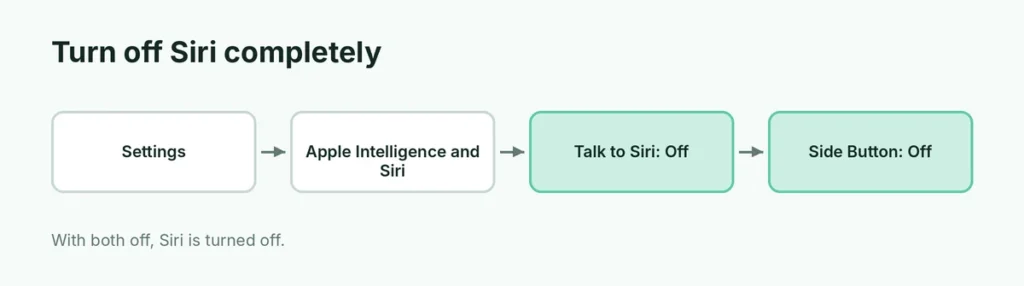
- Open Settings.
- Tap Apple Intelligence & Siri (or Siri).
- Tap Talk to Siri (called Listen for on some versions) and choose Off.
- Turn off Press Side Button for Siri (on iPhones with a Home button: Press Home for Siri).
- If asked, tap Turn Off Siri.
Type to Siri: if you still want to ask Siri questions by typing, you can keep Type to Siri on (in the same menu or in Accessibility → Siri). On iPhones with Apple Intelligence, double-tap the bottom of the screen opens Type to Siri.
Turn off just “Hey Siri” or “Siri”
If Siri wakes up by mistake when you talk:
- Settings → Apple Intelligence & Siri.
- Tap Talk to Siri (or Listen for).
- Choose Off (or keep “Hey Siri” only instead of “Siri” or “Hey Siri”, which triggers less often).
Stop Siri when you hold the side button
If Siri opens when you’re trying to turn your phone off:
- Settings → Apple Intelligence & Siri.
- Turn off Press Side Button for Siri.
To power off instead, press and hold the side button and either volume button, then drag the slider.
Turn off Siri on the Lock Screen
Siri on the Lock Screen lets anyone with your phone ask it things. To stop this:
- Settings → Apple Intelligence & Siri.
- Turn off Allow Siri When Locked.
Turn off Siri Suggestions
Siri also shows suggestions in search, the Share sheet and on the Lock Screen. To limit these:
- Settings → Apple Intelligence & Siri → scroll to Suggestions (or Siri Suggestions).
- Turn off options like Show Suggestions, Show on Lock Screen and Suggest when Sharing.
- You can also tap an app in the list below and turn off Learn from this App.
What each Siri setting does
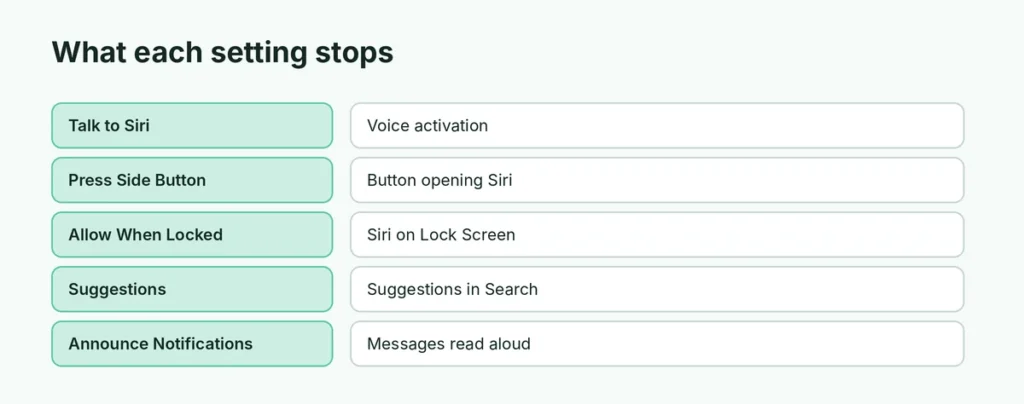
| Setting | Turn it off to stop |
|---|---|
| Talk to Siri / Listen for | Voice activation |
| Press Side Button for Siri | Side button opening Siri |
| Allow Siri When Locked | Siri on the Lock Screen |
| Siri Suggestions | Suggestions in Search and Lock Screen |
| Announce Notifications | Siri reading messages aloud in AirPods |
Turn off Announce Notifications in AirPods
If Siri reads your messages in your AirPods: Settings → Notifications → Announce Notifications → turn it off.
Delete Siri history
To delete what Siri and Dictation have saved: Settings → Apple Intelligence & Siri → Siri & Dictation History → Delete Siri & Dictation History.
Turn off Siri on Apple Watch, iPad and Mac
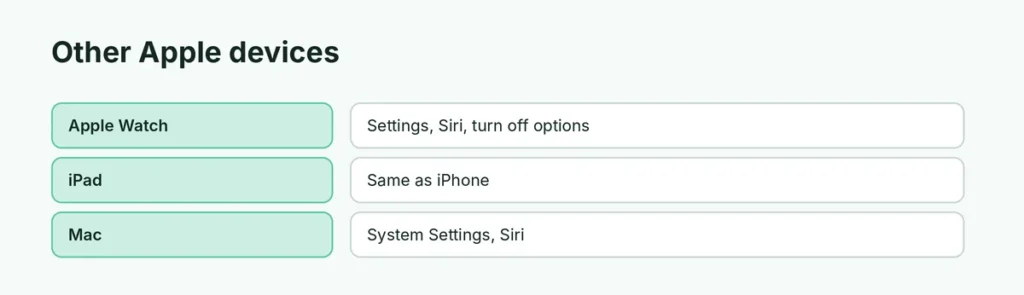
- Apple Watch: Settings → Siri → turn off Listen for, Raise to Speak and Press Digital Crown.
- iPad: same steps as iPhone in Settings.
- Mac: System Settings → Apple Intelligence & Siri (or Siri) → turn off.
Related guides
- How to silence an Apple Watch
- How to turn off Do Not Disturb on iPhone
The short version
Open Settings → Apple Intelligence & Siri, set Talk to Siri to Off and turn off Press Side Button for Siri to turn Siri off fully. Turn off Allow Siri When Locked for better privacy, and use Type to Siri if you still want help without speaking.
Sources
- Apple: iPhone User Guide