By
By 
Seeing “iPhone Storage Full” and don’t want to pay for iCloud? You’re not alone. Unlike many Android phones, an iPhone has no memory card slot, so you can’t simply add storage inside it. But you have more options than buying iCloud: free up space you didn’t know you were using, move files to cheaper storage, or plug in external storage.
Short answer: you can’t upgrade the built-in storage of an iPhone, and Apple doesn’t sell extra internal storage. To get more space without iCloud: check Settings → General → iPhone Storage and follow the suggestions, offload unused apps, move photos and videos to a computer or another cloud service (Google Photos, OneDrive), and use a USB-C or Lightning flash drive for files you want to keep with you. If you always run out, buy an iPhone with more storage next time.
Last updated: October 2026. Works on iOS 17, iOS 18 and iOS 26.
Can you add storage to an iPhone?
No. The storage chip is part of the iPhone’s main board, and iPhones don’t have microSD card slots. Third-party shops that “upgrade” iPhone storage replace the chip by soldering, which voids your warranty, can break Face ID or other features, and often fails. It’s not worth the risk.
What you can do is:
- free up the storage you have,
- move files to somewhere else (computer, other cloud, external drive),
- add external storage you plug in when needed.
Step 1: See what’s using your storage

Go to Settings → General → iPhone Storage. Wait a few seconds for the bar to load. You’ll see:
- a colored bar showing Apps, Photos, Media, Messages, iOS and System Data,
- recommendations such as “Offload Unused Apps” or “Review Large Attachments”,
- a list of apps sorted by size.
Usually one or two things take most of the space, often Photos, Messages or a single app like WhatsApp or TikTok.
Step 2: Free up space quickly
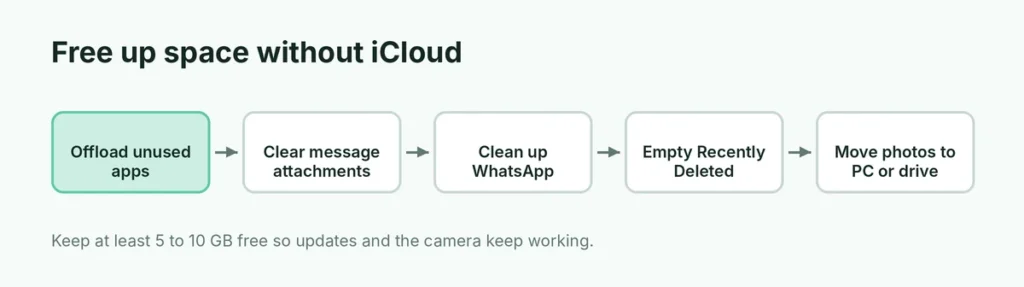
Offload apps you don’t use
Settings → General → iPhone Storage → Offload Unused Apps. This removes the app but keeps its documents and data, so you can reinstall it later and carry on. You can also offload a single app: tap it in the list → Offload App.
Clear old messages and attachments
In iPhone Storage, tap Messages → Review Large Attachments and delete old videos and photos. Then set Settings → Apps → Messages → Keep Messages to 1 Year or 30 Days.
Clean up WhatsApp
WhatsApp often uses several gigabytes. Open WhatsApp → Settings → Storage and Data → Manage Storage, and delete large files and forwarded videos. Back up your chats first; here’s how to back up WhatsApp chats.
Delete the “Recently Deleted” album
Deleted photos stay on the iPhone for 30 days. Open Photos → Albums (or scroll to Utilities) → Recently Deleted → Select → Delete All.
Clear Safari and app caches
Website data and app caches build up over time. Here’s a full guide on how to clear cache on iPhone without losing anything important.
Step 3: Move photos and videos off the iPhone (without iCloud)
Photos and videos are usually the biggest storage users. Instead of paying for iCloud, you can:
- Copy them to a computer. Here’s how to send photos from iPhone to PC, or use the Photos app on a Mac. Then delete them from the iPhone.
- Use Google Photos (15 GB free shared with Gmail) or OneDrive (5 GB free, more with Microsoft 365). After the backup completes, use Free up space in Google Photos to remove the copies from your iPhone.
- Use an external drive (see below).
Check that the photos are safely copied and open correctly before deleting them from the iPhone.
Step 4: Use external storage (flash drive or SSD)
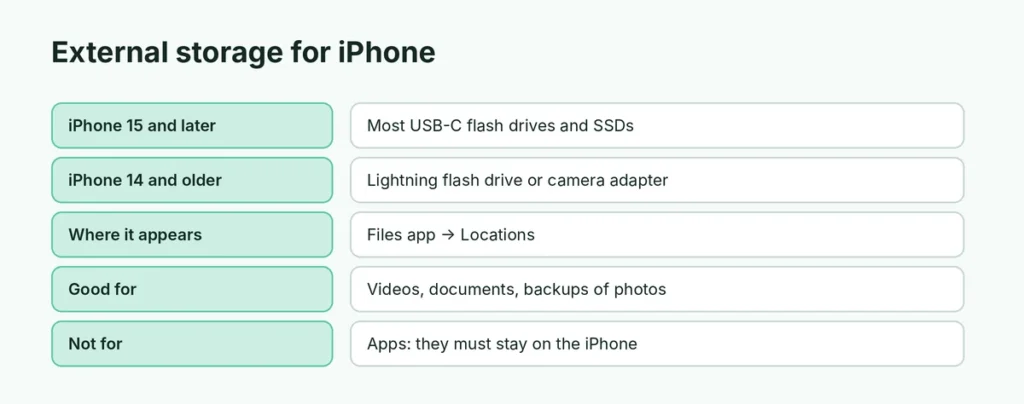
You can plug storage into your iPhone like a USB stick:
- iPhone 15 and later (USB-C): most USB-C flash drives and portable SSDs work. Plug one in and it appears in the Files app under Locations.
- iPhone 14 and older (Lightning): use a Lightning flash drive (often “MFi certified”) or Apple’s Lightning to USB 3 Camera Adapter with a regular USB drive.
To move files: open Files → find the file → press and hold → Move → choose the drive. To move photos: select them in Photos → Share → Save to Files → choose the drive, then delete them from Photos.
External drives are great for videos and files you want to keep but don’t need every day. They don’t add space for apps, which must live on the iPhone itself.
Apps that usually take the most space
| App | Why it gets big | What to do |
|---|---|---|
| WhatsApp, Telegram | Photos, videos and voice notes in chats | Delete large files in the app’s storage settings |
| TikTok, Instagram, Facebook | Cached videos | Clear cache in the app, or offload and reinstall |
| Spotify, Apple Music, Netflix | Downloads for offline use | Remove downloads you’ve finished with |
| Games | Large game data | Delete games you no longer play |
| Photos | Your library | Move to a computer, cloud or drive |
Step 5: Shoot photos and video more efficiently
- Settings → Camera → Formats → High Efficiency saves photos as HEIC and videos as HEVC, using about half the space of JPG and H.264.
- Settings → Camera → Record Video: 4K at 60 fps uses roughly four times more space than 1080p at 30 fps. Choose 1080p for everyday videos.
- Turn off Live Photos if you don’t use them: tap the Live icon in the Camera app, and set Settings → Camera → Preserve Settings → Live Photo on so it stays off.
What is “System Data” and why is it so big?
System Data (formerly “Other”) includes caches, logs, temporary files and downloaded updates. It changes size by itself and can grow to many gigabytes. iOS clears some of it automatically when space runs low. A restart sometimes reduces it. If it stays huge, updating iOS can help (here’s how to update your iPhone). As a last resort, back up and restore the iPhone.
How much free space should you keep?
Try to keep at least 5 to 10 GB free. When storage is nearly full, iOS can’t install updates, apps may crash, the camera may refuse to record video, and the phone can feel slow. iOS updates in particular need several gigabytes of temporary space.
Storage still full after deleting things?
- Restart the iPhone. Freed space doesn’t always show until iOS recalculates it.
- Wait a while. The storage bar in Settings can take minutes to update.
- Empty Recently Deleted in Photos, and the Recently Deleted folder in the Files app.
- Check downloaded media: Music, Podcasts, Netflix, Spotify and YouTube downloads can use many gigabytes. Remove downloaded episodes and playlists you’ve already watched or heard.
- Check the Files app: open Files → On My iPhone → Downloads; large files often hide here. Here’s where downloads go on iPhone.
Is iCloud worth it anyway?
If you use an iPhone for years, iCloud+ (from about $0.99 a month for 50 GB in the US) is often the easiest way to keep photos safe and free up space automatically with Optimize iPhone Storage. But it’s optional; the steps above work without it. Here’s a comparison of free cloud storage services if you’d rather use something else.
Next time: choose the right storage size
| Storage | Good for |
|---|---|
| 128 GB | Light use: messaging, browsing, some photos |
| 256 GB | Most people: lots of photos, apps and some 4K video |
| 512 GB or 1 TB | Heavy video recording, big games, keeping everything on the phone |
Upgrading storage when buying costs less than years of cloud fees for many people who keep everything on the phone.
The short version
You can’t add internal storage to an iPhone. Instead, open Settings → General → iPhone Storage to see what’s using space, offload unused apps, delete old message attachments and the Recently Deleted album, and move photos and videos to a computer, Google Photos, OneDrive or a USB-C or Lightning flash drive. Shoot in High Efficiency and 1080p to use less space, and choose a bigger storage size on your next iPhone.