By
By 
Watching photos, videos or a presentation from your iPhone on a big TV is easy once you know which method your TV supports. Most newer smart TVs work wirelessly with AirPlay, and almost any TV with an HDMI port works with a cable. Here are all the ways, starting with the simplest.
Short answer: if you have an Apple TV or a smart TV with AirPlay (most Samsung, LG, Sony, Vizio and Roku TVs from 2019 on), connect both to the same Wi-Fi, open Control Center on your iPhone, tap Screen Mirroring and pick your TV. If your TV doesn’t have AirPlay, use a cable: a USB-C to HDMI adapter for iPhone 15 and newer, or Apple’s Lightning Digital AV Adapter for older iPhones.
Last updated: October 2026. Works with iOS 17, iOS 18 and iOS 26.
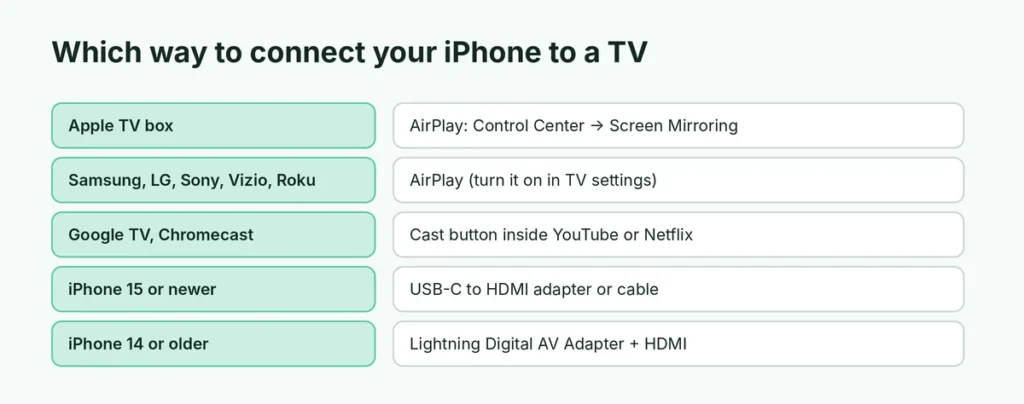
Which method should you use?
| Your TV | Best method | What you need |
|---|---|---|
| Apple TV box | AirPlay | Same Wi-Fi network |
| Smart TV with AirPlay (Samsung, LG, Sony, Vizio, many Roku and Fire TVs) | AirPlay | Same Wi-Fi network |
| Google TV or Chromecast | Cast from the app | Netflix, YouTube and similar apps |
| Any TV with an HDMI port | Wired | USB-C to HDMI adapter (iPhone 15+) or Lightning Digital AV Adapter |
| Older TV without AirPlay | Wired, or a streaming stick with AirPlay | HDMI adapter, or a Roku/Apple TV device |
Method 1: AirPlay screen mirroring (wireless)
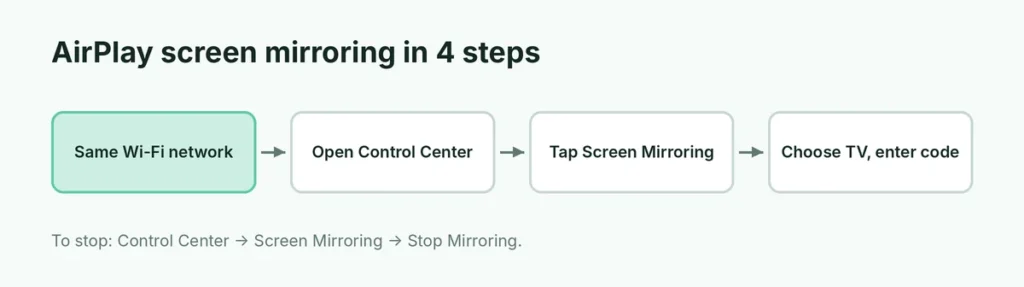
Screen Mirroring shows exactly what’s on your iPhone screen on the TV: photos, apps, games, web pages, everything.
- Turn on the TV and make sure your iPhone and TV are on the same Wi-Fi network.
- On your iPhone, open Control Center: swipe down from the top-right corner (on iPhones with a Home button, swipe up from the bottom).
- Tap Screen Mirroring (two overlapping rectangles).
- Choose your TV from the list.
- If a code appears on the TV, type it on your iPhone.
Your iPhone screen now appears on the TV. Turn the iPhone sideways to fill the TV screen in videos and photos. To stop, open Control Center → Screen Mirroring → Stop Mirroring.
Turn on AirPlay on your TV
AirPlay is sometimes switched off in the TV’s settings:
- Samsung: Settings → General (or Connection) → Apple AirPlay Settings → AirPlay → On.
- LG: open Home Dashboard → AirPlay → AirPlay and HomeKit Settings → turn AirPlay on.
- Roku: Settings → Apple AirPlay and HomeKit → AirPlay → On.
- Vizio, Sony and others: search the settings for AirPlay, or check that the TV software is up to date.
Method 2: AirPlay a single video or photo
You don’t have to mirror the whole screen. In many apps you can send just the video to the TV, which keeps your iPhone free for other things and usually gives better quality.
- Start a video in Photos, Apple TV, YouTube or another app.
- Tap the AirPlay icon (a rectangle with a triangle at the bottom) or the Share button → AirPlay.
- Choose your TV.
The video plays on the TV while you use other apps on your iPhone, and the iPhone works as a remote for pause and volume.
Method 3: Use an HDMI cable (works with almost any TV)
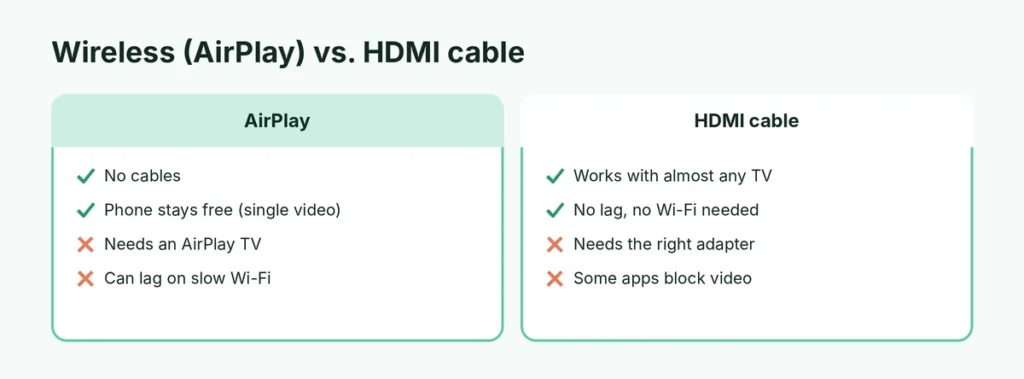
A cable is the most reliable option: no Wi-Fi needed, no lag, and it works with TVs that have no smart features.
iPhone 15 and newer (USB-C)
- Get a USB-C to HDMI adapter or a USB-C to HDMI cable (from Apple or a reputable brand).
- Plug the USB-C end into your iPhone and the HDMI end into the TV.
- Switch the TV’s input/source to that HDMI port.
The iPhone screen appears on the TV automatically. Many adapters also have a charging port so your battery doesn’t run down during long videos.
iPhone 14 and older (Lightning)
- Get Apple’s Lightning Digital AV Adapter and a normal HDMI cable.
- Connect the adapter to your iPhone, the HDMI cable to the adapter and the TV.
- Switch the TV input to the right HDMI port.
Note on cheap adapters: very cheap Lightning-to-HDMI adapters often stop working after an iOS update or ask you to install an app. Apple’s own adapter works without any app.
Netflix and some streaming apps may block wired or mirrored playback because of copy protection, showing a black screen while sound plays. Use the TV’s own Netflix app instead, or AirPlay where the app supports it.
Method 4: Google TV, Chromecast and other TVs
TVs with Google TV, Android TV or a Chromecast don’t support AirPlay unless the manufacturer added it. You can still send videos:
- In YouTube, Netflix, Disney+, Prime Video and many other apps, tap the Cast icon (a rectangle with Wi-Fi waves) and choose your TV.
- Full-screen mirroring to a Chromecast needs a third-party mirroring app from the App Store; these usually show ads or need a subscription, and quality is lower than AirPlay.
Amazon Fire TV: some newer Fire TV models support AirPlay (look for AirPlay & HomeKit in Settings → Display & Sounds). Otherwise, cast from apps that support it.
Method 5: Old TV without AirPlay or HDMI-friendly features?
If your TV has an HDMI port but no smart features, a cable (Method 3) is the cheapest fix. For wireless streaming, plug in a Roku streaming stick or an Apple TV box: both add AirPlay to any TV with HDMI.
Can you connect an iPhone to a TV with a USB cable?
Not for video. Plugging an iPhone into the TV’s USB port with a normal charging cable usually only charges the phone; most TVs can’t show its screen or play its videos that way. To see your iPhone on the TV with a cable, you need an HDMI adapter (Method 3).
Connect iPhone to a projector or computer monitor
The same methods work for projectors and monitors. Any projector or monitor with an HDMI input works with the USB-C or Lightning HDMI adapter. Some newer monitors also accept USB-C video, so a single USB-C cable from an iPhone 15 or newer can be enough. For presentations, open Keynote or PowerPoint: when connected, the slides show full screen on the projector while your iPhone displays your notes.
Use your iPhone as a remote
If you have an Apple TV, open Control Center and tap the Remote button to control it with your iPhone, including typing passwords and search terms with the iPhone keyboard. Samsung, LG, Roku and Google TV also have free remote apps (SmartThings, LG ThinQ, Roku, Google TV) that work over Wi-Fi.
Mirroring not working? Try these fixes
- Same Wi-Fi: both devices must be on the same network, not one on 5 GHz guest Wi-Fi and the other on the main network. Turn off VPN apps and Personal Hotspot on the iPhone.
- TV not in the list: turn on AirPlay in the TV settings, restart the TV (unplug it for 30 seconds) and restart the iPhone.
- Update both devices: update the TV’s software and your iPhone. Here’s how to update your iPhone.
- Lag or stuttering: move the iPhone closer to the router, close other apps, or use AirPlay for a single video instead of full mirroring.
- No sound on the TV: check the TV volume, and that the iPhone’s silent mode isn’t affecting the app. With AirPlay, sound plays from the TV, not the phone.
- Black screen with HDMI: reconnect the adapter, try another HDMI port, check the TV input, and try a different app (some streaming apps block wired output).
- “Restrictions” or Screen Time: if Screen Mirroring is missing, check Settings → Screen Time → Content & Privacy Restrictions.
Wireless problems on iPhone often have the same causes as AirDrop issues; the checklist in AirDrop not working (Wi-Fi, Bluetooth and hotspot settings) helps here too.
Tips for the best picture
- Turn the iPhone sideways for full-screen video.
- Turn on Do Not Disturb or a Focus so notifications don’t pop up on the TV during a presentation or movie night.
- Use AirPlay from the app rather than full mirroring for long videos: it’s smoother and saves battery.
- Want to record what you’re showing? Here’s how to screen record on iPhone.
The short version
For a smart TV with AirPlay or an Apple TV, join the same Wi-Fi, open Control Center, tap Screen Mirroring and choose the TV. For any TV with HDMI, use a USB-C to HDMI adapter (iPhone 15 and newer) or Apple’s Lightning Digital AV Adapter (older iPhones) and switch the TV input. On Google TV and Chromecast, use the Cast button inside apps like YouTube and Netflix.