By
By 
Can’t see comments on YouTube, or some videos say they’re unavailable with Restricted Mode enabled? Restricted Mode is YouTube’s optional filter that hides videos that may be mature. Here’s how to turn off YouTube Restricted Mode on a computer, Android, iPhone and TV, and what to do when the switch is locked by a school, workplace or parent.
Short answer: on a computer, click your profile picture → Restricted Mode → turn off Activate Restricted Mode. In the YouTube app, tap your profile picture → Settings (gear icon) → General → turn off Restricted Mode. If it says “Restricted Mode has been enabled by your network administrator” or the switch is greyed out, a school, work or public network, a Family Link setting, or your router controls it, so you can’t turn it off yourself.
Applies to: YouTube website, YouTube app for Android and iPhone, smart TVs, October 2026.
What Restricted Mode does
When Restricted Mode is on:
- Videos that may contain mature content are hidden from search and recommendations.
- Comments on all videos are hidden.
- Some age-restricted videos won’t play.
It doesn’t block everything, but it’s a basic filter for families and schools.
How to turn off Restricted Mode on a computer
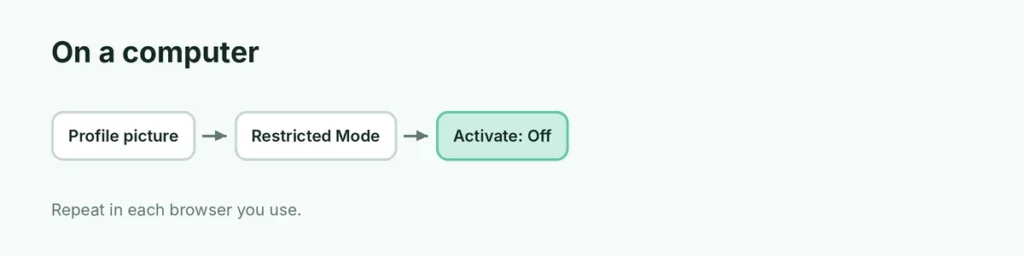
- Go to youtube.com.
- Click your profile picture (top right). If you’re signed out, click the three dots instead.
- Click Restricted Mode: On at the bottom of the menu.
- Turn off Activate Restricted Mode.
The page reloads and shows all videos.
Note: on a computer, this setting applies to that browser only. If you use several browsers, turn it off in each.
How to turn off Restricted Mode in the YouTube app
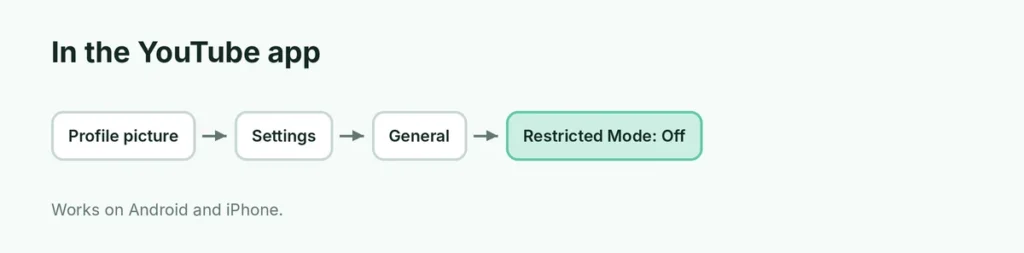
- Open the YouTube app.
- Tap your profile picture (bottom right, You tab).
- Tap Settings (gear icon, top right).
- Tap General.
- Turn off Restricted Mode.
How to turn off Restricted Mode on a smart TV
- Open YouTube on your TV.
- Go to Settings (gear icon on the left menu).
- Choose Restricted Mode and select Off (or turn it off).
Restricted Mode won’t turn off?
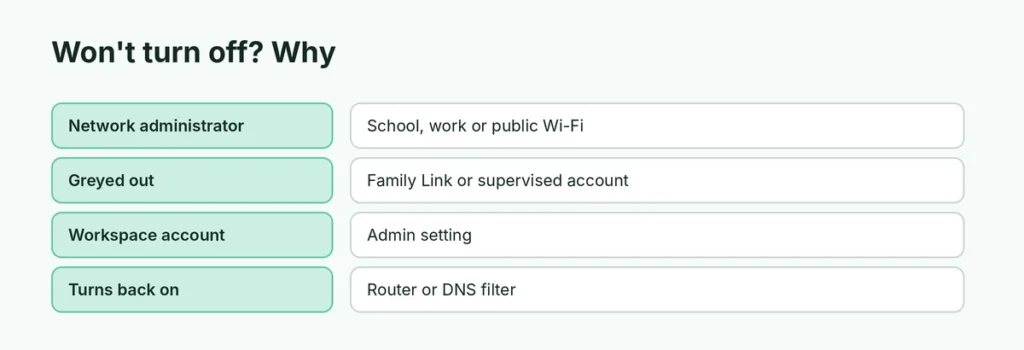
| Message or problem | Why | Fix |
|---|---|---|
| Enabled by your network administrator | School, work or public Wi-Fi forces it | Ask the admin, or use your own mobile data where allowed |
| Greyed out on a child account | Family Link or supervised account | Parent changes it in Family Link |
| Locked on Chromebook or work account | Google Workspace admin setting | Contact the admin |
| Turns back on by itself | Router or DNS filter at home | Check router parental controls |
| Only one browser | Setting is per browser | Turn it off in each browser |
Network or DNS filters: many home routers and family DNS services force YouTube Restricted Mode for every device. Check your router’s app or admin page for “YouTube Restricted Mode” or “SafeSearch”.
Restricted Mode vs. SafeSearch
Restricted Mode is YouTube’s filter; SafeSearch is Google Search’s filter. They’re separate settings, but schools often lock both. Here’s how to turn off SafeSearch on Google.
Is it okay to turn off Restricted Mode?
For adults, yes. It simply shows all videos and comments. On a family device, keep it on, or give kids a supervised YouTube account or YouTube Kids instead, which offer better controls than Restricted Mode alone.
Related guides
- How to turn off SafeSearch on Google
- How to download YouTube videos legally
The short version
On a computer, click your profile picture → Restricted Mode → turn off Activate Restricted Mode (in each browser). In the app, go to Settings → General → Restricted Mode. If it’s locked, a network admin, Family Link or your router controls it.
Sources
- YouTube Help: Turn Restricted Mode on or off on YouTube