By
By 
If you have ever used WhatsApp on a computer at work, a friend’s laptop or a cyber café, there is a chance that session is still open. Anyone who sits down at that browser can read your chats as they arrive, scroll back through old ones and send messages as you. Your phone gives no obvious sign that this is happening.
The good news is that WhatsApp keeps a complete list of every computer and browser connected to your account, and checking it takes about ten seconds. This guide shows you where that list is, how to read it, what to do if you find something you don’t recognise, and how to stop it happening again.
Short answer: on Android, tap the three dots → Linked devices; on iPhone, tap Settings → Linked Devices. Every computer, browser and tablet using your WhatsApp is listed there. Tap any device you don’t recognise, or one showing Active now while you aren’t using a computer, and tap Log out. Then turn on two-step verification.
Applies to: WhatsApp on Android and iPhone, with WhatsApp Web, the desktop app and companion phones or tablets, October 2026.
Where to find your linked devices
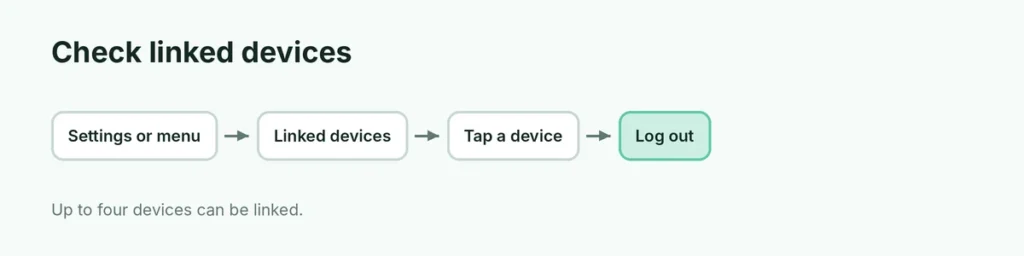
- Android: open WhatsApp → tap the three-dot menu (⋮) at the top right → Linked devices.
- iPhone: open WhatsApp → Settings → Linked Devices.
The screen shows a Link a device button at the top and, below it, every device currently connected to your account. If the list under the button is empty, no computer, browser or tablet has access to your WhatsApp right now.
How to read the list
Each entry tells you two things, and both matter.
The device name. For a browser, WhatsApp shows the browser and the operating system, such as “Google Chrome (Windows)” or “Safari (Mac OS)”. For the desktop app, it usually shows the computer’s name or the operating system. Ask yourself whether you have actually used WhatsApp on a device like that. If you only ever use Chrome on your own laptop, a “Microsoft Edge (Windows)” entry deserves a closer look.
The activity line. Under the name you will see either Active now or Last active followed by a time or date. “Active now” means that device has WhatsApp open at this moment. If you are holding your phone and the only computer you use is switched off, an “Active now” entry is a serious warning sign.
An old entry you simply forgot about, such as a laptop you sold last year, is not proof that someone is reading your messages. But it is an open door, and there is no reason to leave it open.
How many devices can be linked?
You can link up to four devices at once alongside your main phone: computers, browsers, tablets or even a second phone. Each linked device works on its own, without your phone being online, but if you don’t use your main phone for about 14 days, WhatsApp logs the linked devices out.
When all four slots are full, you’ll see a “maximum number of devices” message while linking. Log out one you no longer use, then try again.
Other signs someone else is using your WhatsApp
The linked devices list is the most reliable check, but these clues are worth noticing too:
- Messages show as read before you opened them. If a chat has no unread badge but you know you haven’t seen those messages, they may have been opened on another device.
- Sent messages you didn’t write. Scroll through recent chats, including groups, for anything you don’t remember sending.
- Contacts mention messages from you asking for money, codes or for them to “vote” in a contest. That is the typical behaviour of a hijacked account.
- Your phone says your number is no longer registered on WhatsApp. This is different from a linked device: it means someone has registered your number on their own phone. Jump to what to do if your account was taken over.
How to remove a device you don’t recognise
- Open Linked devices on your phone.
- Tap the device you want to remove.
- Tap Log out and confirm.
The effect is immediate. If someone has that browser open, the chats disappear from their screen and they see the QR code login page again. They cannot get back in without scanning a new code from your phone.
If you are not sure which entries are yours, the safest move is to log out of all of them. Logging back in on your own computer only takes a QR scan, as explained in our WhatsApp Web login guide.
The warning WhatsApp now shows before a new device links
Since late June 2026, WhatsApp checks new device-link requests for signs of a scam. If something looks unusual, it shows a warning before the device is linked, including the rough location the request is coming from, and explains that the device would be able to read your chats and send messages.
If you see this warning and you are not the one setting up a new computer right now, tap Don’t link. The most common trick behind these requests is a message, often from a friend’s hacked account, asking you to vote in a contest or claim a prize by entering a code. That “code” is actually a device-link code, and entering it hands the scammer access to your account.
The rule is simple: only scan a WhatsApp QR code or enter a linking code when you are the one logging in, on a screen in front of you. Never because someone asked you to.
Lock it down so it doesn’t happen again
Three settings make it much harder for anyone to get into your account, whether through a linked device or by taking over your number.
- Turn on two-step verification. Settings → Account → Two-step verification → Turn on. You choose a 6-digit PIN that WhatsApp asks for whenever your number is registered on a new phone. Add an email address so you can reset the PIN if you forget it.
- Turn on the app lock. If your phone supports fingerprint or face unlock, WhatsApp can require it every time the app opens (on Android: Settings → Privacy → App lock). Someone who borrows your unlocked phone for a minute then can’t open WhatsApp and quietly scan a QR code to link their own computer.
- Check Linked devices once a month. Put a reminder on your phone. It takes ten seconds and catches forgotten sessions before they become a problem.
What to do if your account was taken over
If WhatsApp on your phone has logged you out and says your number is registered on another device, someone has moved your account to their phone. Act quickly:
- Open WhatsApp and register your number again. You will receive an SMS code. Entering it on your phone pushes the other person out.
- If WhatsApp asks for a two-step verification PIN you never set, the attacker set it. You can still log back in, but you may have to wait before WhatsApp lets you in without the PIN. Keep trying the SMS code in the meantime.
- Once you are back in, go to Linked devices and log out of everything, then turn on two-step verification with your own PIN.
- Tell your contacts, especially family groups, that any messages asking for money or codes in the meantime were not from you.
Never share the 6-digit SMS code WhatsApp sends you with anyone, whoever they claim to be. WhatsApp staff will never ask for it.
Related guides
- WhatsApp Web vs the desktop app: which to use
- How to log out of WhatsApp Web remotely
- How to use two WhatsApp accounts on one phone
The short version
Open Linked devices on your phone. Anything you don’t recognise, or anything showing “Active now” when you aren’t using a computer, tap it and log out. Turn on two-step verification and the app lock, never enter a linking code because someone asked you to, and check the list once a month. If you’re having trouble linking your own computer, see how to fix a WhatsApp Web QR code that won’t scan. If your phone was lost or stolen, see what to do in our guide to deleting or deactivating a WhatsApp account.
Sources
- WhatsApp Blog: One WhatsApp account, now across multiple phones
- WABetaInfo: WhatsApp protects users from a common device linking scam
- BusinessDay: WhatsApp introduces linked device alerts