By
By 
Some websites need pop-ups to work: bank statements, school portals, payment pages, printing tools and sign-in windows often open in a new pop-up window. If your browser blocks them, the button just does nothing. Here’s how to turn off the pop-up blocker in Chrome, Safari, Edge and Firefox, and how to allow pop-ups for only one site, which is the safer choice.
Short answer: in Chrome, go to Settings → Privacy and security → Site settings → Pop-ups and redirects and choose Sites can send pop-ups and use redirects, or add just one site under Allowed. In Safari on iPhone, go to Settings → Apps → Safari and turn off Block Pop-ups. In Safari on Mac, go to Safari → Settings → Websites → Pop-up Windows. In Edge, go to Settings → Cookies and site permissions → Pop-ups and redirects. In Firefox, go to Settings → Privacy & Security and uncheck Block pop-up windows.
Applies to: current versions of Chrome, Safari (iOS 26, macOS 26), Edge and Firefox, October 2026.
Allow pop-ups for one site (recommended)
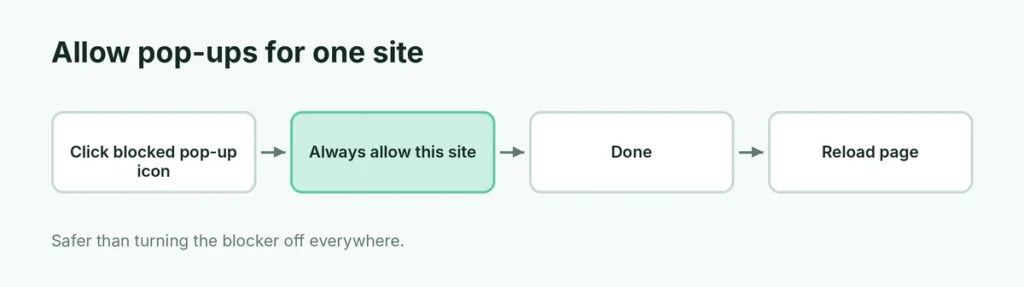
Turning the blocker off for every website lets annoying and sometimes harmful pop-ups through. It’s better to allow only the site you trust.
Quickest way in Chrome or Edge: when a pop-up is blocked, you’ll see a small blocked pop-up icon in the address bar. Click it, choose Always allow pop-ups and redirects from this site, and click Done. Then reload the page.
How to turn off the pop-up blocker in Chrome (computer)
- Click the three dots (top right) → Settings.
- Click Privacy and security → Site settings.
- Click Pop-ups and redirects.
- Choose Sites can send pop-ups and use redirects (turns the blocker off), or next to Allowed to send pop-ups and use redirects, click Add and type the site address.
You can also paste chrome://settings/content/popups into the address bar to jump straight there.
Chrome on Android and iPhone
- Android: Chrome → three dots → Settings → Site settings → Pop-ups and redirects → turn it on to allow pop-ups.
- iPhone/iPad: Chrome → three dots → Settings → Content Settings → Block Pop-ups → turn it off.
How to turn off the pop-up blocker in Safari
iPhone and iPad:
- Open Settings → Apps → Safari (on older iOS: Settings → Safari).
- Turn off Block Pop-ups.
Mac:
- Open Safari and go to Safari → Settings → Websites.
- Click Pop-up Windows in the left list.
- Next to the website, choose Allow. For all other sites, set When visiting other websites to Allow, Block and Notify or Block.
Block and Notify is a good middle ground: Safari blocks pop-ups but shows a button so you can open one when you need it.
How to turn off the pop-up blocker in Edge
- Click the three dots → Settings.
- Click Cookies and site permissions (on some versions: Privacy, search, and services → Site permissions).
- Click Pop-ups and redirects.
- Turn off Block (recommended), or add a site under Allow.
How to turn off the pop-up blocker in Firefox
- Click the menu (three lines) → Settings.
- Click Privacy & Security.
- Scroll to Permissions.
- Uncheck Block pop-up windows, or click Exceptions to allow just one site.
Quick comparison
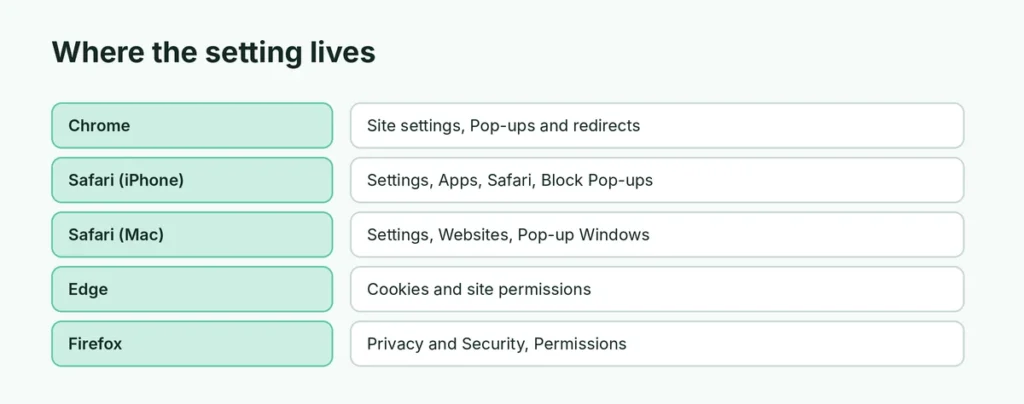
| Browser | Where the setting lives |
|---|---|
| Chrome | Privacy and security → Site settings → Pop-ups and redirects |
| Safari (iPhone) | Settings → Apps → Safari → Block Pop-ups |
| Safari (Mac) | Safari → Settings → Websites → Pop-up Windows |
| Edge | Cookies and site permissions → Pop-ups and redirects |
| Firefox | Privacy & Security → Permissions → Block pop-up windows |
Pop-ups still blocked after turning it off?
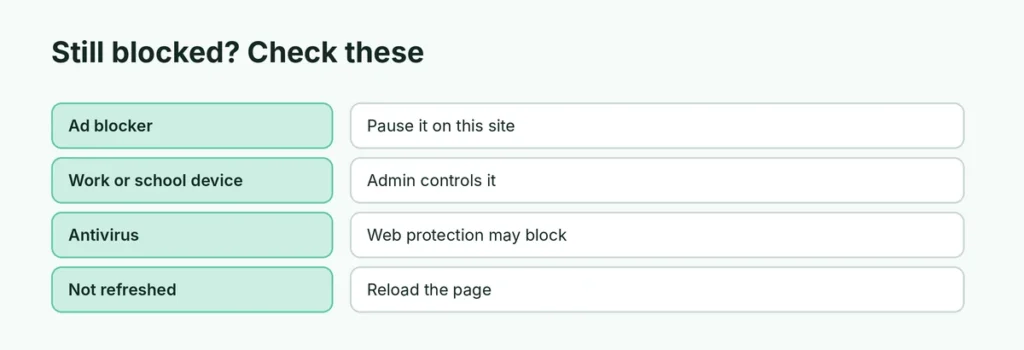
- Ad blocker extension: extensions like uBlock Origin or AdBlock can block pop-ups too. Pause the extension on that site.
- Work or school computer: your IT admin may control the setting.
- Antivirus web protection: some security tools add their own pop-up blocking.
- Reload the page: changes often need a refresh.
- Private or incognito window: settings can differ; try a normal window.
Is it safe to turn off the pop-up blocker?
For a trusted site, yes. But leaving it off for all sites can expose you to fake virus warnings, scam “prize” windows and unwanted redirects. If you see a pop-up saying your device is infected and to call a number, close it; that’s a scam. When you’re done, turn the blocker back on or keep only trusted sites allowed.
Related guides
- How to make Chrome your default browser
- How to check your iPhone for viruses
The short version
Allow pop-ups only for the site that needs them: click the blocked pop-up icon in Chrome or Edge’s address bar, or add the site under Allowed in Pop-ups and redirects. On iPhone, turn off Settings → Apps → Safari → Block Pop-ups; on Mac, use Safari → Settings → Websites → Pop-up Windows; in Firefox, uncheck Block pop-up windows. Turn the blocker back on when you’re done.
Sources
- Google Chrome Help: Block or allow pop-ups in Chrome