By
By 
You open WhatsApp Web, point your phone at the QR code, and nothing happens. Or the scanner opens to a black screen. Or it scans, spins, and fails. In almost every case the cause is one of nine things, and most take under a minute to fix.
The fixes below are ordered from most likely to least likely, so work through them top to bottom. If you only want to get logged in right now and don’t care why the QR code failed, skip straight to fix 9: it lets you link with your phone number and never have to scan anything.
Short answer: scan from Linked devices → Link a device inside WhatsApp, not your camera app. If it still fails, reload the code, turn up screen brightness, reset browser zoom with Ctrl + 0, or skip the code and use Log in with phone number.
Applies to: WhatsApp on Android and iPhone with WhatsApp Web in Chrome, Edge, Firefox or Safari, and the desktop app for Windows and Mac, October 2026.
How I tested this
Tested on a Realme 8 (Android 13, WhatsApp 2.26.39.72) and a Windows 11 laptop with Chrome, October 2026.
First, a quick check: are you scanning from inside WhatsApp?
This is the single most common reason the code “doesn’t work”. The WhatsApp Web QR code can only be read by the scanner inside the WhatsApp app. If you point your phone’s regular camera app or Google Lens at it, the phone just recognises a link to web.whatsapp.com and offers to open it in a browser. Nothing gets linked.
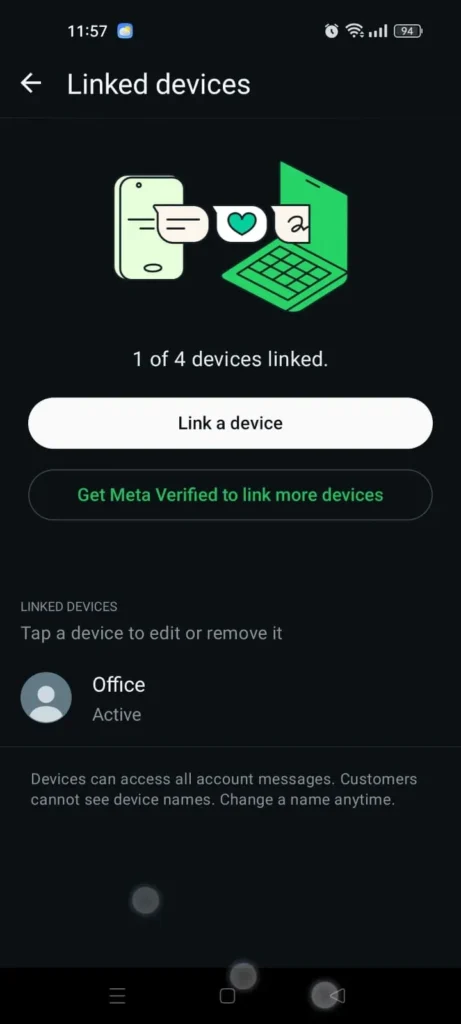
To open the right scanner:
- Android: open WhatsApp → tap the three-dot menu (⋮) at the top right → Linked devices → Link a device.
- iPhone: open WhatsApp → Settings (bottom right) → Linked Devices → Link a Device.
If you have fingerprint or face unlock turned on, WhatsApp asks you to verify first. The scanner opens after that.
If you were already using the in-app scanner and it still fails, carry on with the fixes below.
Fix 1: Reload the QR code (it expires)
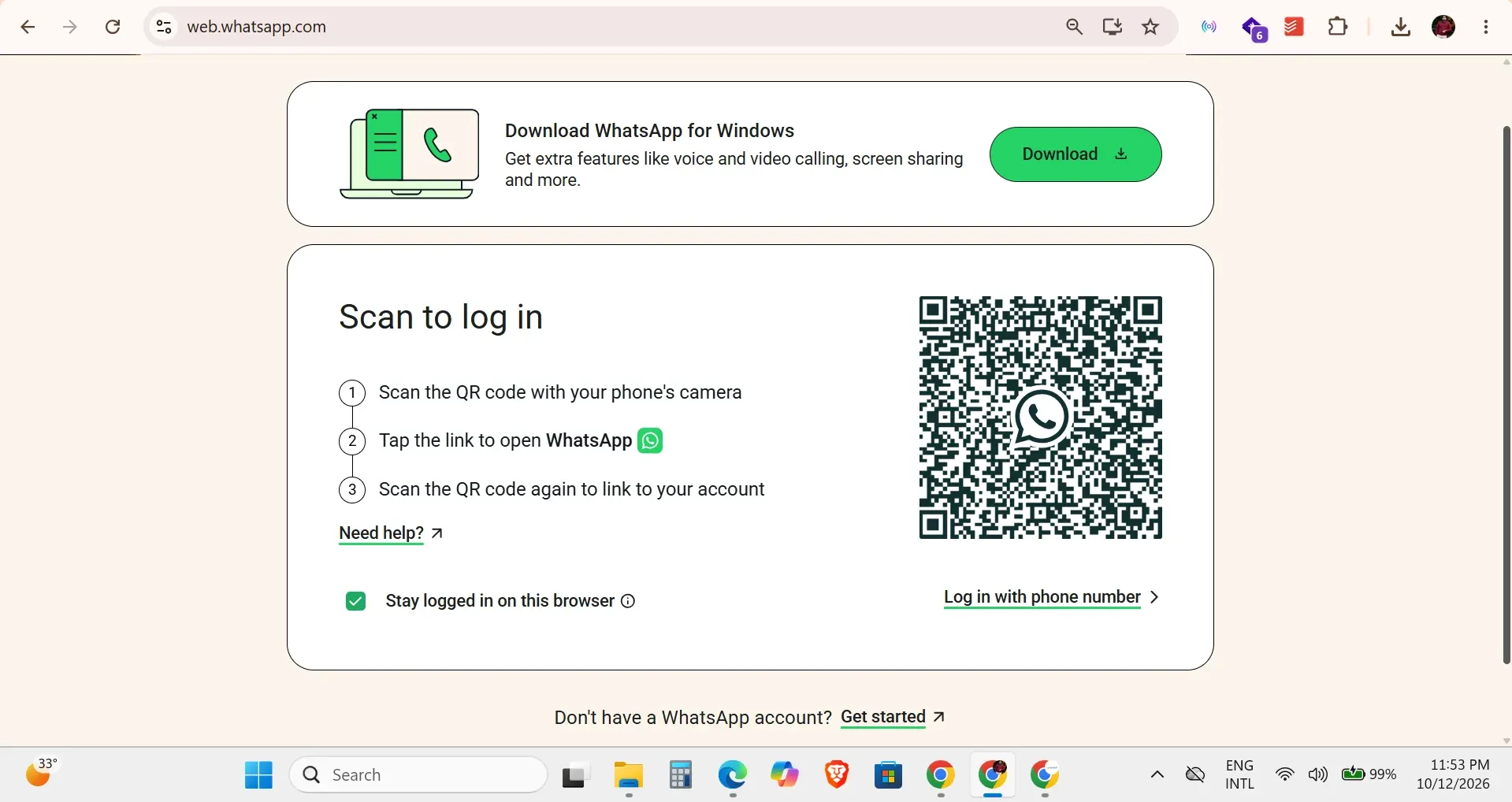
The code on web.whatsapp.com is only valid for a short time. WhatsApp refreshes it automatically a few times, but if the page has been sitting open for a while it stops and greys the code out with a “Click to reload the QR code” prompt. A greyed-out code will never scan.
Click the reload prompt, or simply refresh the page (F5 on Windows, Cmd + R on Mac), and scan the new code straight away.
Fix 2: Give WhatsApp permission to use the camera
If the scanner opens but shows a black screen, or WhatsApp says it needs camera access, the camera permission is switched off. This often happens after a phone update or if you tapped “Don’t allow” once and forgot.
- Android: Settings → Apps → WhatsApp → Permissions → Camera → Allow only while using the app. Menu names vary slightly between phone brands.
- iPhone: Settings → WhatsApp → turn on Camera.
Close WhatsApp completely, open it again and go back to Linked devices.
Fix 3: Fix what’s on your computer screen
The scanner needs a clean, sharp, evenly lit image. Four things get in the way more often than people expect:
- Low brightness. Turn your monitor or laptop brightness up. Night-light and blue-light filters can also wash out the contrast, so switch them off for a moment.
- Glare. A lamp or window reflecting on the screen hides part of the code. Tilt the screen or the phone until the reflection is gone.
- Browser zoom. If the page is zoomed in or out, the code can be too big to fit in the scanner frame or too small to read. Press Ctrl + 0 (Cmd + 0 on Mac) to reset zoom to 100%.
- Distance and a dirty lens. Hold the phone so the code fills most of the scanner frame, keep it still for a second, and wipe the camera lens.
Fix 4: Turn off dark-mode and ad-blocking extensions
This one catches a lot of people. Dark-mode extensions such as Dark Reader can invert the colours of the page, turning the black-on-white QR code into white-on-black. Some scanners can’t read an inverted code. Ad blockers and privacy extensions can also stop the page from loading the code properly.
The fastest test is to open web.whatsapp.com in a private window (Ctrl + Shift + N in Chrome and Edge, Ctrl + Shift + P in Firefox), where most extensions are switched off. If the code scans there, disable your extensions one by one in the normal window to find the culprit, or add web.whatsapp.com to its exceptions list.
Fix 5: Check the internet on both devices
Your computer needs a connection to load the QR code, and your phone needs one to complete the link. Once a device is linked, the phone no longer has to stay online, but at the moment of scanning it does.
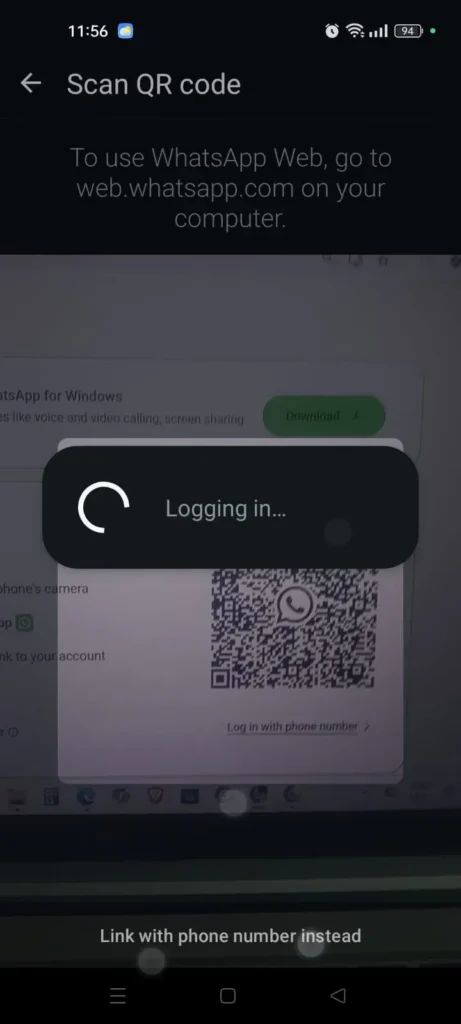
If the scan succeeds but the screen gets stuck on “Logging in…” or keeps spinning, the connection is usually the problem:
- Switch the phone between Wi-Fi and mobile data and try again.
- Turn off any VPN on the phone or computer while linking.
- Office, school and some public Wi-Fi networks block WhatsApp Web. If you’re on one, try a mobile hotspot instead.
Fix 6: Clear the site data for web.whatsapp.com
A corrupted cache from an earlier session can stop the page from generating a working code. You don’t need to wipe your whole browser, just this one site:
- On web.whatsapp.com, click the icon to the left of the address bar (a padlock or settings icon).
- Choose Site settings (Chrome, Edge) or Clear cookies and site data (Firefox).
- Clear the data, reload the page and scan the new code.
Clearing site data also logs out any WhatsApp Web session in that browser, so only do this on the browser you’re trying to fix.
Fix 7: Update WhatsApp and your browser
An outdated WhatsApp app can fail to link with the current version of WhatsApp Web. Update it from the Play Store or App Store, then try again. On the computer side, WhatsApp Web works in current versions of Chrome, Edge, Firefox, Safari and Opera, so make sure your browser is up to date too. Very old browsers may load the page but fail at the linking step.
Fix 8: Remove an old linked device
WhatsApp lets you link up to four devices to one account, alongside your main phone. If you’ve already used all four (an old laptop, an office PC, a tablet, a browser you no longer use), a new one may not link.
Open Linked devices on your phone, tap any device you don’t recognise or no longer use, and choose Log out. This is worth doing regularly anyway: anyone with access to a linked browser can read your chats.
Fix 9: Skip the QR code and link with your phone number
If your phone’s camera is broken, the screen is too dim to fix, or you’ve simply had enough, you don’t need the QR code at all. WhatsApp Web can link with a code instead:
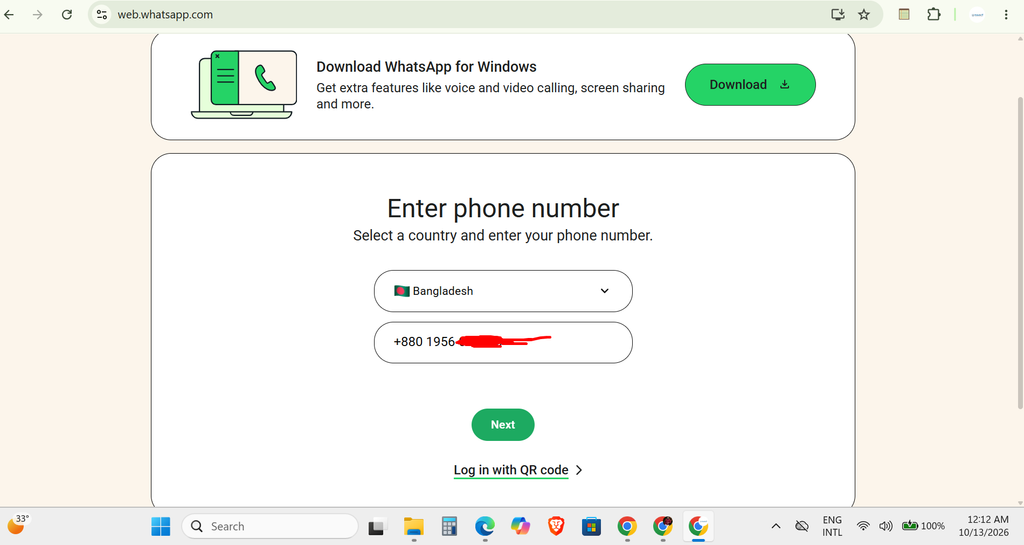
- On web.whatsapp.com, click Log in with phone number under the QR code.
- Choose your country and enter your WhatsApp number. The page shows an 8-character code.
- On your phone, open Linked devices → Link a device, then tap Link with phone number instead at the bottom of the scanner.
- Type the 8-character code. Your chats start loading on the computer.
WhatsApp may also send a notification to your phone asking you to confirm. Never type this code into your phone because someone else asked you to: anyone who gets you to enter their code links their computer to your account.
Still not working?
If none of the nine fixes help, two last things are worth trying. Restart both the phone and the computer, which clears stuck network connections and camera processes in a way that closing apps doesn’t. Then try the WhatsApp desktop app for Windows or Mac instead of the browser. It uses the same linking process but doesn’t depend on browser settings or extensions.
If you’re new to WhatsApp Web and want the full walkthrough from the start, including how to stay safe on shared computers, see our complete WhatsApp Web login guide. You can also check WhatsApp’s own instructions on how to link a device.
The short version
Scan from Linked devices inside WhatsApp, not your camera app. Reload the code if it has greyed out. Turn up the brightness and reset browser zoom. If it still won’t scan, try a private window, and if you just need to get in, use Log in with phone number instead. Once you’re in, decide whether to keep using the browser or install the app with our WhatsApp Web vs desktop app comparison, and if you used a shared computer, here’s how to log out of WhatsApp Web remotely from your phone.
Sources
- WhatsApp Help Center: How to link a device
- WhatsApp: Download WhatsApp for Windows and Mac