By
By 
Typing your passcode many times a day can feel annoying, especially at home. You can turn off the passcode on iPhone, but it comes with real costs: Face ID, Apple Pay and some security features stop working, and anyone who picks up your phone can open it. Here’s how to do it, what you lose, and some safer alternatives.
Short answer: go to Settings → Face ID & Passcode (or Touch ID & Passcode), enter your passcode, scroll down and tap Turn Passcode Off, then confirm. If the button is greyed out, a work or school profile (MDM), Screen Time or an email account policy requires a passcode. If Stolen Device Protection is on and you’re away from a familiar place, iPhone may ask for Face ID and make you wait one hour first.
Applies to: iPhone on iOS 26 and iOS 27. Last checked in October 2026.
Before you turn off your passcode
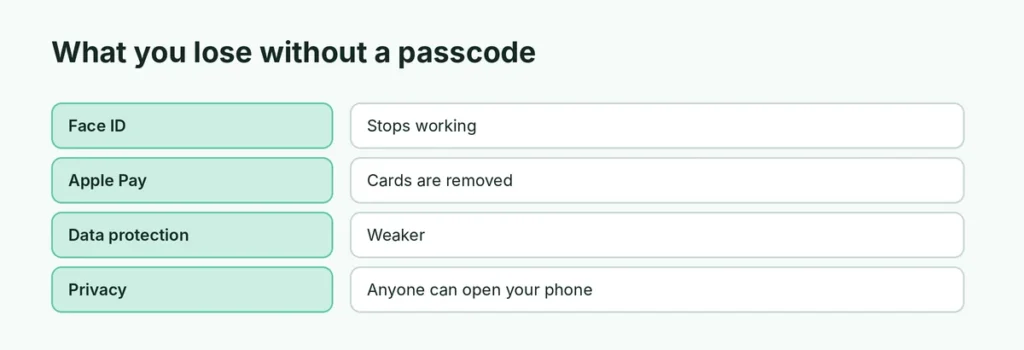
When the passcode is off:
- Face ID / Touch ID stop working for unlocking, apps and passwords.
- Apple Pay cards are removed from Wallet.
- Data protection (encryption tied to your passcode) is weaker.
- Anyone with your phone can see your photos, messages, email and banking apps.
- Some work email and banking apps may stop working or ask you to set a passcode.
How to turn off the passcode on iPhone
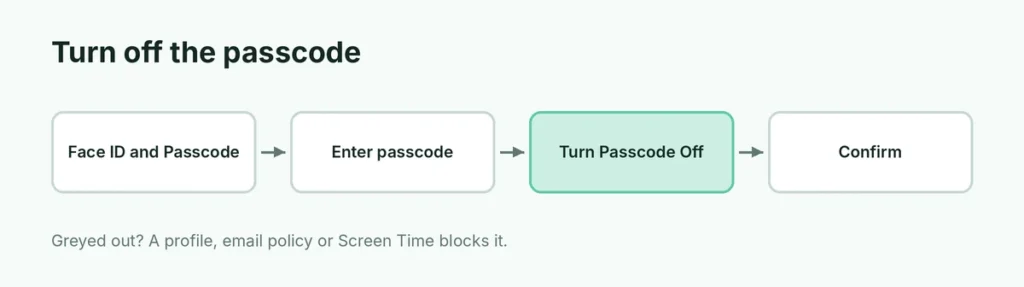
- Open Settings.
- Tap Face ID & Passcode (or Touch ID & Passcode).
- Enter your passcode.
- Scroll down and tap Turn Passcode Off.
- Read the warning and tap Turn Off.
- Enter your Apple Account password if asked.
Turn Passcode Off is greyed out?
| Cause | What to do |
|---|---|
| Work or school profile (MDM) | Check Settings → General → VPN & Device Management; only the organization can remove the rule |
| Email account policy (like Exchange) | Some work email requires a passcode; removing the account may allow it |
| Screen Time restrictions | Screen Time → Content & Privacy Restrictions → Passcode Changes → Allow |
| Stolen Device Protection | Face ID plus a one-hour delay away from familiar places |
Here’s more about Stolen Device Protection.
Safer alternatives to no passcode
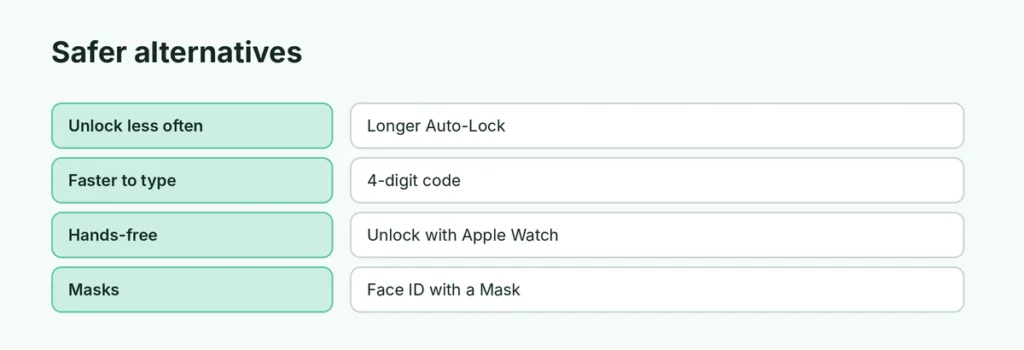
Instead of removing it, make unlocking easier:
| Alternative | How |
|---|---|
| Face ID with a mask | Face ID & Passcode → Face ID with a Mask |
| Longer Auto-Lock | Settings → Display & Brightness → Auto-Lock |
| Shorter numeric code | Change Passcode → Passcode Options → 4-Digit Numeric Code |
| Unlock with Apple Watch | Face ID & Passcode → Unlock with Apple Watch |
| Require Attention off | Face ID & Passcode → turn off Require Attention for Face ID (slightly less secure) |
A 4-digit code is weaker than 6 digits, but much safer than no passcode at all.
How to change your passcode instead
- Settings → Face ID & Passcode.
- Tap Change Passcode.
- Enter the old one, then tap Passcode Options to choose 4-digit, 6-digit, custom number or alphanumeric code.
Forgot your passcode?
If you can’t remember it, you can’t turn it off from Settings. After too many wrong tries, iPhone shows iPhone Unavailable and offers Forgot Passcode? to erase and reset the phone with your Apple Account password. You’ll need a backup to get your data back.
Is it safe to have no passcode?
Not really. If your iPhone is lost or stolen, someone could reset your Apple Account, read your messages and access banking apps. Apple recommends always using a passcode. If you remove it, keep Find My on.
Related guides
The short version
Go to Settings → Face ID & Passcode → Turn Passcode Off and confirm. It removes Apple Pay cards and disables Face ID. If the option is greyed out, a work profile, email policy or Screen Time is blocking it. A longer Auto-Lock or a 4-digit code is a safer middle ground.
Sources
- Apple Support: Use a passcode with your iPhone, iPad, or iPod touch
- Apple Support: About Stolen Device Protection for iPhone