By
By 
AirDrop is the fastest way to send photos, videos and files between Apple devices, until the other person’s iPhone simply doesn’t show up, or the transfer starts and then fails. The good news is that AirDrop problems almost always come down to a handful of settings, and you can check them all in a few minutes.
Short answer: on both devices, turn on Wi-Fi and Bluetooth, turn off Personal Hotspot, keep the screens unlocked and the devices close together. Then set AirDrop to receive: Settings → General → AirDrop → Everyone for 10 Minutes (or Contacts Only if you’re in each other’s contacts). If it still fails, restart both devices and update to the latest iOS or macOS.
Last updated: October 2026. Written for iOS 26, iOS 27 and current macOS versions; the steps are the same on iOS 17 and iOS 18.
How to AirDrop a photo or file (quick refresher)
- Open the photo, document or web page you want to share.
- Tap the Share button (a square with an arrow).
- Tap AirDrop.
- Tap the person’s name or device.
- On the receiving device, tap Accept (it’s automatic if both devices use the same Apple Account).
If the person doesn’t appear in step 4, work through the checklist and fixes below.
Quick checklist (do this first)
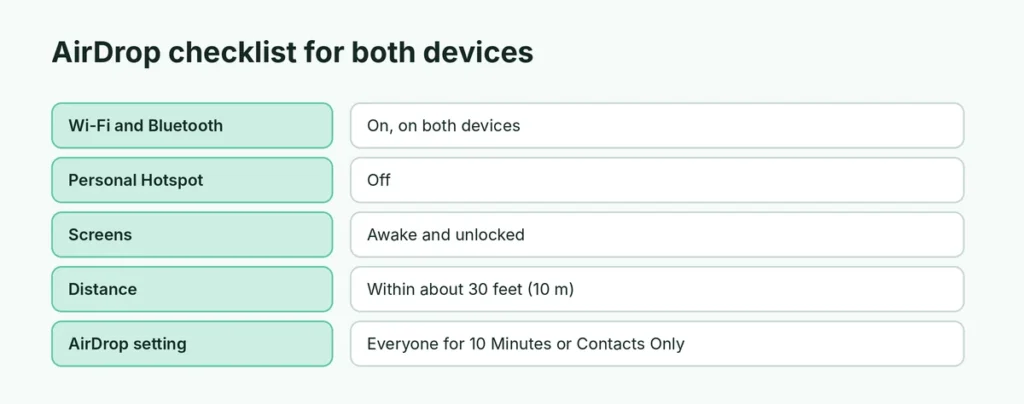
| Check | Why it matters |
|---|---|
| Wi-Fi and Bluetooth on, on both devices | AirDrop uses Bluetooth to find devices and Wi-Fi to send |
| Personal Hotspot off | AirDrop can’t work while your iPhone shares its connection |
| Both screens awake and unlocked | Locked or sleeping devices don’t appear |
| Devices within about 30 feet (10 meters) | Bluetooth range is limited; closer is better |
| Receiver set to Everyone for 10 Minutes or Contacts Only | “Receiving Off” hides the device |
| Airplane Mode and Focus off | Can block or hide incoming requests |
Most “AirDrop not working” problems are fixed by this list alone.
Fix 1: Set who can AirDrop to you

AirDrop has three settings:
- Receiving Off: nobody can see you.
- Contacts Only: only people saved in your contacts can see you, and only if their Apple Account email or phone number is in your contact card for them, and yours is in theirs.
- Everyone for 10 Minutes: anyone nearby can see you for 10 minutes, then it switches back to Contacts Only automatically.
On iPhone or iPad:
- Open Settings → General → AirDrop.
- Tap Everyone for 10 Minutes (or Contacts Only).
You can also open Control Center, press and hold the network box (with Wi-Fi and Bluetooth), tap AirDrop, and choose an option.
On Mac: open Finder, choose AirDrop in the sidebar (or press Shift + Command + R), and set Allow me to be discovered by to Everyone or Contacts Only.
Tip: if Contacts Only doesn’t work between friends, it’s usually because the email or number in the contact card doesn’t match the one they use for their Apple Account. Use Everyone for 10 Minutes for a quick transfer.
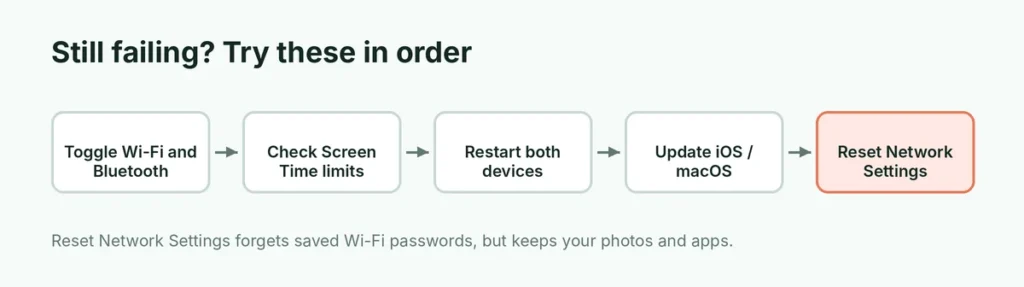
Fix 2: Turn Wi-Fi and Bluetooth off and on
- Open Settings → Wi-Fi and turn it off, wait five seconds, and turn it back on.
- Do the same in Settings → Bluetooth.
Use Settings, not Control Center: tapping the Wi-Fi or Bluetooth buttons in Control Center only disconnects them temporarily instead of fully turning them off.
Fix 3: Turn off Personal Hotspot
If you’re sharing your iPhone’s internet with a laptop or tablet, AirDrop won’t work. Open Settings → Personal Hotspot and turn off Allow Others to Join, or in Control Center, press and hold the network box and tap Personal Hotspot so it’s no longer discoverable. Turn it back on after the transfer.
Fix 4: Unlock both devices and bring them closer
The receiving iPhone must be awake and unlocked to appear in the AirDrop list. Keep both devices within a few feet of each other, especially in busy places with lots of Wi-Fi and Bluetooth interference. On recent iPhones you can also simply hold the tops of two iPhones close together to start sharing (a feature called NameDrop / Bringing Devices Together); check it’s turned on in Settings → General → AirDrop.
Fix 5: Check Screen Time restrictions
If AirDrop is missing from Settings or the Share sheet, it may be blocked:
- Open Settings → Screen Time → Content & Privacy Restrictions.
- Tap Allowed Apps & Features (or Allowed Apps).
- Make sure AirDrop is turned on.
On a work or school iPhone, your organization may have disabled AirDrop.
Fix 6: Restart both devices
A restart clears temporary glitches in the wireless chips. Turn both devices off and on again. If an iPhone is frozen, here’s how to hard reset any iPhone without losing data.
Fix 7: Update iOS and macOS
AirDrop bugs are often fixed in software updates, and very different versions sometimes don’t work well together. Update both devices: on iPhone, Settings → General → Software Update. Here’s how to update your iPhone step by step, including what to do if the update gets stuck.
Fix 8: Reset network settings (last resort)
If AirDrop still fails on one iPhone with every other device, reset its network settings:
- Open Settings → General → Transfer or Reset iPhone.
- Tap Reset → Reset Network Settings.
This forgets saved Wi-Fi networks and passwords, Bluetooth pairings and VPN settings, but doesn’t delete your photos or apps. You’ll need to reconnect to Wi-Fi afterwards.
AirDrop not working on Mac
Besides the checklist above:
- Check the firewall: System Settings → Network → Firewall → Options, and turn off Block all incoming connections.
- Make sure the Mac is awake and the Finder window with AirDrop open helps it stay discoverable.
- Check the Mac is new enough: most Macs from the last decade support AirDrop with iPhones; very old models may not.
- Sign in to iCloud on the Mac if you use Contacts Only.
AirDrop between iPhone and Android or Windows?
AirDrop works only between Apple devices. To send files to an Android phone or a Windows PC, use another method: a shared link from iCloud Drive or Google Drive, a messaging app, or email. Here’s a comparison of free cloud storage services for sharing large files.
AirDrop starts but fails or is very slow
- Large videos can take minutes. Keep both screens on and the devices close until it finishes.
- “Failed” right away often means the receiver declined, ran out of storage, or locked the phone. Check free space in Settings → General → iPhone Storage.
- Moving out of range during a transfer stops it. Some recent iOS versions can continue large transfers over the internet if you move apart, as long as both people are signed in to iCloud; otherwise, stay close.
Stop unwanted AirDrops from strangers
Leaving AirDrop on Everyone all the time lets strangers send you images in public places. That’s why recent iOS versions switch back to Contacts Only after 10 minutes automatically. If you still get unwanted requests, set AirDrop to Contacts Only or Receiving Off when you don’t need it, and decline any request you don’t recognize. Incoming photos show a preview, and newer iOS versions can blur sensitive images with Sensitive Content Warning (Settings → Privacy & Security).
Where do AirDropped files go?
Photos and videos go to the Photos app. Documents usually open in the matching app or are saved to Files → Downloads. If you can’t find something, here’s where downloads go on iPhone.
Still not working? Check for a hardware problem
If AirDrop fails with every device, and Bluetooth or Wi-Fi also act strangely in other apps (for example, AirPods keep disconnecting or Wi-Fi drops often), the wireless hardware may need attention. Back up your iPhone first (here’s how to back up an iPhone), then contact Apple Support or visit an Apple Store or authorized repair shop. If your iPhone is under warranty or AppleCare, the check is free.
The short version
Turn on Wi-Fi and Bluetooth on both devices, turn off Personal Hotspot, unlock both screens and hold them close. Set AirDrop to Everyone for 10 Minutes in Settings → General → AirDrop. If it still fails, toggle Wi-Fi and Bluetooth in Settings, check Screen Time restrictions, restart both devices and update iOS. Reset Network Settings only as a last resort.