By
By 
Doctors’ offices, insurance companies, government agencies and law firms still ask for documents by fax. You don’t need a fax machine or a landline for that anymore: your iPhone can scan the pages and send them to any fax number in a few minutes. The only catch is that iPhone has no built-in fax feature, so you need a fax app or an online fax service, and their free options vary a lot.
Short answer: iPhone can’t fax on its own. Install a fax app such as FAX.PLUS, iFax or Tiny Fax from the App Store, scan or attach your document, type the recipient’s fax number with the country code, and tap Send. Most apps let you send a few pages free, then charge per page or by subscription. For an occasional fax within the US or Canada, a free web service such as FaxZero also works from Safari.
Last updated: October 2026. App prices and free-page limits change often, so check the current offer in the App Store before you pay.
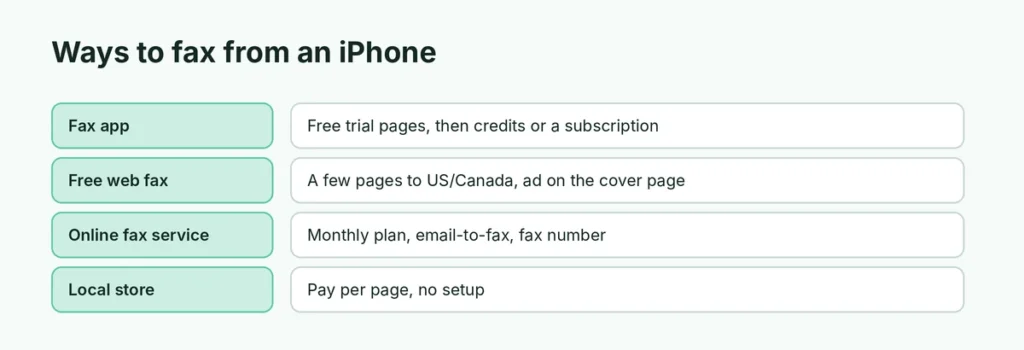
Your options at a glance
| Option | Cost | Best for |
|---|---|---|
| Fax app (FAX.PLUS, iFax, Tiny Fax and others) | Free trial pages, then credits or a subscription | Regular faxing, receiving faxes, a dedicated fax number |
| Free web fax (such as FaxZero) | Free for a few pages to the US and Canada, with an ad on the cover page | A one-off fax |
| Online fax service with email-to-fax (such as eFax) | Monthly plan | Businesses that fax often from email |
| Local store (UPS Store, FedEx Office, libraries) | Per page | No smartphone setup at all |
Before you start: prepare the document
- Get the pages onto your iPhone as a PDF. If you have paper, use the free scanner in the Notes or Files app. Here’s how to scan documents on iPhone for a sharp, black-and-white PDF.
- Sign it if needed. Open the PDF, tap Markup, then + → Add Signature.
- Check the fax number, including the area code. For international faxes you’ll need the country code too.
- Remove anything you don’t need to send. Most services charge per page.
Black-and-white scans fax best. Faxes are sent in black and white anyway, and gray backgrounds can turn into dark smudges.
How to send a fax from iPhone with an app
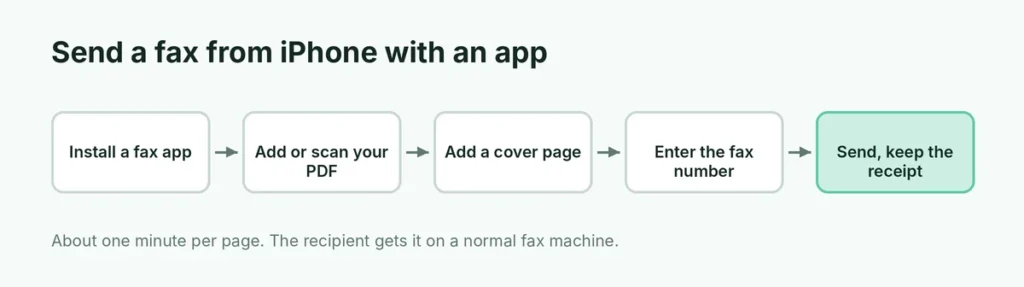
The steps are almost the same in every fax app. Using FAX.PLUS as an example:
- Install FAX.PLUS (or another fax app) from the App Store and open it.
- Create an account with Sign in with Apple, Google or email, and verify your phone number if asked.
- Tap Send Fax (or the + button).
- Tap Add File to attach a PDF from Files, a photo, or a document from Google Drive, Dropbox or OneDrive, or scan pages with the camera.
- Optionally add a cover page with your name, the recipient’s name and a short message.
- Enter the recipient’s fax number in the To field.
- Tap Send.
You can follow the progress in the app’s Outbox. Each page takes roughly a minute to transmit, and the app tells you when the fax has been delivered or if the line was busy. Keep the confirmation: it’s your proof the fax arrived.
Popular fax apps compared
| App | What to know |
|---|---|
| FAX.PLUS | A few free pages to try it; paid plans add more pages and a fax number to receive faxes; offers a HIPAA-ready business plan |
| iFax | Polished app with scanning, signing and cover pages; mostly subscription-based |
| Tiny Fax | Simple, pay-per-fax credits instead of a subscription |
| FAX from iPhone (Municorn) | Many free-trial offers; read the subscription terms carefully |
Many fax apps start a free trial that becomes a weekly or monthly subscription. If you only need one fax, look for pay-per-page credits, or cancel the trial right after sending: Settings → your name → Subscriptions → choose the app → Cancel Subscription.
How to fax from iPhone for free
For an occasional fax to the US or Canada, free web services work in Safari without installing anything:
- Open Safari and go to FaxZero.com (or a similar free fax site).
- Fill in your name, email and the recipient’s fax number.
- Upload your PDF from the Files app.
- Submit, then confirm the link sent to your email.
Free services typically allow only a few pages per fax and a limited number of faxes per day, and they put an advertisement on the cover page. For anything private, such as medical or financial records, a paid service with better security is the safer choice.
What to put on a fax cover page
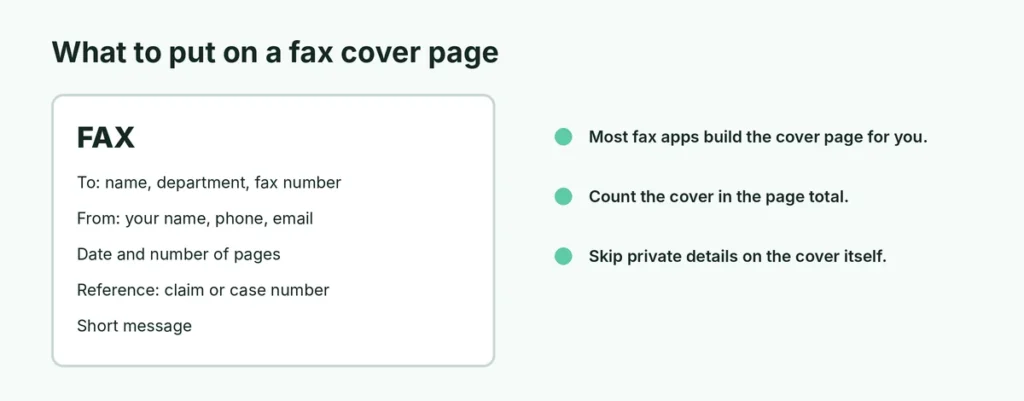
A cover page isn’t required, but it helps your fax reach the right person, especially in busy offices that share one fax machine. Include:
- To: the recipient’s name, department and fax number,
- From: your name, phone number and email so they can reach you,
- Date and number of pages, including the cover,
- Subject or reference, such as a claim number, patient ID or case number,
- a short message if needed.
Most fax apps build a cover page for you; just fill in the fields.
How long does it take, and what does it cost?
Sending usually takes about a minute per page, plus a short wait while the service dials. A five-page fax is typically delivered in five to ten minutes. If the line is busy, the service retries, which can take longer.
Costs vary by service. Free tools cover a few pages; pay-as-you-go apps charge a set number of credits per page; and subscriptions include a monthly page allowance and usually a fax number for receiving. Compare the price per page and whether you really need a number before subscribing. Fax app subscriptions can cost more per year than a single annual fee for a full online fax service.
How to receive a fax on iPhone
To receive faxes, you need a fax number. Most fax apps offer one with a paid plan, in many US area codes and other countries. Incoming faxes arrive in the app as PDFs, and you can turn on notifications so you know when one arrives. Some services also forward received faxes to your email.
Some apps let you keep a number only while you’re subscribed; if you cancel, the number may be released. If people will send you faxes for months, choose a plan you’re happy to keep.
Sending faxes from iPhone to a fax machine
Yes, faxes sent from an iPhone arrive on a normal fax machine exactly like any other fax. The app or service connects to the recipient’s fax line on your behalf and transmits the pages. The recipient doesn’t need to do anything differently.
International faxes
Most fax apps can send internationally, but international pages usually cost more credits. Enter the number in full international format: +, the country code, then the area code and number (for example, +44 for the UK, +61 for Australia). Free web services usually only cover the US and Canada.
Is faxing from an iPhone secure?
Faxing from an app is generally as private as a traditional fax, and many services encrypt files while they’re stored and sent. A few tips:
- Medical and legal documents: in the US, choose a service that offers a HIPAA-compliant plan if you’re sending health information as part of a business.
- Avoid free services for sensitive documents, such as tax forms, bank statements or ID copies.
- Delete sent faxes from the app afterwards if you don’t need them, and check how long the service keeps copies.
- Double-check the number before tapping Send. A fax sent to the wrong number can’t be recalled.
Fax didn’t go through? Fixes
“Busy” or “No answer”. The recipient’s fax machine may be off or on another call. Most apps retry automatically; otherwise send again later.
Pages look dark or unreadable. Rescan in black-and-white mode with good light, and avoid photographing documents at an angle.
The fax is rejected for the number format. Include the area code and, for international faxes, the + and country code. Remove spaces or dashes if the app complains.
You were charged unexpectedly. Check Settings → your name → Subscriptions for a trial that turned into a subscription, and cancel it there.
The short version
iPhone can’t fax by itself, so use a fax app like FAX.PLUS, iFax or Tiny Fax: attach or scan your PDF, add an optional cover page, enter the fax number and tap Send. For a one-off fax to the US or Canada, a free web service like FaxZero works from Safari. Scan in black and white, keep the delivery confirmation, use a paid, secure service for sensitive documents, and cancel trial subscriptions you don’t need.