By
By 
A backup is the only thing standing between a lost, broken or stolen iPhone and losing your photos, messages and app data for good. The good news is that backing up an iPhone is free, takes a few minutes to set up, and can then run automatically every night. You can back up to iCloud (wirelessly) or to a computer (Mac or Windows PC), and doing both is the safest choice.
Short answer: go to Settings → tap your name → iCloud → iCloud Backup, turn on Back Up This iPhone, and tap Back Up Now while connected to Wi-Fi. To back up to a computer instead, connect your iPhone with a cable, open Finder (Mac) or the Apple Devices app (Windows), select your iPhone, and click Back Up Now.
Last updated: October 2026. Written for iOS 26 and iOS 27; the steps are nearly identical on iOS 17 and iOS 18.
iCloud or computer: which backup should you use?
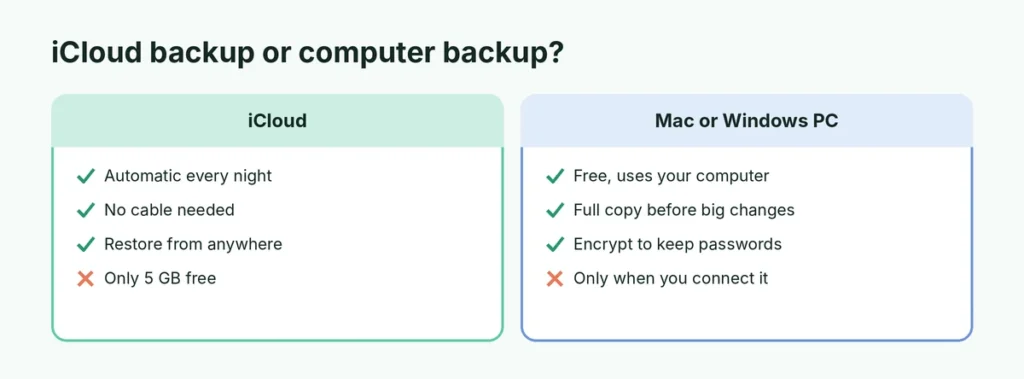
| iCloud backup | Computer backup | |
|---|---|---|
| Cost | 5 GB free; more needs an iCloud+ plan | Free (uses your computer’s storage) |
| Runs automatically | Yes, every night on Wi-Fi while charging | Only when you connect and click Back Up |
| Needs a cable | No | Yes (or Wi-Fi sync once set up) |
| Restore anywhere | Yes, from any Wi-Fi network | Only from that computer |
| Best for | Everyday, hands-off protection | A full extra copy before an update, reset or upgrade |
Most people should turn on iCloud Backup and also make a computer backup every few months or before a big change, like a factory reset or a new iPhone.
How to back up your iPhone to iCloud
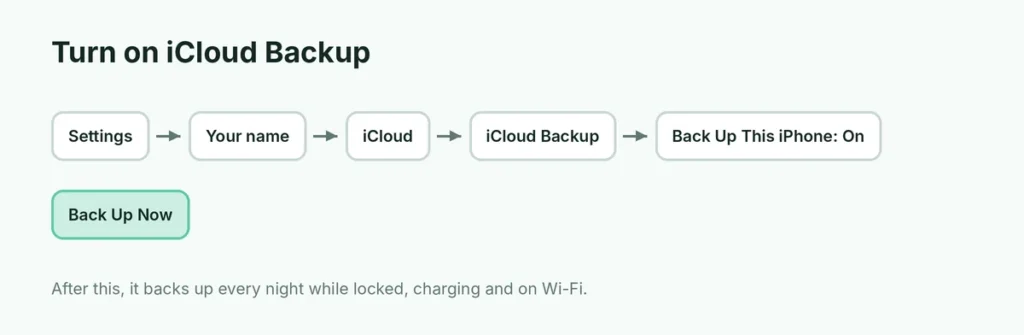
- Connect to Wi-Fi.
- Open Settings and tap your name at the top.
- Tap iCloud, then iCloud Backup.
- Turn on Back Up This iPhone.
- Tap Back Up Now and stay on Wi-Fi until it finishes.
Under the button you’ll see Last successful backup with a date and time. Check it once in a while; if it’s weeks old, your backups have stopped.
Automatic nightly backups
Once Back Up This iPhone is on, your iPhone backs itself up automatically when it is:
- connected to power,
- connected to Wi-Fi, and
- locked.
In practice, that means it backs up overnight while charging, with no effort from you.
Back up over cellular data
On iPhones with 5G, you may see a Back Up Over Cellular option in the same iCloud Backup screen. It’s useful if you don’t have Wi-Fi at home, but a full backup can use several gigabytes, so only turn it on if you have a large or unlimited data plan.
Not enough iCloud storage?
Every Apple Account gets 5 GB of free iCloud storage, which fills up quickly. You have three options:
- Leave big apps out of the backup. Go to Settings → your name → iCloud → Manage Account Storage (or Manage Storage) → Backups → your iPhone. Turn off apps you don’t need backed up, such as games or streaming apps whose content you can download again.
- Delete old backups from devices you no longer use, in the same Backups list.
- Upgrade to iCloud+. In the US, plans start at 50 GB for a small monthly fee, which is enough for most single-iPhone users. Check the current price in Settings → your name → iCloud → Upgrade.
Photos are usually the biggest item. If you turn on iCloud Photos, your photos are stored in iCloud separately and are no longer part of the backup, so they don’t count twice.
How to back up your iPhone to a Mac
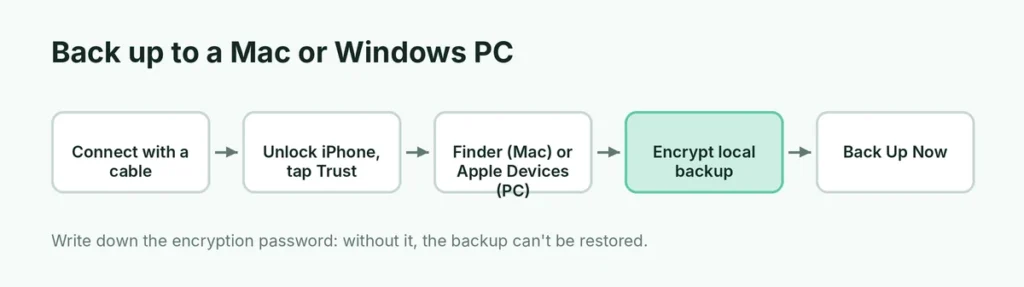
On macOS Catalina and later, backups are done in Finder:
- Connect your iPhone to the Mac with a cable.
- Unlock the iPhone. If asked, tap Trust and enter your passcode.
- Open Finder and click your iPhone in the sidebar under Locations.
- In the General tab, select Back up all of the data on your iPhone to this Mac.
- Tick Encrypt local backup and create a password (recommended; see below).
- Click Back Up Now.
When it’s done, Latest backup to this Mac shows the date and time. Don’t unplug the cable until it finishes.
How to back up your iPhone to a Windows PC
On Windows 10 and 11, use the free Apple Devices app from the Microsoft Store (older PCs can use iTunes):
- Install and open Apple Devices.
- Connect your iPhone with a cable, unlock it, and tap Trust if asked.
- Click your iPhone in the sidebar.
- Click General (in iTunes it’s Summary).
- Choose Back up all of the data on your iPhone to this computer.
- Tick Encrypt local backup and set a password.
- Click Back Up Now.
Computer backups take up space on your PC’s drive: anywhere from a few gigabytes to well over 100 GB, depending on what’s on your iPhone. Make sure you have enough free space before you start.
Why you should encrypt computer backups
An encrypted backup includes things a normal computer backup leaves out:
- saved passwords and keychain data,
- Wi-Fi settings,
- Health and Activity data,
- website history and call history.
The catch: if you forget the encryption password, you can’t use that backup. Apple can’t recover it. Write it down or save it in a password manager. iCloud backups are always encrypted, so this only applies to computer backups.
What an iPhone backup includes (and what it doesn’t)
Included:
- device settings and your Home Screen layout,
- app data for the apps you’ve installed,
- messages (iMessage, SMS and MMS) if Messages in iCloud is off,
- photos and videos if iCloud Photos is off,
- purchased ringtones and your Visual Voicemail password,
- your Apple Watch backup.
Not included (because it’s already stored in iCloud):
- iCloud Photos, iCloud Drive, Notes, Contacts and Calendars that sync with iCloud,
- Messages in iCloud,
- the apps themselves, which download again from the App Store.
Backed up separately: chat apps like WhatsApp use their own backup. In WhatsApp, go to Settings → Chats → Chat Backup and tap Back Up Now. An iPhone backup alone may not restore your WhatsApp chats.
Moving to a new iPhone? Get free temporary iCloud storage
If you don’t have enough iCloud storage to back up before switching phones, Apple lends you extra space for free:
- Go to Settings → General → Transfer or Reset iPhone.
- Under Prepare for New iPhone, tap Get Started and follow the prompts.
Your full backup is stored in iCloud for a limited time (usually up to 21 days) so you can restore it onto your new iPhone. It’s free and doesn’t require an iCloud+ plan.
How to check that your backup worked
- iCloud: Settings → your name → iCloud → iCloud Backup shows Last successful backup.
- Mac: Finder → your iPhone → Manage Backups lists every backup with its date.
- Windows: Apple Devices → your iPhone → General → Manage Backups.
If the date isn’t recent, run Back Up Now manually and watch for an error message.
How to restore your iPhone from a backup
You restore a backup while setting up an iPhone, either a new one or one you’ve just erased:
- Turn on the iPhone and follow the setup screens.
- On the Transfer Your Apps & Data screen, choose From iCloud Backup or From Mac or PC.
- Sign in (iCloud) or connect the cable (computer), and pick the most recent backup.
- Keep the iPhone on Wi-Fi and charging until apps and photos finish downloading.
To restore onto your current iPhone, you must erase it first. Here’s how to factory reset an iPhone safely, without losing what you want to keep.
Common backup problems
“iCloud backup failed” or “couldn’t be completed”. Check Wi-Fi, make sure you have enough iCloud storage, sign out of any VPN, and try again. Restarting the iPhone fixes many one-off failures.
“Not enough storage”. Leave large apps out of the backup or upgrade your iCloud plan (see above).
The backup takes hours. The first iCloud backup can be slow, especially with many photos. Leave the iPhone on Wi-Fi and charging overnight; later backups only add what has changed.
The computer doesn’t see the iPhone. Try another cable or USB port, unlock the iPhone, and tap Trust. On Windows, update the Apple Devices app.
A simple backup routine
- Keep iCloud Backup turned on all the time.
- Plug in your iPhone overnight on Wi-Fi a few times a week.
- Make an encrypted computer backup before every major iOS update and before selling, resetting or replacing your iPhone.
- Check Last successful backup once a month.
The short version
Turn on Settings → your name → iCloud → iCloud Backup → Back Up This iPhone, and your iPhone backs up every night on Wi-Fi while charging. Tap Back Up Now for an instant backup. For an extra copy, connect it to a Mac (Finder) or Windows PC (Apple Devices) and click Back Up Now, with Encrypt local backup turned on. Back up WhatsApp separately, and before you erase your phone, read how to factory reset an iPhone.