By
By 
Updating your iPhone is one of the easiest ways to keep it safe. Each update fixes security holes that attackers actively use, squashes bugs that cause freezes and battery drain, and sometimes adds new features. It’s free, it doesn’t delete your data, and you can set it up to happen by itself overnight.
Short answer: connect to Wi-Fi and plug in your charger, then go to Settings → General → Software Update and tap Update Now (or Download and Install). Enter your passcode, agree to the terms, and wait for the iPhone to restart. To never think about it again, turn on Settings → General → Software Update → Automatic Updates.
Last updated: October 2026. Written for iOS 26 and iOS 27.
Before you update: a 2-minute checklist
- Back up your iPhone. Updates rarely go wrong, but a backup means nothing is lost if they do. Here’s how to back up an iPhone to iCloud or a computer.
- Charge it. Plug it in, or make sure the battery is above 50%. The update won’t install on a low battery.
- Use Wi-Fi. Big updates are several gigabytes. On 5G models you may be allowed to download over cellular, but Wi-Fi is faster and won’t eat your data plan.
- Free up space. You’ll often need 5 GB or more free. Check in Settings → General → iPhone Storage.
- Pick a good time. Your iPhone is unusable for 10 to 30 minutes while it installs, so don’t start an update just before you need to make a call or use a boarding pass.
How to update your iPhone in Settings
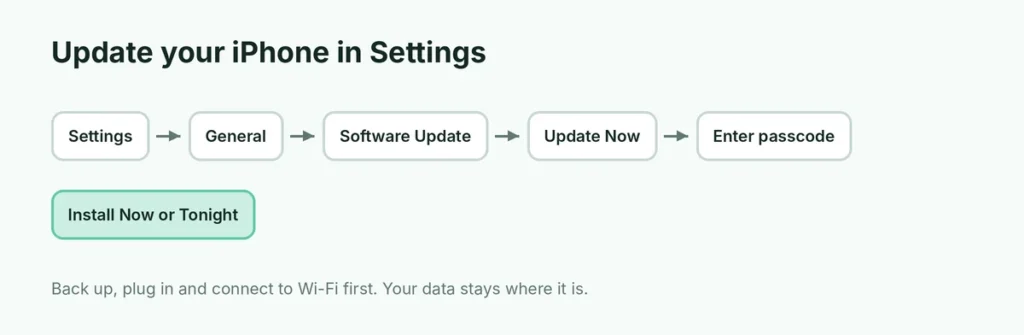
- Open Settings and tap General.
- Tap Software Update. Your iPhone checks for updates; this can take a few seconds.
- If an update is available, tap Update Now or Download and Install.
- Enter your passcode and tap Agree to the terms if asked.
- Wait for the download to finish. You can keep using your phone while it downloads.
- Tap Install Now, or choose Install Tonight to update overnight while it’s charging.
Your iPhone restarts, shows the Apple logo with a progress bar, and then asks for your passcode. That’s it.
Seeing two updates? Here’s which to pick
After a major new version comes out, the Software Update screen sometimes shows two choices:
- the newest version (for example, upgrading from iOS 26 to iOS 27), usually listed under Upgrade to or Also Available, and
- a security update for the version you already have.
Both are safe. The newer version brings new features but may change how things look and work. The security update keeps your current version safe without big changes. If you rely on your iPhone for work and don’t want surprises, you can install the security update now and upgrade a few weeks later, once early bugs are fixed. Apple doesn’t offer this choice forever, so plan to move to the newest version eventually.
Turn on automatic updates
Automatic updates are the easiest way to stay protected:
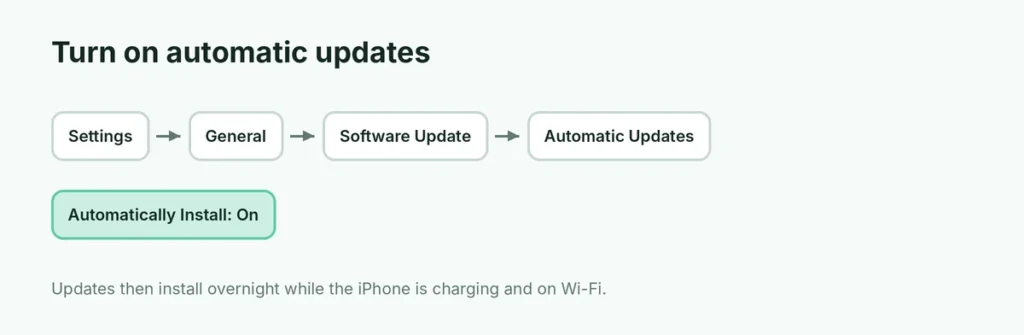
- Go to Settings → General → Software Update.
- Tap Automatic Updates.
- Turn on Automatically Install for iOS updates. Your iPhone updates overnight while it’s charging and on Wi-Fi, and lets you know beforehand.
- If you’d rather install manually, turn on Automatically Download instead; updates download in the background and wait for you to tap Install.
On recent versions you may also see separate settings for security responses or system files. These small, fast security fixes can install without changing your iOS version. Keep them turned on.
How long does an iPhone update take?
| Type of update | Download | Install |
|---|---|---|
| Small bug-fix or security update (for example x.0.1) | 1 to 5 minutes | 5 to 15 minutes |
| Mid-year update (for example x.1 or x.2) | 5 to 15 minutes | 10 to 20 minutes |
| Major new version (for example iOS 26 to iOS 27) | 10 to 30 minutes | 15 to 30 minutes |
Times depend on your Wi-Fi speed and how busy Apple’s servers are. On launch day, when millions of people update at once, it can take much longer; waiting a day or two is often faster.
Not enough storage for the update
If your iPhone says there isn’t enough space, you have a few options:
- Let iPhone remove apps temporarily. If a message asks to remove apps to make room, tap Continue. They’re reinstalled automatically after the update, along with their data.
- Delete what you don’t need: old videos, downloaded shows and podcasts, and apps you never open. Settings → General → iPhone Storage shows what’s using the most space.
- Clear app caches. Browsers and social apps store gigabytes of temporary files. See how to clear cache on iPhone.
- Update with a computer. A computer update needs less free space on the iPhone (see below).
Update your iPhone with a computer
Use this when the update won’t appear on the iPhone, keeps failing, or there isn’t enough space:
- Connect your iPhone to a Mac or Windows PC with a cable.
- On a Mac, open Finder and click your iPhone in the sidebar. On Windows, open the Apple Devices app (or iTunes on older PCs).
- Unlock the iPhone and tap Trust if asked.
- Click General (or Summary) and then Check for Update.
- Click Download and Update and enter your passcode on the iPhone if asked.
Keep the cable connected until the iPhone restarts and finishes.
Update stuck? Fixes for common problems
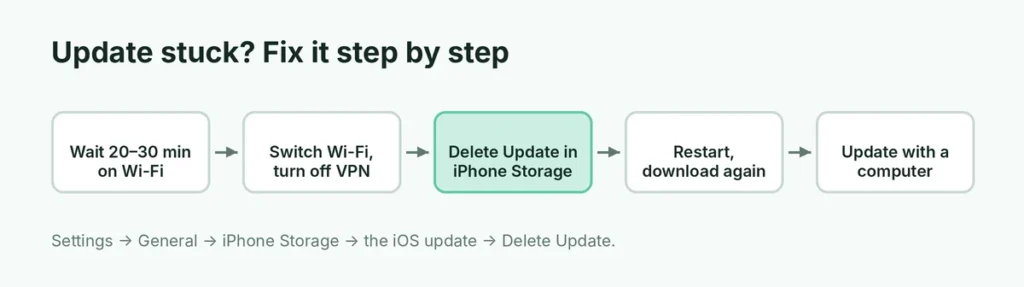
Stuck on “Preparing Update” or “Verifying Update”. Give it 20 to 30 minutes on Wi-Fi. If nothing changes, go to Settings → General → iPhone Storage, find the update in the list, tap Delete Update, restart the iPhone and download it again.
“Unable to Check for Update” or “Unable to Install Update”. Switch to a different Wi-Fi network, turn off any VPN, and try again. Apple’s servers are sometimes overloaded on release day.
Stuck on the Apple logo after updating. Wait at least 30 minutes; the first start after a big update can be slow. If the progress bar hasn’t moved in an hour, force restart it. Here’s how to hard reset any iPhone without losing data, including how to use recovery mode and choose Update.
No update appears at all. Your iPhone may already be up to date (the screen says so), or your model may no longer be supported by the newest version. Older iPhones still get important security updates for a while, but eventually Apple stops supporting them.
The battery drains fast after updating. That’s normal for a day or two: the iPhone re-indexes photos, messages and search in the background. If it continues for more than a week, check Settings → Battery for an app using unusual amounts of power.
Which iOS version do you have?
Go to Settings → General → About and look at iOS Version. Compare it with the latest version listed in Software Update. Apple also publishes a list of iPhone models that each new version supports; if yours isn’t on it, the update simply won’t be offered.
Should you install iOS beta versions?
Beta (test) versions of iOS are available in Settings → General → Software Update → Beta Updates if you sign in to Apple’s free beta program. They let you try new features early, but they can have serious bugs, drain the battery, and break banking or work apps. Going back to a stable version usually means erasing your iPhone. For a phone you depend on every day, stay on the normal releases.
Can you undo an update?
Generally, no. Once Apple stops “signing” an older version, usually a week or two after a new release, you can’t reinstall it. That’s another reason to back up before major updates and to read early reviews if you’re cautious about a big new version.
Read what’s in an update before installing
Tap the update’s name on the Software Update screen (or Learn More) to see Apple’s release notes. They list new features, bug fixes and, for security updates, a link to the security content. Two quick rules of thumb:
- If the notes mention security fixes or say a flaw “may have been actively exploited”, install the update as soon as you can.
- If it’s a big new version and you depend on a particular app for work or banking, check that the app’s developer supports it before upgrading.
Updates also matter for your apps
iOS updates protect the system, but your apps need updates too. Open the App Store, tap your profile picture in the top-right corner, and scroll to see pending updates. To update apps automatically, go to Settings → Apps → App Store and turn on App Updates (the location of this setting varies slightly by version).
The short version
Back up, plug in, and connect to Wi-Fi. Then go to Settings → General → Software Update and tap Update Now; the iPhone restarts when it’s done, and your data stays put. Turn on Automatic Updates so security fixes install overnight. If there’s no room, let iPhone remove apps temporarily or update with a computer; if it gets stuck, delete the update and try again, or force restart. Not backed up yet? Start with how to back up your iPhone.