By
By 
“Clear your cache” is the classic advice when an iPhone feels slow, a website won’t load properly or storage is running out. But iPhones don’t have a single “Clear cache” button like some Android phones. Instead, Safari, each app and the system all keep their own temporary files, and each is cleared in a different place. Some of it is worth clearing; some of it iOS already manages for you.
Short answer: for Safari, go to Settings → Apps → Safari → Clear History and Website Data. For other apps, use the app’s own Clear cache option if it has one (Chrome, TikTok, Telegram and Spotify do). If it doesn’t, go to Settings → General → iPhone Storage, tap the app, and choose Delete App, then reinstall it, which clears everything the app stored.
Last updated: October 2026. Written for iOS 26 and iOS 27.
What “cache” means on an iPhone
A cache is a store of temporary files that apps and websites keep so things load faster the next time: images, scripts, video thumbnails, map tiles. Normally it helps. It becomes a problem when:
- it grows very large and fills your storage,
- a cached file is corrupted, so a website or app keeps showing an error or an old version,
- you want to remove traces of what you’ve viewed.
iOS automatically clears some caches when storage runs low, so you rarely need to do it every day. Clear it when you have a specific problem.
Where cache lives on an iPhone
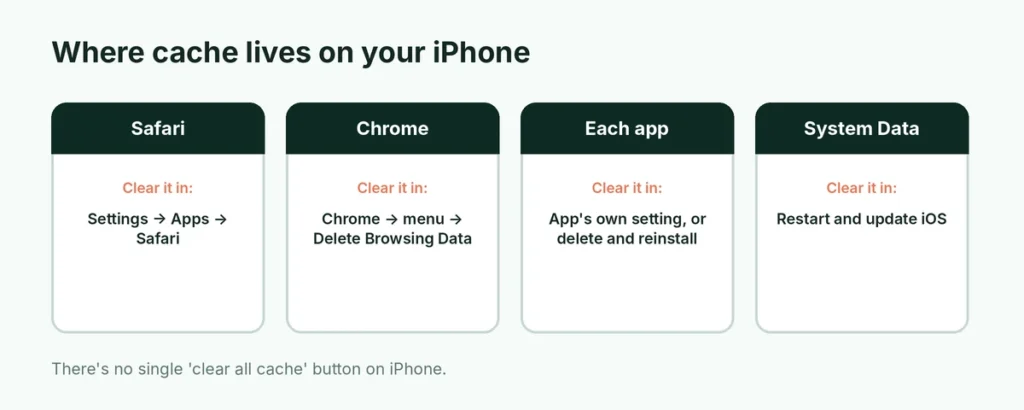
| Where | What’s cached | How to clear it |
|---|---|---|
| Safari | Website images, scripts and cookies | Settings → Apps → Safari |
| Chrome and other browsers | Their own website data | Inside each browser |
| Individual apps | Images, videos, downloads | Offload app, or the app’s own setting |
| System Data | iOS temporary files and caches | Restart; iOS manages it |
Clear Safari’s cache
Clear everything
- Open Settings → Apps → Safari.
- Tap Clear History and Website Data.
- Choose All history, decide whether to Close All Tabs, and tap Clear History.
This removes Safari’s cache, cookies and browsing history, and syncs the change to your other Apple devices that use iCloud for Safari. You’ll be signed out of most websites.
Clear the cache but keep your history

If you only want to clear the cache and cookies:
- Open Settings → Apps → Safari.
- Scroll to the bottom and tap Advanced.
- Tap Website Data.
- Tap Remove All Website Data, or swipe left on a single website to remove just that one.
Removing data for one website is the best fix when a single site keeps misbehaving, and it doesn’t sign you out of everything else.
If you want to clear your browsing history too, our guide to deleting search history on iPhone covers Safari, Chrome and your Google account.
Clear Chrome’s cache on iPhone
- Open Chrome.
- Tap the ⋯ (more) button.
- Tap Delete Browsing Data.
- Choose a Time range.
- Tick Cached Images and Files. Untick Browsing History and Cookies, Site Data if you want to keep them.
- Tap Delete Browsing Data.
Firefox, Edge and other browsers have similar options in their Settings or Privacy menus.
Clear an app’s cache: offload or reinstall
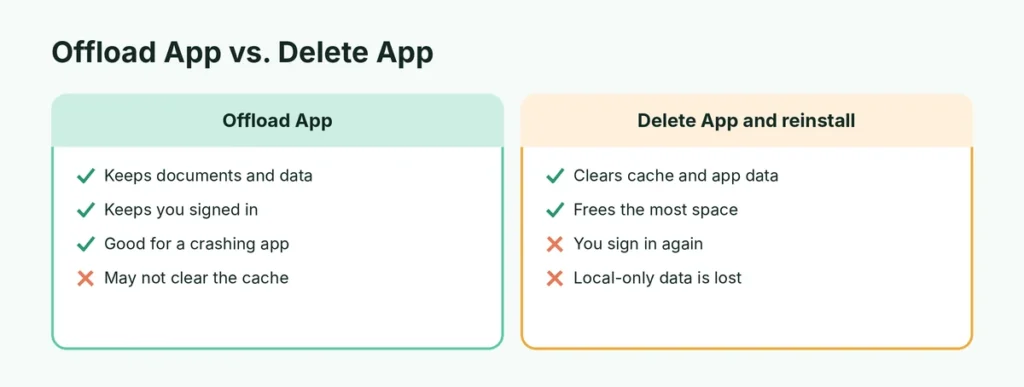
iOS doesn’t let you clear the cache of most apps directly. There are two ways around it.
Option 1: Offload the app (keeps your data, mild)
- Go to Settings → General → iPhone Storage.
- Wait for the list to load, then tap the app.
- Tap Offload App and confirm.
- Tap Reinstall App on the same screen (or tap the app icon on your Home Screen).
Offloading removes the app itself but keeps its documents and data, so it frees the space the app takes and gives you a fresh copy of the app, but it won’t always clear the app’s cache. It’s a good first step for an app that keeps crashing. If the app’s Documents & Data is the big number, deleting and reinstalling is what actually clears it.
Option 2: Delete and reinstall (really clears the cache)
- On the same app screen in iPhone Storage, tap Delete App.
- Reinstall it from the App Store.
This removes the app’s cache and its data, so you’ll need to sign in again and may lose anything that wasn’t synced to the cloud. Check first that the app backs up your data, especially for messaging apps. For WhatsApp, make sure your chat backup is up to date before deleting it.
Which apps have the biggest caches?
Look at Documents & Data for each app in iPhone Storage. Social media, streaming and messaging apps are usually the largest: TikTok, Instagram, Facebook, YouTube, Spotify, Netflix (with downloads), WhatsApp and Telegram. An app showing several gigabytes of Documents & Data is a good candidate.
Apps with their own “Clear cache” button
Some apps let you clear their cache from inside, which is faster than offloading:
- TikTok: Profile → ☰ → Settings and privacy → Free up space → Clear next to Cache.
- Telegram: Settings → Data and Storage → Storage Usage → Clear Cache.
- Spotify: Settings → Storage → Clear cache.
- Chrome: see above.
Menu names change between app updates, so if you can’t find the option, look for Storage, Data or Free up space in the app’s settings.
Clear the cache for Instagram, Facebook or YouTube
These apps don’t offer a full “Clear cache” button on iPhone, but they’re among the biggest storage users. The most effective approach:
- Check the app’s size in Settings → General → iPhone Storage.
- If Documents & Data is several gigabytes, tap Delete App.
- Reinstall it from the App Store and sign in again.
Your posts, messages and subscriptions are stored in your account online, so they come back after you sign in. Only downloads saved inside the app, such as offline YouTube videos, need downloading again.
Clear “System Data” (Other)
In Settings → General → iPhone Storage, the gray System Data bar at the bottom includes iOS caches, logs and temporary files. It can grow to many gigabytes. You can’t clear it directly, but these steps usually shrink it:
- Restart your iPhone. This clears many temporary files. Here’s how to turn off or restart any iPhone.
- Clear Safari’s website data as described above.
- Offload or reinstall the biggest streaming and social apps.
- Update iOS in Settings → General → Software Update. Updates sometimes fix bugs that let System Data grow.
If System Data stays huge after all this, backing up and doing a full reset is the last resort. See how to factory reset an iPhone safely.
Free up more space without clearing cache
If storage is your real problem, cache is often not the biggest culprit. In iPhone Storage, iOS shows recommendations at the top, such as:
- Offload Unused Apps: automatically removes apps you don’t use, keeping their data.
- Review Large Attachments: finds big videos and files in Messages.
- Optimize iPhone Storage for Photos: keeps full-size photos in iCloud and smaller versions on the phone.
Photos, videos and message attachments usually take far more space than any cache.
How often should you clear the cache?
There’s no need for a schedule. A good rule of thumb:
- When a website misbehaves: remove that site’s data in Advanced → Website Data.
- When an app keeps crashing or showing old content: offload it, then delete and reinstall if that doesn’t help.
- When storage is nearly full: check iPhone Storage for the biggest apps and clear or reinstall those.
- Before lending or selling the phone: clear Safari completely, or better, erase the phone.
Clearing everything every week just means slower loading while caches rebuild and being signed out of websites more often.
Will clearing cache delete my passwords or photos?
No. Clearing Safari’s history and website data signs you out of websites, but your saved passwords stay in the Passwords app and iCloud Keychain. Your photos, messages and contacts aren’t touched by clearing any cache. The only method that removes app data is Delete App, and even then anything the app syncs to its own cloud account (like Instagram posts or Google Drive files) comes back when you sign in again. Apps that keep data only on the phone are the exception, so check before deleting.
Clear the Google app’s cache and history
If you use the Google app for searching, it keeps its own data separate from Safari. Open the app, tap your profile picture → Settings → Privacy and security, and use the options there to clear history and cookies. Your search history saved in your Google account is managed separately at myactivity.google.com.
Does clearing cache make an iPhone faster?
Sometimes, a little. Clearing a corrupted cache fixes specific problems, like a website that won’t load or an app stuck on old content, and it frees storage when the phone is nearly full. A phone with almost no free space does slow down. But on a phone with plenty of space, clearing cache won’t make it noticeably faster, and apps rebuild their caches as you use them, so the space comes back over time. Cache-cleaner apps from the App Store can’t clear other apps’ caches either, because iOS doesn’t allow it; skip them.
The short version
Clear Safari’s cache in Settings → Apps → Safari → Clear History and Website Data, or just the cache in Advanced → Website Data. For Chrome, use Delete Browsing Data with Cached Images and Files. For other apps, Offload App in iPhone Storage and reinstall, or use the app’s own Clear cache setting. Restart your iPhone to shrink System Data, and look at photos and videos first if you need space. Screen recordings are often among the biggest files; here’s how to screen record on iPhone and trim the results.