By
By 
Messages in iCloud keeps your iMessages and texts in sync across your iPhone, iPad and Mac, and it’s the reason you can get a new iPhone and see every conversation appear. It also frees up space on your phone, because older attachments live in iCloud. But it isn’t on for everyone, and the option is buried a few menus deep.
Short answer: on iPhone, go to Settings → tap your name → iCloud → See All (or Show All) → Messages in iCloud, and turn on Use on this iPhone. Do the same on every Apple device signed in to the same Apple Account. On a Mac, open Messages → Settings → iMessage and tick Enable Messages in iCloud.
Last updated: October 2026. Written for iOS 26 and iOS 27; on iOS 16 to 17.1 the setting is called Messages → Sync this iPhone.
What Messages in iCloud does
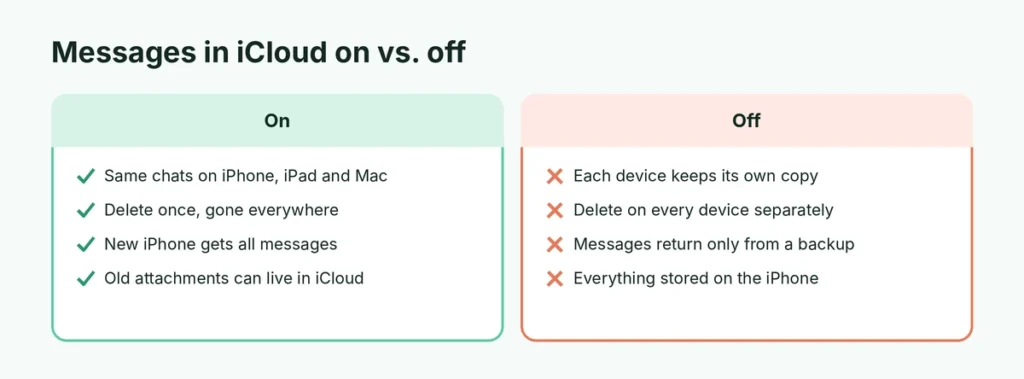
| With Messages in iCloud on | With it off |
|---|---|
| Conversations sync across iPhone, iPad and Mac | Each device keeps its own copy |
| Delete a message once, it disappears everywhere | You delete it separately on each device |
| A new iPhone downloads all your messages automatically | Messages come back only from an iCloud or computer backup |
| Older attachments can stay in iCloud to save iPhone space | Everything is stored on the iPhone |
| Messages are not included in your iCloud backup (they’re already in iCloud) | Messages are included in your iCloud backup |
Messages in iCloud is end-to-end encrypted when you have two-factor authentication turned on, which is standard for Apple Accounts today.
How to turn on Messages in iCloud on iPhone
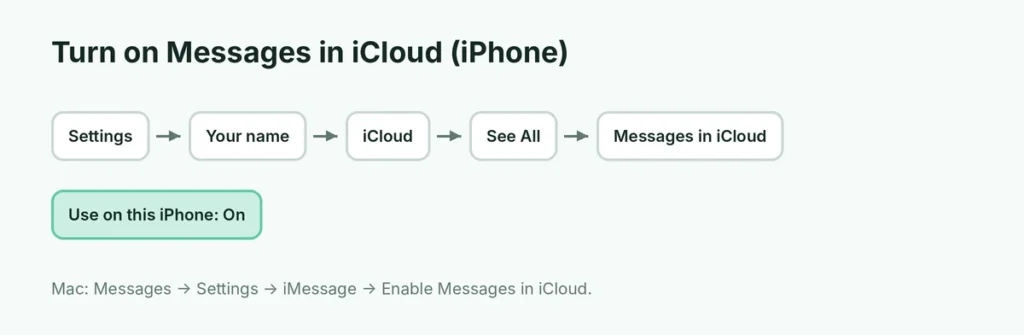
- Open Settings and tap your name at the top.
- Tap iCloud.
- Under Saved to iCloud, tap See All (or Show All).
- Tap Messages in iCloud.
- Turn on Use on this iPhone.
Your messages start uploading. With a big history, the first sync can take hours; keep the iPhone on Wi-Fi and charging, ideally overnight.
Make sure your devices match
Messages in iCloud only syncs between devices that use:
- the same Apple Account (check at the top of Settings), and
- the same phone number and email addresses in Settings → Apps → Messages → Send & Receive (on older versions, Settings → Messages).
How to turn it on for Mac and iPad
Mac:
- Open the Messages app.
- Choose Messages → Settings in the menu bar.
- Click iMessage.
- Tick Enable Messages in iCloud.
iPad: follow the same steps as the iPhone: Settings → your name → iCloud → See All → Messages in iCloud → Use on this iPad.
Force a sync with Sync Now
If messages aren’t showing up on another device, trigger a sync manually:
- On the iPhone, go to Settings → your name → iCloud → See All → Messages in iCloud.
- Tap Sync Now.
On a Mac, the Sync Now button is in Messages → Settings → iMessage.
How to see your messages in iCloud
There’s no website where you can read your messages. You can only see them in the Messages app on an iPhone, iPad or Mac signed in to the same Apple Account with Messages in iCloud turned on. That’s by design: because the messages are end-to-end encrypted, even iCloud.com can’t show them.
If you need to read your texts on a Windows PC, Microsoft’s Phone Link app can show iPhone messages while the phone is nearby, but it doesn’t sync your full history.
How to turn off Messages in iCloud
On one device only
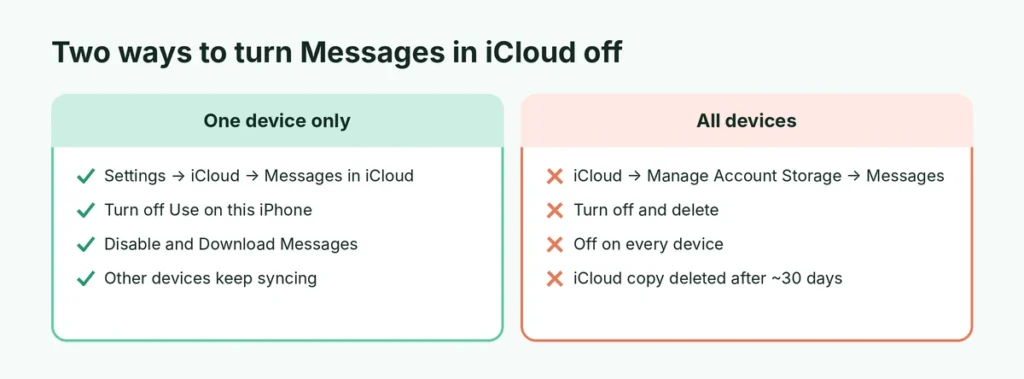
- Go to Settings → your name → iCloud → See All → Messages in iCloud.
- Turn off Use on this iPhone.
- Choose Disable and Download Messages if asked, so the full history is copied to the iPhone first.
That device stops syncing, but your other devices and iCloud keep everything.
On all devices (and delete messages from iCloud)
- Go to Settings → your name → iCloud → Manage Account Storage (or Manage Storage).
- Tap Messages.
- Tap Turn Off and Delete (the wording can vary slightly).
Your messages are downloaded to each device, Messages in iCloud is turned off everywhere, and the copy in iCloud is deleted after about 30 days. Do this only if you’re sure; until then you can turn it back on to cancel.
How to delete messages in iCloud
With Messages in iCloud on, deleting a message or a whole conversation on one device deletes it on all of them and from iCloud:
- Open Messages and swipe left on a conversation, then tap the trash icon.
- To delete a single message, press and hold it, tap More, select the messages, and tap the trash icon.
Recently deleted messages can usually be recovered for up to 30 days: in Messages, tap Edit or Filters at the top left and choose Recently Deleted.
Does Messages in iCloud use iCloud storage?
Yes. Your messages and attachments count toward your iCloud storage, and photos and videos in chats can take several gigabytes. To check:
- Go to Settings → your name → iCloud → Manage Account Storage.
- Look at Messages in the list.
To shrink it, delete large attachments: open a conversation, tap the person’s name at the top, scroll to Photos or Documents, and delete what you don’t need. You can also go to Settings → Apps → Messages → Keep Messages and choose 1 Year or 30 Days; this permanently deletes older messages everywhere. For other ways to free iCloud space, see how to back up an iPhone, which covers the storage options.
Is Messages in iCloud private?
Yes. Your messages are end-to-end encrypted, which means Apple can’t read them, and they’re only readable on devices signed in to your Apple Account. Keep your account safe with a strong password and two-factor authentication, and remove old devices you no longer use in Settings → your name (scroll down to the device list).
Should you turn on Messages in iCloud?
Turn it on if:
- you use an iPad or Mac and want the same conversations everywhere,
- you want your messages to survive a lost or broken iPhone,
- your iPhone is short on space.
Keep it off if:
- you share an Apple Account with someone else (better to give each person their own account),
- you’re very short on iCloud storage and don’t want to upgrade.
For most people, turning it on is the safer choice.
Getting a new iPhone? How your messages move
With Messages in iCloud on, moving to a new iPhone is simple:
- Before switching, open Messages in iCloud on the old iPhone and tap Sync Now. Wait until it finishes.
- Set up the new iPhone and sign in with the same Apple Account.
- When asked, keep Messages in iCloud turned on (or turn it on afterwards in Settings).
- Leave the new iPhone on Wi-Fi and charging; your conversations download in the background.
If Messages in iCloud was off on the old iPhone, your messages come across only through Quick Start (phone-to-phone transfer) or a restored backup. Here’s how to back up an iPhone before you switch.
Messages in iCloud vs. iCloud Backup
They’re easy to confuse:
- Messages in iCloud keeps your conversations synced live across devices. Delete something and it’s gone everywhere.
- iCloud Backup is a snapshot of your iPhone you can restore later. When Messages in iCloud is on, your messages are kept out of the backup because they’re already stored in iCloud.
You can use both at the same time, and most people should.
Messages in iCloud not working? Fixes
“Messages in iCloud is currently disabled” or the switch won’t turn on. Make sure two-factor authentication is on (Settings → your name → Sign-In & Security) and that every device runs a recent iOS or macOS version.
Messages appear on one device but not another. Check that both devices use the same Apple Account and that Send & Receive lists the same phone number and email. Then tap Sync Now on both.
Syncing is paused. iPhone pauses syncing on Low Power Mode or a weak connection. Plug it in, turn off Low Power Mode, and connect to Wi-Fi.
Old messages are missing on a new iPhone. The first download can take hours. Leave the iPhone on Wi-Fi and charging overnight before assuming anything is lost.
Running out of iCloud storage. Syncing stops when iCloud is full. Free space or upgrade your plan, then tap Sync Now.
If you’re worried that someone else can read your chats, also check who else is linked to your WhatsApp: unlike iMessage, WhatsApp keeps its own list of linked computers.
The short version
Go to Settings → your name → iCloud → See All → Messages in iCloud and turn on Use on this iPhone; on a Mac, tick Enable Messages in iCloud in Messages → Settings → iMessage. Use the same Apple Account everywhere, tap Sync Now if something’s missing, and remember that deleting a message on one device deletes it everywhere. Messages in iCloud uses iCloud storage, so trim large attachments now and then.