By
By 
Handing your phone to a friend, a child or a coworker shouldn’t mean they can open your messages, photos or banking app. Since iOS 18, iPhone can lock almost any app behind Face ID, Touch ID or your passcode, and even hide apps completely. It’s built in, free, and takes about five seconds per app.
Short answer: on the Home Screen, touch and hold the app’s icon, tap Require Face ID (or Require Touch ID / Require Passcode), then tap Require Face ID again to confirm. From now on, the app asks for your face or passcode every time it opens. To hide it as well, choose Hide and Require Face ID instead.
Applies to: iPhone with iOS 18, iOS 26 and iOS 27, using Face ID, Touch ID or a passcode, October 2026. Older versions have workarounds, covered below.
How to lock an app on iPhone
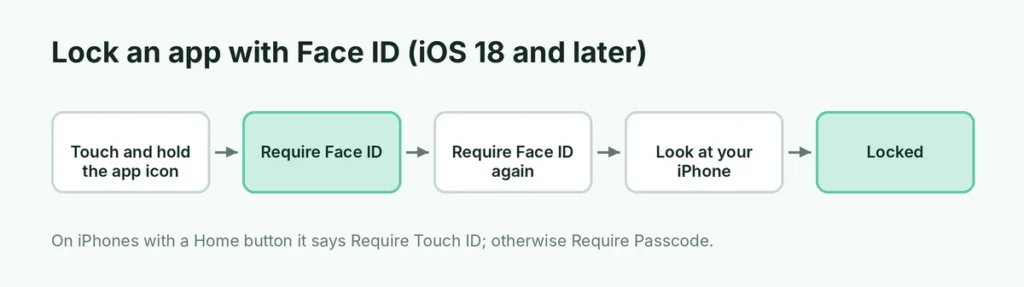
- Find the app on your Home Screen or in the App Library.
- Touch and hold its icon until the quick menu appears.
- Tap Require Face ID. (On iPhones with a Home button it says Require Touch ID; without either, Require Passcode.)
- Tap Require Face ID again to confirm, then authenticate.
Now when you or anyone else opens the app, the iPhone scans your face first. If it fails, the app asks for your passcode.
What changes when an app is locked
- Its content is blurred in the app switcher.
- Notification previews don’t show the message text; you’ll only see that the app sent a notification.
- Its content doesn’t appear in Search, Siri suggestions or other system places, such as call history for a calling app.
- The app itself still shows on your Home Screen, so people can see you have it.
How to hide an app on iPhone
Hiding an app removes it from the Home Screen and moves it to a locked Hidden folder:
- Touch and hold the app’s icon.
- Tap Require Face ID.
- Tap Hide and Require Face ID.
- Authenticate, then tap Hide App.
The app disappears from your Home Screen and from search. You’ll still receive calls from hidden calling apps, but you won’t get its notifications.
How to find hidden apps
- Swipe left past your last Home Screen page to open the App Library.
- Scroll to the bottom and tap the Hidden folder.
- Unlock it with Face ID or your passcode.
The folder is always there, even when it’s empty, so nobody can tell whether you’ve hidden anything.
Lock vs. hide: which should you choose?
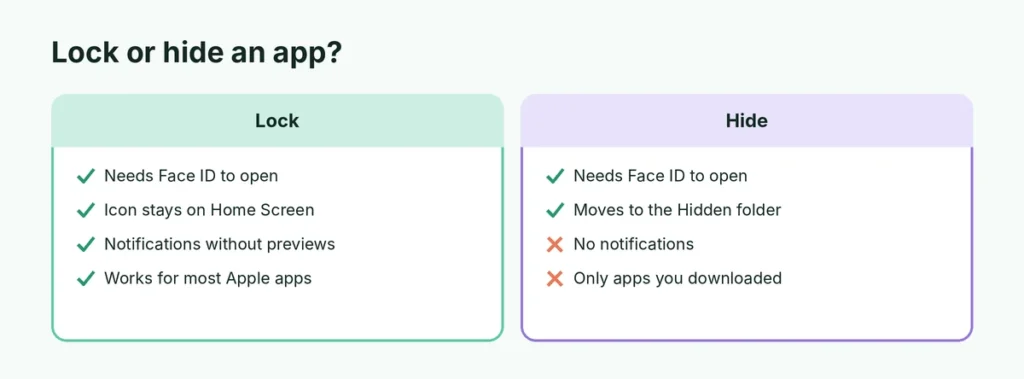
| Lock | Hide | |
|---|---|---|
| Needs Face ID or passcode to open | Yes | Yes |
| Icon on the Home Screen | Yes | No, it moves to the Hidden folder |
| Shows in search and Siri suggestions | No | No |
| Notifications | Shown, but without previews | Not shown |
| Works for built-in Apple apps | Most of them | No, only apps you downloaded |
Lock is enough for most people: it stops someone from reading your chats when you lend them the phone. Hide is for apps you don’t want anyone to know you have.
Apps you can’t lock or hide
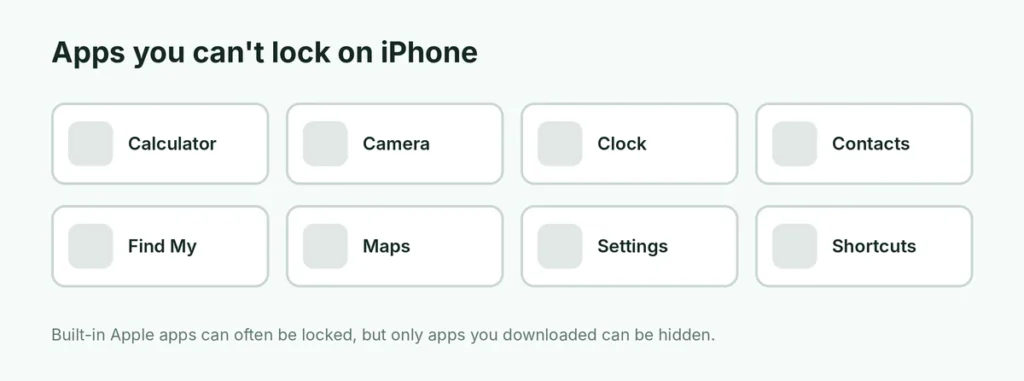
Some apps are essential to how the iPhone works, so Apple doesn’t let you lock them. These include:
- Calculator
- Camera
- Clock
- Contacts
- Find My
- Maps
- Settings
- Shortcuts
Built-in Apple apps (the ones that came with your iPhone) can often be locked but not hidden. Only apps you downloaded from the App Store can be hidden.
How to unlock or unhide an app
To stop requiring Face ID: touch and hold the app’s icon, tap Don’t Require Face ID, and authenticate.
To unhide an app: open the Hidden folder in the App Library, touch and hold the app, tap Don’t Require Face ID, and authenticate. The app goes back to the App Library; drag it to your Home Screen if you want it there.
Lock and hide settings stay on that iPhone only. They don’t sync to your iPad or a new iPhone, so set them up again after you switch phones.
Lock apps on older iPhones (iOS 17 and earlier)
If your iPhone can’t run iOS 18 or later, there’s no “Require Face ID” option. These workarounds help:
Option 1: Screen Time limits
- Go to Settings → Screen Time and turn it on if it isn’t already.
- Tap Use Screen Time Passcode and set a code that’s different from your normal passcode.
- Tap App Limits → Add Limit, choose the app, and set a limit of 1 minute.
- Make sure Block at End of Limit is on.
After a minute of use each day, the app asks for your Screen Time passcode. It’s not as smooth as a real lock, but it stops casual snooping.
Option 2: Built-in app locks
Many apps have their own lock. WhatsApp has Settings → Privacy → Screen Lock (and Chat Lock for single chats), banking apps lock by default, and password managers always ask for Face ID. Check an app’s Privacy or Security settings.
Lend your phone without worrying: Guided Access
If you’re handing your iPhone to a child or someone using a single app, Guided Access locks the iPhone inside that one app:
- Go to Settings → Accessibility → Guided Access and turn it on.
- Tap Passcode Settings to set a Guided Access passcode or allow Face ID.
- Open the app you want to allow and triple-click the side button (or Home button), then tap Start.
Nobody can leave the app until you triple-click again and enter the code. It’s perfect for games, video apps or showing someone a single photo.
Lock your hidden photos too
The Photos app has its own protection: the Hidden and Recently Deleted albums are locked by default on recent versions. To check, go to Settings → Apps → Photos and make sure Use Face ID (or Use Passcode) is on. To hide a photo, open it, tap ⋯, and choose Hide.
Lock single notes, chats and files instead of whole apps
Sometimes you only need to protect one thing inside an app, not the whole app:
- Notes: open a note, tap ⋯ and choose Lock. Locked notes use your iPhone passcode or a separate Notes password, and their content is hidden in the notes list.
- WhatsApp chats: long-press a chat and choose Lock chat to move it into a locked folder that needs Face ID.
- Files: there’s no lock for single files in the Files app, so keep private PDFs inside a locked note instead, or in a password-protected cloud folder.
This approach keeps everyday apps easy to open while your private items stay protected.
Setting up an iPhone for a child
App locks protect your apps. If your child has their own iPhone, use Screen Time instead:
- Go to Settings → Screen Time → Content & Privacy Restrictions and turn it on.
- Choose which apps are allowed, block in-app purchases, and set age limits for apps, movies and websites.
- Set a Screen Time passcode your child doesn’t know.
With Family Sharing, you can manage these settings from your own iPhone and approve app downloads with Ask to Buy.
Is locking apps really secure?
Locking an app protects it from people who pick up your unlocked iPhone. It doesn’t replace a strong passcode:
- Anyone who knows your iPhone passcode can open locked and hidden apps. Don’t share it.
- Use a six-digit or alphanumeric passcode instead of a four-digit one.
- If you think someone has seen your passcode, change it in Settings → Face ID & Passcode.
- For extra protection if your phone is stolen, turn on Stolen Device Protection in the same menu.
If you’re worried someone has already been reading your WhatsApp messages from another device, here’s how to check WhatsApp linked devices and log them out.
Common problems
I don’t see “Require Face ID”. Your iPhone may be on iOS 17 or earlier (check Settings → General → About), or the app is one of those that can’t be locked. Update your iPhone to the latest version first; here’s how to update an iPhone.
I can’t find a hidden app. Open the App Library, scroll to the very bottom, and tap Hidden. You can also search for it in Settings → Apps → Hidden Apps.
Face ID keeps failing. The app falls back to your passcode. If Face ID fails everywhere, reset it in Settings → Face ID & Passcode.
Notifications from a hidden app stopped. That’s how hiding works. If you need its notifications, unhide it and just lock it instead.
Related guides
- How to hide photos on iPhone
- How to hide messages on iPhone
- How to turn off Stolen Device Protection
The short version
Touch and hold an app’s icon and tap Require Face ID to lock it; choose Hide and Require Face ID to also move it into the locked Hidden folder at the bottom of the App Library. Undo it from the same menu with Don’t Require Face ID. Essentials like Settings and Camera can’t be locked, and older iPhones need Screen Time limits instead. Use Guided Access when you lend your phone, and keep your passcode private. Planning to sell or reset your phone? Back it up first with how to back up an iPhone.
Sources
- Apple Support: Lock or hide an app on iPhone
- Apple Support: Use Guided Access with iPhone, iPad, and iPod touch