By
By 
Stolen Device Protection adds extra security to your iPhone when you’re away from home or work. It can be annoying when you’re traveling or trying to change a setting and iPhone makes you wait one hour. Here’s how to turn off Stolen Device Protection, why there may be a delay, and whether you should keep it on.
Short answer: go to Settings → Face ID & Passcode (or Touch ID & Passcode), enter your passcode, and turn off Stolen Device Protection. If you’re at a familiar location (like home), it turns off right away. If you’re away, iPhone requires Face ID or Touch ID, then a one-hour security delay, then Face ID again. You can choose Always for the delay, so it applies even at home, or Away from Familiar Locations.
Applies to: iPhone on iOS 17.3 and later, including iOS 26 and iOS 27. Last checked in October 2026.
What is Stolen Device Protection?
It protects you if a thief sees your passcode and then steals your iPhone. When you’re away from familiar locations:
- Some actions need Face ID or Touch ID, with no passcode fallback (for example, using saved passwords, turning off Lost Mode, applying for a new Apple Card, or erasing all content).
- Bigger security changes need biometrics, then a one-hour wait, then biometrics again (like changing your Apple Account password, turning off Find My, or changing your passcode).
How to turn off Stolen Device Protection
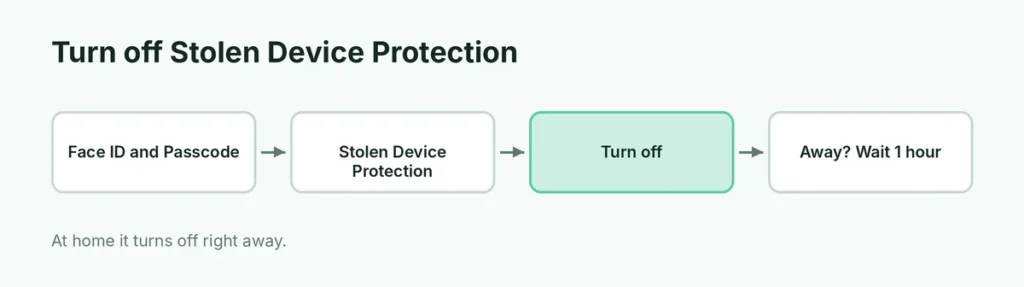
- Open Settings.
- Tap Face ID & Passcode (or Touch ID & Passcode).
- Enter your passcode.
- Scroll to Stolen Device Protection and tap it.
- Turn it off.
At home or work: it turns off immediately.
Away from familiar locations: you’ll see Security Delay in Progress. Authenticate with Face ID or Touch ID, wait one hour, then authenticate again to finish.
What counts as a “familiar location”?
Familiar locations are places your iPhone learns you spend lots of time, like home and work, using Significant Locations. You can’t add places manually. If Significant Locations is off, iPhone may treat everywhere as unfamiliar.
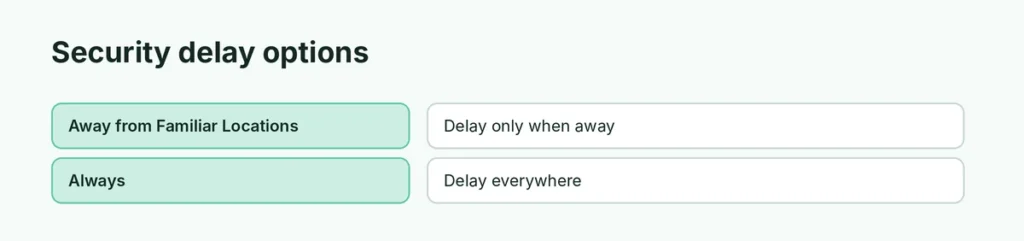
Security delay options
| Setting | When the one-hour delay applies |
|---|---|
| Away from Familiar Locations | Only when you’re away from home, work or other familiar places |
| Always | Everywhere, including at home |
Find it under Face ID & Passcode → Stolen Device Protection → Require Security Delay.
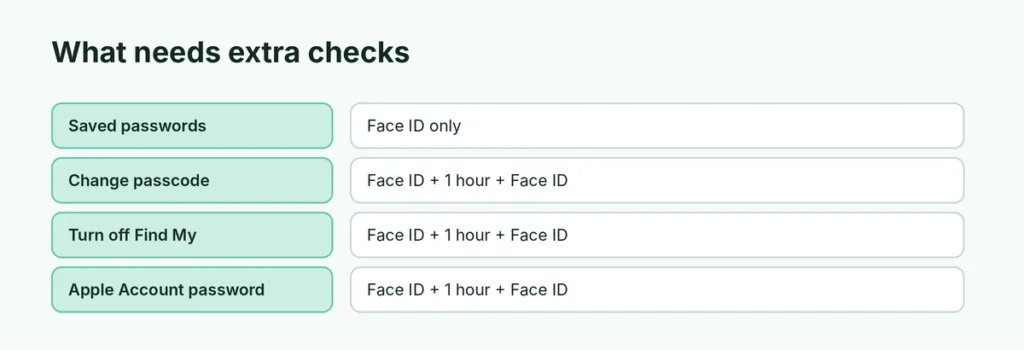
Which actions are affected?
| Action | Away from familiar places |
|---|---|
| Use saved passwords and passkeys | Face ID/Touch ID only |
| Use saved cards in Safari | Face ID/Touch ID only |
| Turn off Lost Mode | Face ID/Touch ID only |
| Change Apple Account password | Face ID + 1-hour delay + Face ID |
| Change iPhone passcode | Face ID + 1-hour delay + Face ID |
| Turn off Find My | Face ID + 1-hour delay + Face ID |
| Turn off Stolen Device Protection | Face ID + 1-hour delay + Face ID |
Why can’t I turn it off?
- You’re away from a familiar location: wait out the one-hour delay.
- Face ID isn’t working: Stolen Device Protection needs biometrics. Clean the camera or try again in good light.
- Delay keeps restarting: if you move away from where the delay started, it may continue; stay put and keep the iPhone with you.
Should I keep Stolen Device Protection on?
Most people should. It’s one of the best protections against phone theft where someone has watched you type your passcode. The delay is short compared with losing your Apple Account. If it truly gets in the way (for example, you need to change several settings while traveling), turn it off, make your change, and turn it back on.
It’s needed before other changes
If you’re trying to turn off your iPhone passcode or turn off Find My iPhone while away from home, Stolen Device Protection is why iPhone asks you to wait.
Related guides
- How to turn off Find My iPhone
- How to check your iPhone for viruses
The short version
Go to Settings → Face ID & Passcode → Stolen Device Protection and turn it off. At home it’s instant; away from familiar locations you’ll need Face ID, a one-hour wait, and Face ID again. Apple recommends keeping it on, so turn it back on after you finish.
Sources
- Apple Support: About Stolen Device Protection for iPhone