By
By 
You don’t need a scanner or a scanning app to turn paper into a clean PDF. Every iPhone has a document scanner built into the Notes and Files apps. It finds the edges of the page, straightens it, removes shadows, and saves a sharp, multi-page PDF you can email, sign or upload. It’s free, works offline, and takes about ten seconds per page.
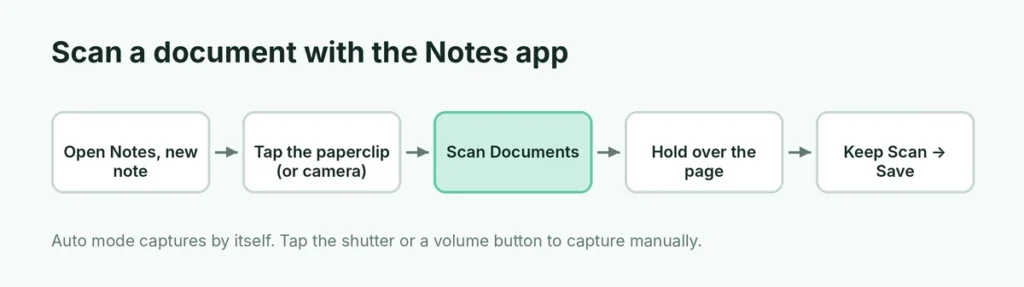
Short answer: open Notes, start a new note, tap the attachment (paperclip) or camera button, and choose Scan Documents. Hold the iPhone over the page; it captures automatically. Tap Keep Scan (or Save) and you’re done. To save straight to a PDF file instead, open the Files app, tap the ⋯ (More) button, and choose Scan Documents.
Last updated: October 2026. Written for iOS 26 and iOS 27; the steps are almost the same on iOS 17 and iOS 18.
Notes or Files: which should you use?
Both apps use the same scanner. The difference is where the scan ends up:
| Notes app | Files app | |
|---|---|---|
| Where it’s saved | Inside a note | As a PDF file in a folder you choose |
| Best for | Receipts, notes, things you’ll look at later | Forms, contracts, anything you’ll email or upload |
| Add your signature | Yes, with Markup | Yes, with Markup |
| Syncs to your other Apple devices | Yes, with iCloud Notes | Yes, if saved to iCloud Drive |
| Search the text later | Yes | Yes, in most cases |
If you need to attach the scan to an email or upload it to a website, Files saves you a step because it creates the PDF immediately.
How to scan a document with the Notes app
- Open Notes and tap the new note button (a square with a pencil).
- Tap the attachment button (a paperclip) in the toolbar. On older versions it’s a camera icon.
- Tap Scan Documents. The camera opens with a yellow box that looks for a page.
- Hold your iPhone flat above the document. In Auto mode it captures the page by itself as soon as the yellow box locks onto the edges.
- For manual mode, tap the shutter button or press either volume button, then drag the corners to fit the page and tap Keep Scan.
- Scan the next page, or tap Save (or Done) when you’re finished.
The scan appears as a document inside the note. Tap it to view all the pages, add more, crop, rotate or change the filter.
Shortcut: on recent versions you can also tap ⋯ inside an open note and choose Scan.
How to scan straight to a PDF with the Files app
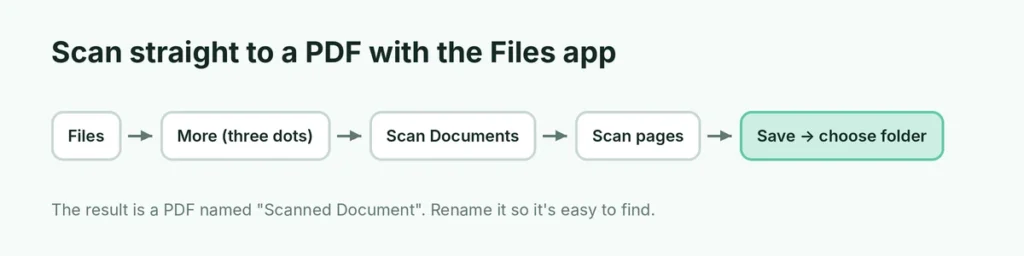
- Open the Files app.
- Tap the ⋯ (More) button in the top-right corner. You may need to tap Browse first.
- Tap Scan Documents.
- Scan your pages the same way as in Notes (Auto or manual).
- Tap Save and choose a location, such as iCloud Drive or On My iPhone.
- Tap Save again.
You now have a PDF file, usually named “Scanned Document”. Long-press it and choose Rename to give it a useful name like “Lease agreement 2026”, which makes it much easier to find later.
Turn a Notes scan into a PDF
Scanned in Notes but need a file? You don’t have to scan again:
- Open the note and tap the scanned document.
- Tap the Share button.
- Choose Save to Files to store it as a PDF, or pick Mail, Messages or WhatsApp to send it.
The share sheet sends scans as a PDF in most cases. If the other person only receives an image, use Save to Files first and then share the file.
How to sign a scanned document
Need to sign a form and send it back? You can do it without printing anything:
- Open the scan in Notes or the PDF in Files.
- Tap the Markup button (a pen tip).
- Tap the + button and choose Add Signature.
- Sign with your finger, or choose a signature you saved before.
- Drag the signature into place, resize it, and tap Done.
You can also add text boxes, dates and checkmarks with the same Markup tools, which is handy for filling in simple paper forms.
Get a cleaner, sharper scan
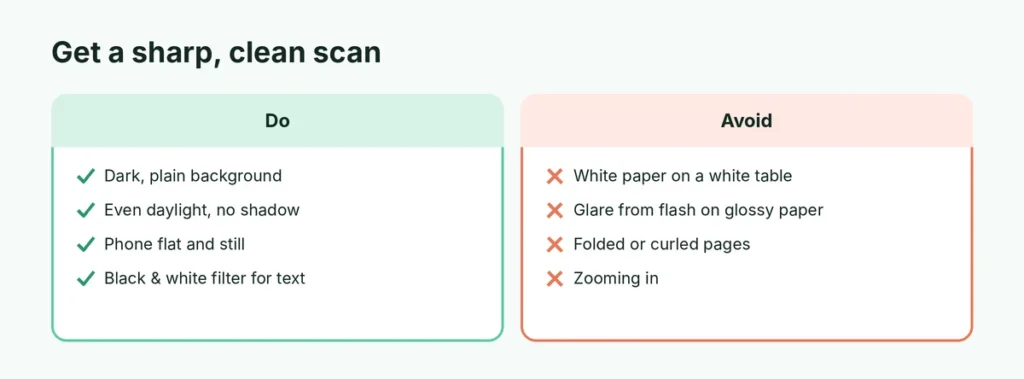
The scanner is good, but the result still depends on how you hold the phone and what’s behind the paper:
- Use a dark, plain background. White paper on a dark table makes it easy for the iPhone to find the edges.
- Find even light. Daylight from a window works best. Avoid your own shadow falling across the page.
- Hold the phone flat and still. Keep it parallel to the paper, about a foot above it.
- Flatten folded pages. Creases and curled corners create shadows the scanner can’t fully remove.
- Pick the right filter. Choose a color filter for photos and colored forms, and grayscale or black-and-white for text-only documents; black-and-white files are much smaller.
- Turn on the flash only when needed. On glossy paper it can cause glare; recent versions let you choose flash and filter settings before you scan.
Edit a scan after you take it
Tap the scanned document, then:
- Crop: tap the crop button and drag the corners again if the edges are off.
- Rotate: tap the rotate button to turn a sideways page.
- Change the filter: switch between color, grayscale and black-and-white.
- Add pages: tap the + button to scan more pages into the same document.
- Reorder or delete pages: in the page view, press and hold a page thumbnail and drag it, or tap the trash icon.
Copy text from a document instead (Live Text)
Sometimes you don’t need a PDF at all, just the words. iPhone’s Live Text can copy text straight from the camera:
- Open the Camera app and point it at the text.
- Tap the Live Text button (a small box with lines) when it appears.
- Select the text you want and tap Copy, or tap a phone number, address or date to use it directly.
Live Text also works on photos and screenshots you’ve already taken in the Photos app. It’s perfect for Wi-Fi passwords, serial numbers and order numbers.
Scanning a QR code instead?
If “scan” means a QR code, you don’t need Notes or Files:
- Open the Camera app and point it at the code.
- Tap the yellow link that appears.
You can also add the Code Scanner control to Control Center for quicker access. Only open links from codes you trust; fake QR codes on parking meters and flyers are a common scam. If you’re trying to link WhatsApp to a computer and the code won’t scan, here’s how to fix WhatsApp Web QR code problems.
Scan from your iPhone to a Mac
With Continuity Camera, a Mac can use your iPhone as a scanner and drop the PDF straight into a document or folder:
- Make sure both devices use the same Apple Account with Wi-Fi and Bluetooth on.
- On the Mac, right-click (Control-click) the desktop or inside a Finder window, or use the Insert menu in apps like Pages.
- Choose Import from iPhone → Scan Documents.
- Scan the pages on your iPhone and tap Save.
The PDF appears on the Mac right away.
Other free scanning apps
The built-in scanner covers most needs, but these free options are worth knowing:
| App | Good for |
|---|---|
| Google Drive | Saving scans straight into Drive, shared folders and Google Workspace |
| Adobe Scan | Text recognition and Adobe’s PDF tools (some features need a subscription) |
| Notes / Files (built in) | Fast, private scanning with no account or ads |
Be careful with “scanner” apps that ask for a weekly subscription right after you install them. Many charge for features the iPhone already includes for free.
Keep your scans safe and organized
- Name files clearly, with the date and what the document is.
- Store important documents in iCloud Drive so they survive if your phone is lost or reset.
- Lock sensitive notes. In Notes, open a note, tap ⋯ and choose Lock to protect scanned IDs or medical forms with Face ID or your passcode.
- Don’t keep scans of passports and bank cards in your camera roll, where they’re easy to share by accident.
If your iPhone is running out of space from scans and photos, see how to clear cache on iPhone to free up room.
Common problems
Scan Documents is missing in Notes. Notes stored in a third-party account, such as Gmail, can’t hold scans. Create the note in the iCloud or On My iPhone folder instead.
The scanner won’t capture automatically. Switch to manual capture, or move to a darker background with better light so the iPhone can find the edges.
The text looks blurry. Clean the camera lens, hold the phone steady for a second longer, and avoid zooming in.
The PDF is too big to email. Use the black-and-white filter, scan fewer pages per file, or share a link from iCloud Drive or Google Drive instead of attaching the file.
The short version
Open Notes, create a note, tap the paperclip or camera button and choose Scan Documents; hold the phone over the page and it captures automatically. Tap Save, then Share → Save to Files for a PDF. Or skip Notes and scan straight to a PDF from the ⋯ menu in the Files app. Use Markup to sign, a dark background for clean edges, and the black-and-white filter for small files. Want to record your screen to show someone how it’s done? Here’s how to screen record on iPhone.