By
By 
Screen recording on iPhone is built in: no app needed. You can record a video of anything on your screen, with or without your voice, to show someone how to do something, save a video call moment (with permission), or report a bug. The only catch is that the button is hidden until you add it to Control Center, and some apps block recording.
Short answer: swipe down from the top-right corner to open Control Center and tap the Screen Recording button (a solid circle inside a ring). Recording starts after a 3-second countdown. To stop, tap the red indicator at the top of the screen, or open Control Center and tap the button again. The video saves to Photos. If you don’t see the button, add it first (steps below).
Last updated: October 2026. Written for iOS 18, iOS 26 and iOS 27.
Step 1: Add the Screen Recording button to Control Center
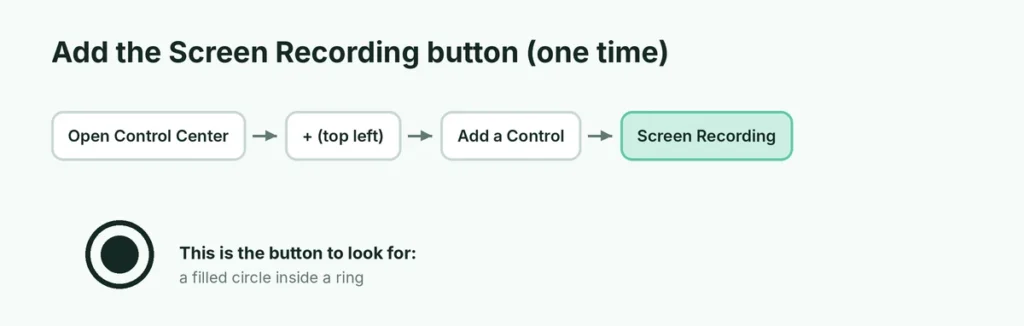
Many iPhones don’t show the Screen Recording button until you add it.
On iOS 18 and later (including iOS 26 and 27)
- Swipe down from the top-right corner to open Control Center.
- Tap the + in the top-left corner (or press and hold an empty area).
- Tap Add a Control.
- Search for Screen Recording and tap it.
- Tap an empty area to finish.
On iOS 17 and earlier
- Go to Settings → Control Center.
- Find Screen Recording under More Controls and tap the green +.
The button looks like a filled circle inside a ring.
Step 2: Start recording
- Open the screen you want to record.
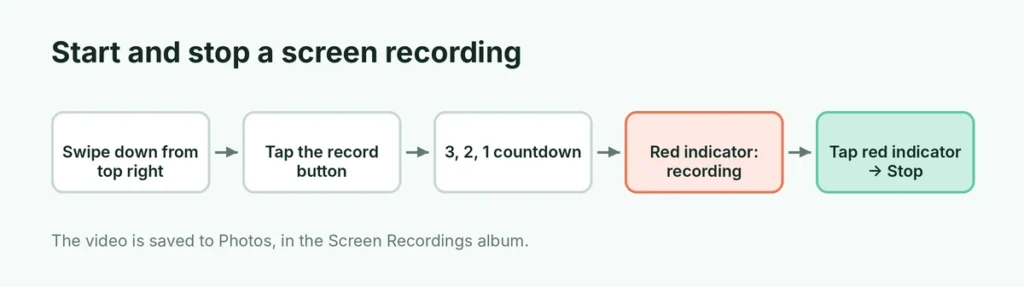
- Swipe down from the top-right corner to open Control Center. On iPhones with a Home button (iPhone SE, iPhone 8), swipe up from the bottom edge.
- Tap the Screen Recording button.
- A 3-second countdown appears on the button. Close Control Center (swipe up or tap an empty area) before it ends, so it isn’t in your video.
While recording, you’ll see a red indicator in the status bar or the Dynamic Island at the top of the screen.
Step 3: Stop recording
Any of these work:
- Tap the red indicator at the top of the screen, then tap Stop.
- Open Control Center and tap the Screen Recording button again.
- Lock the iPhone with the side button (this also stops it).
You’ll see a notification: Screen Recording video saved to Photos. Tap it to open the video.
Record with your voice (microphone audio)
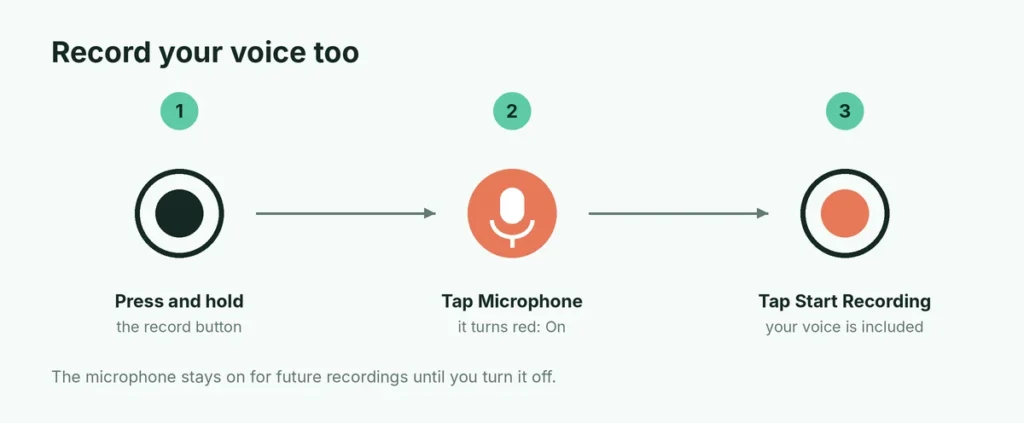
By default, iPhone records the sound from apps (like a game or a video) but not your voice. To narrate:
- Open Control Center.
- Press and hold the Screen Recording button. A menu opens.
- Tap Microphone so it turns red (On).
- Tap Start Recording.
The microphone setting stays on for future recordings until you turn it off the same way. Remember to switch it off if you don’t want background noise in later videos.
Why there’s no sound in your screen recording
| Problem | Fix |
|---|---|
| No app sound at all | Your iPhone is on silent mode or the volume is low; switch the Ring/Silent switch or Action button off silent and turn the volume up |
| Your voice isn’t recorded | Turn on Microphone by pressing and holding the Screen Recording button |
| A video call’s other person isn’t recorded | Some call apps don’t allow their audio to be captured |
| Music or streaming video is silent | Apple Music, Netflix and similar apps protect their audio and video; this is by design |
Apps that block screen recording
Some apps show a black screen or no sound in recordings because they protect copyrighted or private content. Common examples are streaming services (Netflix, Disney+, Apple TV+), some banking apps, and parts of apps showing passwords. There’s no setting to change this, and it’s done on purpose.
Where to find and edit your recording
- Recordings are saved in Photos → Library, and in the Screen Recordings album (under Media Types in Photos).
- To trim it, open the video, tap Edit, and drag the yellow handles at either end of the timeline. Tap Done and choose Save as New Clip to keep the original.
- To share, tap the Share button and choose Messages, WhatsApp, Mail or AirDrop.
Screen recordings can be large: a few minutes can take hundreds of megabytes. If your storage is tight, delete the ones you no longer need, and see how to clear cache on iPhone to free more space.
Record a specific app only (and stop notifications appearing)
iPhone records the whole screen, including any notifications that pop up. To keep private messages out of your video:
- Open Control Center and turn on Do Not Disturb or another Focus before you start.
- Record as normal.
- Turn Focus off when you’re done.
Screen recording vs. screenshots
Sometimes a screenshot is all you need, and it’s much smaller to send:
| Use | Best choice |
|---|---|
| Showing a setting or an error message | Screenshot (press the side button + volume up together) |
| Showing several steps or something moving | Screen recording |
| Capturing a whole web page or long chat | Screenshot, then tap the preview and choose Full Page (Safari) |
| Reporting a bug to app support | Screen recording with Microphone on, so you can explain |
Tips for a clean, professional recording
- Turn on Do Not Disturb so notifications don’t appear.
- Charge the phone or plug it in; recording uses battery quickly.
- Increase text size temporarily (Settings → Display & Brightness → Text Size) if viewers will watch on a small screen.
- Move slowly and pause briefly on each screen, so viewers can follow.
- Trim the start and end in Photos to cut out opening and closing Control Center.
Use a third-party app?
For most people, the built-in recorder is all you need, and it’s the safest choice because it doesn’t send your screen to anyone. Third-party “screen recorder” apps on the App Store mostly use the same iOS feature underneath and add editing tools, watermarks or subscriptions. If you only need to cut the start and end, the editor in Photos does that for free. Be cautious with apps that ask you to install a configuration profile or VPN to record; that’s not necessary on iPhone.
Common problems
The Screen Recording button is grayed out. Screen Time restrictions can block it. Go to Settings → Screen Time → Content & Privacy Restrictions → App Store, Media, Web & Games (or Content Restrictions) and set Screen Recording to Allow; on some versions it’s listed under Game Center. On a work or school iPhone, your organization may have turned it off.
The recording didn’t save. Check that your iPhone has free storage in Settings → General → iPhone Storage. A very full iPhone can fail to save long recordings.
The video stops by itself. Low Power Mode, a phone call, or locking the screen ends the recording. Charge your phone or plug it in for long recordings.
Record in higher quality with a Mac
The iPhone’s built-in recorder is fine for most uses. If you need cleaner, larger recordings for a tutorial or presentation, you can record your iPhone screen on a Mac:
- Connect the iPhone to the Mac with a cable and unlock it (tap Trust if asked).
- Open QuickTime Player on the Mac.
- Choose File → New Movie Recording.
- Click the small arrow next to the record button and choose your iPhone as the camera and microphone.
- Click Record.
This also keeps notifications and the red recording indicator out of the video.
Screen recording on iPad
iPad works exactly the same way: add Screen Recording to Control Center, open Control Center by swiping down from the top-right corner, tap the button, and stop it from the indicator at the top. Press and hold the button to turn the Microphone on or off.
How big are screen recordings?
| Length | Approximate size |
|---|---|
| 30 seconds | 20 to 60 MB |
| 1 minute | 40 to 120 MB |
| 5 minutes | 200 to 600 MB |
Sizes vary with what’s on screen: fast-moving games and videos make bigger files than scrolling through settings. To send a long recording, trim it first, or share it as a link from iCloud Drive or Google Drive instead of attaching it to a message.
Is it legal to screen record?
Recording your own screen is fine. Be careful with other people: recording a FaceTime or WhatsApp call, or someone else’s private messages, without their consent may break privacy laws in some US states and other countries, and it’s simply bad manners. Ask first. Note that apps like Snapchat may notify the other person when you take a screenshot or recording.
If you record tutorials often, keep a short checklist on your phone: Focus on, Microphone set the way you want, battery charged, and the app open on the right screen before you tap record. It saves re-recording the same clip several times.
The short version
Add Screen Recording to Control Center once, then open Control Center and tap the circle button to start; tap the red indicator at the top to stop. Press and hold the button to turn on the Microphone if you want your voice. Videos save to Photos, where you can trim and share them. Streaming and banking apps may record as black screens, which is normal. Recording on a Mac instead? Here’s how to screen record on a Mac, with and without sound.