By
By 
Instagram has moved its delete button around several times, and it’s now tucked inside Meta’s Accounts Center, which is why so many people search for how to find it. Deleting is permanent after a 30-day waiting period, and it removes your photos, videos, followers and comments for good. If you just want a break, deactivating is usually the better choice. This guide covers both, plus how to save your photos first.
Short answer: in the Instagram app, go to your profile → ☰ (menu) → Accounts Center → Personal details → Account ownership and control → Deactivation or deletion. Choose your Instagram account, select Delete account, pick a reason, enter your password and confirm. Your account is permanently deleted after 30 days unless you log back in before then.
Last updated: October 2026. Menu names checked against the current Instagram app; Meta changes them from time to time.
Deleting the app isn’t deleting the account
Removing Instagram from your phone only removes the app. Your account, photos and followers stay online, people can still find your profile and send you messages, and you can sign back in anytime. To actually remove your profile, you need to deactivate or delete it from Accounts Center as described below.
Delete or deactivate? Choose first
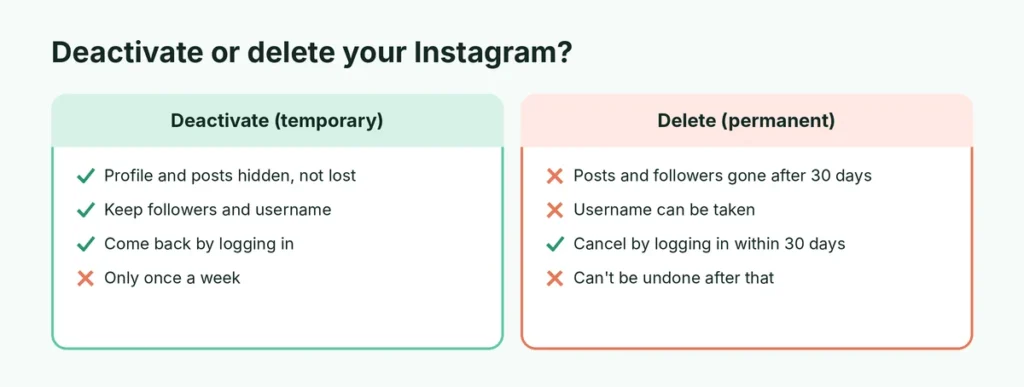
| Deactivate | Delete | |
|---|---|---|
| Your profile, posts and comments | Hidden until you return | Permanently removed after 30 days |
| Followers and following | Kept | Lost |
| Messages you sent | Stay in others’ inboxes | Stay, but show as “Instagram User” |
| Your username | Still yours | Can be taken by someone else |
| Can you come back? | Yes, just log in | Only within 30 days |
| How often | Once a week | Once |
If you’re not completely sure, deactivate. You can always delete later, but you can’t undo a deletion after 30 days.
Step 1: Download your photos and data
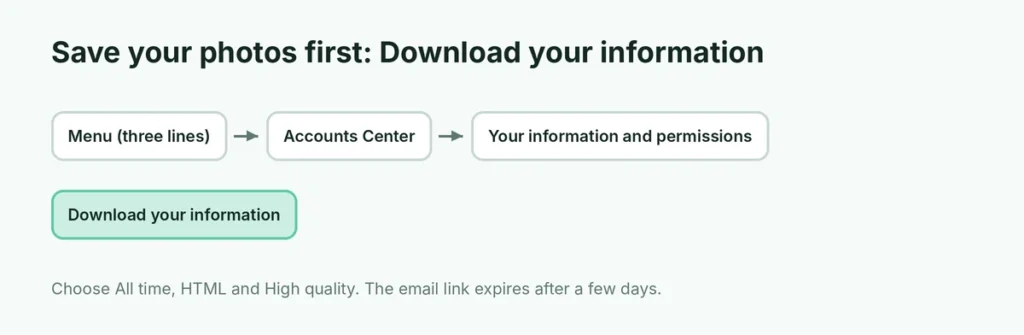
Once your account is deleted, nobody can recover your photos, including Instagram. Save a copy first.
- Open Instagram and go to your profile.
- Tap ☰ (top right) → Accounts Center.
- Tap Your information and permissions → Download your information.
- Tap Download or transfer information (or Request a download) and choose your Instagram account.
- Choose All available information (or pick specific types such as posts and messages).
- Choose Download to device, set the date range to All time, the format to HTML (easiest to view) and the media quality to High.
- Tap Create files or Submit request.
Instagram emails you when the file is ready, which can take from a few hours to a few days. The download link expires after a few days, so save the file as soon as it arrives.
Step 2: Delete your Instagram account in the app
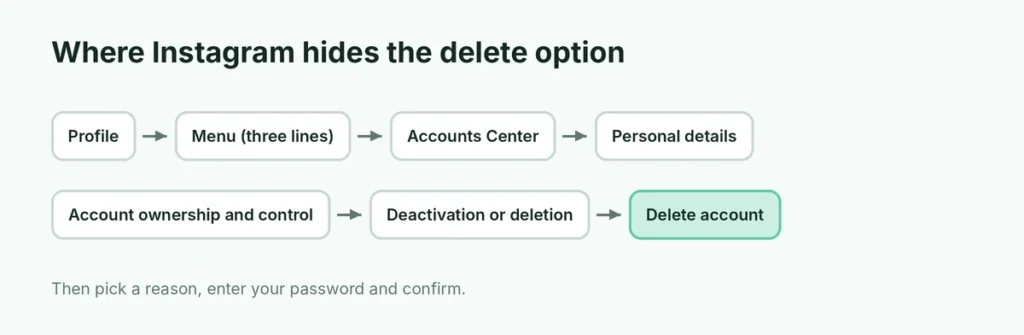
This works the same on iPhone and Android.
- Open Instagram and tap your profile picture at the bottom right.
- Tap ☰ (the three lines, top right).
- Tap Accounts Center (near the top of the menu).
- Tap Personal details.
- Tap Account ownership and control.
- Tap Deactivation or deletion.
- Choose the Instagram account you want to delete. If you have several accounts linked, make sure you pick the right one.
- Select Delete account and tap Continue.
- Choose a reason (or Something else) and tap Continue.
- Enter your password and tap Continue, then Delete account.
You’ll see a date by which your account will be permanently deleted. Until then, it’s hidden from everyone.
Delete Instagram on a computer
- Go to instagram.com and log in.
- Click More (☰) at the bottom left → Settings.
- Click Accounts Center.
- Click Personal details → Account ownership and control → Deactivation or deletion.
- Choose the account, select Delete account, and follow the same steps.
The 30-day window: how to cancel a deletion
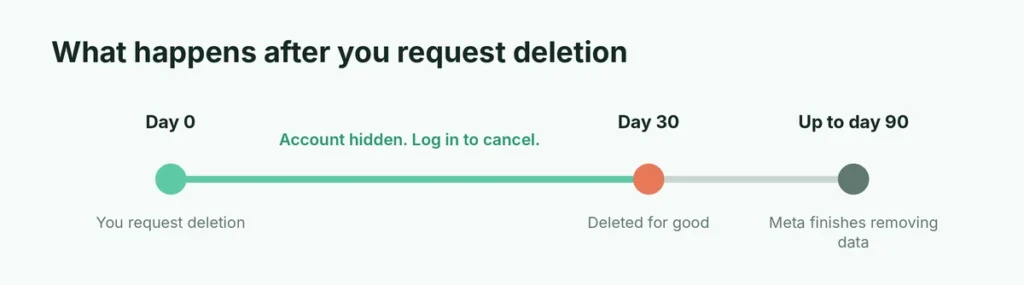
After you request deletion, Instagram waits 30 days before permanently deleting the account. During that time:
- your profile, photos, comments and likes are hidden,
- nobody can find your account in search,
- you can cancel by simply logging back in and choosing to keep your account.
After 30 days, the deletion can’t be reversed. Meta says it can take up to 90 days from the start of the deletion process to remove all your data from its systems, but your account isn’t visible during that time.
Will Instagram try to keep you?
Yes, a little. During deletion Instagram asks why you’re leaving and may suggest alternatives, such as deactivating, changing privacy settings or reviewing your notifications. These screens are optional; keep tapping Continue if you’ve made up your mind. You’ll also get an email confirming the deletion request. Keep it: it shows the date your account will be permanently deleted and is useful if you ever need to prove you requested deletion.
How to deactivate instead (temporary)
- Follow the same path: profile → ☰ → Accounts Center → Personal details → Account ownership and control → Deactivation or deletion.
- Choose the account and select Deactivate account.
- Enter your password, choose a reason and confirm.
Your account stays hidden until you log in again. You can deactivate only once a week.
Deleting when you can’t log in
If you’ve forgotten your password, reset it first from the Instagram login screen with Forgot password?. Instagram can send a link to your email or phone number.
If your account has been hacked, use instagram.com/hacked to recover it before deciding whether to delete it. You can’t delete an account you can’t log in to, and reporting the hack protects your followers from scam messages sent in your name.
If you want to remove an account belonging to someone who has passed away, Instagram has a separate request form for memorializing or removing the account; family members can find it in the Instagram Help Center.
Can’t find the delete option?
If you don’t see Deactivation or deletion, check these:
- Update the app. Older versions of Instagram had the option in a different place. Update from the App Store or Google Play.
- Look inside Accounts Center, not Settings. The delete option isn’t in the main Settings list anymore; it’s under Accounts Center → Personal details → Account ownership and control.
- You might be in the wrong account. If you’re logged in to several accounts, the option deletes only the one you choose on the next screen.
- Use a browser. If the app won’t show it, instagram.com has the same Accounts Center options.
Delete just one of several accounts
If you have more than one Instagram account, for example a personal and a business account, each one is deleted separately. On the Deactivation or deletion screen, Instagram lists every account linked to your Accounts Center. Choose only the one you want to delete. Your other accounts aren’t affected, but you may want to remove the deleted account from your login list afterwards.
What other people see after you delete
During the 30-day window and afterwards:
- your profile can’t be found, and visiting your old link shows that the page isn’t available,
- your comments and likes disappear from other people’s posts,
- messages you sent stay in their inbox, but your name shows as Instagram User with a default photo,
- people you tagged keep their posts, but the tag no longer links to you.
Keep your account but hide old posts
If you want a clean profile rather than no profile, archive old posts instead of deleting the account. On any post, tap ⋯ → Archive. Archived posts disappear from your profile but stay private in ☰ → Archive, and you can show them again at any time.
What happens to your linked accounts
- Facebook: deleting Instagram doesn’t delete your Facebook account, even if they’re linked in Accounts Center. Shared login and cross-posting between the two stop working.
- Threads: if you use Threads with the same profile, check Threads’ own settings before deleting. Meta has changed how Threads and Instagram accounts are linked over time, so read the warning screen carefully; it tells you exactly what will be removed with your Instagram account.
- Apps that use “Log in with Instagram”: you’ll lose access to them through Instagram; set up another login method first.
Before you delete: a quick checklist
| Done? | Step |
|---|---|
| ☐ | Downloaded your photos, videos and messages |
| ☐ | Told close friends how to reach you elsewhere |
| ☐ | Checked whether Threads or other apps depend on the account |
| ☐ | Removed payment methods from Instagram or Meta Pay if you used shopping |
| ☐ | Decided delete, not deactivate |
Alternatives if you just want less Instagram
Many people delete Instagram because of the time it takes or the people on it, not the account itself. A few settings can solve that without losing your photos:
- Set a daily time limit in ☰ → Time management (or Your activity → Time spent), or use Screen Time on iPhone for a hard limit.
- Make your account private in ☰ → Account privacy so only approved followers see your posts.
- Mute, restrict or block people you don’t want to see, instead of leaving entirely.
- Turn off notifications in ☰ → Notifications, which removes most of the pull to open the app.
If these don’t help, deactivating for a few weeks is a good way to find out whether you really want to delete.
The short version
Download your information first, then go to profile → ☰ → Accounts Center → Personal details → Account ownership and control → Deactivation or deletion, choose the account and select Delete account. It’s permanent after 30 days; log back in before then to cancel. If you only need a break, choose Deactivate account instead. Leaving other apps too? Here’s how to delete your WhatsApp account and what it removes, and how to stop spam calls on iPhone if unwanted calls are part of the reason you’re cleaning up. On TikTok instead? Here’s how to block someone on TikTok.