By
By 
If you share a laptop, hand your phone to your kids, or just don’t want a coworker glancing at your ChatGPT history, there’s finally a built-in fix. On October 20, 2026, OpenAI started rolling out Locked Chats: you can put any conversation behind a 4-digit PIN, or Face ID, Touch ID or your phone’s unlock. Here’s how to lock a chat, where locked chats go, and the one warning you must know before you set your PIN.
Short answer: open the chat’s More options menu (•••), tap Lock chat, confirm, and create a 4-digit PIN. The chat moves to Projects → Locked chats, where you unlock it with your PIN or Face ID, Touch ID or device unlock. It’s free on every plan, but if you reset a forgotten PIN, all locked chats are permanently deleted.
Applies to: ChatGPT Free, Go, Plus, Pro, Business, Enterprise and Edu on the web, the ChatGPT app for Windows and Mac, iPhone and Android. Rolling out gradually from October 20, 2026.
What Locked Chats does
- Hides chosen conversations behind a PIN or biometrics, in a separate Locked chats section.
- Removes them from your normal chat list and search, so they don’t show up when someone scrolls your history.
- Keeps them permanently, unlike a Temporary Chat, which isn’t saved at all.
- Gives locked chats their own memory. If Memory is on, what you say in a locked chat doesn’t carry over into your regular chats.
How to lock a chat in ChatGPT
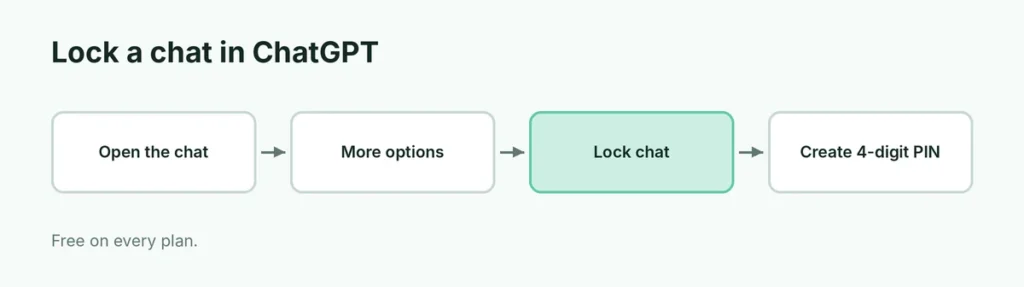
- Open the conversation you want to protect.
- Tap or click the More options menu (•••).
- Select Lock chat, then Lock chat again to confirm.
- The first time, ChatGPT asks you to Create a PIN: enter 4 digits, then enter them again.
The chat disappears from your main list straight away. If you don’t see Lock chat in the menu, the feature hasn’t reached your account yet; it’s rolling out in stages.
Where to find your locked chats
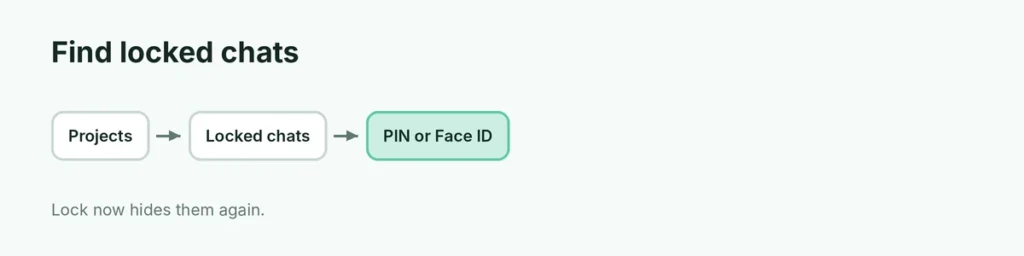
- Open Projects in the sidebar.
- Select Locked chats.
- Enter your PIN, or use Face ID, Touch ID or your device unlock.
From there you can open any locked chat or start a new conversation that’s locked from the first message. To close everything again immediately, select Lock now.
Locked chats also relock on their own:
| Where | When it relocks |
|---|---|
| Web browser | When you refresh, close or leave the tab |
| Windows and Mac app | When you leave the app window |
| iPhone and Android | After 1 minute away or in the background |
Turn on Face ID, Touch ID or device unlock
- iPhone: go to Settings → Security and login → Account PIN and turn on Use Face ID or Use Touch ID.
- Android: choose Use device unlock when ChatGPT asks.
Biometrics only work on the device where you turn them on. Your PIN still works everywhere, so don’t forget it.
Change or reset your PIN (read this first)
Change your PIN (keeps your chats): Settings → Security and login → Account PIN → Change. You’ll need your current PIN, even if you normally use Face ID.
Reset a forgotten PIN (deletes your chats): same menu → Reset. This permanently deletes every locked chat, the memories stored only in them, and files protected by the old PIN. OpenAI Support can’t recover them.
Tip: if a locked chat holds something you can’t afford to lose, copy the important parts somewhere safe, such as a password manager’s secure notes.
How to unlock a chat permanently
- Open the locked chat.
- Open More options (•••).
- Select Unlock chat (just Unlock on iPhone) and confirm.
The conversation goes back to your normal history.
What Locked Chats doesn’t do
| It doesn’t… | What that means |
|---|---|
| Add end-to-end encryption | It hides chats on your screen; it isn’t a secure vault |
| Change how long OpenAI keeps chats | Normal data retention still applies |
| Stop training on your chats | Turn off Improve the model for everyone separately |
| Erase older memories | Anything ChatGPT remembered before you locked the chat stays |
| Work for every chat | Not for temporary, archived, group or shared-link chats, or chats with scheduled tasks |
Locked chats also can’t be archived, pinned, moved or shared until you unlock them, and locking a chat inside a project removes it from that project.
Locked Chats vs Temporary Chat
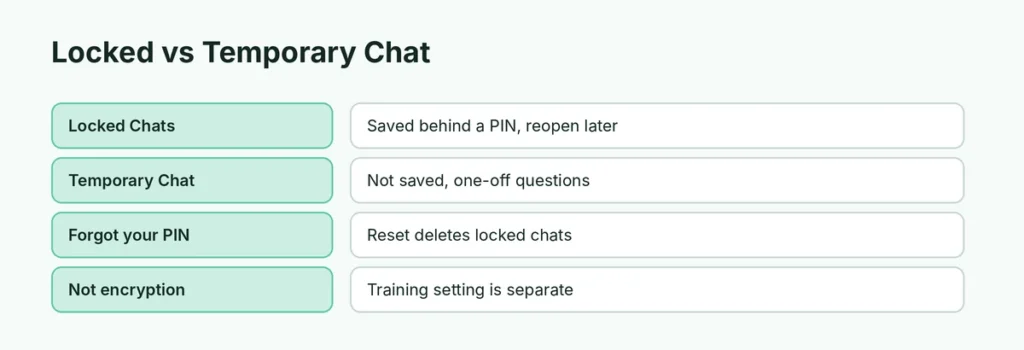
| Locked Chats | Temporary Chat | |
|---|---|---|
| Saved to your account | Yes, behind a PIN | No |
| Can reopen later | Yes | No |
| Shown in history | Only in Locked chats | Never |
| Best for | Private topics you’ll come back to | One-off sensitive questions |
Related guides
- How to stop ChatGPT, Gemini and Claude training on your data
- How to delete your ChatGPT history
- How to use ChatGPT
The short version
Open a chat’s ••• menu, choose Lock chat, and set a 4-digit PIN. Find locked chats under Projects → Locked chats, and turn on Face ID or device unlock for speed. It hides chats from anyone using your device, but it isn’t encryption and doesn’t stop training. Never forget your PIN: resetting it deletes every locked chat for good.
Sources
- OpenAI Help Center: Using Locked Chats in ChatGPT
- TechCrunch: ChatGPT now lets you lock your chats