By
By 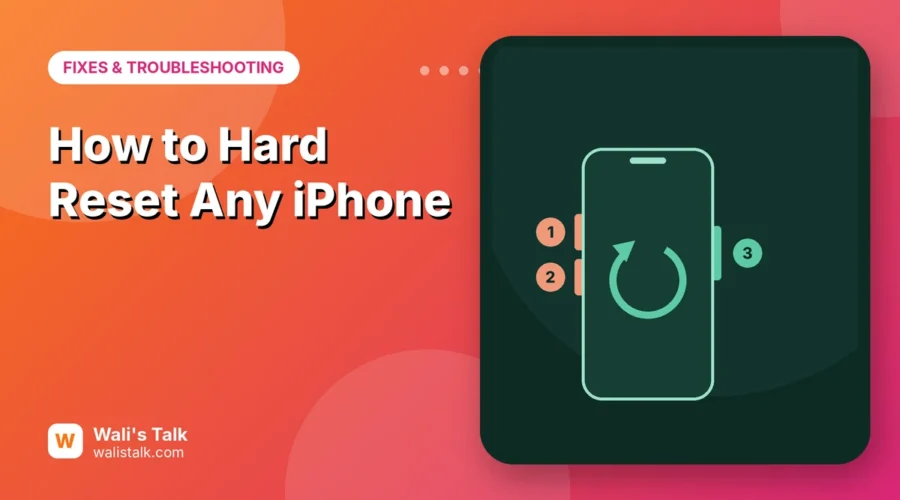
When an iPhone freezes, shows a black screen, or gets stuck on the Apple logo, a hard reset (Apple calls it a force restart) is the first fix to try. It cuts the power and restarts the phone without deleting anything: your photos, messages and apps stay exactly where they are. The only tricky part is that the button combination depends on your model, and the newest one has to be done quickly and in the right order.
Short answer: on iPhone 8 and later (including iPhone 16 and 17), press and quickly release volume up, press and quickly release volume down, then press and hold the side button. Keep holding, even when the “slide to power off” screen appears, until the Apple logo shows up (about 10 to 20 seconds). Then let go.
Last updated: October 2026. Works on every iPhone running iOS 26 or iOS 27, and on older models with older iOS versions.
Hard reset vs. factory reset: don’t mix them up
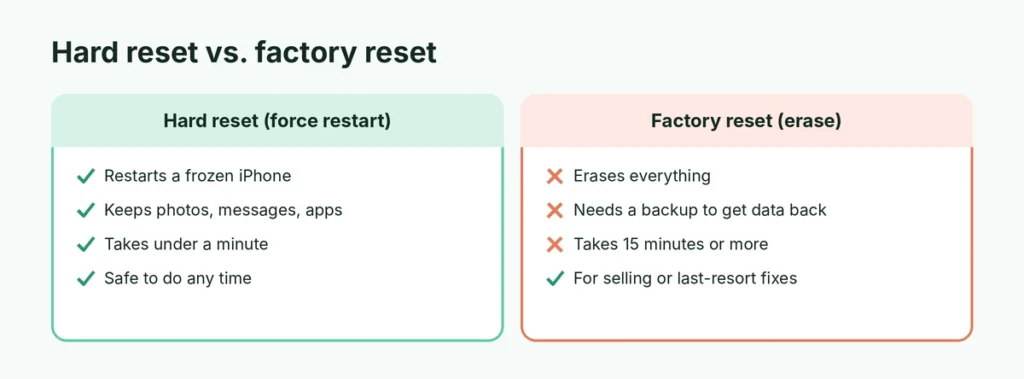
People use “hard reset” for two very different things:
| Hard reset (force restart) | Factory reset (erase) | |
|---|---|---|
| What it does | Cuts the power and restarts | Deletes everything and returns to factory settings |
| Your data | Safe, nothing is deleted | Erased (restore from a backup afterwards) |
| When to use it | Frozen, black or unresponsive screen | Selling the phone, or a problem nothing else fixes |
| Time | Under a minute | 15 minutes to an hour, plus restoring |
This guide is about the force restart. If you really want to wipe your iPhone, follow how to factory reset an iPhone instead, and back it up first.
How to hard reset iPhone 8, SE (2nd and 3rd gen), X and later
This works on every iPhone with Face ID and on iPhone 8, 8 Plus and iPhone SE (2nd and 3rd generation), including iPhone 11, 12, 13, 14, 15, 16 and 17:
- Press and quickly release the volume up button.
- Press and quickly release the volume down button.
- Press and hold the side button (on the right edge).
- Ignore the slide to power off slider and keep holding.
- Release the button when the Apple logo appears.
The phone takes a minute or so to start up. Enter your passcode when asked; Face ID doesn’t work until you’ve typed it once after a restart.
Tip: steps 1 and 2 should be quick presses, not holds, about half a second apart. If you hold volume up too long, nothing happens; if you hold the side and volume buttons together, you’ll get the power-off or Emergency SOS screen instead. If you see Emergency SOS, let go and don’t slide anything.
How to hard reset iPhone 7 and 7 Plus
- Press and hold the volume down button and the side (Sleep/Wake) button at the same time.
- Keep holding both until the Apple logo appears, then release.
How to hard reset iPhone 6s, 6s Plus and iPhone SE (1st gen)
- Press and hold the Home button and the Sleep/Wake button at the same time. On iPhone 6s it’s on the right side; on the first iPhone SE it’s on the top.
- Keep holding until the Apple logo appears, then release.
Quick reference: which buttons for which iPhone
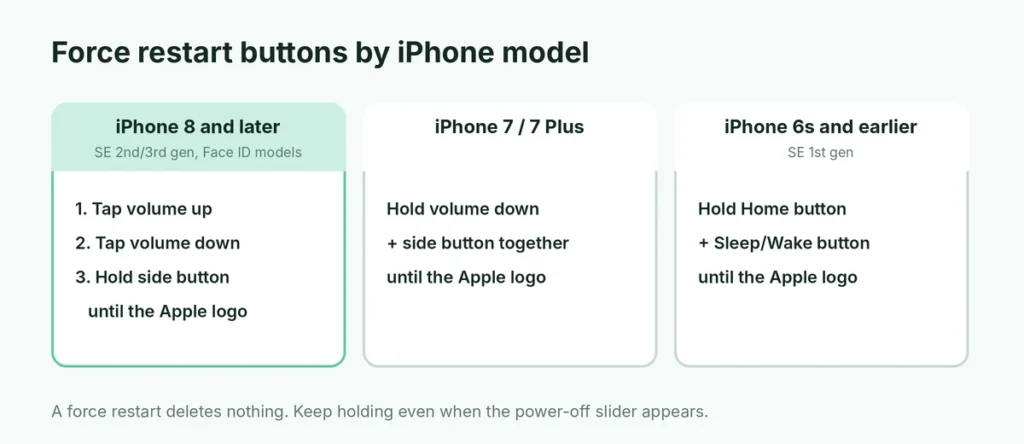
| iPhone model | Force restart buttons |
|---|---|
| iPhone 8 and later, SE 2nd/3rd gen, all Face ID models | Volume up (tap), volume down (tap), hold side button |
| iPhone 7, 7 Plus | Hold volume down + side button |
| iPhone 6s and earlier, SE 1st gen | Hold Home + Sleep/Wake button |
Not sure which iPhone you have? Go to Settings → General → About and look at Model Name. If the screen doesn’t work at all, look for a Home button: no Home button means it’s iPhone X or later.
When should you force restart?
A force restart is the right fix when:
- the screen is frozen and doesn’t respond to touch,
- the screen is black but the phone still vibrates or rings,
- an app has hung and won’t close,
- the iPhone is stuck on the Apple logo after an update or restart,
- the phone is very slow or glitchy after hours of use.
If the phone is working normally and you just want it off, a normal shutdown is gentler. Here’s how to turn off an iPhone in every way, including without the buttons.
Hard reset didn’t work? Try these in order
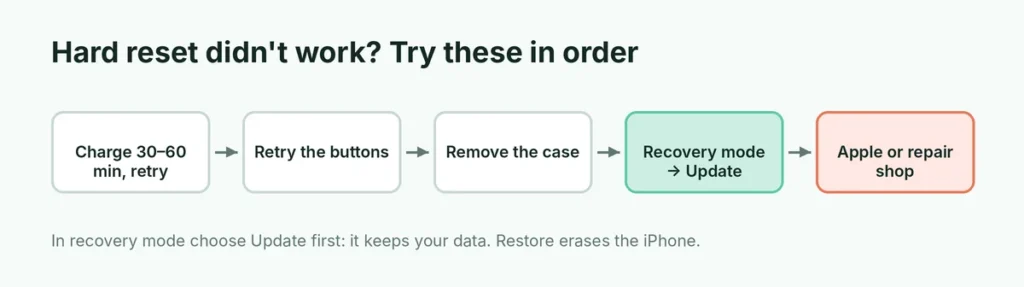
1. Charge it for an hour
A completely drained battery looks exactly like a dead or frozen iPhone. Plug it into a wall charger (not a laptop) with a cable you know works, wait at least 30 to 60 minutes, then try the force restart again while it’s still plugged in. You may see a red battery or a charging cable icon first.
2. Try the buttons again, slower and faster
The newest combination is easy to get wrong. Try again, making sure the two volume presses are short taps and that you keep holding the side button for a full 20 to 30 seconds.
3. Check for a stuck or broken button
If a button feels mushy, stuck or doesn’t click, the force restart can’t work. A case that presses on the buttons can also cause problems; take it off and try again.
4. Use recovery mode (keeps your data if you choose Update)
If the iPhone is stuck on the Apple logo or keeps restarting, recovery mode lets a computer reinstall iOS:
- Connect the iPhone to a Mac (Finder) or Windows PC (Apple Devices app or iTunes) with a cable.
- Do the force restart button combination for your model, but keep holding the last button even after the Apple logo appears.
- Release when you see the recovery mode screen (a computer and a cable).
- On the computer, choose Update, not Restore. This reinstalls iOS and keeps your data.
- If the download takes longer than about 15 minutes and the iPhone leaves recovery mode, repeat steps 2 and 3.
Only choose Restore if Update fails. Restore erases the iPhone, so you’ll need a backup to get your data back.
5. Contact Apple or a repair shop
If none of the above works, or the screen shows lines, flickers or stays black while the phone clearly runs, the problem is probably hardware: the display, battery or logic board. Book an appointment with Apple or an Apple Authorized Service Provider. If your iPhone is still under warranty or AppleCare, the repair may be free.
Does a hard reset delete anything?
No. A force restart doesn’t delete photos, messages, apps, contacts or settings. The only things you might lose are:
- unsaved text in an app that was open (for example, a note you were typing),
- a download or call that was in progress.
It’s safe to do as often as you need. If you find yourself force restarting every day, though, something else is wrong (see below).
If your iPhone keeps freezing
Frequent freezes usually have a cause you can fix:
- Update iOS. Many freezes are software bugs fixed in later updates.
- Free up storage. An iPhone with less than a few gigabytes free slows down and freezes. See how to clear cache on iPhone to make room.
- Update or remove the app that crashes. If freezes always happen in the same app, reinstall it.
- Check battery health. In Settings → Battery → Battery Health, a low maximum capacity can cause sudden shutdowns.
- Back up and reset as a last resort. If nothing else helps, back up, erase and restore. Start with how to back up an iPhone.
Force restart vs. restart vs. turn off
| Restart | Force restart | Turn off | |
|---|---|---|---|
| How | Turn off, then on | Button combination | Slider or Settings |
| Needs a working screen | Yes | No | Yes |
| Safe for your data | Yes | Yes | Yes |
| Use when | The phone is slow or glitchy | It’s frozen or black | You want it off |
Restart without buttons
If the screen works but a button is broken, you can still restart:
- Ask Siri: “Restart iPhone.”
- Go to Settings → General → Shut Down, then turn it back on by plugging it into a charger.
- Turn on AssistiveTouch (Settings → Accessibility → Touch → AssistiveTouch), then tap the floating button → Device → More → Restart.
The short version
On iPhone 8 and later, press volume up, press volume down, then hold the side button until the Apple logo appears. On iPhone 7, hold volume down + side; on iPhone 6s and the first SE, hold Home + Sleep/Wake. A force restart deletes nothing. If it doesn’t help, charge for an hour and try again, then use recovery mode and choose Update. Keep a recent backup so a broken iPhone never means lost photos; here’s how to back up your iPhone.