By
By 
Google now puts an AI Overview (an AI-written summary) at the top of many search results. Some people find it handy, but many just want the normal list of links, especially when the AI summary is wrong or pushes the real websites down the page. Here’s the honest answer on turning off AI Overviews in Google, and the methods that actually work on a computer, Android and iPhone.
Short answer: there’s no official switch to turn off AI Overviews; Google treats them as a core part of Search. But you can avoid them: click the Web tab under the search box (plain links, no AI), add &udm=14 to the search URL, or set up a custom search engine in Chrome with {google:baseURL}search?udm=14&q=%s so every address-bar search opens the Web results. Adding -ai to a search also usually hides the overview. Or use a different search engine.
Last updated: October 2026. Google changes Search often; we’ll update this guide if an official setting appears.
Can you turn off AI Overviews in Google?
Not completely. Google’s help pages say AI Overviews are part of Search and can’t be turned off. The Search Labs toggle only controls experimental features like early AI Mode tests, not regular AI Overviews.
So the goal is to get results without them. The methods below do that.
Method 1: Use the Web filter (easiest)

- Search on Google as usual.
- Under the search box, click Web (you may need to click More to find it).
- You’ll see a clean list of text links with no AI Overview.
Downside: the Web filter also hides other extras like shopping cards, map packs and knowledge panels.
Method 2: Make “Web” your default in Chrome (computer)
This makes every search from the address bar skip AI Overviews:
- In Chrome, open Settings → Search engine → Manage search engines and site search (or type
chrome://settings/searchEnginesin the address bar). - Next to Site search, click Add.
- Fill in:
- Name: Google (Web)
- Shortcut: @web
- URL:
{google:baseURL}search?udm=14&q=%s
- Click Add.
- Click the three-dot menu next to the new entry → Make default.
Now searches typed in the address bar open the Web results directly. Searches typed on google.com itself still show AI Overviews.
Method 3: Add “-ai” to your search
Type your search and add -ai at the end, for example: best budget laptop -ai. Google usually skips the overview. It’s quick, but it’s an unofficial trick, and it also removes results that mention “AI,” so it’s not ideal for AI topics.
Method 4: On Android and iPhone
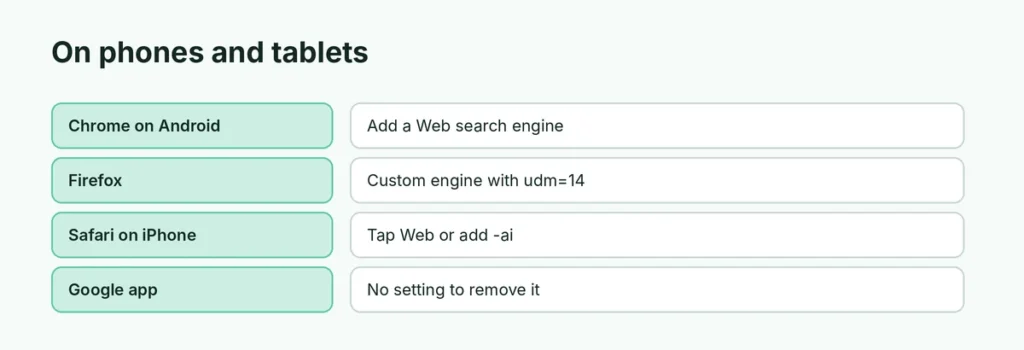
- Chrome on Android: some sites like tenbluelinks.org help you add a “Google Web” search engine. Visit it once, then go to Chrome Settings → Search engine and pick the new option.
- Firefox (Android and iPhone): go to Settings → Search → Add search engine and use the URL
https://www.google.com/search?udm=14&q=%s, then make it default. - Safari on iPhone: Safari doesn’t allow custom search engines. Tap Web in Google’s results, use the -ai trick, or save a bookmark to
google.com/search?udm=14&q=. - The Google app: has no setting to remove AI Overviews.
Method 5: Use a different search engine
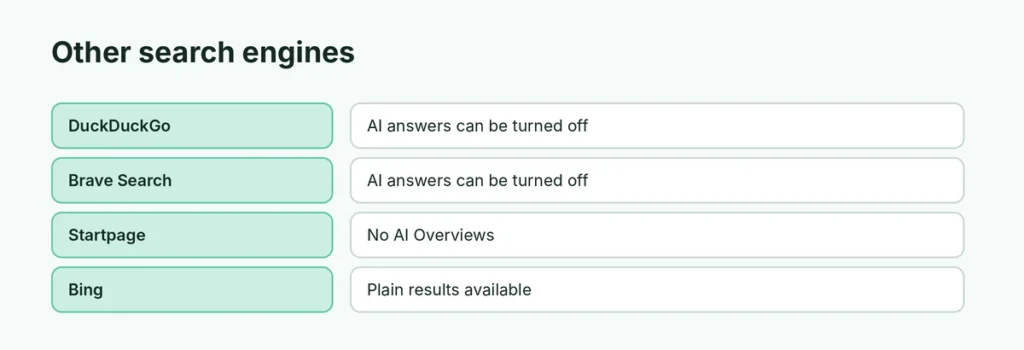
If you want no AI summaries at all:
| Search engine | AI summaries |
|---|---|
| DuckDuckGo | Optional; can be turned off in settings |
| Bing | Has Copilot answers, but plain results available |
| Brave Search | Has AI answers that can be turned off |
| Startpage | Google-based results without AI Overviews |
Change your default in your browser’s settings.
Are browser extensions safe for hiding AI Overviews?
Extensions like “Bye Bye, Google AI” hide the overview box on the page. They can work, but:
- they only hide it after Google loads it,
- they may break when Google changes its page,
- some extensions ask for broad permissions.
Install only well-reviewed extensions from the official Chrome Web Store, and check what data they can access.
What about AI Mode?
AI Mode is a separate tab in Google Search that answers with a longer AI conversation. You don’t have to use it: just don’t click the AI Mode tab. The Web filter shows results without AI Mode answers too.
Why do people want to turn off AI Overviews?
- They can be wrong or miss context, especially for health, money and legal questions.
- They push original websites further down the page.
- Some people simply prefer to read sources themselves.
If you use AI Overviews, check important facts by opening the linked sources.
Related guides
- How to change your default Google account
- How to make Chrome your default browser
The short version
Google doesn’t offer a switch to turn off AI Overviews. Click the Web tab for plain results, add -ai to a search, or make a Chrome search engine with {google:baseURL}search?udm=14&q=%s and set it as default so every address-bar search skips them. On iPhone and Android, use Firefox’s custom engine or the Web tab, or switch to a search engine like DuckDuckGo.