By
By 
You tapped download on a PDF, a photo or a file in an email, and now it’s nowhere to be found. iPhones don’t have a Downloads folder on the Home Screen, so it’s easy to lose track. The good news: almost everything you download lands in one of a few predictable places, and once you know them you can find any file in seconds.
Short answer: open the Files app, tap Browse at the bottom, then go to iCloud Drive → Downloads (or On My iPhone → Downloads). That’s where Safari and most apps save downloaded files. Photos and videos you save go to the Photos app instead, and downloaded apps appear on your Home Screen or in the App Library.
Last updated: October 2026. Written for iOS 26 and iOS 27; the steps are the same on iOS 17 and iOS 18.
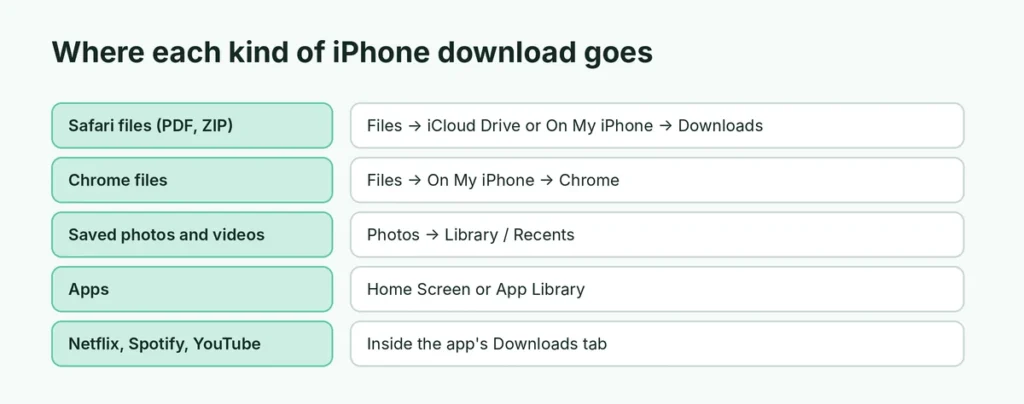
Where each kind of download goes
| What you downloaded | Where to find it |
|---|---|
| Files from Safari (PDFs, ZIPs, documents) | Files → iCloud Drive or On My iPhone → Downloads |
| Files from Chrome | Files → On My iPhone → Chrome (or Chrome’s own Downloads list) |
| Photos and videos you saved | Photos app → Library or Recents |
| Email attachments you saved | Files, in the folder you picked when saving |
| Apps from the App Store | Home Screen or App Library (swipe left past your last page) |
| Music, podcasts, Netflix or YouTube offline videos | Inside that app’s Downloads or Library tab |
| Voice memos and screen recordings | Voice Memos app and Photos app |
If you don’t know what app you used, start with the Files app search (below), then check Photos.
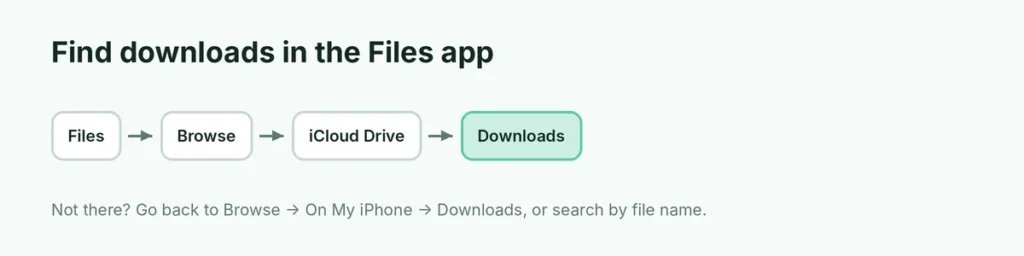
How to find downloads in the Files app
- Open the Files app (a blue folder icon). If you can’t find it, swipe down on the Home Screen and search for “Files”.
- Tap Browse at the bottom of the screen. Tap it again if you’re inside a folder.
- Under Locations, tap iCloud Drive and open the Downloads folder.
- If it’s not there, go back and check On My iPhone → Downloads.
Tap any file to open it. Press and hold a file for options like Share, Rename, Move and Delete.
Search for the file instead
If you remember any part of the file name:
- In the Files app, tap Browse.
- Pull down slightly to reveal the Search bar.
- Type part of the name, such as “invoice” or “pdf”.
Files searches all your locations at once, including iCloud Drive and On My iPhone.
Show your newest files first
Tap Recents at the bottom of the Files app to see files you opened or saved recently. Inside any folder, tap the ⋯ (More) button and choose Date to sort by newest first.
Find downloads in Safari
Safari keeps its own list of recent downloads:
- Open Safari.
- While a download is in progress or just finished, tap the download arrow (a circle with a down arrow) in the address bar or toolbar.
- Tap the magnifying glass next to a file to jump to it in the Files app.
The download arrow disappears after a while. If you don’t see it, use the Files app steps above.
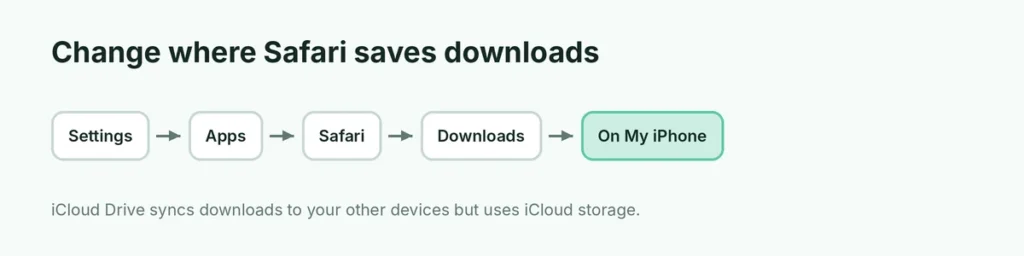
Change where Safari saves downloads
By default Safari saves to iCloud Drive → Downloads, which uses your iCloud storage and syncs to your other Apple devices. To keep downloads only on your iPhone:
- Open Settings.
- Go to Apps → Safari (on older versions, just Safari).
- Tap Downloads and choose On My iPhone, or pick another folder with Other.
You can also set Remove Download List Items to clear the list automatically after one day, after a successful download, or manually.
How to download a file in Safari (so you know where it goes)
Sometimes a “missing” download was never actually saved. To download a file properly:
- Tap the download link. Safari asks Do you want to download “file name”?
- Tap Download. The download arrow appears in the address bar while it saves.
- If the file opens in a preview instead (common with PDFs), tap the Share button and choose Save to Files, then pick a folder.
For images on web pages, press and hold the picture and choose Save to Photos or Save to Files. Whichever you choose decides where you’ll find it later.
Find downloads in Chrome
- Open Chrome.
- Tap the ⋯ (three dots) button at the bottom right.
- Tap Downloads.
Chrome stores files in Files → On My iPhone → Chrome. If you chose “Open in” or “Save to Files” while downloading, the file is wherever you saved it.
Where saved photos and videos go
Images and videos you save from a website, Messages, WhatsApp or social apps go straight to the Photos app:
- Open Photos.
- Look in Recents or scroll to the bottom of your Library for the newest items.
If you tapped Save to Files instead of Save Image, the picture is in the Files app, not Photos.
Where attachments from Mail, Messages and WhatsApp go
Attachments aren’t downloaded to a folder until you save them:
- Mail: tap the attachment, then the Share button → Save to Files. Until you do, it stays inside the email.
- Messages: press and hold a photo and tap Save, or tap a document → Share → Save to Files. Everything sent in a chat also appears when you tap the contact’s name at the top and scroll to Photos or Documents.
- WhatsApp: photos and videos save to Photos if Save to Photos is on in WhatsApp’s Chats settings; documents stay inside WhatsApp until you share them to Files.
Downloads on iPhone, iPad and Mac
If Safari saves to iCloud Drive → Downloads, the same folder appears on your iPad and in Finder → iCloud Drive → Downloads on a Mac signed in to the same Apple Account. That’s handy for opening a file on a bigger screen, but it also means a large download uses your iCloud storage. Save to On My iPhone instead if you’re short on iCloud space.
Where downloaded apps go
New apps appear on your Home Screen, unless you chose to send them to the App Library only. To find one:
- Swipe down on the Home Screen and type the app’s name, or
- Swipe left past your last Home Screen page to open the App Library and use the search bar at the top.
To make new apps always show on the Home Screen, go to Settings → Home Screen & App Library and choose Add to Home Screen.
How to delete downloads and free up space
Downloads add up quickly, especially videos and ZIP files.
- Open Files → Browse → Downloads.
- Tap ⋯ (More) → Select.
- Select the files you don’t need and tap the trash icon.
- Go to Browse → Recently Deleted and tap Delete All to free the space immediately. Otherwise, deleted files stay there for 30 days.
To see what’s using the most space overall, go to Settings → General → iPhone Storage. For more ways to make room, see how to clear cache on iPhone.
Can’t find a download? Common reasons
The download didn’t finish. A weak connection or switching apps can stop it. Try downloading again on Wi-Fi.
It opened in a preview instead of downloading. PDFs often open in a preview. Tap the Share button, then Save to Files.
It’s in iCloud Drive and hasn’t downloaded to the iPhone. Files with a small cloud icon are stored online. Tap the file to download it, or press and hold it and tap Download Now.
iCloud Drive is turned off. If iCloud Drive is off, the iCloud Drive location won’t appear. Check On My iPhone instead, or turn iCloud Drive on in Settings → your name → iCloud → iCloud Drive.
The app keeps its own downloads. Apps like Netflix, Spotify and YouTube store offline downloads inside the app, protected from the Files app. Open the app and look for a Downloads tab.
Keep your downloads organized
- Create folders inside Downloads, such as “Receipts” or “Tickets”: in Files, tap ⋯ → New Folder.
- Add Downloads to Favorites: press and hold the Downloads folder and tap Favorite so it appears at the top of Browse.
- Rename files as soon as you save them so search can find them later.
- Clear the folder monthly so it doesn’t silently fill your storage.
Scanning paper documents instead of downloading them? Here’s how to scan documents on iPhone straight into the Files app.
The short version
Open the Files app, tap Browse, and check iCloud Drive → Downloads, then On My iPhone → Downloads. Search by file name if you can’t see it. Saved pictures go to Photos, apps go to the Home Screen or App Library, and streaming apps keep downloads inside the app. Change Safari’s save location in Settings → Apps → Safari → Downloads, and empty Recently Deleted after cleaning up to get your space back.