By
By 
Realizing your iPhone is gone is a horrible feeling. The good news: if Find My was on, you can usually see where it is, make it play a sound, lock it with a message, and keep your Apple Pay cards and accounts safe, all from a computer or a friend’s phone. Here’s exactly what to do, in order.
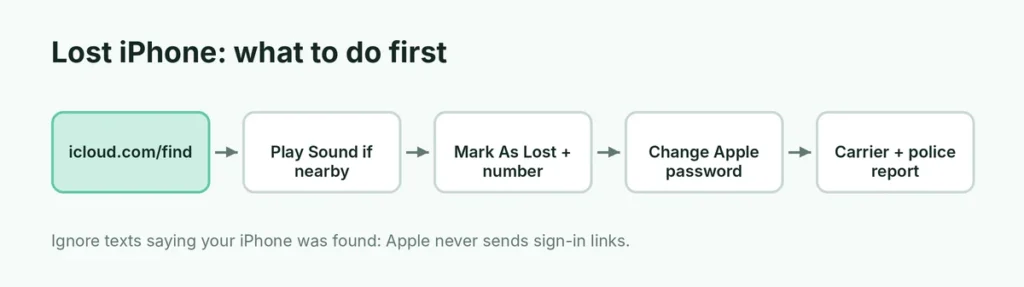
Short answer: on any browser, go to icloud.com/find and sign in with your Apple Account. Select your iPhone to see it on the map, tap Play Sound if it’s nearby, and turn on Mark As Lost (Lost Mode) to lock it and show a contact number. If it was stolen, also report it to your carrier and the police. Only choose Erase This Device when you’re sure you won’t get it back.
Last updated: October 2026. Works for iPhones running iOS 17, iOS 18 and iOS 26.
Step 1: Locate your iPhone
On a computer or any phone (including Android)
- Open a browser and go to icloud.com/find.
- Sign in with your Apple Account email and password. You can open Find Devices without a two-factor code, so it works even though your iPhone (which receives those codes) is missing.
- Select All Devices and choose your iPhone.
The map shows its current location, or its last known location if it’s offline.
On another Apple device
- Your iPad or Mac: open the Find My app → Devices and select your iPhone.
- A friend’s iPhone: in the Find My app, go to Me → Help a Friend and sign in with your Apple Account. Sign out when you’re done.
- A family member’s iPhone: if you use Family Sharing, your iPhone already appears in their Find My app under Devices.
Can you find an iPhone that’s off or offline?
Usually, yes. If the Find My network was turned on, nearby Apple devices anonymously report your iPhone’s location, even when it’s offline. On iPhone 11 and later, it can often still be found for some time after it’s turned off or the battery runs low. If nothing shows, you’ll see the last location it reported.
If the map shows a stranger’s address
Don’t go there alone or try to get the phone back yourself, even if the location looks exact. Location can be off by a building or more, and confronting someone is risky. Take a screenshot of the map with the time, keep Lost Mode on, and give the information to the police when you file your report.
Step 2: Play a sound if it’s nearby
If the map shows your iPhone at home, in your car or somewhere close, select Play Sound. It plays a loud sound that gets louder, even in silent mode. Walk around and listen. The sound stops when someone unlocks the phone or taps a button.
Step 3: Turn on Lost Mode (Mark As Lost)
If it’s not nearby, lock it right away:
- In Find My, select your iPhone → Mark As Lost → Activate (on icloud.com it’s called Lost Mode).
- Enter a phone number where you can be reached (a family member’s or work number).
- Add a short message, such as “This iPhone is lost. Please call me.”
- Confirm.
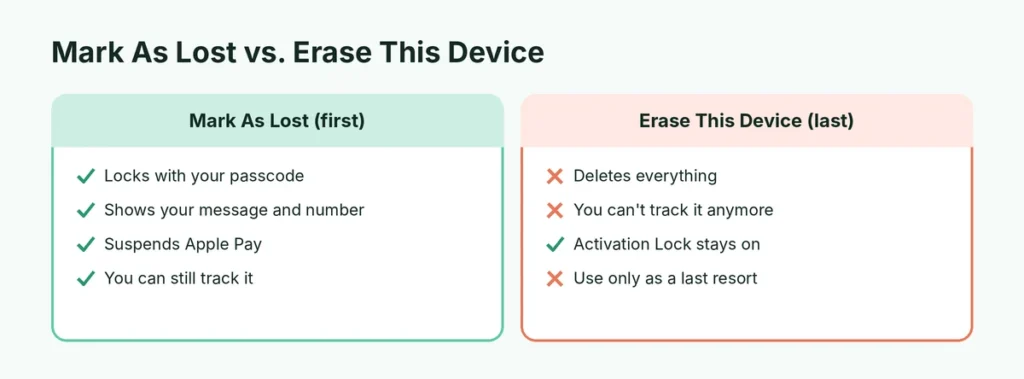
What Lost Mode does:
- Locks the iPhone with your passcode (if you didn’t have one, you’ll be asked to create it),
- shows your message and number on the lock screen,
- suspends Apple Pay cards and passes,
- keeps location tracking on and emails you when the phone’s location changes,
- silences notifications on the lock screen so strangers can’t read your messages.
Step 4: Watch out for scam messages
Thieves sometimes send fake texts or emails that look like they’re from Apple, saying “Your lost iPhone has been found” with a link. The link leads to a fake Apple sign-in page that steals your password so they can remove the phone from your account.
Apple never sends a link asking you to sign in to see your found iPhone. Only use icloud.com/find or the Find My app, typed or opened by yourself. And never remove the iPhone from your account because someone asks you to.
Step 5: Protect your accounts and money
- Change your Apple Account password at account.apple.com, especially if your passcode was easy to guess or someone saw you type it.
- Call your bank if you had banking apps on the phone. Apple Pay is already suspended by Lost Mode.
- Change passwords for email and social media accounts, and log out of other sessions. For WhatsApp, check your linked devices and log out of WhatsApp Web remotely.
Step 6: Report it to your carrier and the police
- Your carrier (Verizon, AT&T, T-Mobile and others) can suspend your line, block the iPhone’s IMEI so it can’t be used on cellular networks, and give you a new SIM or eSIM with the same number.
- File a police report if it was stolen. You’ll need the serial number or IMEI: sign in at account.apple.com → Devices, select the iPhone, and you’ll see both.
- Insurance or AppleCare+ with Theft and Loss: file a claim at support.apple.com (or with your insurer). Don’t erase the iPhone or remove it from your account until the claim is approved, because the claim requires Find My to still be on.
Step 7: Erase it only as a last resort
If you’re sure the iPhone is gone for good, you can erase it to protect your data:
- In Find My, select the iPhone → Erase This Device.
- Confirm with your Apple Account password.
If the phone is offline, it erases the next time it connects. Afterward, you can no longer track it, but Activation Lock stays on: nobody can set it up without your Apple Account password. Don’t select Remove This Device afterward, because that turns off Activation Lock and lets someone else use it.
What if Find My was turned off?
Then you can’t locate, lock or erase the iPhone remotely. You can still protect yourself:
- Change your Apple Account password right away.
- Report it to your carrier to suspend service and block the IMEI.
- File a police report with the serial number from account.apple.com → Devices.
- Change passwords for email, banking and social apps.
If you have Google Maps Timeline on, it may show where the phone was last seen. This only works if location history was turned on beforehand.
Set up these protections now

Do this today, before anything happens:
- Turn on Find My: Settings → your name → Find My → Find My iPhone → turn on Find My iPhone, Find My network and Send Last Location. Here’s what each setting means, and how to turn off Find My iPhone when you sell your phone.
- Turn on Stolen Device Protection: Settings → Face ID & Passcode → Stolen Device Protection. It requires Face ID or Touch ID (not just the passcode) to change your Apple Account password or turn off Find My when you’re away from familiar places, and adds an hour’s delay for some changes.
- Use a strong passcode: a 6-digit code or longer, not your birthday or 123456.
- Back up your iPhone to iCloud so you can restore everything to a new phone. Here’s how to back up an iPhone.
- Note your IMEI: go to Settings → General → About and screenshot it, or keep the box.
Lost iPhone checklist
| When | Do this |
|---|---|
| First 5 minutes | icloud.com/find → locate → Play Sound if nearby |
| Not nearby | Mark As Lost with a contact number |
| Within the hour | Change Apple Account password, call your bank |
| Same day | Call your carrier, file a police report, start an insurance claim |
| Gone for good | Erase This Device, keep it on your account |
Found it? What to do next
If you get it back, unlock it with your passcode: Lost Mode turns off, and you can re-add Apple Pay cards in Wallet. If you erased it, set it up again and restore from your iCloud backup.
Lost an Android phone?
The steps are similar but use Google’s Find Hub instead. Here’s how to find a lost Android phone.
The short version
Go to icloud.com/find, sign in, and select your iPhone. Play Sound if it’s close, turn on Mark As Lost with a contact number if it isn’t, and ignore any text claiming your iPhone was found. Change your Apple Account password, call your bank and carrier, and file a police report if it was stolen. Erase it only when you’ve given up, and never remove it from your account. Then turn on Find My, the Find My network and Stolen Device Protection on your next iPhone.