By
By 
Find My is one of the most useful things on an iPhone. It shows where your phone is on a map, makes it play a sound when it’s lost under a sofa, and locks it so a thief can’t simply wipe it and sell it. But there are times you need to switch it off: you’re selling or trading in the phone, sending it for repair, or handing it down to someone else. Apple also made turning it off harder on purpose, so if the switch seems stuck or asks you to wait an hour, that’s by design, not a fault.
This guide covers every way to turn off Find My iPhone, what the security delay is and how to deal with it, how to do it when the phone is lost, broken or no longer yours, and what to do before you sell.
Short answer: open Settings, tap your name at the top, then Find My → Find My iPhone, and turn it off. Enter your Apple Account password when asked. If Stolen Device Protection is on and you’re away from home or work, the iPhone will ask for Face ID, make you wait one hour, and then ask for Face ID again.
Last updated: October 2026. Steps checked against Apple’s documentation for iOS 26 and iOS 27; menu names can differ slightly on older versions.
Why you might need to turn off Find My
Find My isn’t something to switch off casually. While it’s on, it also enables Activation Lock, which ties the iPhone to your Apple Account. Even if someone erases the phone, they can’t set it up again without your Apple Account password. That’s what makes stolen iPhones much less valuable to thieves.
You normally only need to turn it off in these situations:
- Selling, trading in or giving away the phone. The new owner can’t use it until Activation Lock is removed. Most trade-in programs and buyers will reject a phone that still has it on.
- Sending it for repair. Apple and many repair shops ask you to turn off Find My before a repair, so the device can be tested and, if needed, replaced.
- Fixing certain sign-in problems. Occasionally, signing out of your Apple Account or changing some account settings requires Find My to be off first.
If none of these apply, leave it on. It’s your best protection if the phone is lost or stolen.
How to turn off Find My iPhone in Settings
This is the standard method, and it works on any iPhone you still have and can unlock.
- Open Settings.
- Tap your name at the very top of the list.
- Tap Find My.
- Tap Find My iPhone.
- Turn off the Find My iPhone switch.
- Enter your Apple Account password (this is the password for your Apple ID, not your phone’s passcode) and tap Turn Off.
The switch goes gray and, within a few moments, the iPhone disappears from your device list in the Find My app on your other devices and at iCloud.com.
On the same screen you’ll see two other options, Find My network and Send Last Location. You don’t need to change these separately; turning off Find My iPhone turns off the whole feature for that phone.
If you don’t know your Apple Account password
You can’t turn off Find My without the password. If you’ve forgotten it:
- Go to Settings → your name → Sign-In & Security (called Password & Security on some versions).
- Tap Change Password and follow the steps. Your iPhone usually lets you set a new password using your device passcode, as long as it’s a trusted device for your account.
- Go back and turn off Find My with the new password.
If that doesn’t work, use Apple’s account recovery at iforgot.apple.com. Recovery can take several days for security reasons, so plan ahead if you’re about to sell.
The one-hour wait: Stolen Device Protection explained
Since iOS 17.3, iPhones have a feature called Stolen Device Protection. It’s designed for one nasty type of theft: someone watches you type your passcode in public, then steals the phone and uses the passcode to change your Apple Account password and lock you out.
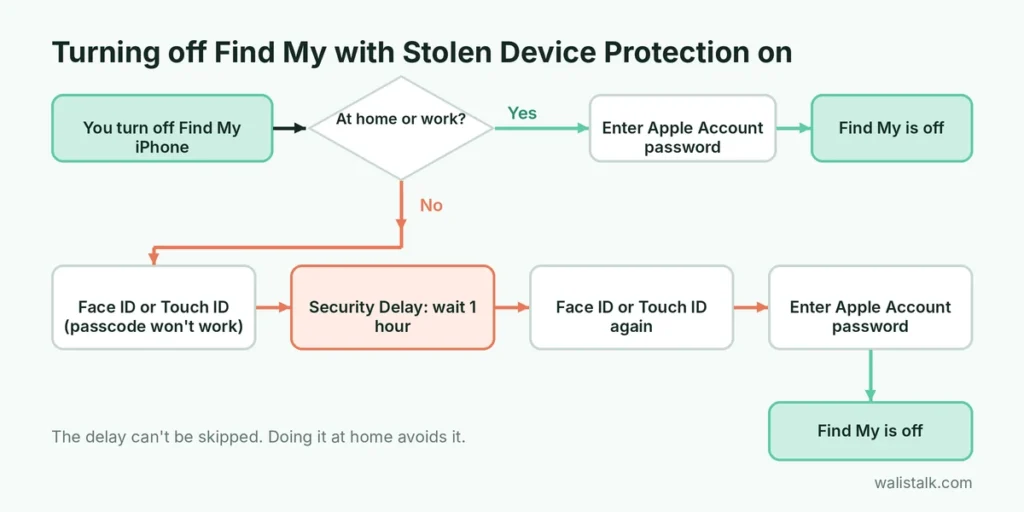
When Stolen Device Protection is on and your iPhone is away from familiar locations (places like home or work that your iPhone has learned), some sensitive actions need extra steps. Turning off Find My is one of them. Here’s what happens:
- You try to turn off Find My iPhone.
- The iPhone asks for Face ID or Touch ID. Your passcode won’t work as a backup.
- A Security Delay starts. You have to wait one hour.
- After the hour, you authenticate with Face ID or Touch ID again, and then you can turn off Find My.
When you’re at a familiar location, the delay usually doesn’t apply, and you can turn it off normally.
How to handle the security delay
You have three options:
- Do it at home. The simplest fix. If your iPhone recognizes home as a familiar location, the delay won’t apply there.
- Start the timer and wait. Begin the process, put the phone down, and come back after an hour. You’ll get a notification when the delay ends.
- Turn off Stolen Device Protection first. Go to Settings → Face ID & Passcode, enter your passcode, tap Stolen Device Protection and turn it off. Be aware that turning it off is itself protected: away from familiar locations, it triggers the same one-hour delay.
There’s no way to skip the delay, and that’s the point: a thief who knows your passcode can’t do it either.
If you’re selling the phone, do the whole process at home the day before you meet the buyer. That avoids standing in a coffee shop waiting for a one-hour timer.
How to turn off Find My from a computer or another device
If the iPhone is broken, has a dead screen, or you already gave it away, you can remove it from your account remotely.
Using iCloud.com
- On a computer, go to icloud.com/find and sign in with your Apple Account.
- Select the iPhone from All Devices.
- If you haven’t already erased it, choose Erase This Device and confirm. Only do this if you’re sure you don’t need anything on it.
- After erasing, choose Remove This Device (or Remove from Account).
This removes Activation Lock, so the new owner can set it up.
Using the Find My app on another Apple device
On an iPad or Mac signed in to the same Apple Account, open Find My, go to Devices, select the iPhone, then use Erase This Device followed by Remove This Device.
If the phone is offline
You can still remove an offline device from your account. If you mark it for erasing, the erase happens the next time it connects to the internet. For a phone you sold, that’s normally what you want.
Turning off Find My before selling or trading in your iPhone
Turning off Find My is only one step. Do these in order:
- Back up the iPhone. Use Settings → your name → iCloud → iCloud Backup → Back Up Now, or back up to a computer. If you use WhatsApp, back it up separately inside WhatsApp (Settings → Chats → Chat Backup), because chats live in their own backup.
- Unpair your Apple Watch, if you have one, from the Watch app.
- Turn off Find My using the steps above.
- Sign out of your Apple Account: Settings → your name → scroll down → Sign Out.
- Erase the iPhone: Settings → General → Transfer or Reset iPhone → Erase All Content and Settings.
- Remove the SIM or delete the eSIM if you’re not transferring it.
If you go straight to Erase All Content and Settings, iOS will usually ask you to sign out and turn off Find My as part of the process, which covers steps 3 and 4. Doing them separately first just makes it easier to spot problems, like a forgotten password, before you’re halfway through.
How to check that Find My is really off
Before you hand the phone over:
- On the iPhone, Settings → your name → Find My should show Find My iPhone: Off.
- On another device, the Find My app or icloud.com/find shouldn’t list the phone anymore.
- If you erased the phone, the setup screen should not show iPhone Locked to Owner. If it does, Activation Lock is still on and you need to remove the device from your account.
Buying a used iPhone? Check this first
If you’re on the other side of the deal, insist that the seller signs out and turns off Find My in front of you. When you turn the phone on, it should go straight to the Hello setup screen and let you finish setup with your own Apple Account. If you see iPhone Locked to Owner or a request for someone else’s Apple Account, don’t pay. Only the original owner can remove Activation Lock, and Apple won’t remove it without proof of purchase.
Common problems
The Find My switch is gray and won’t move. Screen Time restrictions can block account changes. Check Settings → Screen Time → Content & Privacy Restrictions → Account Changes and set it to Allow, or turn off the restriction.
It keeps saying the password is wrong. Make sure you’re entering your Apple Account password, not the iPhone passcode. If you recently changed it, try the new one. Check that you’re signed in with the account you think you are; the email is shown under your name in Settings.
It says a Security Delay is in progress. That’s Stolen Device Protection doing its job. Wait for the hour to finish, or do it at a familiar location.
I sold the phone and forgot. Use icloud.com/find to remove the device from your account. The buyer won’t be able to use it until you do.
The short version
On the iPhone, go to Settings → your name → Find My → Find My iPhone and turn it off with your Apple Account password. If Stolen Device Protection asks you to wait an hour, do it at home or let the timer run. If the phone is broken or already gone, erase it and remove it from your account at icloud.com/find. Before selling, back up, turn off Find My, sign out and erase. While you’re thinking about security, check that no old computer still has access to your chats: here’s how to check WhatsApp linked devices. And before you hand the phone over, clear your iPhone’s search history or, better, factory reset it completely.