By
By 
Losing your phone is stressful, but if it’s an Android phone signed in to a Google account, you have a good chance of finding it, or at least locking it so nobody can get into your accounts. Google’s free Find Hub (the new name for Find My Device) lets you see the phone on a map, make it ring, lock it and, if needed, erase it, all from any browser.
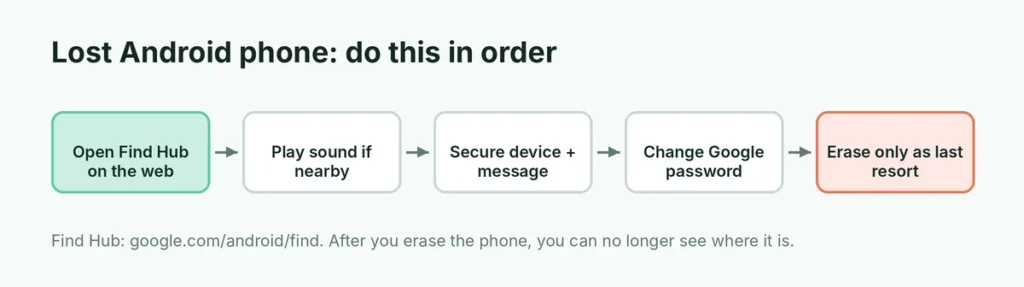
Short answer: on any computer or another phone, go to google.com/android/find (or open the Find Hub app) and sign in with the Google account from your lost phone. You’ll see its location on a map. Use Play sound if it’s nearby, Secure device to lock it and show a message with a contact number, and Factory reset device only as a last resort. If it was stolen, also call your carrier and change your Google password.
Last updated: October 2026. Find Hub works on Android 9 and later; the steps are the same for Samsung, Pixel, Motorola, OnePlus, Xiaomi, Realme and other brands.
Step 1: Find your phone on a map
- On a computer, tablet or a friend’s phone, open google.com/android/find. On another Android phone, you can also open the Find Hub app.
- Sign in with the same Google account as the lost phone. If you use a friend’s phone, use Sign in as guest in the app, or a private browser window, so your account isn’t left on their phone.
- Select your phone at the top if you have more than one device.
- The map shows the phone’s current or last known location, along with its battery level and the Wi-Fi network it’s connected to.
If it says “Last seen” with a time, the phone is offline (no internet or switched off) and you’re seeing its last reported location.
Can you find a phone that’s off or offline?
Often, yes. Find Hub uses a network of nearby Android devices to report the location of phones that are offline. Some recent phones, such as Pixel 8 and newer, can even be located for a while after they’re switched off or the battery dies. To use this, Find Hub network must have been turned on in the phone’s settings before it was lost. Older phones can only be located while they’re on and connected.
Quicker ways to open Find Hub
- Search Google: on a computer where you’re signed in to your Google account, type find my phone in Google Search. A small map with your phone appears right in the results, with a Ring option.
- Ask a smart speaker: if you have a Google Nest speaker or display, say “Hey Google, find my phone” and it rings your phone.
- From a smartwatch: Wear OS watches have a Find my phone tile that rings your phone when they’re connected.
Step 2: Make it ring (Play sound)
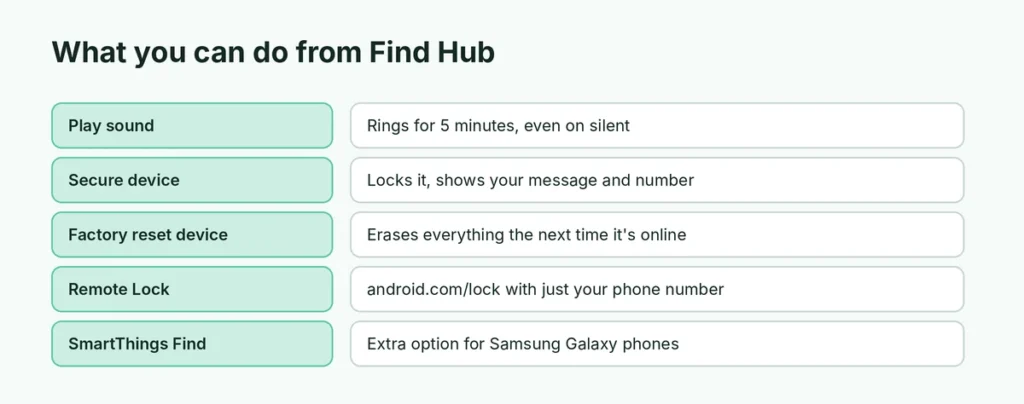
If the map shows the phone near you, at home, in the car or at the office, tap Play sound. The phone rings at full volume for five minutes, even if it’s on silent or vibrate. Press the power button on the phone to stop it.
Step 3: Lock it and show your contact number (Secure device)
If the phone isn’t nearby, lock it straight away:
- Select Secure device (on some screens called Mark as lost).
- Add a short message, such as “This phone is lost. Please call me”, and a phone number where someone can reach you (a family member’s number works).
- Confirm.
The phone locks with your PIN or password, shows your message and a Call owner button on the lock screen, signs out of your Google account, and suspends cards in Google Wallet. You can still see its location.
Lock it with just your phone number
Newer Android phones also support Remote Lock: go to android.com/lock, enter your phone number, and pass a quick security check. It’s useful if you can’t remember your Google password in the moment. It must be turned on beforehand in Settings → Google → All services → Theft protection (the exact path varies by phone).
Step 4: Erase it if you can’t get it back
If the phone was stolen or you’re sure it’s gone, protect your data by erasing it:
- In Find Hub, select Factory reset device (or Erase device).
- Confirm and enter your Google password.
If the phone is offline, the erase happens the next time it connects to the internet. After erasing, you can no longer locate it, so only do this once you’ve given up on finding it. The phone stays locked to your Google account (Factory Reset Protection), so a thief can’t simply set it up as their own.
Step 5: Protect your accounts and money
A thief who gets past the lock screen could reach your email, banking apps and WhatsApp. Do these from another device:
- Change your Google password at myaccount.google.com, and check Security → Your devices to sign the lost phone out.
- Call your bank if you had banking apps or cards on the phone.
- Log out of WhatsApp Web sessions and other apps. Here’s how to log out of WhatsApp Web remotely and how to check WhatsApp linked devices.
- Change passwords for social media and email accounts that were signed in.
Step 6: Call your carrier and report it
- Your mobile carrier can suspend the SIM so nobody runs up your bill, give you a replacement SIM with the same number, and block the phone’s IMEI so it can’t be used on their network.
- File a police report if the phone was stolen. Bring the IMEI number, which is printed on the box and shown at google.com/android/find under the device details (tap the gear or info icon). Insurance claims usually require a police report.
Samsung phones: SmartThings Find
Samsung Galaxy phones work with Google Find Hub, but Samsung also has its own service, SmartThings Find (at smartthingsfind.samsung.com). Sign in with your Samsung account to locate, ring, lock or erase the phone. It can also find Galaxy phones that are offline using nearby Galaxy devices, and can extend the battery life of a lost phone remotely. Try both services; one may show a more recent location.
Set this up now, before you lose your phone
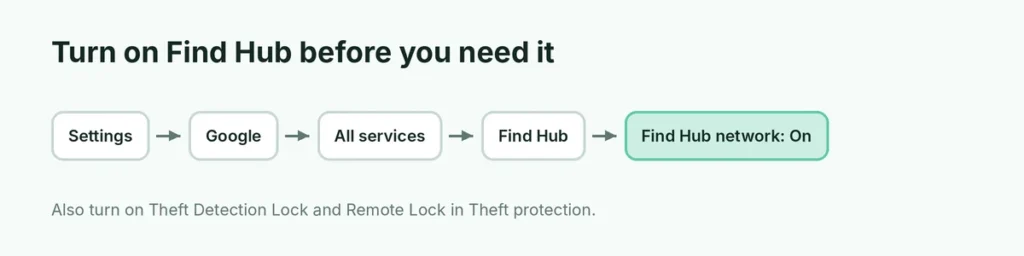
These settings only help if they’re turned on before the phone goes missing. It takes two minutes:
- Open Settings → Google → All services → Find Hub (on some phones Settings → Security → Find Hub or Find My Device) and make sure it’s on.
- Turn on Find Hub network (sometimes Find your offline devices) and choose With network in all areas if offered.
- Turn on Location in quick settings.
- In Theft protection, turn on Theft Detection Lock (locks the screen if someone snatches the phone and runs), Offline Device Lock and Remote Lock.
- Use a PIN, pattern or password screen lock, not “Swipe”.
- Write down your phone’s IMEI: dial
*#06#and save it somewhere safe. - Turn on Google backup so you can restore everything to a new phone.
What Find Hub can and can’t do
| Situation | What you can do |
|---|---|
| Phone is on and online | See live location, ring, lock, erase |
| Phone is offline but on | See last location; on newer phones, location via Find Hub network |
| Phone is off or battery dead | Last known location; some newer phones still report for a few hours |
| Phone was factory reset by someone else | Can’t locate it, but Factory Reset Protection keeps it locked to your account |
| Find Hub was turned off | Check your Google Timeline (if on), contact your carrier and police |
Found it? What to do next
If you get the phone back, unlock it with your PIN, sign back in to your Google account if it signed out, and re-add cards in Google Wallet. If you erased it, sign in and restore from your backup during setup. Here’s the full guide to factory resetting and restoring an Android phone.
Lost an iPhone instead?
Apple devices use Apple’s Find My instead of Find Hub. Here’s what to do if you lose your iPhone.
The short version
Go to google.com/android/find, sign in with the lost phone’s Google account, and check the map. Play sound if it’s close, Secure device to lock it with a message and contact number, and Factory reset device only when you’ve given up on getting it back. Then change your Google password, call your bank and carrier, and file a police report if it was stolen. Turn on Find Hub, the Find Hub network and Theft protection now so you’re ready next time.