By
By 
On older iPhones you just held the power button. On modern ones, holding the side button wakes up Siri instead, which is why “how to turn off iPhone” is one of the most searched iPhone questions. There are actually five ways to do it, plus a separate trick for when the screen is frozen and nothing responds.
Short answer: on iPhone X and later (including iPhone 16 and iPhone 17), press and hold the side button and either volume button together until the sliders appear, then drag slide to power off. Or go to Settings → General → Shut Down. On iPhone SE (2nd and 3rd generation) and iPhone 8, just press and hold the side button.
Last updated: October 2026. Works on iOS 26 and iOS 27; button combinations are the same on all iPhones without a Home button.
Which iPhone do you have?
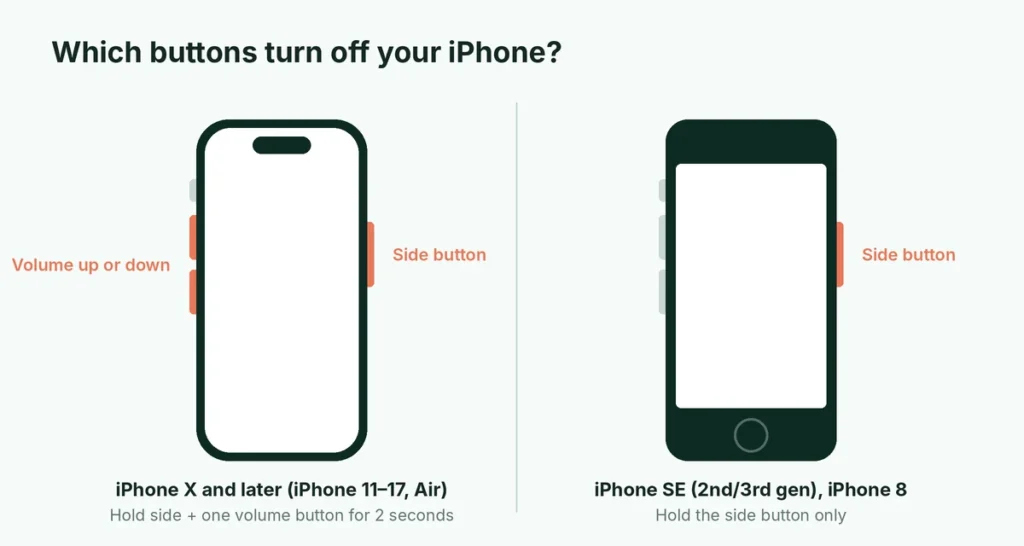
The button method depends on whether your iPhone has a Home button (the round button under the screen).
| Your iPhone | Button method |
|---|---|
| iPhone X, XS, XR, 11, 12, 13, 14, 15, 16, 17, iPhone Air and later (no Home button) | Hold side button + either volume button |
| iPhone SE (2nd or 3rd generation), iPhone 8, iPhone 7, iPhone 6s | Hold the side button |
| iPhone SE (1st generation) and older | Hold the top button |
Not sure? If there’s a round Home button below the screen, use the second row. If the screen goes nearly edge to edge with no button, use the first row.
Method 1: Use the buttons (iPhone X and later)
- Press and hold the side button (on the right edge) and either volume button (on the left edge) at the same time.
- Keep holding for about two seconds until the slide to power off slider appears at the top of the screen.
- Drag the slider to the right.
- Wait about 30 seconds for the iPhone to shut down completely.
Two things to watch for:
- Don’t keep holding for too long. If you hold the buttons for several more seconds after the slider appears, the iPhone starts Emergency SOS with a loud countdown. If that happens, let go immediately and tap Cancel or Stop. If the countdown finishes, the phone calls emergency services.
- The side button alone wakes Siri. On iPhones without a Home button, holding just the side button triggers Siri, not the power menu. You need the volume button too.
On iPhones with a Home button
Press and hold the side button (or the top button on very old models) until the slider appears, then drag slide to power off.
Method 2: Use Settings (no buttons needed)
This works on every iPhone running iOS 11 or later and is the easiest method if your buttons are broken or awkward to press with a case on.
- Open Settings.
- Tap General.
- Scroll all the way to the bottom and tap Shut Down.
- Drag slide to power off.
Method 3: Ask Siri
On iOS 16 and later you can turn off your iPhone by voice.
- Say “Hey Siri” or “Siri” (or hold the side button).
- Say “Turn off my iPhone” or “Shut down.”
- Siri asks you to confirm. Tap Turn Off or say “Yes.”
Siri can also restart your iPhone if you say “Restart my iPhone.” This method is useful if you have limited mobility or your hands are full.
Method 4: Use Control Center
On iOS 18 and later, Control Center has its own power button.
- Open Control Center by swiping down from the top-right corner of the screen (or up from the bottom on iPhones with a Home button).
- Look for the power icon in the top-right corner of Control Center.
- Press and hold it until the slide to power off screen appears, then drag the slider.
If you’ve customized Control Center, the icon is still in the top corner; it isn’t one of the controls you can remove.
Method 5: Let the battery run out
Not recommended, but if all else fails and the screen won’t respond to anything, the iPhone will turn off by itself when the battery is empty. The force restart below is a much better option in almost every case.
What to do if your iPhone is frozen
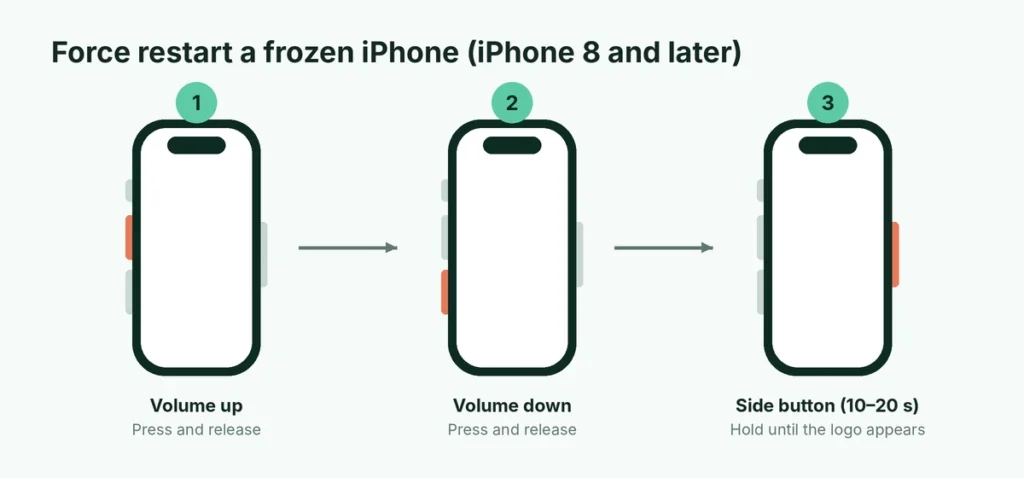
If the screen is frozen, black, or doesn’t respond to touches, the slider can’t help. Use a force restart instead. It doesn’t erase anything; it just cuts the power and starts the iPhone again.
On iPhone 8 and later (including iPhone SE 2nd and 3rd generation):
- Press and quickly release the volume up button.
- Press and quickly release the volume down button.
- Press and hold the side button. Keep holding, even when the slider appears, until the Apple logo shows. This can take 10 to 20 seconds.
The timing matters: press each volume button quickly, one after the other, then hold the side button straight away.
On iPhone 7: hold the volume down button and the side button together until the Apple logo appears.
On iPhone 6s and iPhone SE (1st generation): hold the Home button and the side or top button together until the Apple logo appears.
If you want the phone off rather than restarted, let it start up after the force restart, then use one of the normal methods above.
If a force restart doesn’t work
- Charge it. Plug the iPhone into a known-good charger and cable for at least an hour. A completely empty battery can make the phone look frozen or dead. If you see a charging screen after a few minutes, it’s working.
- Try again after charging. Repeat the force restart while it’s connected to power.
- Check for physical damage. If the phone was dropped or got wet and still won’t respond, it needs a repair shop or Apple Support.
How to turn your iPhone back on
Press and hold the side button (or top button on older models) until the Apple logo appears, then let go. It takes around 20 to 30 seconds to start up fully. After a restart you’ll need to enter your passcode once before Face ID or Touch ID works again; that’s a normal security step.
If it doesn’t turn on, charge it for at least 30 minutes and try again.
Don’t need it fully off? Try these instead
Turning the phone off isn’t always the best choice. Depending on why you want to switch it off, one of these may suit you better:
- Airplane Mode (swipe into Control Center and tap the airplane icon) cuts calls, mobile data and, if you want, Wi-Fi and Bluetooth, while keeping the phone usable for music, photos and offline apps. It’s what airlines actually ask for.
- Low Power Mode (Settings → Battery) reduces background activity and visual effects so the battery lasts noticeably longer, without turning anything off.
- Do Not Disturb or a Focus (Control Center → Focus) silences calls and notifications from everyone except people you choose, which is often what people really want at night or in meetings.
If your goal is simply peace and quiet, a Focus mode means you won’t miss an urgent call from family the way you would with the phone switched off.
Turn off vs. restart vs. force restart
| Turn off | Restart | Force restart | |
|---|---|---|---|
| What it does | Shuts down until you turn it on | Turns off and straight back on | Cuts power and restarts, even if frozen |
| When to use it | Saving battery, storing it, flights | Fixing small glitches | Phone is frozen or unresponsive |
| Data lost? | No | No | No |
| How | Buttons, Settings, Siri, Control Center | Siri (“Restart my iPhone”) or turn off and on | Volume up, volume down, hold side button |
A normal restart fixes most minor problems, such as apps freezing, Wi-Fi or Bluetooth not connecting, or the phone feeling slow. Doing it every week or two is a good habit, but you don’t need to turn your iPhone off every night.
Common questions about turning off iPhones
Can I turn off my iPhone without the passcode? By default, yes: the power-off slider doesn’t ask for your passcode. That’s why Find My matters. With Stolen Device Protection on, a thief can’t use the Settings app to turn off Find My without your face or fingerprint, and recent iPhones can still be located for a while after they’re switched off.
Does turning off my iPhone stop it being tracked by Find My? Not necessarily. Apple says supported iPhones (iPhone 11 and later) can still be found through the Find My network for up to 24 hours after they’re turned off, using a small power reserve. If you’re selling it, you need to turn off Find My properly: see how to turn off Find My iPhone.
Why is my iPhone turning off by itself? Usually a worn battery or very cold weather. Check Settings → Battery → Battery Health. If the maximum capacity is low, a battery replacement usually fixes it.
Is it bad to turn off my iPhone often? No. Turning it off and on doesn’t harm the battery or the phone.
The short version
On iPhones without a Home button, hold the side button + a volume button and drag slide to power off. With a Home button, hold the side button. Or use Settings → General → Shut Down, ask Siri to “turn off my iPhone,” or use the power icon in Control Center on iOS 18 and later. If the phone is frozen, force restart it: volume up, volume down, then hold the side button until the Apple logo appears. If your screen shows white spots or odd marks after a drop, here’s what white spots on a phone screen mean and how to fix them. Problems with your earbuds instead? Here’s how to reset AirPods.