By
By 
A white spot on your phone screen is easy to ignore at first, until you notice it on every white web page and it starts to look like a small cloud stuck in the display. Sometimes it’s harmless dirt under a screen protector. Sometimes it’s a stuck pixel that can be fixed in minutes. And sometimes it’s physical damage inside the display that only a repair will fix.
The good news is that you can tell which one you have in about five minutes, without opening anything. This guide shows how to identify the cause, what you can safely try at home, and when a screen replacement is the only real fix.
Short answer: first remove the screen protector and restart the phone to rule out dirt and software. If the spot is a tiny, sharp dot, it’s probably a stuck pixel, which sometimes fixes itself. If it’s a soft, cloudy bright patch that’s most visible on white or light backgrounds, it’s usually pressure damage or a detached backlight part inside an LCD screen, and that needs a screen repair.
Applies to: Android phones (Samsung Galaxy, Google Pixel, Motorola and others) and iPhone, with LCD or OLED screens, October 2026.
First, identify what kind of spot you have
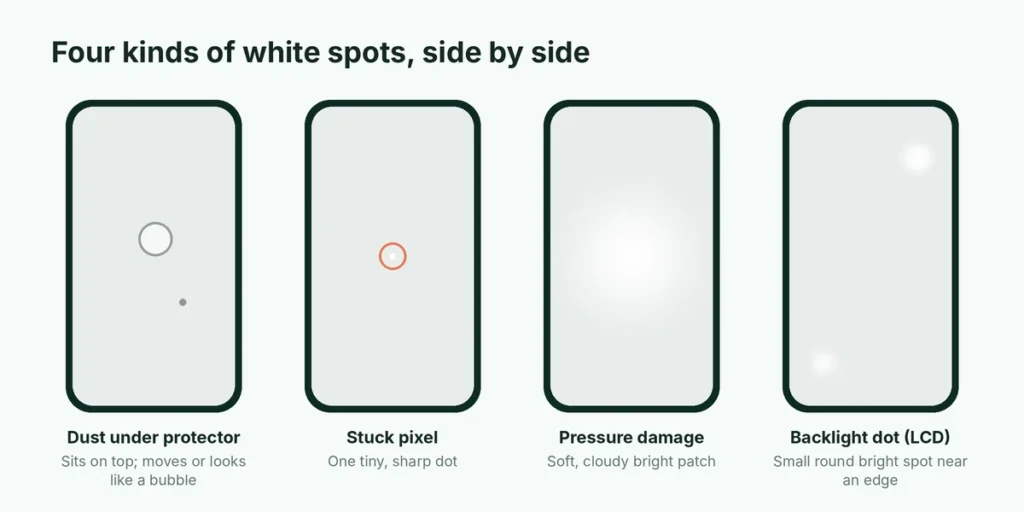
Open a plain white image or page and a plain black one at full brightness, and look closely at the spot on both.
| What you see | Most likely cause | Can you fix it at home? |
|---|---|---|
| Moves when you press the protector, or looks like a bubble | Dust or air under the screen protector | Yes |
| Tiny sharp dot, always the same color (white, red, green or blue) | Stuck pixel | Sometimes |
| Soft, cloudy bright patch, most visible on white or gray | Pressure damage (pressure mura) or a detached reflector dot (LCD screens) | No, needs repair |
| Bright spot plus cracks, lines or touch problems | Impact damage to the display | No, needs repair |
| Cloudy area after the phone got wet | Moisture inside the display | Maybe, if it dries; often needs repair |
| Faint ghost of icons or the keyboard on OLED screens | Burn-in (not a white spot) | No |
The type of screen matters too. Most budget and older phones use LCD screens, which have a backlight layer behind the pixels. Many white-spot problems come from that backlight. OLED screens, used in most flagship phones and every iPhone since the iPhone 12 (except the iPhone SE), don’t have a backlight, so their problems look different: dead or stuck pixels, green lines, or burn-in rather than cloudy white patches.
Cause 1: Dust, bubbles or a bad screen protector
This is the most common and the easiest to fix.
- Look at the spot from an angle. If it seems to sit on top of the glass, it’s probably under the protector.
- Peel the screen protector back from a corner, or remove it completely.
- Clean the screen with a soft microfiber cloth. Use a little screen cleaner if needed, sprayed onto the cloth, never onto the phone.
- Check again. If the spot is gone, fit a new screen protector.
Tempered glass protectors can also crack in a tiny spot that looks like a white mark from the front. Removing the protector is the quickest test.
Cause 2: A stuck pixel
Every screen is made of millions of tiny pixels. A stuck pixel is one that stays the same color, often white or a bright red, green or blue, no matter what’s shown. It’s a single sharp dot, much smaller than the cloudy patches described below.
Things you can try:
- Restart the phone. Occasionally a software glitch makes a pixel look stuck.
- Use a pixel-fixing video or website. Search YouTube for “stuck pixel fix” and play a video that flashes rapidly changing colors, full screen, for 10 to 20 minutes. Use it only if you’re not sensitive to flashing light. These tools work by rapidly switching the pixel on and off, and they sometimes un-stick it.
- Leave it for a few days. Some stuck pixels recover on their own.
What not to do: many guides suggest pressing hard on the stuck pixel with a cloth or pen. This can easily cause pressure damage and make things worse, especially on thin modern screens. Skip it.
A dead pixel (permanently black) can’t be fixed at home. A single one is usually just a cosmetic issue, though under some warranties a new phone with several dead pixels can be replaced.
Cause 3: Pressure damage (pressure mura)
If you see a soft, blurry, cloudy white or light-gray area, often round and most obvious on white backgrounds, the cause is usually pressure damage. On LCD screens, it’s sometimes called “pressure mura.”
It happens when something presses hard on the screen: sitting on the phone in a back pocket, carrying it in a tight bag with keys, a drop on a corner, or a heavy object on top of it. The pressure dents or shifts the thin layers inside the display that spread light evenly, so one area looks brighter than the rest.
You can’t fix this at home. Heat guns, pressing the spot, or “massaging” the screen are all more likely to make it bigger. The only real fix is replacing the display.
Cause 4: A detached reflector dot (LCD phones)
Some LCD phones develop one or more small, round, bright white spots, usually near the edges or corners of the screen, often after a drop or a lot of heat. Inside an LCD, the backlight uses a reflector sheet and tiny spacers or “dots” that hold layers apart. If one comes loose or shifts, light concentrates in that spot and shows up as a bright circle.
This has been a known issue on several LCD phone models over the years. Like pressure damage, it needs a new display. Keep the phone away from heat, such as a hot car dashboard or wireless charging under a pillow, which can make it spread.
Cause 5: Impact or water damage
If the white spot came with a drop or a spill, look for other signs:
- cracks in the glass, even small ones near the edge,
- colored lines, flickering or a green tint,
- parts of the screen that don’t respond to touch,
- condensation or a cloudy layer that changes over a few days.
Water in the display sometimes clears as it dries, but it can also cause corrosion that shows up later. Turn the phone off, don’t charge it while it might be wet, and have it checked if the cloudiness doesn’t disappear within a day or two. Rice doesn’t help; open air and time do.
What to do next
If your phone is under warranty
Check your warranty before paying for anything. Manufacturing defects such as stuck pixels or backlight problems that appear without any damage may be covered. Impact or liquid damage normally isn’t covered by a standard warranty, but it may be by an extended plan such as AppleCare+, a carrier insurance plan, or your credit card’s phone protection.
- iPhone: check coverage at checkcoverage.apple.com using your serial number (Settings → General → About).
- Samsung, Google Pixel and other Android phones: check the manufacturer’s support site or the warranty card that came with the phone.
If you’re paying for the repair
- Use the manufacturer or an authorized repair provider if you can. Cheap aftermarket screens can have worse colors, lower brightness or touch problems, and on iPhones you may see a message that the display isn’t a genuine part.
- Ask whether the repair includes the full display assembly. White spots from backlight or pressure damage can’t be fixed by replacing only the outer glass.
- Back up your phone before handing it over.
Is it worth fixing?
A single small spot that you only notice on white screens is a cosmetic problem. If it doesn’t bother you, it’s safe to keep using the phone. Pressure damage sometimes spreads slowly over time, so keep an eye on it. If the screen is part of a larger problem, like flickering, lines or touch issues, get it repaired sooner, because it can get worse.
Describe the problem clearly to the repair shop
A good description saves time and helps you get the right repair quote:
- Take a photo of the spot on a plain white background, with the phone’s brightness at maximum.
- Note when you first saw it and whether anything happened before, such as a drop, pressure or water.
- Mention whether touch, colors and brightness are normal everywhere else on the screen.
- Say which screen type your phone has if you know it (LCD or OLED), or simply give the exact model name from Settings → About phone or Settings → General → About.
This makes it clear whether you need a full display replacement or whether there might be a simpler cause.
White spot on an Android or Samsung screen
Android phones use both screen types, so check which one you have first: search your exact model name (in Settings → About phone) plus “display type”. Many budget Galaxy A and Moto G phones use LCD, where cloudy white patches are common after pressure. Galaxy S and most Pixel phones use OLED, where a white spot is more likely a stuck pixel or panel damage.
On a Samsung Galaxy, run the built-in check before you pay for a repair: open Samsung Members → Support → Phone diagnostics → Test all. The tests available vary by model, but the results are a useful record to show the repair shop.
White spot on an iPhone screen
Most iPhones since the iPhone X use an OLED screen, which has no backlight. On these models (iPhone X, XS, 12 and later, except the SE), a white spot is almost never a loose reflector dot: it’s usually pressure damage or a fault in the display panel itself. The iPhone XR, iPhone 11 and iPhone SE models use an LCD screen, so all the causes above can apply.
To check, open a completely black image and turn the brightness up. On an OLED iPhone, a spot that still glows on black is a stuck pixel or panel fault; a spot that only shows on white or light backgrounds is usually pressure damage. Check your warranty and AppleCare status in Settings → General → AppleCare & Warranty (on older iOS versions, Settings → General → About → Coverage) before paying for a repair.
Bright spot vs. white spot: is it the same thing?
People use both names for the same problem. On LCD phones, a “bright spot” is usually a patch of uneven backlight, often from a shifted reflector dot or pressure on the screen, and it’s easiest to see on a white or gray background. A tiny bright dot that stays lit on a black screen is more likely a stuck pixel. If the bright area is growing, or comes with lines or flickering, the display is failing and should be checked soon.
How to prevent white spots
- Don’t keep your phone in a back pocket. Sitting on it is the most common cause of pressure damage.
- Keep it in its own pocket in your bag, away from keys, chargers and water bottles.
- Use a case with a raised lip around the screen, so the display doesn’t touch the table when it’s face down.
- Avoid heat. Don’t leave it on a car dashboard or in direct sun, and don’t charge it under a pillow.
- Don’t press on the screen to “test” a spot.
Related guides
- Laptop screen bleeding: causes and fixes
- Orange dot on iPhone: what it means
- How to turn off or force restart an iPhone
The short version
Remove the screen protector and restart first. A tiny, sharp dot is probably a stuck pixel; try a pixel-fixing video and give it a few days. A soft, cloudy white patch, especially on an LCD phone, is pressure damage or a loose backlight part, and only a display replacement fixes it. Check your warranty or insurance before paying, and use an authorized repair shop. Laptops can have a similar problem around the edges of the screen; here’s what laptop screen bleeding is and what you can do about it. And if your phone is also frozen or acting up, here’s how to turn off or force restart an iPhone.
Sources
- Apple Support: iPhone troubleshooting display issues
- Samsung UK: How to self-diagnose your Samsung Galaxy
- Wikipedia: Defective pixel