By
By 
Your iPhone remembers a lot of what you search for and every website you open, and that history can show up in places you don’t expect: address bar suggestions, the history list, even on your iPad or Mac if they share your Apple Account. Whether you’re handing your phone to someone, cleaning up before you sell it, or just want a fresh start, clearing it takes less than a minute once you know where each app keeps its own history.
The catch is that “search history” isn’t in one place. Safari keeps its own, Chrome keeps its own, and if you search with Google while signed in, your Google account keeps a separate copy online. This guide covers all of them.
Short answer: for Safari, open Settings → Apps → Safari → Clear History and Website Data, choose All History and confirm. For Chrome, open Chrome → ⋯ → Delete Browsing Data. If you search with Google while signed in, also delete it from your Google account at myactivity.google.com. To clear the search bar suggestions, tap Clear next to Recent Searches in Safari, and turn off Show Recent Searches in Settings → Search.
Applies to: iPhone with iOS 18, iOS 26 and iOS 27, Safari, Chrome and the Google app, October 2026. On iOS 17 and earlier, Safari is listed directly in Settings rather than under Apps.
Where your iPhone keeps search history
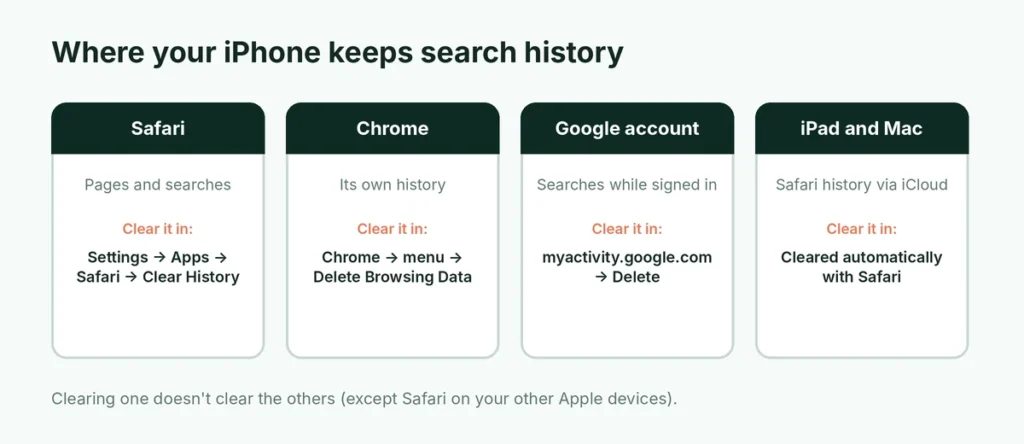
| Where | What it stores | Where to delete it |
|---|---|---|
| Safari | Websites visited, searches typed in the address bar | Safari or Settings → Apps → Safari |
| Chrome / Firefox / Edge | Their own browsing and search history | Inside each browser |
| Google account | Searches made while signed in to Google | myactivity.google.com or the Google app |
| Other Apple devices | Safari history synced through iCloud | Clearing on one device clears all |
Deleting one doesn’t delete the others. If you use Safari with Google as the search engine, your searches can be in both Safari’s history and your Google account.
How to clear the search bar history (recent searches)
“Recent searches” are saved in a few different places. Clear the one you’re seeing:
- Safari search bar: tap the address bar so the Recent Searches list appears, then tap Clear next to the heading. To stop the list appearing at all, go to Settings → Apps → Safari and turn off Show Recent Searches (iOS 18.4 and later). This only removes the suggestions; clear your full history with the steps below.
- iPhone search bar (swipe down on the Home Screen, also called Spotlight): on iOS 18 and later, go to Settings → Search and turn off Show Recent Searches. On older versions, look under Settings → Siri & Search.
- App Store: open the Search tab, then tap Clear next to your recent searches.
- Photos and Maps: open the search screen in the app; recent searches usually show a Clear option, or you can swipe left on a single search to remove it.
The exact labels vary slightly between iOS versions, but each list is cleared from inside the app that saved it.
Delete Safari history from Settings
This is the quickest way to wipe everything.
- Open Settings.
- Scroll down and tap Apps, then Safari.
- Tap Clear History and Website Data.
- Choose a time range: Last hour, Today, Today and yesterday or All history.
- Turn on Close All Tabs if you also want open tabs closed.
- Tap Clear History.
This removes your browsing history, the searches Safari remembers, and website data such as cookies and cache. You’ll be signed out of most websites, so have your passwords ready (they stay saved in the Passwords app; clearing history doesn’t delete them).
Delete Safari history inside the Safari app
Clearing from inside Safari gives you the same time-range choices, plus the option to delete single pages or single days.
- Open Safari.
- Tap the Tabs or menu button and open Bookmarks, then the History tab (the clock icon). The exact button layout depends on whether you use the compact or bottom tab bar.
- To delete one page, swipe left on it and tap Delete.
- To delete a whole day, press and hold the date heading and choose Delete.
- To delete everything, tap Clear and pick a time range.
This is handy when you only want to remove one embarrassing search rather than signing out of every website.
If you use Safari Profiles
Safari lets you create separate Profiles, for example Personal and Work, and each keeps its own history. When you clear history, Safari asks whether to clear it for all profiles or just the current one. Check the option before you tap Clear, or you might delete your work history by mistake.
Your other Apple devices will be cleared too
If Safari is turned on in Settings → your name → iCloud, your Safari history syncs across your iPhone, iPad and Mac. Clearing it on one device clears it on all of them, usually within a minute or so. This is good if you want it gone everywhere. If you only want to clear it on one device, turn off Safari syncing for iCloud first, but remember that it also stops syncing bookmarks and tabs.
Delete Chrome history on iPhone
Chrome on iPhone doesn’t use Safari’s history at all.
- Open Chrome.
- Tap the ⋯ (three dots) button.
- Tap Delete Browsing Data (in some versions it’s under History → Delete Browsing Data).
- Choose a Time range, for example All time.
- Make sure Browsing History is checked. Check Cookies, Site Data and Cached Images and Files if you want a full clean.
- Tap Delete Browsing Data.
If you’re signed in to Chrome with your Google account and sync is on, this also deletes history on your other devices using that account.
Firefox and Edge work the same way: open the menu, find History or Privacy, and use the clear or delete option. Each browser only clears its own data.
Delete your Google search history
If you search with Google while signed in, Google saves those searches to your account in Web & App Activity, separately from your browser. Clearing Safari or Chrome doesn’t touch it.
In a browser
- Go to myactivity.google.com and sign in.
- Tap Delete and choose Last hour, Last day, All time or a custom range.
- Confirm.
In the Google app
- Open the Google app.
- Tap your profile picture in the top-right corner.
- Tap Search history.
- Tap Delete and choose a range.
Make Google delete it automatically
On the same Activity page, tap Auto-delete and choose to delete activity older than 3 months, 18 months or 36 months. You can also turn off Web & App Activity entirely, though Google’s recommendations and some features will become less personal.
Locking down your Google account matters because it holds far more than searches. Make sure you can always get back into it: here’s how to recover a Google account without a phone or recovery email.
Stop history being saved in the first place
Use Private Browsing in Safari
In a Private tab, Safari doesn’t save the pages you visit, your searches or your AutoFill information. Open Safari, tap the Tabs button, swipe to Private, and browse. On recent iOS versions you can also lock Private Browsing tabs behind Face ID; look for Require Face ID to Unlock Private Browsing in Settings → Apps → Safari.
Private Browsing hides history on your phone. It doesn’t hide what you do from your internet provider, your workplace network, or websites you sign in to.
Use Incognito in Chrome
In Chrome, tap ⋯ → New Incognito Tab. Like Safari’s Private mode, it doesn’t keep history on the phone once the tabs are closed.
Turn off search suggestions you don’t want
In Settings → Apps → Safari, you can turn off Search Engine Suggestions and Safari Suggestions. This doesn’t delete history, but it stops suggestions based on what you’ve typed from appearing as you search.
Why “Clear History” is grayed out
If the Clear History and Website Data button is gray and does nothing, Screen Time web restrictions are almost always the cause. When content limits for websites are on, iOS won’t let you clear history, so parents can see what’s been visited.
To check: Settings → Screen Time → Content & Privacy Restrictions → App Store, Media, Web & Games (or Content Restrictions) → Web Content. If it’s set to Limit Adult Websites or Allowed Websites Only, history clearing is blocked. Changing it needs the Screen Time passcode. On a child’s phone, this is working as intended.
Does clearing history delete it everywhere?
No. Clearing removes the history stored on your devices and, if you use them, in your Google account. It doesn’t remove:
- records kept by your mobile carrier or Wi-Fi network,
- logs kept by your employer or school if you use their network or a managed device,
- activity inside apps like YouTube, TikTok or Instagram, which keep their own search history inside each app.
For apps, look in each app’s settings for a Search history or Clear search history option. YouTube, for example, has it under your profile → Settings → Manage all history.
Clearing history before you sell your iPhone
If you’re selling or giving away the iPhone, clearing history isn’t enough. Do a full erase with Settings → General → Transfer or Reset iPhone → Erase All Content and Settings, which removes everything. Before that, turn off Find My so the next owner can use the phone: here’s how to turn off Find My iPhone, including the one-hour security delay.
How often should you clear your history?
There’s no rule. Clearing everything every day mostly means signing in to websites again and again. A sensible approach for most people:
- Delete single pages or searches whenever you’d rather they didn’t appear as suggestions.
- Clear everything before lending your phone for a long time, sending it for repair or selling it.
- Set Google’s Auto-delete to 3 months so your online search history never piles up.
- Use Private Browsing for gift shopping, health questions or anything else you’d prefer not to see again in suggestions.
That combination keeps your history tidy without the inconvenience of being signed out of everything all the time.
Related guides
The short version
For Safari: Settings → Apps → Safari → Clear History and Website Data → All history. It clears your iPad and Mac too if Safari syncs through iCloud. For Chrome: ⋯ → Delete Browsing Data. For Google searches: myactivity.google.com → Delete, and turn on Auto-delete. Use Private Browsing if you don’t want history saved, and if the clear button is gray, check Screen Time’s web content limits. And if you use AI chatbots on your phone, they keep their own history too: here’s how to stop ChatGPT, Gemini and Claude training on your data. To free up space as well, see how to clear cache on iPhone.
Sources
- Apple Support: Delete your Safari history, cache, and cookies on iPhone
- Apple Support: Use Spotlight Search on your iPhone
- Apple Support: Hide recent searches in Safari on iPhone
- Tom’s Guide: How to hide recent searches in Safari (iOS 18.4)