By
By 
Resetting AirPods fixes most of the problems that make people think they’re broken: one earbud not playing, AirPods that won’t connect, a battery percentage that’s stuck, or a case light that keeps flashing. It’s also the step you need before selling or giving them away. The method depends on which AirPods you have, because Apple removed the button from the case on its newest models.
Short answer: put both AirPods in the case and close the lid for 30 seconds. Open it, then on your iPhone go to Settings → Bluetooth → (i) next to your AirPods → Forget This Device. Then, with the lid open, press and hold the button on the back of the case for about 15 seconds until the light flashes amber, then white. On AirPods 4 and AirPods Pro 3, which have no button, double-tap the front of the case three times instead (details below).
Last updated: October 2026. Steps follow Apple’s current instructions for every AirPods model.
Which AirPods do you have?
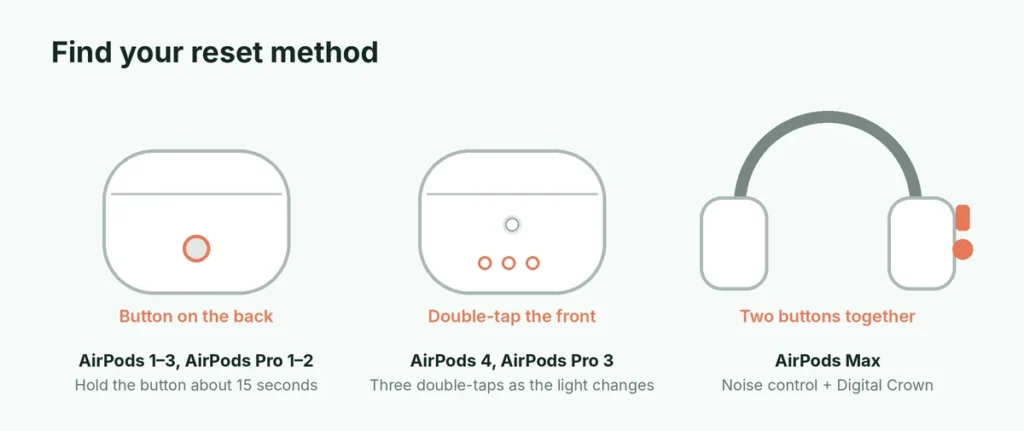
| Model | How to reset |
|---|---|
| AirPods (1st, 2nd and 3rd generation) | Hold the setup button on the back of the case |
| AirPods Pro (1st and 2nd generation) | Hold the setup button on the back of the case |
| AirPods 4 (with or without noise cancellation) | Double-tap the front of the case, three times |
| AirPods Pro 3 | Double-tap the front of the case, three times |
| AirPods Max | Hold the noise control button and Digital Crown |
Not sure which you have? On your iPhone, open Settings and tap your AirPods’ name near the top (or go to Bluetooth and tap (i)). The model is listed there. You can also check the case: if there’s a small round button on the back, use the button method.
Before you reset: try these quick fixes
A full reset isn’t always necessary. Try these first:
- Charge them. Put both AirPods in the case and charge the case for 15 minutes. A flat earbud often looks like a broken one.
- Clean the contacts. Dirt on the bottom of the AirPods’ stems or inside the case can stop one earbud charging. Gently wipe with a dry, lint-free cloth.
- Restart your iPhone. Bluetooth glitches on the phone are common.
- Check the audio output. In Control Center, press and hold the audio card and make sure your AirPods are selected as the output.
If none of these work, reset.
How to reset AirPods with a button on the case
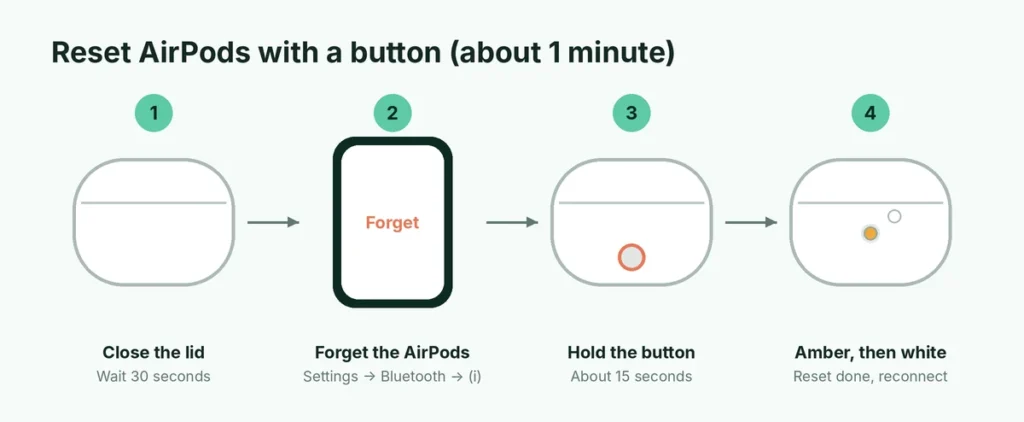
This works for AirPods (1st, 2nd and 3rd generation) and AirPods Pro (1st and 2nd generation).
- Put both AirPods in the case and close the lid. Wait 30 seconds.
- Open the lid.
- Forget them on your iPhone: go to Settings → Bluetooth, tap the (i) next to your AirPods, tap Forget This Device and confirm. (If they’re not listed, skip this.)
- With the lid still open, press and hold the setup button on the back of the case for about 15 seconds.
- Watch the status light: it flashes amber, then white. Let go.
- Reconnect: keep the lid open and hold the case next to your unlocked iPhone. Tap Connect on the animation that appears and follow the steps.
The status light is inside the case between the AirPods on older models, and on the front of the case on newer ones.
How to reset AirPods 4 and AirPods Pro 3 (no button)
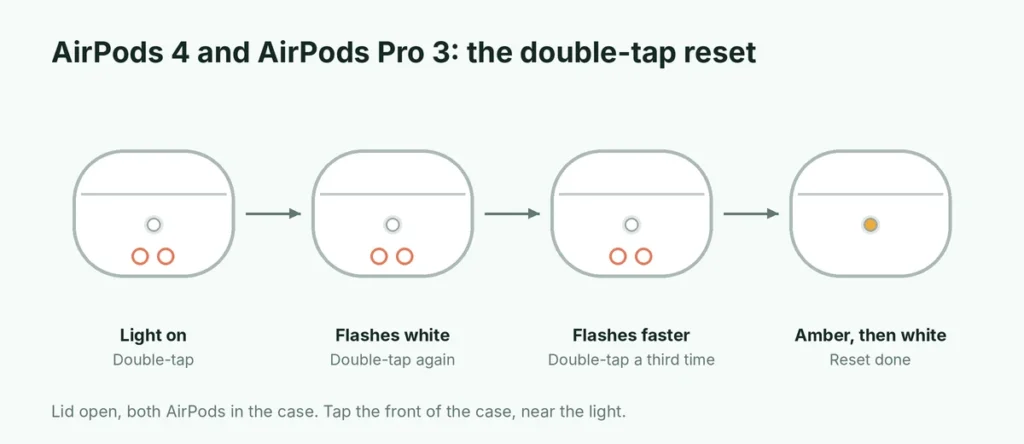
AirPods 4 and AirPods Pro 3 have a touch-sensitive case instead of a button. The reset uses a sequence of double-taps on the front of the case.
- Put both AirPods in the case, close the lid and wait 30 seconds.
- Open the lid.
- Forget them on your iPhone: Settings → Bluetooth → (i) → Forget This Device.
- With the lid open, double-tap the front of the case while the status light is on.
- When the light flashes white, double-tap again.
- When the light flashes faster, double-tap a third time.
- Wait for the light to flash amber, then white. The reset is done.
- Reconnect by holding the open case next to your iPhone and tapping Connect.
Tap firmly with a fingertip on the front of the case, near the status light. If the light doesn’t respond, close the lid, wait 20 seconds, open it and start the sequence again.
How to reset AirPods Max
- Charge AirPods Max for a few minutes.
- Forget them on your iPhone in Settings → Bluetooth → (i) → Forget This Device.
- Press and hold both the noise control button and the Digital Crown together for about 15 seconds.
- Release when the status light on the bottom of the right ear cup flashes amber, then white.
- Reconnect by bringing them close to your iPhone.
Reset not working? Common fixes
The light never flashes white. Close the lid with both AirPods inside, wait 20 seconds and try again. Make sure the case has some charge; a nearly empty case may not respond.
Only one AirPod connects after the reset. Both earbuds must be in the case, sitting fully in their slots, during the reset. Clean the case and the stems and try again.
Your iPhone doesn’t show the connect animation. Make sure Bluetooth is on and the iPhone is unlocked. You can also pair manually in Settings → Bluetooth by tapping your AirPods under Other Devices.
The light flashes amber repeatedly. This can mean a charging problem or that the AirPods need a firmware update. Leave them charging next to your iPhone, connected to Wi-Fi, for 30 minutes; updates install automatically.
They connect, but sound only plays from one side. Check Settings → Accessibility → Audio & Visual and make sure the Balance slider is in the middle and Mono Audio is set how you want it.
What the AirPods status light means
| Light | With AirPods in the case | Without AirPods in the case |
|---|---|---|
| Green | Fully charged | Case fully charged |
| Amber | Charging | Less than one full charge left in the case |
| Flashing white | Ready to pair | |
| Flashing amber | Pairing error or reset in progress; may need a reset | |
| No light | Case battery is empty |
A short amber, then white flash during a reset is normal and means it worked.
Use AirPods with Android or Windows after a reset
AirPods work as normal Bluetooth earbuds with almost any device:
- Put the AirPods in the case and open the lid.
- Press and hold the setup button on the back until the light flashes white. On AirPods 4 and AirPods Pro 3, double-tap the front of the case to enter pairing mode.
- On Android, go to Settings → Connected devices → Pair new device. On Windows, go to Settings → Bluetooth & devices → Add device → Bluetooth.
- Choose your AirPods from the list.
Some features, such as automatic switching between Apple devices, battery levels in the status bar and spatial audio, only work fully with Apple devices.
AirPods keep disconnecting after a reset?
If the reset worked but your AirPods still drop out, the cause is usually outside the AirPods:
- Interference: busy Wi-Fi routers, microwaves and crowded places with many Bluetooth devices can cause dropouts. Move closer to your phone or keep it in a front pocket.
- Automatic switching: AirPods jump between your Apple devices that use the same Apple Account. If they keep switching to your iPad or Mac, open the AirPods settings and set Connect to This iPhone to When Last Connected to This iPhone.
- Low battery in one earbud: check both levels in the battery widget and charge them together.
Reset before selling or giving away AirPods
Resetting removes the AirPods from your device, but they’re also linked to your Apple Account through Find My. Before selling:
- Go to Settings → Bluetooth → (i) next to your AirPods → Forget This Device. On models linked to Find My, this also removes them from your Apple Account. Confirm when asked.
- Check the Find My app on your iPhone under Devices that the AirPods are no longer listed. If they are, select them and choose Remove This Device.
- Reset them using the steps above.
If you skip step 2, the new owner may see a message that the AirPods belong to someone else and won’t be able to add them to their own account.
Resetting vs. forgetting vs. updating
| What it does | When to use it | |
|---|---|---|
| Forget This Device | Removes AirPods from your iPhone’s Bluetooth list | Before reset, or to stop auto-connecting |
| Reset | Returns AirPods to factory settings | Connection or sound problems, selling |
| Firmware update | Installs Apple’s latest fixes | Bugs, amber light, battery issues |
Firmware updates install automatically when AirPods are charging near a connected iPhone with Wi-Fi. You can see the current version in the AirPods settings under About.
Give your AirPods a new name
After a reset, AirPods often come back with a generic name such as “AirPods Pro.” To rename them, connect them to your iPhone, open Settings, tap the AirPods near the top (or Bluetooth → (i)), tap the Name field and type a new name. This makes them easy to find in Bluetooth lists, especially if more than one person in your home has AirPods.
The short version
Put the AirPods in the case for 30 seconds, open the lid, and forget them in Settings → Bluetooth. Then hold the button on the back of the case for 15 seconds (AirPods 1 to 3, AirPods Pro 1 and 2), double-tap the front of the case three times as the light changes (AirPods 4, AirPods Pro 3), or hold the noise control button and Digital Crown (AirPods Max) until the light flashes amber, then white. Reconnect by holding the open case next to your iPhone. Selling your iPhone too? Here’s how to factory reset an iPhone safely, and if your iPhone itself is frozen, how to turn off or force restart it.