By
By 
A factory reset wipes everything from your iPhone and puts it back the way it was when it left the factory: no photos, no apps, no accounts. It’s what you do before selling or trading in a phone, and it’s often the last-resort fix for an iPhone that keeps misbehaving. Done in the right order, it takes about 15 minutes and you lose nothing you wanted to keep. Done in the wrong order, you can lose photos or leave the phone locked to your account so the next owner can’t use it.
Short answer: back up first, then go to Settings → General → Transfer or Reset iPhone → Erase All Content and Settings. Enter your passcode and Apple Account password when asked, and the iPhone erases itself and restarts at the “Hello” screen. If you’ve forgotten your passcode, use Forgot Passcode? on the lock screen, or a computer with recovery mode.
Last updated: October 2026. Steps written for iOS 26 and iOS 27; the same menu has existed since iOS 15.
Reset or erase? Know which one you need
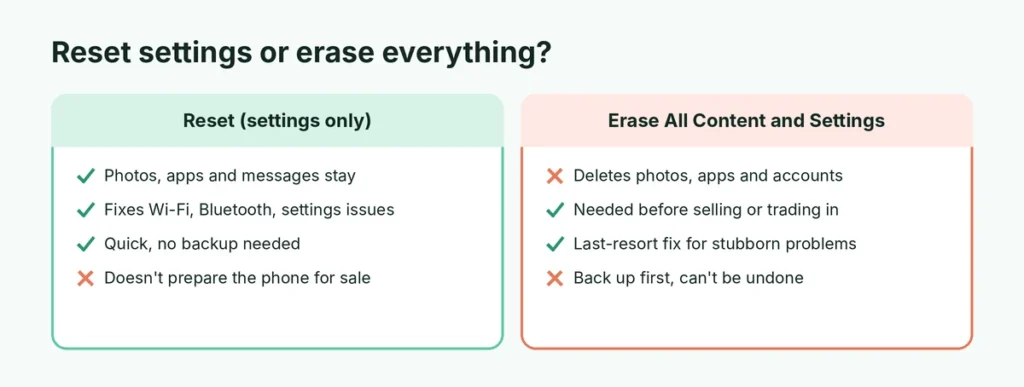
Apple’s Transfer or Reset iPhone screen has two very different options:
| Option | What it does | Deletes your data? |
|---|---|---|
| Reset → Reset All Settings | Returns settings (Wi-Fi, wallpaper, privacy) to defaults | No |
| Reset → Reset Network Settings | Forgets Wi-Fi networks, Bluetooth pairings and VPNs | No |
| Reset → Reset Keyboard Dictionary, Home Screen Layout, Location & Privacy | Resets just that area | No |
| Erase All Content and Settings | Deletes everything: a true factory reset | Yes |
If you’re fixing a Wi-Fi or Bluetooth problem, try Reset Network Settings first. If the phone is generally unstable, Reset All Settings keeps your photos and apps. Only use Erase All Content and Settings when you really want a blank phone.
Step 1: Back up your iPhone
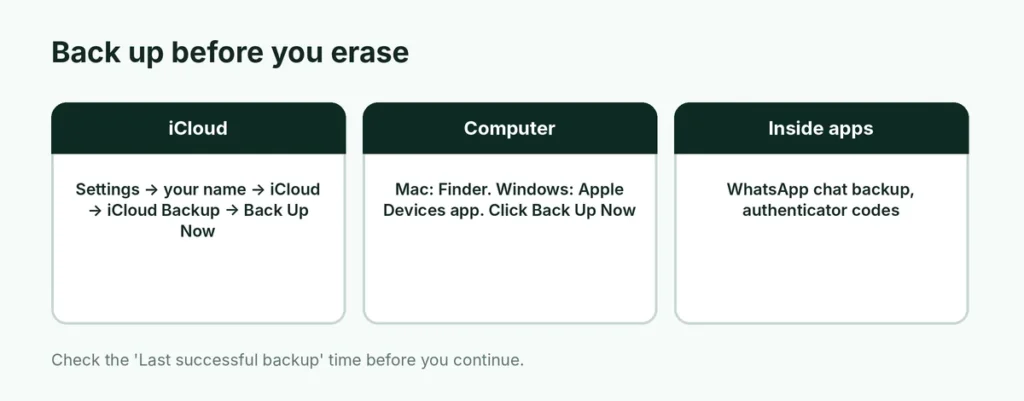
Erasing can’t be undone. Back up first, even if you think everything is in iCloud. For every option in detail, see how to back up an iPhone.
Back up to iCloud
- Connect to Wi-Fi and plug in the charger.
- Go to Settings → your name → iCloud → iCloud Backup.
- Tap Back Up Now and wait until it finishes.
- Check the Last successful backup time underneath.
If your iCloud storage is full, iOS may offer temporary extra iCloud space for moving to a new iPhone, or you can back up to a computer instead.
Back up to a computer
- Mac: connect the iPhone, open Finder, select your iPhone in the sidebar and click Back Up Now.
- Windows PC: install Apple Devices from the Microsoft Store (or iTunes on older versions of Windows), connect the iPhone and click Back Up Now.
Tick Encrypt local backup if you want your saved passwords and Health data included, and keep the backup password somewhere safe.
Back up apps with their own data
Some apps keep data outside the iPhone backup. WhatsApp in particular should be backed up inside the app: Settings → Chats → Chat Backup → Back Up Now. Authenticator apps for two-step sign-in also need their codes moved before you erase, or you could lock yourself out of accounts.
Step 2: Unpair your Apple Watch and other devices
If you have an Apple Watch, unpair it in the Watch app first. This backs up the watch to your iPhone and removes Activation Lock from the watch. If you’re keeping your AirPods, there’s nothing to do; they’ll reconnect to your next iPhone.
Step 3: Erase the iPhone
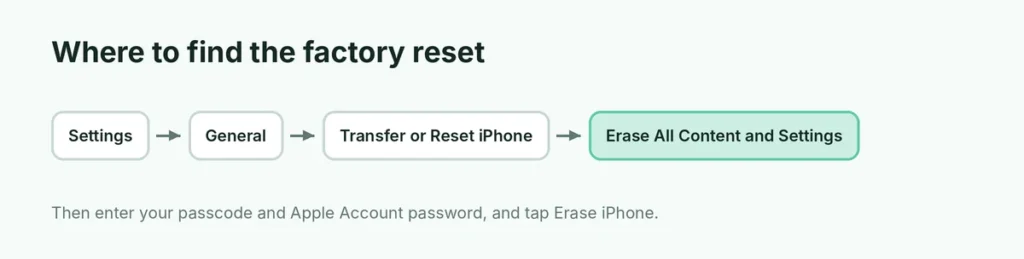
- Go to Settings → General.
- Scroll to the bottom and tap Transfer or Reset iPhone.
- Tap Erase All Content and Settings.
- Review the list of what will be removed and tap Continue.
- Enter your passcode.
- If asked, enter your Apple Account password to turn off Find My and remove Activation Lock.
- Confirm by tapping Erase iPhone.
The iPhone shows the Apple logo and a progress bar. It usually takes a few minutes. When it restarts on the Hello screen, it’s fully reset.
If you’re asked to wait an hour
With Stolen Device Protection turned on, erasing the iPhone or turning off Find My away from a familiar location (like home) requires Face ID and may add a one-hour Security Delay. Doing the reset at home avoids it. Our guide to turning off Find My iPhone explains the delay in detail.
Forgot your passcode? Two ways to reset
On the iPhone itself (iOS 15.2 and later)
- Enter the wrong passcode on the lock screen until you see iPhone Unavailable (or Security Lockout).
- Tap Forgot Passcode? at the bottom of the screen.
- Tap Start iPhone Reset (or Erase iPhone).
- Enter your Apple Account password to sign out and erase.
This needs the iPhone to be connected to Wi-Fi or mobile data. It erases everything, so you’ll restore from a backup afterwards.
If you changed your passcode in the last 72 hours, iOS 17 and later may offer Enter Previous Passcode instead, which lets you get back in with the old passcode without erasing.
With a computer and recovery mode
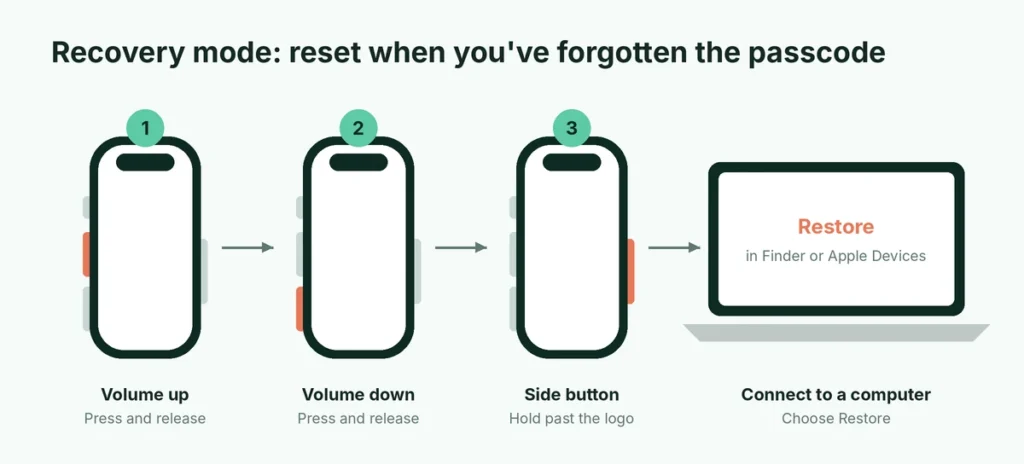
Use this if the Forgot Passcode? option doesn’t appear, or the iPhone won’t start properly.
- Connect the iPhone to a Mac or Windows PC.
- Put the iPhone into recovery mode: press and release volume up, press and release volume down, then press and hold the side button. Keep holding past the Apple logo until you see a computer and cable on the screen.
- On the computer (Finder or Apple Devices), choose Restore when asked.
- The computer downloads iOS and erases the iPhone. If the download takes longer than 15 minutes, the iPhone may leave recovery mode; repeat step 2.
After a restore, you’ll still need the Apple Account password that was on the phone to get past Activation Lock.
How long does a factory reset take?
The erase itself usually takes 5 to 15 minutes. Newer iPhones are faster because their storage is encrypted, so erasing mostly means destroying the encryption key rather than overwriting every file. The backup beforehand and the restore afterwards take longer, especially over a slow Wi-Fi connection; a full restore with lots of photos and apps can take an hour or more.
Will a factory reset fix my iPhone’s problems?
Often, yes, for software problems: random crashes, battery draining much faster than before after an update, apps that won’t install, or settings that seem stuck. If you restore from a backup afterwards, though, some problems can come back, because the backup brings back the same settings. If that happens, set it up as new and let iCloud sync your photos and contacts.
A reset won’t fix hardware problems such as a weak battery, a damaged screen, water damage or a faulty charging port. Check Settings → Battery → Battery Health first if battery life is the issue.
Can you reset an iPhone without the Apple Account password?
You can erase it, but you can’t use it afterwards. Activation Lock asks for the Apple Account password of the previous owner during setup, and there’s no legitimate way around it. If you bought a used iPhone that’s locked, contact the seller. If it’s your own iPhone and you’ve lost access to your Apple Account, use Apple’s account recovery at iforgot.apple.com, or contact Apple Support with your original proof of purchase. Be wary of any website or tool that promises to “remove iCloud lock” for a fee; these are almost always scams.
Erase an iPhone remotely
If the iPhone is lost, stolen or already gone, you can erase it from another device:
- Go to icloud.com/find or open the Find My app on another Apple device.
- Select the iPhone.
- Choose Erase This Device.
If the iPhone is offline, it erases the next time it connects. Once you’re sure you won’t get it back, you can also choose Remove This Device so it’s no longer linked to your account.
After the reset: restore or set up as new
When you see the Hello screen, you can:
- Restore from iCloud Backup or from Mac or PC, to get your apps, photos and settings back on the same or a new iPhone.
- Transfer directly from another iPhone with Quick Start, if your old phone is nearby.
- Set up as new, for a clean start. Your iCloud data (photos, contacts, notes) still syncs back when you sign in, but app layouts and settings start fresh.
Before you sell: final checklist
| Done? | Step |
|---|---|
| ☐ | Backed up to iCloud or a computer |
| ☐ | Backed up WhatsApp and moved authenticator codes |
| ☐ | Unpaired Apple Watch |
| ☐ | Signed out of Apple Account and turned off Find My |
| ☐ | Erased with Erase All Content and Settings |
| ☐ | Removed SIM card or deleted eSIM (unless transferring it) |
| ☐ | Phone shows the Hello screen, not “iPhone Locked to Owner” |
If the buyer sees iPhone Locked to Owner, Activation Lock is still on. Remove the device from your account at icloud.com/find.
The short version
Back up, unpair your Apple Watch, then go to Settings → General → Transfer or Reset iPhone → Erase All Content and Settings, and enter your passcode and Apple Account password. Forgot the passcode? Use Forgot Passcode? on the lock screen, or recovery mode on a computer. Erase a lost phone at icloud.com/find. Before selling, make sure the phone reaches the Hello screen. And don’t forget your earbuds: here’s how to reset AirPods before you pass them on, plus how to clear your iPhone’s search history if you’re keeping the phone but want a clean slate.