By
By 
A factory reset wipes your Android phone back to the way it was when it came out of the box. It’s the right fix when a phone is badly slow or glitchy, before you sell or give it away, or when you’re starting fresh. It’s also permanent, so the five minutes you spend preparing matter more than the reset itself.
Short answer: back up your photos, contacts and chats first. Then open Settings → System → Reset options → Erase all data (factory reset) → Erase all data on Pixel, Motorola and most phones, or Settings → General management → Reset → Factory data reset on Samsung. Enter your PIN, confirm, and the phone restarts as new. If you’re selling it, remove your Google account first.
Last updated: October 2026. Works on Android 13, 14, 15 and 16 phones from Samsung, Google Pixel, Motorola, OnePlus, Xiaomi, Realme and Oppo.
What a factory reset deletes (and what it keeps)
A factory reset erases everything stored on the phone itself:
- apps you installed and their data,
- photos, videos, downloads and documents saved only on the phone,
- messages, call history and settings,
- Wi-Fi passwords, Bluetooth pairings and saved accounts.
It does not delete anything stored in the cloud. Your Google account, Gmail, Google Photos backups, Google Drive files and contacts synced to Google are all still there and come back when you sign in again. It also doesn’t remove Android updates: the phone stays on the Android version it already has.
A reset won’t fix a hardware problem such as a failing battery, a damaged screen or a broken charging port.
Before you reset: 5 things to do first
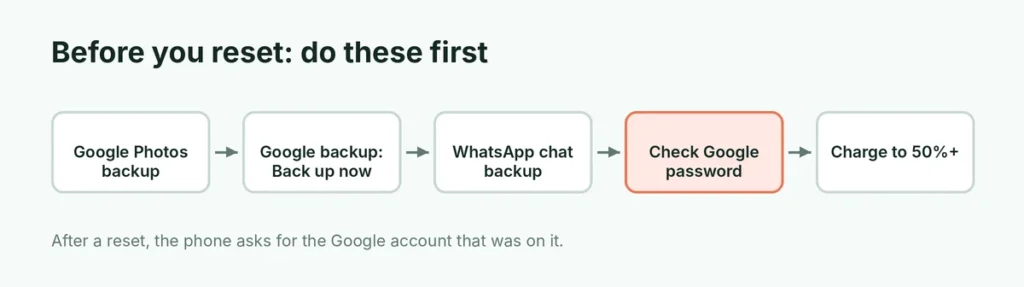
1. Back up your photos and videos
Open Google Photos, tap your profile picture, and check that backup is on and says “Backup complete”. If you have lots of photos waiting, connect to Wi-Fi and wait until it finishes. Photos that never uploaded will be lost.
2. Back up everything else with Google One backup
Go to Settings → Google → Backup (on some phones Settings → System → Backup) and tap Back up now. This saves apps, call history, contacts, device settings and SMS messages to your Google account. Samsung phones also offer Samsung Cloud under Settings → Accounts and backup.
3. Back up WhatsApp separately
WhatsApp chats are not part of the normal Android backup. Open WhatsApp → Settings → Chats → Chat backup → Back up. Here’s the full guide to backing up WhatsApp chats on Android, and what to do if WhatsApp backup to Google Drive isn’t working.
4. Know your Google account password
After the reset, the phone asks for the Google account that was on it. This is called Factory Reset Protection (FRP), and it stops thieves from using a wiped phone. If you’ve forgotten the password, fix that before resetting. Here’s how to recover a Google account without your phone or email.
5. Charge the phone
Charge to at least 50% or keep it plugged in. If the battery dies halfway through, the reset can fail and the phone may not start properly.
How to factory reset from Settings (recommended)
This is the safest method and works on almost every phone.
Google Pixel, Motorola, OnePlus and most phones
- Open Settings.
- Tap System → Reset options.
- Tap Erase all data (factory reset).
- Tap Erase all data (or Reset phone), then enter your PIN, pattern or password.
- Confirm. The phone restarts and the reset takes a few minutes.
Samsung Galaxy
- Open Settings → General management.
- Tap Reset → Factory data reset.
- Scroll down and tap Reset, then enter your PIN.
- Enter your Samsung account password if asked, and tap Delete all.
Xiaomi, Redmi, Poco, Realme and Oppo
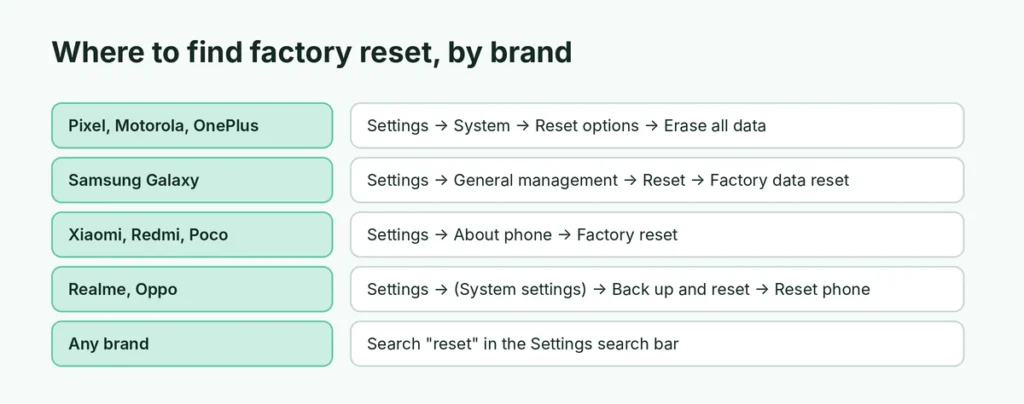
| Brand | Where to find factory reset |
|---|---|
| Xiaomi, Redmi, Poco (HyperOS) | Settings → About phone → Factory reset → Erase all data |
| Realme | Settings → Additional settings (or System settings) → Back up and reset → Reset phone → Erase all data |
| Oppo | Settings → System settings → Back up and reset → Reset phone → Erase all data |
| Vivo | Settings → System management → Backup & reset → Erase all data |
If you can’t find it, open Settings and type reset in the search bar at the top. Menu names change slightly with each Android update, but searching always finds it.
How to factory reset a phone that won’t start (recovery mode)
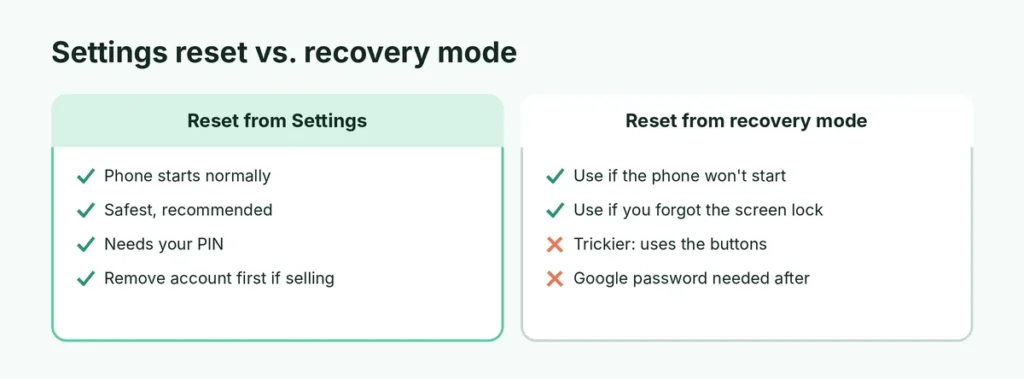
If the phone won’t turn on properly, is stuck on the logo, or you’ve forgotten the screen lock, you can reset it from recovery mode. Use this only when the Settings method isn’t possible.
- Turn the phone off completely.
- Press and hold the button combination for your phone:
- Pixel: power + volume down, then choose Recovery mode with the volume keys and press power.
- Samsung: connect the phone to a computer or charger with a USB cable, then hold power + volume up.
- Most other brands: power + volume up (some use power + volume down).
- If you see a robot with “No command”, hold power and tap volume up once.
- Use the volume keys to highlight Wipe data/factory reset and press power to select it.
- Choose Factory data reset or Yes.
- When it finishes, select Reboot system now.
After a recovery-mode reset, the phone will ask for the Google account that was on it before. Without that password, you can’t finish setup. This is Factory Reset Protection doing its job; there is no legitimate way around it other than proving ownership to the phone maker with your receipt.
How to factory reset a lost or stolen phone remotely
If your phone is gone for good, you can erase it from any browser using Google’s Find Hub (formerly Find My Device). Go to google.com/android/find, sign in, choose the phone and select Factory reset device (or Erase device). The phone erases itself the next time it’s online. You can’t track it afterward, so try locating and locking it first. Here’s the full guide on how to find a lost Android phone.
Selling or giving away your phone? Do this first
To make sure the next owner can set the phone up without your account:
- Remove your Google account: Settings → Passwords & accounts (or Accounts) → your Google account → Remove account.
- Samsung: also remove your Samsung account in the same place.
- Remove the SIM card and any microSD card.
- Unpair the phone from your smartwatch.
- Then do the factory reset from Settings.
Modern Android phones are encrypted, so a factory reset makes your old data unreadable. You don’t need extra “data shredder” apps.
After the reset: setting the phone up again
- Choose your language and connect to Wi-Fi.
- Sign in with your Google account.
- When asked, choose Restore from a backup and select your most recent backup. Apps, contacts, settings and messages come back automatically.
- Open Google Photos and sign in: your backed-up photos appear again.
- Install WhatsApp, verify your number and tap Restore to get your chats back.
Give the phone 30 minutes or so to finish downloading apps in the background.
How long does a factory reset take?
The reset itself usually takes 5 to 15 minutes, depending on how much data is on the phone. Phones with lots of storage in use can take longer. Don’t press any buttons while you see the Android logo or a progress bar. Setting the phone up again and restoring apps from your backup takes another 20 to 40 minutes on good Wi-Fi.
Try these before a full reset
A factory reset is a big step. If your phone is just slow or acting strangely, these often fix it without losing anything:
- Restart the phone. It sounds simple, but it clears many glitches.
- Free up storage. A nearly full phone slows down badly. See what to do when Android storage is almost full.
- Check for a bad app. Boot into safe mode to see whether a downloaded app is the cause; here’s how safe mode works and how to turn it off.
- Reset settings only: under Reset options, choose Reset Wi-Fi, mobile & Bluetooth or Reset app preferences. These keep your data.
Factory reset vs. other resets
| Option | What it does | Data deleted? |
|---|---|---|
| Restart | Turns the phone off and on | No |
| Reset Wi-Fi, mobile & Bluetooth | Clears network settings and saved Wi-Fi | Only network settings |
| Reset app preferences | Re-enables disabled apps, resets defaults and permissions | No |
| Factory reset | Returns the phone to out-of-the-box state | Yes, everything on the phone |
Moving to an iPhone or resetting one too?
The steps on Apple devices are different. Here’s how to factory reset an iPhone safely.
The short version
Back up Google Photos, run a Google backup and back up WhatsApp, and make sure you know your Google password. Then go to Settings → System → Reset options → Erase all data (Samsung: General management → Reset → Factory data reset). Use recovery mode only if the phone won’t start, and remove your Google account before selling the phone. Afterward, sign in again and restore from your backup.