By
By 
Your Android phone suddenly says “Safe mode” in the corner, and most of your apps have vanished from the home screen. Don’t panic: your apps and data are still there. Safe mode is a troubleshooting mode that temporarily turns off apps you installed, and getting out of it usually takes one restart.
Short answer: restart your phone. Press and hold the power button (on many newer phones, power + volume up, or swipe down twice and tap the power icon), then tap Restart. The phone starts normally and safe mode is gone. If it comes back, check that the volume down button isn’t stuck, then remove the app you installed most recently.
Last updated: October 2026. Works on Android 13, 14, 15 and 16 phones from Samsung, Google Pixel, Motorola, OnePlus, Xiaomi, Realme and Oppo.
What safe mode is (and why you’re in it)
Safe mode starts Android with only the built-in apps. Apps you downloaded are disabled until you restart normally. It’s designed to help you find out whether a downloaded app is causing crashes, freezing or battery drain.
Phones usually end up in safe mode because:
- you (or a pocket press) held the power-off option on screen, which offers “Reboot to safe mode”,
- the volume down button was held or stuck while the phone was starting,
- Android started it automatically after repeated crashes,
- a case is pressing on a button.
Step 1: Restart the phone normally
This works on almost every Android phone:
- Open the power menu:
- Samsung, older Pixels and most phones: press and hold the power (side) button.
- Pixel 6 and newer, OnePlus and some others: press and hold power + volume up for a few seconds, or swipe down twice from the top and tap the power icon.
- Tap Restart (not Power off).
- Wait for the phone to start. The Safe mode label in the corner should be gone.
Step 2: Use the notification (Samsung and some others)
Many Samsung phones show a “Safe mode is on” notification:
- Swipe down from the top of the screen.
- Tap Safe mode is on → Turn off.
The phone restarts normally.
Brand-specific notes
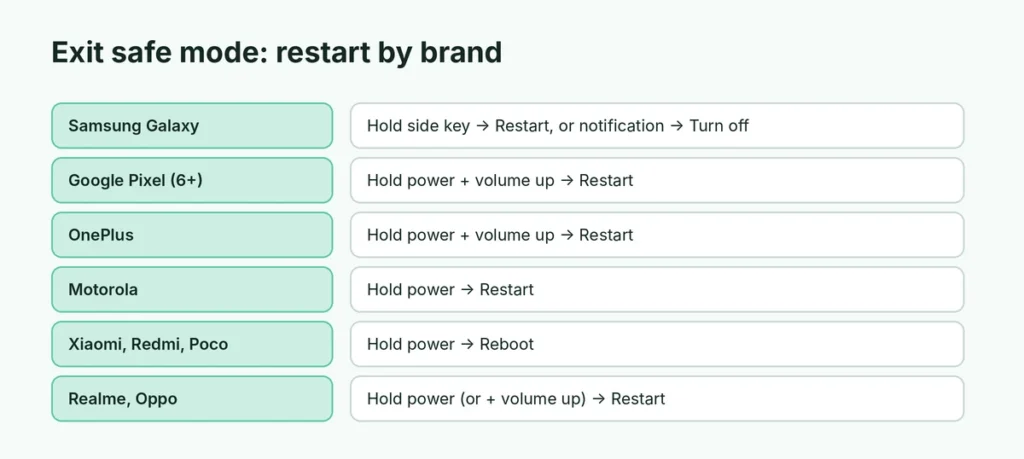
| Brand | How to restart out of safe mode |
|---|---|
| Samsung Galaxy | Hold the side key (or side key + volume down) → Restart, or tap the Safe mode notification → Turn off |
| Google Pixel | Hold power + volume up (Pixel 6 and newer) → Restart |
| Motorola | Hold power → Restart |
| OnePlus | Hold power + volume up → Restart |
| Xiaomi, Redmi, Poco | Hold power → Reboot |
| Realme, Oppo | Hold power (or power + volume up) → Restart |
Menu names vary slightly by model and Android version, but Restart or Reboot is always the option you want.
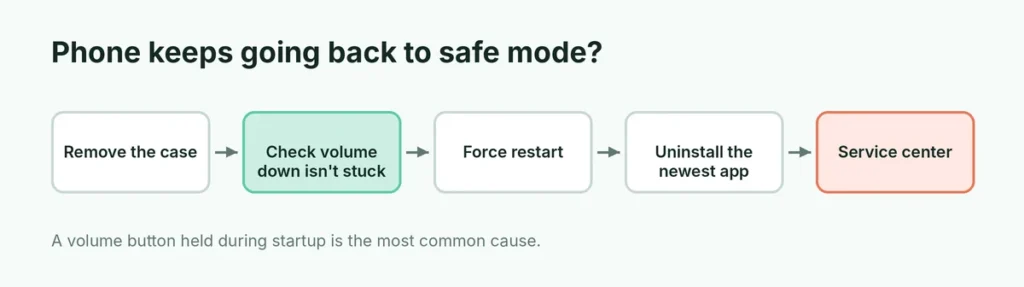
Step 3: Phone keeps going back into safe mode?
Check for a stuck volume button
If volume down is pressed while the phone starts, many Android phones boot into safe mode. Take off the case, press each volume button several times to make sure it clicks and springs back, and restart. If a button feels stuck or mushy, it may need repair.
Force a full restart
If the normal restart doesn’t help, force one:
- Hold power + volume down for 10 to 20 seconds until the screen goes black and the phone restarts (on most phones; some use power + volume up).
- Or turn the phone off, wait 30 seconds, then turn it back on without touching the volume buttons.
Remove the app that’s causing trouble
If Android keeps starting in safe mode by itself, a downloaded app may be crashing the system:
- While in safe mode, open Settings → Apps.
- Find apps you installed or updated just before the problem started.
- Tap the app → Uninstall.
- Restart normally and see if the problem is gone.
Downloaded apps can be uninstalled in safe mode even though they’re disabled. Remove one at a time so you can tell which app was the problem.
Use safe mode to diagnose problems
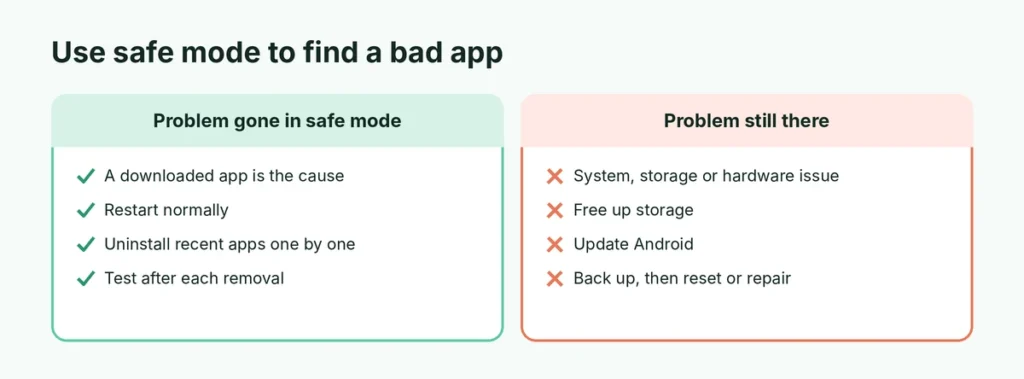
Safe mode is actually useful. If your phone is slow, crashing, freezing or draining battery:
- Enter safe mode: open the power menu, then press and hold Power off (or Restart) until Safe mode appears, and tap OK. On some Samsung phones, hold volume down while the phone starts.
- Use the phone for a while.
- If the problem disappears in safe mode, a downloaded app is causing it. Restart normally and remove recently installed apps one by one.
- If the problem continues in safe mode, it’s more likely a system issue, low storage or hardware.
If storage is the issue, here’s what to do when Android storage is almost full. For a slow phone because of the browser, see Chrome using too much RAM.
Stop your phone going into safe mode by accident
- Use a case with proper button covers that don’t press the volume keys.
- Don’t press the volume keys while the phone is restarting.
- Be careful in the power menu: on many phones, pressing and holding Power off offers safe mode. Tap Power off or Restart once instead of holding it.
- Keep apps up to date and remove apps you no longer use; fewer apps means fewer crashes.
- Install apps only from Google Play or your phone maker’s store; apps from unknown websites are a common cause of crashes and malware.
Will I lose anything when I leave safe mode?
No. Exiting safe mode doesn’t delete apps, photos, messages or settings. Your home-screen shortcuts and widgets for downloaded apps return after the normal restart. Occasionally a widget needs to be added again, but your data is safe.
Safe mode on Android tablets
Android tablets work the same way. Restart from the power menu to leave safe mode. On Samsung Galaxy Tab models, the Safe mode notification in the notification panel also offers Turn off. If the tablet has a keyboard case, remove it while restarting in case a key is pressed.
Last resort: factory reset
If the phone keeps crashing and booting into safe mode after removing suspicious apps, a factory reset may be needed. It erases everything, so back up first: make sure your photos are backed up in Google Photos, your contacts are synced to your Google account, and your chats are backed up. Here’s how to back up WhatsApp chats on Android before you reset. Then go to Settings → System → Reset options → Erase all data (names vary by brand).
Safe mode vs. other Android modes
| Mode | What it’s for | How you get out |
|---|---|---|
| Safe mode | Tests whether downloaded apps cause problems | Restart |
| Recovery mode | Wipe cache, install updates, factory reset | Choose “Reboot system now” |
| Fastboot / bootloader mode | Advanced repair and developer tools | Hold power to restart |
| Emergency / SOS mode | Calls emergency services | Cancel on screen |
If your screen shows a robot or a menu with text options instead of the “Safe mode” label, you’re in recovery or fastboot mode; select Reboot system now or hold the power button to restart.
When to get the phone checked
Visit your phone maker’s service center or a trusted repair shop if:
- the phone boots into safe mode even with no case and the volume buttons feel fine,
- it restarts by itself repeatedly, even after a factory reset,
- a physical button is cracked, stuck or unresponsive.
Back up your photos and chats before handing the phone over.
The short version
Safe mode just disables downloaded apps temporarily. Restart the phone from the power menu (hold power, or power + volume up on newer phones), or tap the Safe mode notification on Samsung. If it keeps returning, check for a stuck volume down button, force a restart, and uninstall the app you installed most recently. Your data isn’t affected, and a factory reset is only ever a last resort.