By
By 
If your iPhone’s Safari has a dark address bar and pages aren’t saved in your history, you’re in Private Browsing. It’s useful for gift shopping or using a friend’s phone, but it’s easy to get stuck in it. Here’s how to turn off Private Browsing on iPhone, iPad and Mac, close your private tabs, and what to do if the option is greyed out.
Short answer: in Safari on iPhone, tap the Tabs button (two overlapping squares), then swipe to or tap your normal tab group (it shows a number like 3 Tabs) instead of Private, and tap Done. On a Mac, simply close the private window (it has a dark address field) and use a normal one. If you can’t switch out, Screen Time content restrictions may be forcing it, so check Settings → Screen Time → Content & Privacy Restrictions.
Applies to: Safari on iOS 26, iPadOS 26 and macOS 26. Last checked in October 2026.
How to tell if Private Browsing is on
- The address bar is dark or black instead of white or grey.
- In the tab view, the Private tab group is selected.
- Websites you visit don’t show in History.
How to turn off Private Browsing on iPhone
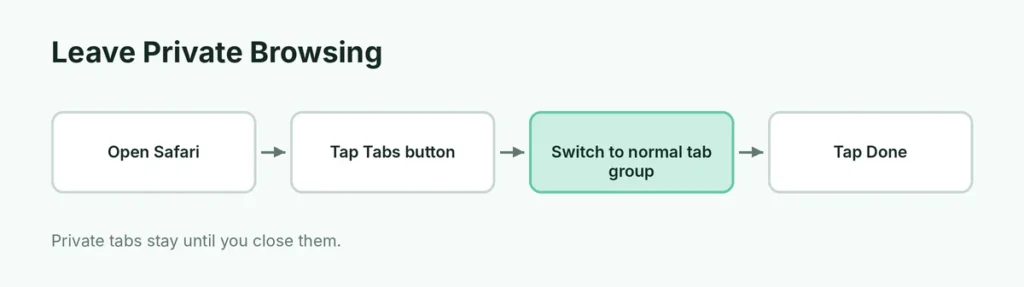
- Open Safari.
- Tap the Tabs button (two overlapping squares) at the bottom.
- Swipe right to your normal tabs, or tap the tab group button and choose the one with your tab count (e.g. 5 Tabs) rather than Private.
- Tap a tab or Done.
Your private tabs stay in the Private group until you close them.
Long-press shortcut: touch and hold the Tabs button to see options like New Tab, New Private Tab and switching between groups.
How to close all private tabs
- Tap the Tabs button and switch to Private.
- Touch and hold Done.
- Tap Close All Tabs.
Lock private tabs: Safari can require Face ID to open locked private tabs. To change it: Settings → Apps → Safari → Require Face ID to Unlock Private Browsing.
How to turn off Private Browsing on Mac
- Look at your Safari windows: a private window has a dark address field.
- Close it (click the red button or press Command + W).
- Open a normal window with File → New Window (Command + N).
If Safari always opens in private mode: Safari → Settings → General → Safari opens with → choose A new window (not A new private window).
Private Browsing greyed out or won’t turn off?
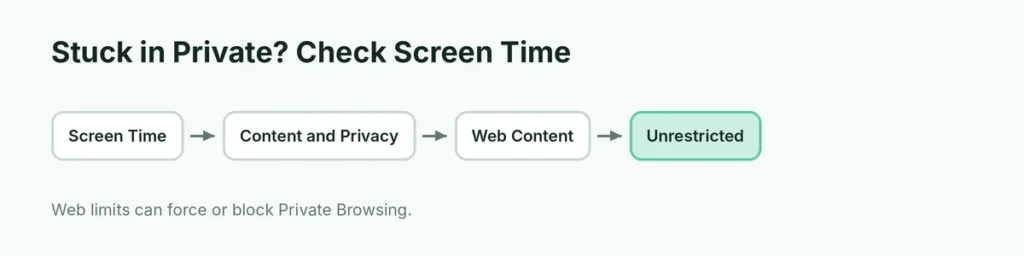
If Private is the only option, your iPhone likely has Screen Time limits:
- Go to Settings → Screen Time → Content & Privacy Restrictions.
- Tap App Store, Media, Web & Games → Web Content.
- If it says Limit Adult Websites or Only Approved Websites, Private Browsing is turned off by Screen Time.
If you don’t know the Screen Time passcode, a parent or the device manager set it. Here’s more about Screen Time on iPhone.
Private Browsing vs. normal browsing
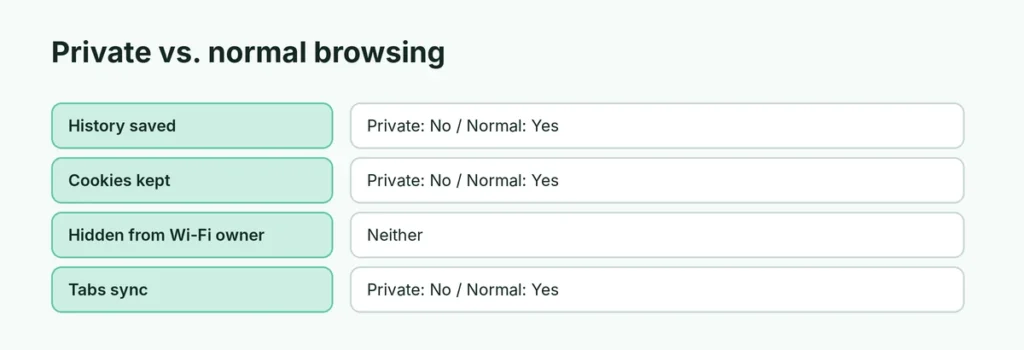
| Private | Normal | |
|---|---|---|
| History saved | No | Yes |
| Cookies kept after closing | No | Yes |
| AutoFill saved | No | Yes |
| Hides you from websites/Wi-Fi owner | No | No |
| Tabs sync via iCloud | No | Yes |
Important: Private Browsing hides history on your device only. Your internet provider, school or work network and websites can still see your visits.
What about Chrome on iPhone?
Chrome calls it Incognito. Tap the tab switcher and switch to your normal tabs, or close incognito tabs. Close the Incognito tabs to leave it.
Related guides
- How to make Chrome your default browser
- How to set up Screen Time on iPhone
The short version
In Safari on iPhone, tap the Tabs button and switch from Private to your normal tab group; touch and hold Done to close all private tabs. On Mac, close the dark private window and open a normal one. If you can’t leave Private mode, Screen Time web content limits are controlling it.
Sources
- Apple Support: Turn Private Browsing on or off on your iPhone