By
By 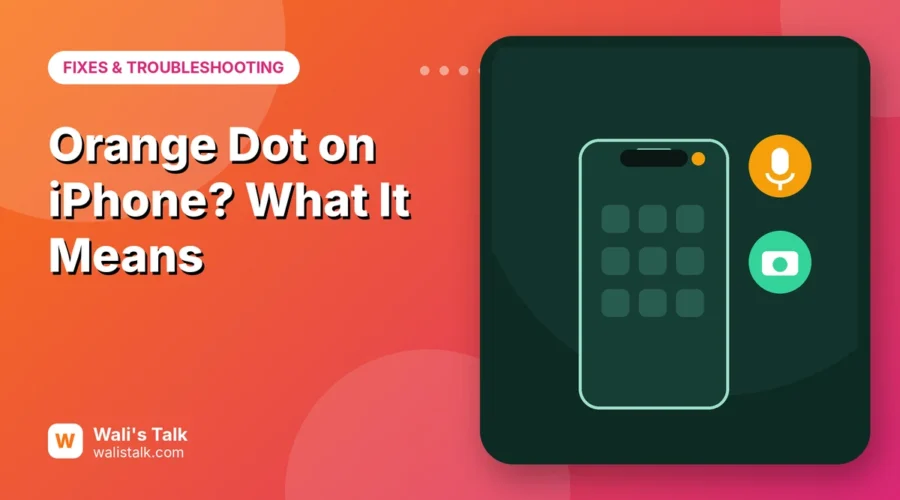
A small orange or green dot sometimes appears in the top-right corner of your iPhone screen, next to the battery or above the signal bars. It’s not a bug and it doesn’t mean your phone is hacked. It’s a privacy indicator: iPhone shows it whenever an app is using your microphone or camera, so nothing can listen or watch without you noticing.
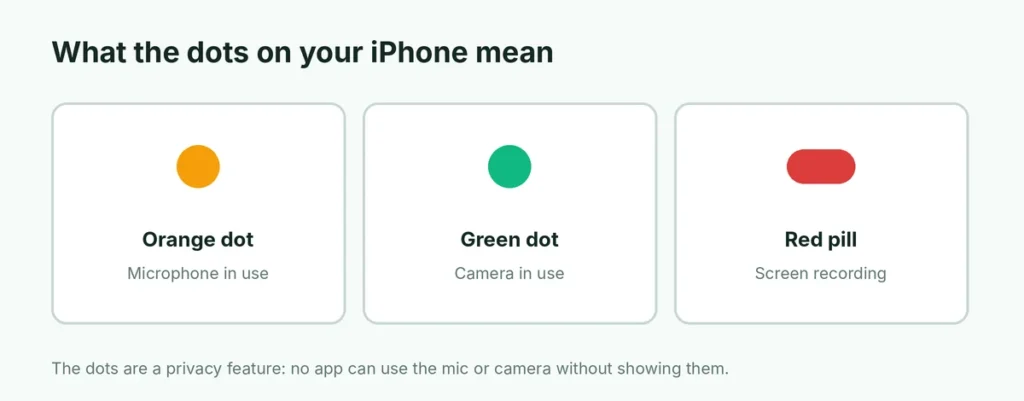
Short answer: the orange dot means an app is using the microphone; the green dot means an app is using the camera (or the camera and microphone together). To see which app it is, swipe down from the top-right corner to open Control Center; the app’s name appears at the top. You can’t turn the dots off, but you can stop any app from using your mic or camera in Settings → Privacy & Security.
Last updated: October 2026. Applies to every iPhone on iOS 14 or later, including iOS 26 and iOS 27.
What each dot and indicator means
| Indicator | Where it appears | What it means |
|---|---|---|
| Orange dot | Top-right corner, or in the Dynamic Island | An app is using the microphone |
| Green dot | Same place | An app is using the camera (often with the microphone) |
| Orange square | Same place | The microphone, shown as a square because Differentiate Without Color is on |
| Red pill or red bar | Status bar or Dynamic Island | Screen recording is in progress |
| Arrow icon | Status bar | An app is using your location |
The dots disappear a few seconds after the app stops using the microphone or camera.
When the orange dot is completely normal
You’ll see the orange dot during:
- phone and FaceTime calls,
- voice messages in WhatsApp, Messages and other chat apps,
- talking to Siri or using dictation on the keyboard,
- Voice Memos and other recording apps,
- voice search in Google or other apps,
- video calls in Zoom, Teams or Meet (often as a green dot instead).
If the dot appears only while you’re doing one of these things, everything is working as designed.
How to see which app is using your mic or camera
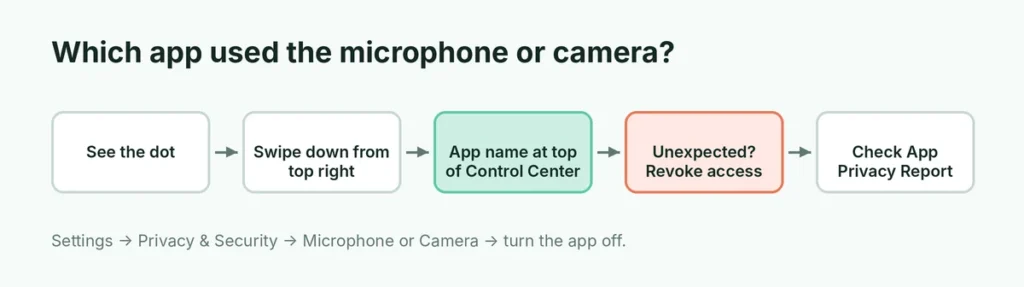
- Swipe down from the top-right corner of the screen to open Control Center. (On iPhones with a Home button, swipe up from the bottom edge.)
- Look at the top of Control Center. You’ll see a line such as “WhatsApp – Microphone” or “Instagram – Camera”.
- If the dot already disappeared, iPhone shows the app that used it recently.
This is the quickest way to check whether an app was listening when you didn’t expect it.
Check the full history with App Privacy Report
For a longer record of which apps used your microphone, camera, location, contacts and photos:
- Open Settings → Privacy & Security.
- Scroll down and tap App Privacy Report.
- Tap Turn On App Privacy Report if it’s off.
After a few days, you’ll see a 7-day timeline of Data & Sensor Access for every app. If an app shows microphone access at times you weren’t using it, revoke its permission (below).
How to stop an app from using your microphone or camera

- Open Settings → Privacy & Security.
- Tap Microphone (or Camera).
- Turn off the switch next to any app that shouldn’t have access.
The app won’t be able to use the microphone or camera at all until you turn it back on. If it needs it later, for example to send a voice message, it will ask again.
Tip: apps you rarely use don’t need permanent access. Turning off microphone access for games, shopping apps and social apps you only browse is a quick privacy win.
Can you turn off the orange dot?
No. The orange and green dots are part of iPhone’s built-in privacy protections and can’t be hidden, by you or by any app. That’s the point: no app can secretly use the microphone or camera.
What you can change is how it looks. If the orange is hard to see, go to Settings → Accessibility → Display & Text Size and turn on Differentiate Without Color. The microphone indicator then becomes an orange square, which is easier to tell apart from the green camera dot.
Does the orange dot mean someone is listening to me?
Almost always, no. The dot shows that an app on your iPhone is using the microphone, not that a person is listening. In nearly every case it’s a call, Siri, dictation, a voice message or a video app.
Be suspicious only if:
- the dot appears when you’re not using any audio app,
- Control Center shows an app you don’t recognize, or one that has no reason to use the mic,
- it happens repeatedly.
Then turn off that app’s microphone access, update or delete the app, and update iOS. Spyware that silently records on an up-to-date iPhone is very rare, but if you’re worried, also check who else can see your accounts: for example, check your WhatsApp linked devices and log out any computer you don’t recognize.
Why Apple added the dots
Before iOS 14, an app with microphone permission could, in theory, use it in the background without any visible sign. Apple added the orange and green indicators so that you always know when your microphone or camera is active, just like the small green light next to a laptop’s webcam. Apps can’t hide or change the indicator, and it appears even for Apple’s own apps such as Phone, FaceTime and Siri. Combined with the permission switches in Privacy & Security, it gives you full control: you can see when access happens and decide which apps are allowed at all.
The orange dot stays on: fixes
The dot stays after a call. Wait a few seconds; it can linger briefly. If it doesn’t go, open the app switcher and close the app shown in Control Center.
Control Center shows an app you closed. Background audio apps, such as music, podcast and navigation apps, can keep the microphone briefly for voice commands. Turn off “Hey Siri”-style voice features inside that app, or revoke its microphone access.
The dot never goes away. Restart your iPhone. If it’s frozen, here’s how to hard reset any iPhone without losing data.
It started after installing a new app or keyboard. Third-party keyboards with voice typing can trigger the dot. Remove the keyboard in Settings → General → Keyboard → Keyboards if you don’t need it.
Other icons in your iPhone’s status bar
Once you notice the dots, you may spot other small icons at the top of the screen:
| Icon | What it means |
|---|---|
| Arrow (filled or outline) | An app is using or recently used your location |
| Moon | Do Not Disturb or another Focus is on |
| Lock with a circular arrow | Portrait Orientation Lock is on |
| Yellow battery | Low Power Mode is on |
| Bell with a slash | Silent mode is on |
| VPN | You’re connected to a VPN |
None of these mean anything is wrong; they’re simply status indicators you can tap to learn more in Control Center.
A quick privacy checkup for your iPhone
While you’re thinking about privacy, take five minutes to review what your apps can access:
- Settings → Privacy & Security → Microphone and Camera: turn off apps that don’t need them.
- Location Services: set rarely used apps to Never or While Using the App.
- Photos: choose Limited Access for apps that only need a few pictures.
- Safety Check (in Privacy & Security): review who you share your location and data with, and reset access if you’re worried someone has it.
- Keep iOS updated; security fixes arrive in every update.
Green and orange dots on Mac and Android
The same idea exists on other devices:
- Mac: an orange dot appears in the menu bar’s Control Center icon when the microphone is in use, and a green light next to the camera shows the camera is on.
- Android 12 and later: a green dot or icon appears in the top-right corner when an app uses the camera or microphone. Swipe down and tap it to see which app.
The short version
Orange dot = microphone in use; green dot = camera in use. It’s a privacy feature, not a problem. Open Control Center to see which app triggered it, review App Privacy Report for the full history, and turn off access for any app in Settings → Privacy & Security → Microphone or Camera. You can’t hide the dots, but you can make the orange one a square with Differentiate Without Color.