By
By 
You open a dark movie or a black loading screen and notice cloudy patches of light glowing from the edges or corners of your laptop screen. That’s screen bleeding, more precisely called backlight bleed, and it’s one of the most common display complaints on laptops, especially new ones. Some of it is normal for the type of screen. Some of it is a defect worth returning the laptop for. And a few popular “fixes” online can turn a cosmetic issue into a broken screen.
This guide explains what screen bleeding is, how to test for it properly, what actually helps, and when to use your warranty.
Short answer: screen bleeding is light from the LCD backlight leaking around the edges of the panel. You can’t truly repair it at home. Reduce it by lowering brightness, avoiding pressure on the lid and checking that nothing is pressing on the screen frame. If it’s bad on a new laptop, return or exchange it within the return window; if it appears later, it may be covered under warranty. Don’t press or massage the screen to fix it.
Last updated: October 2026.
What is screen bleeding?
Most laptops use LCD screens (often IPS panels). An LCD doesn’t make its own light; a backlight behind the panel shines through layers of liquid crystal and filters that block or let light through to create the image. On a black screen, those layers try to block nearly all the light.
Around the edges, the panel is held in place by a frame. If the frame or the panel isn’t perfectly even, or something presses on it, light leaks through where it shouldn’t. That leak shows up as brighter, cloudy patches along the edges and corners, most visible on dark images in a dark room. That’s backlight bleed.
OLED and mini-LED laptops work differently. OLED pixels make their own light and switch off completely for black, so OLED screens don’t have backlight bleed (although they can have other issues, like burn-in). Mini-LED screens can show “blooming,” a halo around bright objects on a dark background, which is a different effect.
Bleeding vs. IPS glow: are you sure it’s bleed?
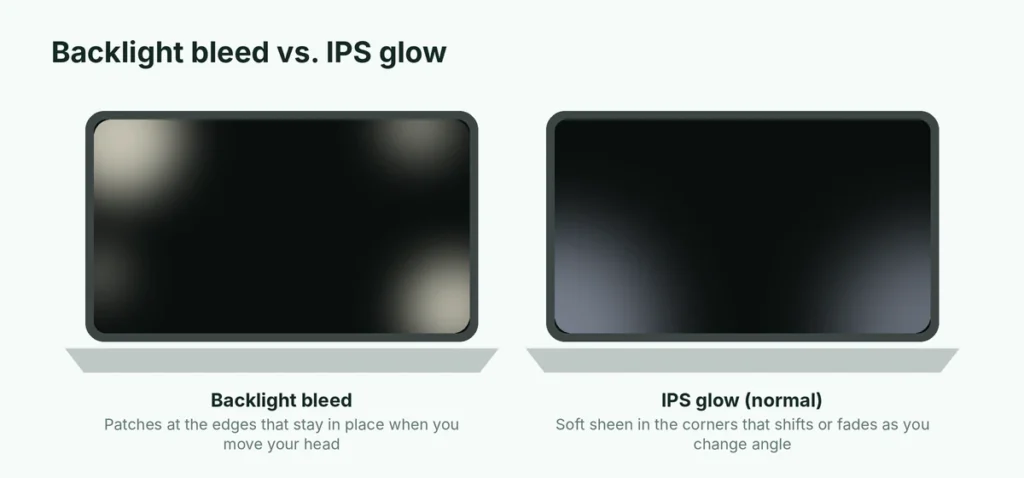
Many people who think they have screen bleeding actually have IPS glow, which is normal and not a defect. The test is easy:
| Backlight bleed | IPS glow | |
|---|---|---|
| Where | Along edges and corners, in fixed patches | Usually corners, looks like a soft sheen |
| Changes with viewing angle? | No, stays the same | Yes, shifts or disappears as you move your head |
| Changes with brightness? | Gets stronger with higher brightness | Also stronger at higher brightness |
| Color | Usually white or yellowish | Often silver, gold or slightly bluish |
| Is it a defect? | Can be, if severe | No, it’s a property of IPS panels |
Move your head left, right, up and down while looking at a black screen. If the glow moves or fades, it’s IPS glow. If the bright patches stay exactly where they are, it’s backlight bleed.
How to test your laptop for screen bleeding
A fair test avoids making the problem look worse than it is:
- Use a dim room, not a pitch-black one. In total darkness, even a good screen shows some light at the edges.
- Set brightness to about 50 to 70%, your normal use level. Maximum brightness exaggerates bleed.
- Open a fully black image full screen. Search for a “black screen” page or use a black wallpaper and hide the taskbar.
- Look straight at the screen from your normal sitting distance.
- Don’t judge by photos. Phone cameras automatically brighten dark scenes and make bleed look far worse than it does to your eyes.
Then ask yourself the important question: do you notice it in normal use? If you only see it on a black screen in a dark room, it’s mild and very common. If you see it while watching movies, playing games or reading with dark mode on, it’s significant.
What causes it to get worse
- Pressure on the lid. Carrying the laptop in a tight bag, stacking books on it, or picking it up by the screen can flex the panel.
- Twisting when opening. Opening the lid from one corner twists the frame. Open it from the center.
- Heat. High temperatures can make panel layers expand slightly. Keep the laptop ventilated and out of hot cars.
- A drop or knock on the lid or the screen edge.
- Something trapped between keyboard and screen. A pen, earbuds or a thick screen cover closed inside the laptop presses on the panel.
What actually helps
Honest expectations first: backlight bleed is a physical property of how the panel is built and mounted. These steps can reduce how much you notice it, but they won’t remove it completely.
- Lower the brightness. Bleed scales with backlight strength. Dropping brightness a few steps often makes it hard to see.
- Use dark scenes with some light in the room. A small lamp behind the laptop makes bleed far less visible during movies.
- Turn off adaptive contrast or dynamic brightness features if your laptop has them. On Windows, look in Settings → System → Display for content-adaptive brightness; some laptops also have it in Intel, AMD or NVIDIA graphics settings. These features can raise the backlight on dark scenes.
- Check for pressure on the screen. Remove any thick keyboard cover or screen protector that sits between the keyboard and the screen when closed, and make sure the lid isn’t being squeezed in your bag.
- Give it time on a brand-new laptop. Occasionally mild bleed reduces slightly over the first weeks as the panel settles. Don’t count on it, and don’t wait past your return window hoping it improves.
“Fixes” you should avoid
You’ll find videos showing people fixing bleed by pressing or rubbing the edge of the screen, or by loosening screws in the bezel. Please don’t:
- Pressing or massaging the screen can crack the panel, damage the liquid crystal layer, or create pressure marks that are worse than the bleed.
- Loosening bezel screws or prying the bezel usually voids your warranty, can break plastic clips, and often doesn’t help, because many modern laptops glue the panel in place.
- Putting tape inside the frame means opening the display assembly, which is easy to damage and voids warranties.
If the bleed is bad enough that you’d consider these, it’s bad enough for a warranty claim or a return.
When to return it or use your warranty
On a new laptop
Check your bleed in the first few days. If it’s clearly visible during normal use, contact the store and ask for an exchange within the return window. Many large retailers offer a short return period, often around 14 to 30 days depending on the store. Exchanging is much easier than a warranty repair later.
Be aware that a replacement unit may have bleed too. Panels vary from unit to unit, and almost every LCD has a little. Some manufacturers have a written policy on how much bleed is acceptable; ask what it is.
On a laptop you’ve had for a while
If bleed appears or gets much worse over time without a drop or pressure damage, contact the manufacturer’s support:
- Have your serial number ready (usually on a sticker under the laptop or in the manufacturer’s support app).
- Take a photo of the black screen with your phone’s exposure lowered, so it looks the way it does to your eyes, and describe when you notice it.
- Ask whether the display is covered. Panel defects are usually covered under the standard warranty; physical damage usually isn’t, unless you have accidental damage protection.
Out of warranty
A display panel replacement is possible but can cost a good share of what the laptop is worth. For mild bleed, living with it is usually the better choice. For severe bleed combined with other problems such as flickering, lines or dead areas, get a repair quote and compare it with the price of a replacement laptop.
Does screen bleeding get worse over time?
Usually not by itself. Mild bleed on a new laptop tends to stay about the same for years. It gets worse when something changes physically: the laptop is dropped, the lid is regularly squeezed in a bag, the hinges loosen and twist the panel, or it’s exposed to a lot of heat. If you notice bleed suddenly growing, think about what changed, check the hinges for looseness, and contact support while the laptop is still under warranty. Sudden changes together with flickering or lines can point to a failing display or cable rather than ordinary bleed.
Buying your next laptop: how to avoid bleed
- Consider OLED. OLED laptop screens don’t have backlight bleed, and they’re now common on mid-range models. Check that you’re comfortable with OLED’s other trade-offs, such as possible burn-in with static content.
- Read reviews that test panel uniformity. Detailed reviews often show photos of black-screen uniformity.
- Buy from a store with an easy return policy, and test the screen as soon as you unbox it.
The short version
Screen bleeding is backlight light leaking around the edges of an LCD panel. Test it in a dim room at normal brightness, and move your head to rule out IPS glow, which is normal. You can reduce how noticeable it is by lowering brightness, keeping some light in the room and avoiding pressure on the lid, but you can’t truly fix it at home. Don’t press, massage or open the screen. If it’s bad on a new laptop, exchange it within the return window; if it shows up later, use the warranty. Phones can have a similar backlight problem: here’s what white spots on a phone screen mean. And to keep the rest of your laptop healthy, see why laptop battery health degrades and how to slow it down. If your laptop won’t start at all, see how to turn on a Lenovo laptop that won’t start.