By
By 
Google SafeSearch hides or blurs explicit images, videos and websites in search results. It’s useful for kids and shared computers, but it can also hide perfectly normal results, like medical images or art. Here’s how to turn SafeSearch off (or set it to Blur or Filter) on a computer, Android and iPhone, and what to do when the setting is locked.
Short answer: go to google.com/safesearch (signed in to your Google account) and choose Off. You can also tap your profile picture in Google results → SafeSearch → Off. If you see a lock icon, SafeSearch is controlled by a parent (Family Link), a school, a network administrator or a public Wi-Fi network, and you can’t change it yourself. Accounts for people under 18 default to Filter.
Applies to: Google Search in any browser and the Google app, October 2026.
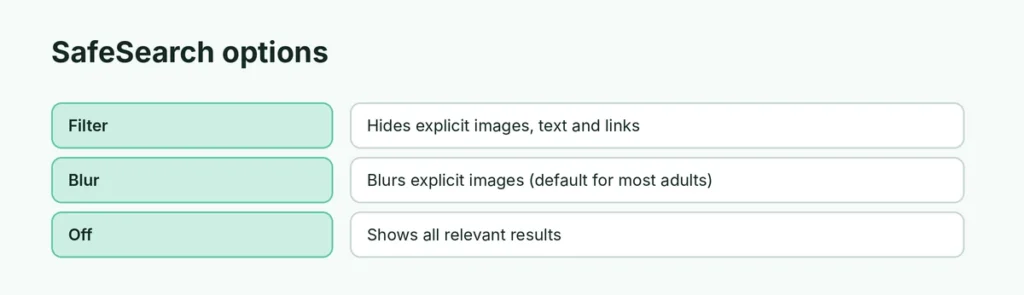
SafeSearch options explained
| Setting | What it does |
|---|---|
| Filter | Hides explicit images, text and links |
| Blur | Blurs explicit images; explicit text and links can appear (default for most adults) |
| Off | Shows all relevant results, including explicit ones |
How to turn off SafeSearch on a computer

- Go to google.com/safesearch.
- Sign in to your Google account if asked (settings save to your account).
- Choose Off.
The setting applies to Google Search on every device where you’re signed in with that account.
From search results: click your profile picture (top right) → SafeSearch → Off.
How to turn off SafeSearch on iPhone or Android
In the Google app:
- Open the Google app and tap your profile picture.
- Tap Settings → SafeSearch (on some versions: Settings → Hide explicit results).
- Choose Off.
In Safari or Chrome: go to google.com/safesearch and choose Off.
Why can’t I turn off SafeSearch?
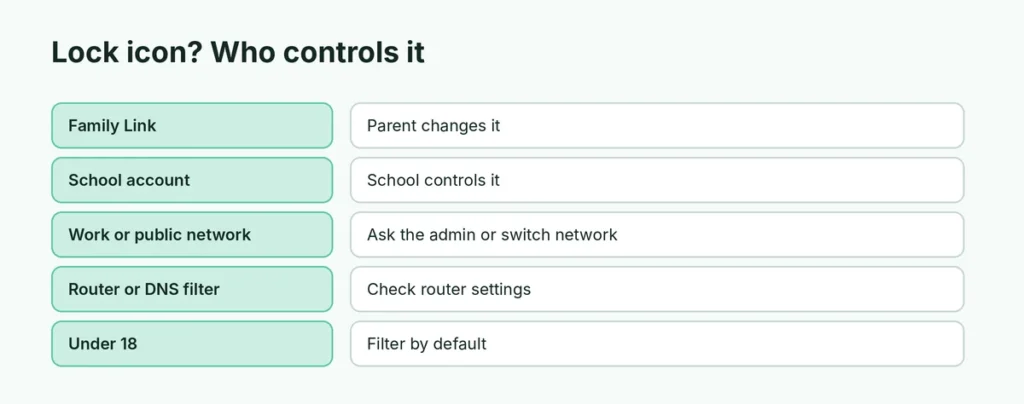
If you see a lock icon or the option is greyed out:
| Who locked it | What to do |
|---|---|
| Family Link parent | Only the parent can change it in the Family Link app |
| School account (K-12) | The school controls it |
| Work or school device/network | Ask the IT administrator |
| Public Wi-Fi (library, café) | Try another network, such as your mobile data |
| Router or DNS filter at home | Check the router’s parental controls |
| Age | Accounts that Google thinks are under 18 default to Filter |
Age check: if Google isn’t sure you’re an adult, it may ask you to verify your age before you can turn SafeSearch off.
SafeSearch keeps turning back on?
- You’re signed out: settings are saved to your account; signed out, Google may use the default.
- Cookies cleared: sign in again and re-check the setting.
- Different account: check you’re using the right Google account. Here’s how to change your default Google account.
- Network lock: some networks force SafeSearch for everyone.
How to turn SafeSearch back on (for kids)
To protect a child’s device:
- Go to google.com/safesearch and choose Filter.
- For a child’s Google account, use Family Link: the parent can lock SafeSearch on Filter.
- For extra protection at home, use your router’s family filter or a family-safe DNS.
SafeSearch on Bing and YouTube
- Bing: go to bing.com → Settings → Safe Search → Off, Moderate or Strict.
- YouTube uses Restricted Mode instead, which has its own switch in YouTube’s settings.
Is it safe to turn off SafeSearch?
For adults, yes. It just means Google won’t hide explicit results. On a shared computer or a device kids use, keep SafeSearch on Filter or Blur.
Related guides
- How to turn off AI Overviews in Google
- How to change your default Google account
The short version
Visit google.com/safesearch while signed in and choose Off (or Blur or Filter). In the Google app, tap your profile picture → Settings → SafeSearch. A lock icon means a parent, school, network or age setting controls it, so ask whoever manages it or use a different network.
Sources
- Google Search Help: Filter or blur explicit results with SafeSearch
- Google Search Help: Lock SafeSearch for accounts, devices and networks you manage