By
By 
Screen Time is the free, built-in way to see how long you spend on your iPhone and to set limits, for yourself or for a child. It can block apps at bedtime, cap TikTok at an hour a day, filter adult websites and stop in-app purchases. Everything is in one place in Settings, and you don’t need any extra app.
Short answer: open Settings → Screen Time → App & Website Activity → Turn On App & Website Activity. Then set up Downtime (a schedule when only allowed apps work), App Limits (daily time limits for apps or categories) and Content & Privacy Restrictions (block adult content and purchases). Turn on Lock Screen Time Settings to protect it with a passcode. For a child, set it up from your own iPhone with Family Sharing.
Last updated: October 2026. Written for iOS 26; the menus are the same on iOS 17 and iOS 18.
Step 1: Turn on Screen Time
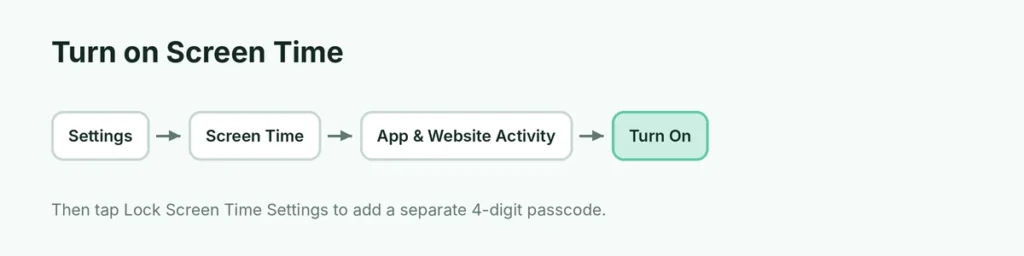
- Open Settings → Screen Time.
- Tap App & Website Activity → Turn On App & Website Activity.
- If asked, choose whether this iPhone is for yourself or for your child.
After a day, you’ll see a report showing how long you spent in each app, how many notifications you got, and how often you picked up the phone. Tap See All App & Website Activity for the details. The Screen Time widget on your Home Screen shows the same numbers at a glance.
To combine time from your iPad and Mac, turn on Share Across Devices on the Screen Time screen.
Step 2: Set a Screen Time passcode
Without a passcode, anyone using the iPhone can change the limits. If you’re setting limits for a child, or want to stop yourself from tapping “Ignore Limit”, do this:
- In Settings → Screen Time, tap Lock Screen Time Settings.
- Enter a 4-digit passcode that’s different from the iPhone’s unlock code.
- Enter your Apple Account email and password so you can reset the passcode if you forget it.
Step 3: Schedule Downtime
Downtime blocks all apps except calls and the ones you allow during a set time, such as bedtime or homework hours.
- Go to Screen Time → Downtime.
- Turn on Scheduled, then choose Every Day or Customize Days, and set the start and end times.
- Turn on Block at Downtime if you want apps to be fully blocked (otherwise the user can tap Ignore Limit).
Five minutes before Downtime begins, the iPhone shows a reminder. You can also tap Turn On Downtime Until Tomorrow to start it right away.
Step 4: Set App Limits
App Limits give apps or whole categories a daily time allowance.
- Go to Screen Time → App Limits → Add Limit.
- Pick a category (Social, Games, Entertainment) or expand a category to choose individual apps, such as Instagram or TikTok.
- Tap Next, set the time (for example 1 hour), and choose Customize Days if weekends should be different.
- Turn on Block at End of Limit to stop the app completely when time is up.
When the limit is reached, the app icon goes dark and opens to a “Time Limit” screen. With a Screen Time passcode, only someone who knows it can add more time.
Step 5: Choose Always Allowed apps
Always Allowed apps work even during Downtime or after App Limits run out. Phone is always allowed so emergency calls work. Add Messages, Maps or school apps if needed:
- Go to Screen Time → Always Allowed.
- Tap the green + next to apps you want to allow, or the red – to remove them.
Step 6: Block adult content and purchases
Content & Privacy Restrictions is where you filter websites, block explicit music, and stop app purchases.
- Go to Screen Time → Content & Privacy Restrictions and turn it on.
- App Store, Media, Web & Games:
- Web Content → Limit Adult Websites, or Only Approved Websites for young children.
- Apps → choose an age rating such as 9+, 13+ or 16+.
- Music, Podcasts & News → Clean.
- iTunes & App Store Purchases: set In-app Purchases to Don’t Allow, and Deleting Apps to Don’t Allow so limits can’t be bypassed by reinstalling.
- Allowed Apps & Features: turn off apps or features you don’t want available at all (for example Safari or the camera for very young kids).
If AirDrop or another feature disappears from your iPhone, check here first: it’s a common reason features go missing. For example, if AirDrop isn’t working, it may be switched off in Allowed Apps.
Step 7: Limit who your child can contact
Communication Limits controls who can call, FaceTime or message the iPhone, during normal hours and during Downtime.
- Go to Screen Time → Communication Limits.
- Under During Screen Time, choose Contacts Only or Everyone.
- Under During Downtime, choose Specific Contacts to allow only a few people, such as parents.
Communication Safety (also in Screen Time) blurs nude images received or sent in Messages, AirDrop and FaceTime, and offers help resources. For child accounts under 18 in iOS 26, it’s on by default.
Set up Screen Time for your child (from your iPhone)
The best way is Family Sharing, because you manage everything from your own iPhone and the child can’t change it:
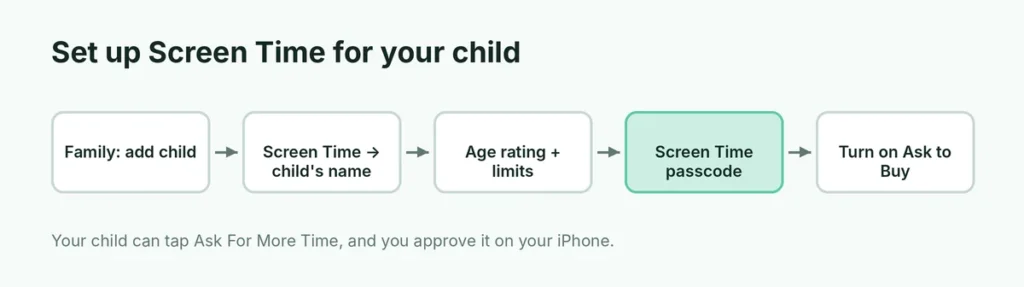
- On your iPhone, go to Settings → your name → Family → Add Member → Create Child Account (or invite your child’s existing account).
- Go back to Settings → Screen Time, scroll to Family and tap your child’s name.
- Follow the setup: choose an age rating, set Downtime and App Limits, and create a Screen Time passcode.
- Turn on Ask to Buy so your child needs your approval for downloads and purchases.
When your child hits a limit, they can tap Ask For More Time, and the request appears on your iPhone, where you can approve 15 minutes, an hour or the rest of the day.
Use Screen Time for yourself
Screen Time isn’t only for kids. Many adults use it to cut down on scrolling:
- Set a 30–60 minute App Limit on Social.
- Schedule Downtime an hour before bed.
- Turn on Screen Distance (in Screen Time) to get a reminder when you hold the iPhone too close to your face.
- Check your weekly report on Sunday to see whether it’s working.
Without a passcode, you can still tap Ignore Limit, but the extra step often makes you stop. If you want certain apps locked behind Face ID instead, here’s how to lock apps on iPhone.
Screen Time on iPad and Mac
The same settings exist on iPad (Settings → Screen Time) and Mac (System Settings → Screen Time). Turn on Share Across Devices on each one, signed in to the same Apple Account, and App Limits count total time across all of them: an hour of YouTube means an hour combined, not an hour on each device.
Screen Time features at a glance
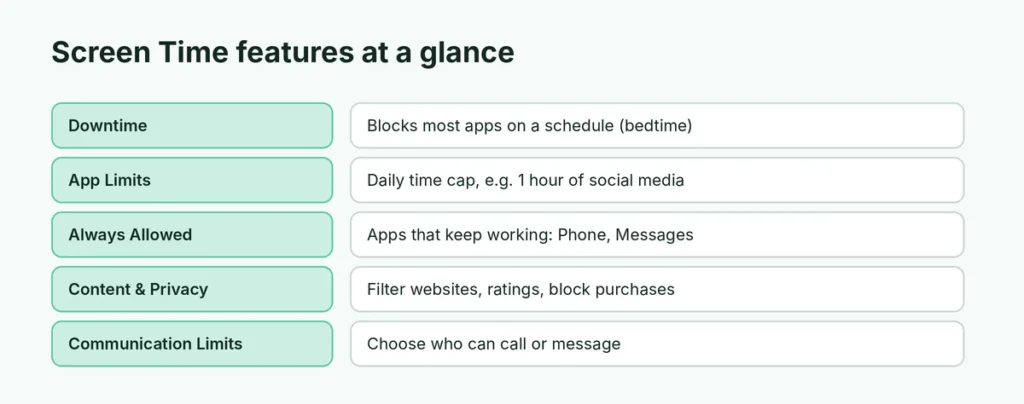
| Feature | What it does | Good for |
|---|---|---|
| Downtime | Blocks most apps on a schedule | Bedtime, homework, family meals |
| App Limits | Daily time cap for apps or categories | Social media, games |
| Always Allowed | Apps that work during limits | Phone, Messages, Maps |
| Content & Privacy Restrictions | Filters websites, ratings, purchases | Young children |
| Communication Limits | Who can call or message | Kids’ safety |
| Screen Distance | Warns when the screen is too close | Eye health |
Screen Time not working?
- Limits don’t apply: check that Block at End of Limit is on and that the app isn’t in Always Allowed.
- Child bypasses limits: set a Screen Time passcode, turn off Deleting Apps, and make sure the date and time are set to automatic in Settings → General → Date & Time.
- Reports are empty or wrong: turn Share Across Devices off and on, restart the iPhone, and make sure it’s on the latest iOS. Here’s how to update your iPhone.
- Forgot the Screen Time passcode: tap Change Screen Time Passcode → Forgot Passcode? and sign in with the Apple Account you used when setting it.
How to turn Screen Time off
Go to Settings → Screen Time → App & Website Activity → Turn Off App & Website Activity (enter the Screen Time passcode if asked). This removes your usage history and limits, but Content & Privacy Restrictions has its own switch and must be turned off separately.
The short version
Open Settings → Screen Time and turn on App & Website Activity. Set a separate Screen Time passcode, schedule Downtime for bedtime, add App Limits for social media and games, and use Content & Privacy Restrictions to filter websites and block purchases. For a child, set everything up from your own iPhone with Family Sharing and approve extra time when they ask.