By
By 
Your iPhone vibrates for calls, texts, keyboard taps and even small system actions. That’s a lot of buzzing, especially in a quiet room or when the phone is on a table. Here’s how to turn off vibration on iPhone: all of it, just in Silent mode, just for the keyboard, or just for certain alerts.
Short answer: go to Settings → Sounds & Haptics → Haptics and choose Never Play (or Don’t Play in Silent Mode). To stop small taps from buttons and switches, turn off System Haptics in the same screen. For keyboard vibration, go to Sounds & Haptics → Keyboard Feedback and turn off Haptic. To stop every vibration (even emergency alerts), go to Settings → Accessibility → Touch and turn off Vibration.
Applies to: iPhone on iOS 26 and iOS 27. Last checked in October 2026.
Option 1: Turn off vibration for calls and alerts
- Open Settings.
- Tap Sounds & Haptics.
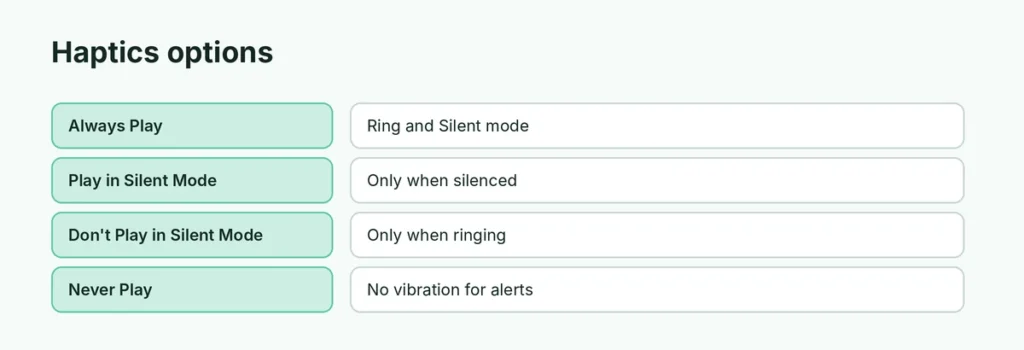
- Tap Haptics and choose:
| Option | What it does |
|---|---|
| Always Play | Vibrates in Ring and Silent mode |
| Play in Silent Mode | Vibrates only when the phone is silenced |
| Don’t Play in Silent Mode | Vibrates only when ringing |
| Never Play | No vibration for calls and alerts |
Option 2: Turn off System Haptics
System Haptics are the small taps you feel when you use switches, long-press icons or scroll pickers.
- Settings → Sounds & Haptics.
- Turn off System Haptics.
Option 3: Turn off keyboard vibration
- Settings → Sounds & Haptics → Keyboard Feedback.
- Turn off Haptic.
You can turn off Sound here too, if you hear clicks while typing.
Option 4: Turn off all vibration (Accessibility)
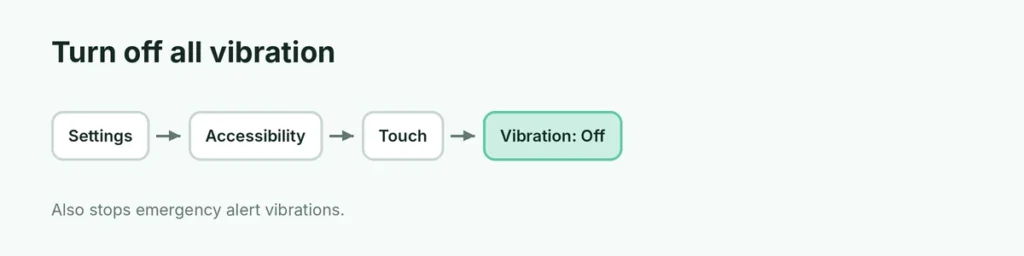
This is the master switch:
- Settings → Accessibility → Touch.
- Turn off Vibration.
Warning: this turns off all vibrations, including emergency alerts and earthquake or tsunami warnings. Use it only if you really need no vibration at all.
Option 5: Turn off vibration for one app or one contact
One app (for example, a game):
- Settings → Notifications → choose the app → Sounds off (the vibration usually follows the sound setting). Some apps also have their own vibration setting inside the app.
One contact:
- Open Contacts and tap the person → Edit.
- Tap Ringtone or Text Tone → Haptics → choose None.
One alert type:
- Settings → Sounds & Haptics → tap Ringtone, Text Tone or another alert → Haptics → None.
iPhone still vibrating?
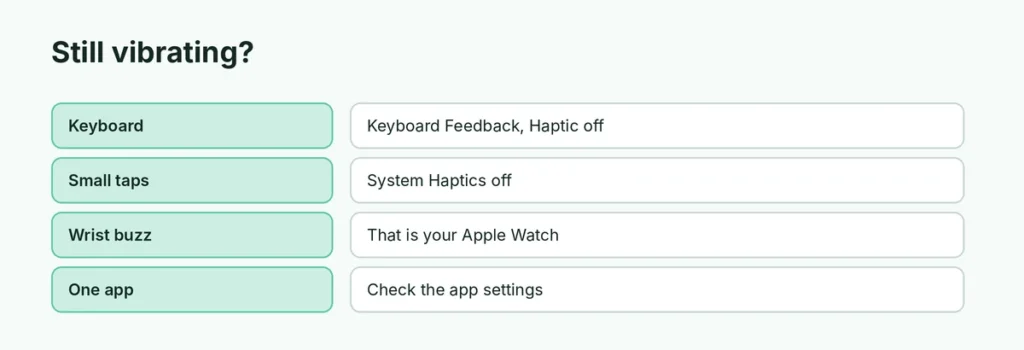
- Do Not Disturb or Focus doesn’t stop all vibration; check your Focus settings. Here’s how to turn off Do Not Disturb.
- Apple Watch: if you feel a buzz on your wrist, that’s your watch. See how to silence an Apple Watch.
- Emergency alerts may still vibrate unless the Accessibility Vibration switch is off.
- App-specific settings: games and messaging apps sometimes vibrate on their own.
Does turning off vibration save battery?
Slightly. The vibration motor uses a little power each time. If you get many notifications, turning off haptics can help a bit, but screen brightness and apps matter much more.
Silent mode with no vibration
For a fully quiet phone (no sound, no vibration):
- Turn on Silent mode with the Ring/Silent switch or Action button.
- Set Haptics to Don’t Play in Silent Mode.
Related guides
- How to turn off Do Not Disturb on iPhone
- How to use AssistiveTouch on iPhone
The short version
Use Settings → Sounds & Haptics → Haptics → Never Play to stop vibration for calls and alerts, turn off System Haptics for small taps, and turn off Keyboard Feedback → Haptic for typing. The master switch is Accessibility → Touch → Vibration, but it also silences emergency alert vibrations.
Sources
- Apple iPhone User Guide: Change iPhone sounds and vibrations
- Apple Support: Change iPhone keyboard sounds or haptics