By
By 
Silky waterfalls, smooth rivers, light trails from passing cars: long-exposure photos look like they need an expensive camera, but your iPhone can make them with a single tap. The trick is a hidden effect for Live Photos in the Photos app.
Short answer: in the Camera app, make sure Live Photo is on (the circle icon at the top is not crossed out), hold the iPhone very still, and take the photo. Then open it in Photos, tap the Live button in the top-left corner, and choose Long Exposure. The iPhone blends the 3 seconds of the Live Photo into one long-exposure image.
Last updated: October 2026. Works on iPhone 6s and later with iOS 15 or newer, including iOS 26.
What is a long exposure?
A normal photo freezes a moment. A long exposure keeps the shutter open longer, so anything that moves becomes a smooth blur while still things stay sharp. That’s how photographers get:
- waterfalls and rivers that look like mist,
- ocean waves that look like fog,
- red and white light trails from car headlights at night,
- busy streets where moving people disappear into a blur.
Your iPhone can’t keep its shutter open for seconds in the normal Camera app, but Live Photos record about 1.5 seconds before and after you take a picture. iOS can combine those frames to create the same effect.
Step 1: Turn on Live Photos
- Open the Camera app in Photo mode.
- Look at the Live Photo icon (concentric circles) at the top. If it has a line through it, tap it to turn it on. On some models, tap the arrow at the top to see the icon.
- To keep Live Photos on all the time: Settings → Camera → Preserve Settings → turn on Live Photo.
Step 2: Take the photo (hold still!)
The background must stay perfectly still while the moving parts move:
- Use a tripod or rest the iPhone on something solid like a wall, railing or bag. Even small hand movements blur the whole picture.
- Use the timer (3 seconds) so tapping the shutter button doesn’t shake the phone. Tap the arrow at the top of Camera → timer icon.
- Frame your shot with something moving (water, cars, clouds, crowds) and something still (rocks, buildings, trees).
- Take the photo and keep the iPhone still for about 2 seconds afterward.
Step 3: Turn it into a long exposure
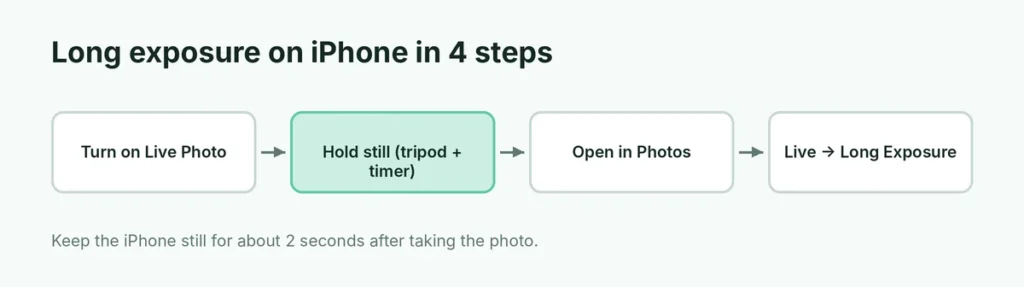
- Open the Photos app and open your Live Photo.
- Tap the Live label in the top-left corner of the photo.
- Choose Long Exposure.
The photo updates in a moment. To go back, tap the label again and choose Live. The original Live Photo is never lost.
Can’t see the Live label? The photo wasn’t taken as a Live Photo, or it was edited or sent in a way that removed the Live part (for example, shared through some messaging apps).
Step-by-step: a waterfall or river shot
- Find a spot where moving water flows past still rocks or trees.
- Rest the iPhone on a rock, bag or mini tripod, and frame the shot.
- Tap the screen on the rocks to focus, then slide the sun icon down slightly if the water looks too bright.
- Turn on the 3-second timer, take the photo, and don’t touch the iPhone until it finishes.
- Open the photo in Photos → Live → Long Exposure.
Step-by-step: car light trails at night
- Stand somewhere safe above or beside a busy road, such as a bridge or a sidewalk away from traffic.
- Steady the iPhone on a railing or tripod.
- Wait until several cars are approaching, then take the photo with the timer.
- Apply Long Exposure. Because Live Photos cover only about 3 seconds, take several shots and keep the best one; busier traffic gives longer trails.
Common mistakes to avoid
- Hand-holding the iPhone: the most common reason for a blurry result.
- No movement in the scene: a calm lake won’t change much; look for flowing water, traffic or moving crowds.
- Moving the phone right after the shutter: the Live Photo keeps recording for a moment after you tap.
- Editing in another app first: some apps save a flat copy without the Live Photo, so the Long Exposure option disappears.
Best subjects for iPhone long exposure
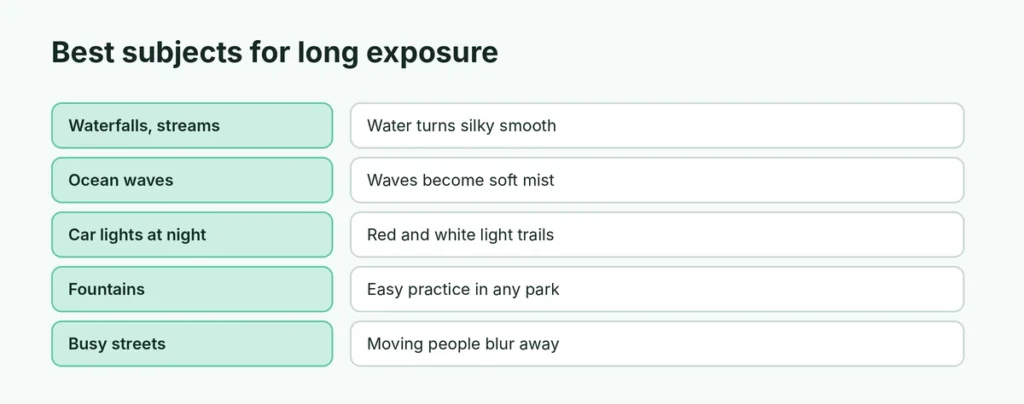
| Subject | Tip |
|---|---|
| Waterfalls and streams | Get close; overcast days avoid overexposed white water |
| Ocean waves | Shoot at sunset; waves turn into soft mist |
| Car light trails | At night, from a bridge or sidewalk, tripod essential |
| Fountains | Easy practice subject in any park |
| Crowds | Busy streets; moving people become ghostly blurs |
| Fireworks | Combines bursts into one frame |
Why is my long exposure blurry?
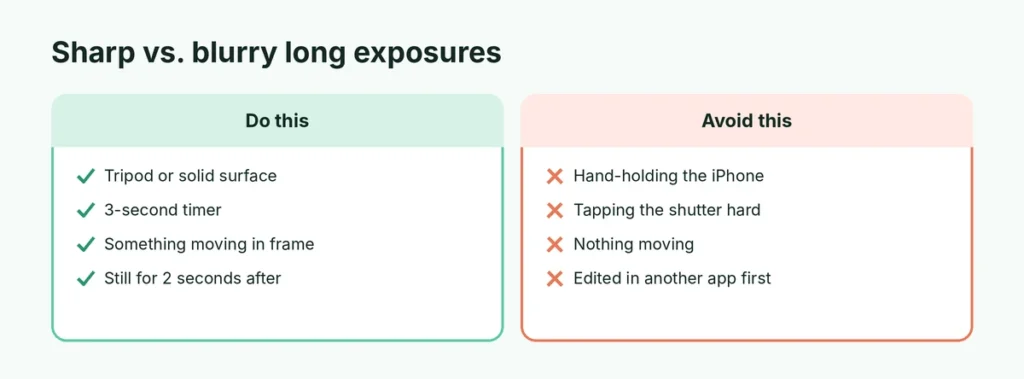
- The whole photo is blurry: the iPhone moved. Use a tripod or a solid surface and the self-timer.
- Nothing looks smooth: there wasn’t enough movement in the 3 seconds. Choose faster-moving water or busier traffic.
- Too bright: bright daylight can wash out the effect. Before taking the photo, tap the screen and slide the sun icon down to lower exposure, or shoot in the shade or at dusk.
Light trails at night: can Night mode help?
Night mode keeps the shutter open longer for brighter photos, but it’s designed to keep moving things sharp, not blurred. For light trails, use the Live Photo + Long Exposure method above. For real multi-second exposures with full manual control, third-party camera apps (many free with in-app upgrades) offer “slow shutter” modes.
Edit your long exposure
After choosing Long Exposure, tap Edit to:
- crop out blurry edges (the iPhone sometimes leaves soft borders),
- lower Highlights if the water is too white,
- add Contrast and Vibrance for punchier colors.
Share or save your long exposure
When you share a long exposure, it’s sent as a still photo, not a Live Photo. To save a separate copy, open the photo → Share → Duplicate. If you want to move your favorites to a computer, here’s how to send photos from iPhone to PC.
Other Live Photo effects
Tap the Live label to try the other effects too:
- Loop: turns the moment into a video loop.
- Bounce: plays it forward and backward, like a boomerang.
They’re fun for kids, pets and splashes.
Does long exposure work on every iPhone?
Long Exposure needs Live Photos, available on iPhone 6s and later. The steps are the same on all current iPhones, though newer models capture sharper, cleaner images, especially in low light. Keep iOS updated for the latest Photos features: here’s how to update your iPhone.
Want to record your screen while editing?
If you’re making a tutorial for friends, here’s how to screen record on iPhone.
The short version
Turn on Live Photo in the Camera app, hold the iPhone perfectly still (a tripod and 3-second timer help), and photograph something moving, like water or traffic. Then open the photo in Photos, tap the Live label in the top-left corner, and choose Long Exposure. Blurry results usually mean the phone moved; dark, slow scenes and fast-moving subjects give the best effect.