By
By 
Turning on a Lenovo laptop should be as simple as pressing the power button, but Lenovo puts that button in different places on different models: above the keyboard, on the side, or even on the hinge of 2-in-1 Yoga laptops. And when a Lenovo laptop won’t turn on at all, there are a few Lenovo-specific tricks, like the hidden emergency reset hole, that fix most “dead” laptops in under a minute.
Short answer: open the lid and press the power button (the circle with a line through the top) once. On most IdeaPad, ThinkPad and Legion laptops it’s at the top right of the keyboard or built into a key; on Yoga 2-in-1s it’s often on the side edge. If nothing happens, plug in the charger, wait 15 minutes, then hold the power button for 30 seconds and try again. If it’s still dead, use the emergency reset pinhole on the bottom.
Last updated: October 2026. Button positions vary by model; check your model’s user guide on Lenovo’s support site if yours looks different.
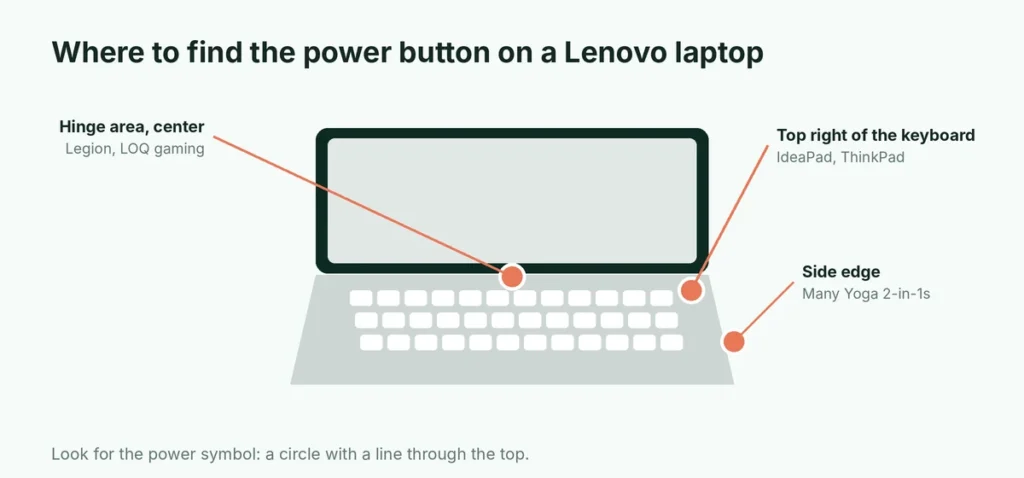
Where is the power button on a Lenovo laptop?
| Lenovo series | Usual power button location |
|---|---|
| IdeaPad (everyday laptops) | Top right above the keyboard, or as the top-right key |
| ThinkPad (business) | Top right above the keyboard; on many models it also has the fingerprint reader built in |
| Yoga (2-in-1, folds into tablet) | Often on the right or left side edge, sometimes on the hinge |
| Legion and LOQ (gaming) | Center or right of the hinge area above the keyboard |
| Chromebooks | Top right key or side edge |
Look for the standard power symbol: a circle with a vertical line through the top. On many models it lights up when the laptop is on.
How to turn on a Lenovo laptop (normal start)
- Open the lid. Many newer Lenovo laptops start automatically when you open the lid (“flip to boot”).
- If it doesn’t start by itself, press the power button once. Don’t hold it; a short press is enough.
- Wait 10 to 30 seconds. You’ll see the Lenovo logo, then Windows or ChromeOS.
- Sign in with your PIN, password or fingerprint.
If you see the logo but the laptop goes back to black, or you see a recovery or BIOS screen, skip to the troubleshooting section below.
Turn it on with the lid closed (external monitor)
If you use your laptop closed with a monitor, keyboard and mouse, the power button may be hard to reach. Many Lenovo laptops support waking from a USB keyboard, but only if the laptop was put to sleep, not fully shut down. For a cold start, you’ll usually need to open the lid briefly and press the power button.
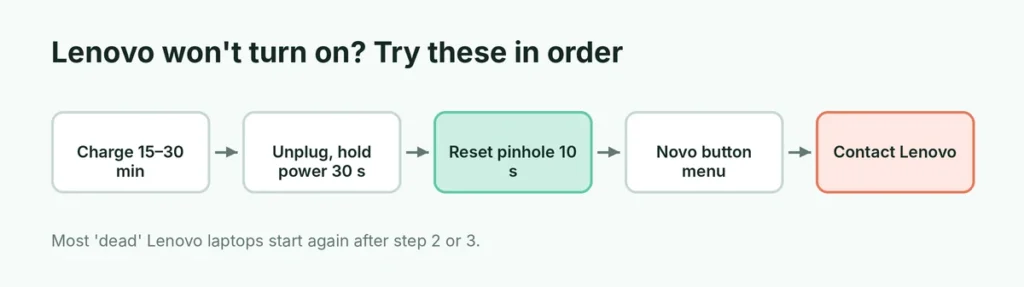
Lenovo laptop won’t turn on? Work through these steps
Step 1: Check the power and the charger
- Plug the charger directly into a wall outlet (not a power strip) and into the laptop.
- Look at the charging light, usually near the charging port or on the front edge. If it’s off, try another outlet.
- If you have a USB-C charger, make sure it’s the one that came with the laptop or one with enough wattage; many phone chargers can’t power a laptop.
- Leave it charging for at least 15 to 30 minutes. A completely empty battery can take a while before the laptop responds.
Step 2: Do a power drain (hard reset)
This clears leftover charge that can stop a laptop from starting.
- Unplug the charger and any USB devices, memory cards and external drives.
- Press and hold the power button for 30 seconds, then let go.
- Plug the charger back in.
- Press the power button once.
Step 3: Use the emergency reset pinhole
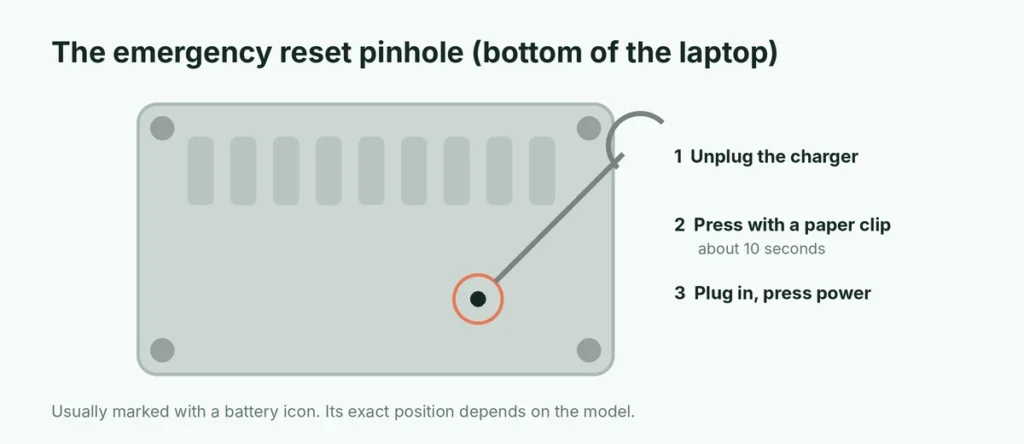
Most recent IdeaPad, Yoga, ThinkPad and Legion laptops have a tiny emergency reset hole on the bottom of the laptop. It disconnects the battery for a moment, which fixes laptops that seem completely dead.
- Unplug the charger.
- Turn the laptop over and look for a small pinhole, often marked with a battery icon or a circular arrow.
- Straighten a paper clip and gently press it into the hole. Hold for about 10 seconds.
- Plug the charger back in and press the power button.
If you can’t find the hole, your model may not have one, or it may be hidden under a rubber foot or sticker. Your model’s user guide on Lenovo’s support site shows its location.
Step 4: Try the Novo button
Many IdeaPad and Yoga laptops have a small Novo button or pinhole on the side, marked with a curved arrow. Press it while the laptop is off (with a paper clip if it’s a pinhole). If the laptop responds, you’ll see the Novo Button Menu, with options such as:
- Normal Startup
- BIOS Setup
- Boot Menu
- System Recovery
Choose Normal Startup first. If Windows still won’t load, System Recovery opens repair tools. Seeing this menu at all is good news: it means the hardware is working and the problem is with Windows.
Step 5: Check whether it’s actually on but the screen is black
Sometimes the laptop is running but the screen isn’t showing anything. Signs: the power light is on, the fans spin, or the keyboard backlight lights up.
- Press Fn + F7 or the key with a monitor icon to switch display output; you may have left it set to an external screen.
- Press Windows + Ctrl + Shift + B. This restarts the graphics driver in Windows; you’ll hear a beep and the screen may come back.
- Connect an external monitor with HDMI. If the picture appears there, the laptop’s own screen or its cable may be faulty.
Is it off, asleep or hibernating?
A laptop that “won’t turn on” is sometimes just asleep:
- Sleep: the power light usually blinks slowly or glows dimly. Press a key, tap the touchpad, open the lid or press the power button briefly.
- Hibernate or shut down: no lights. Press the power button once and wait.
If pressing the power button briefly does nothing while the light blinks, hold it for about 5 to 10 seconds to force it off, wait a moment, then press it again to start fresh.
What if the power button is broken?
If the button itself is damaged:
- Try the Novo button (Step 4); on many IdeaPad and Yoga models it can start the laptop and open the Novo menu, where Normal Startup boots Windows.
- Some Lenovo laptops have a BIOS option to power on when the charger is connected. If you can get into the BIOS once (via the Novo menu), look for a setting like Power on with AC attach or Flip to Boot and turn it on, so plugging in or opening the lid starts the laptop.
- Get the button repaired. On many models it’s part of the keyboard or a small board, and Lenovo or an authorized repair shop can replace it.
What the lights tell you
| What you see | Likely meaning |
|---|---|
| No lights at all, even when charging | Power problem: charger, outlet or flat battery. Try another charger, then the reset hole |
| Charging light on, nothing else | Battery charging; wait 30 minutes, then do the power drain |
| Power light on, black screen | Display or graphics problem; see Step 5 |
| Power light blinking | Often sleep mode, or a hardware error code; note the pattern for Lenovo support |
| Lenovo logo, then restarts in a loop | Windows problem; use the Novo menu → System Recovery |
When to contact Lenovo support
If none of the steps work, the problem is likely hardware: the charger, battery, charging port or motherboard. Before contacting support:
- Find your serial number on the sticker on the bottom of the laptop.
- Check your warranty on Lenovo’s support website by entering the serial number.
- Note which steps you tried and what the lights did.
If the laptop is under warranty, don’t open it yourself; that can void the warranty.
Keep it starting reliably
- Shut down properly from the Start menu instead of holding the power button, except when frozen.
- Avoid letting the battery sit at 0% for weeks; store it around half charged.
- Keep Windows, drivers and BIOS updated with Lenovo Vantage (or Lenovo Commercial Vantage on ThinkPads).
- In Lenovo Vantage, turn on battery Conservation Mode if the laptop is usually plugged in. Here’s why laptop battery health degrades and how to slow it down.
Turning off a Lenovo laptop properly
Use Start → Power → Shut down in Windows. Only hold the power button for several seconds when the laptop is frozen, because a forced shutdown can interrupt updates and cause startup problems later.
The short version
Open the lid and press the power button: top right of the keyboard on most Lenovo laptops, or on the side edge of many Yoga 2-in-1s. If it won’t start, charge it for 15 to 30 minutes, unplug it, hold the power button for 30 seconds, then use the emergency reset pinhole on the bottom for 10 seconds. The Novo button menu lets you start Windows recovery, and Windows + Ctrl + Shift + B wakes a black screen. If your screen shows glowing patches at the edges once it’s on, see what laptop screen bleeding is, and if it’s slow, why Chrome uses so much RAM.