By
By 
ChatGPT can answer questions, explain things in plain language, help you write emails, plan trips, summarize documents, and much more. It’s free to start, works in a browser or an app, and you don’t need any technical skills. This beginner’s guide walks you through signing up, writing good prompts, and using the features most people never discover.
Short answer: go to chatgpt.com or install the ChatGPT app from the App Store or Google Play, sign in with Google, Apple, Microsoft or email, and type your question in the message box. Be specific about what you want and who it’s for, ask follow-up questions to refine the answer, and always double-check important facts.
Last updated: October 2026. Reflects the current ChatGPT layout with the Chat and Work tabs and GPT-6 models.
What you need to get started
- A free OpenAI account (you can sign up with Google, Apple, Microsoft or an email address).
- A browser (Chrome, Safari, Edge, Firefox) or the ChatGPT app for iPhone, Android, Windows or Mac.
- That’s it. The free plan is enough to learn everything in this guide.
Step 1: Sign up and sign in
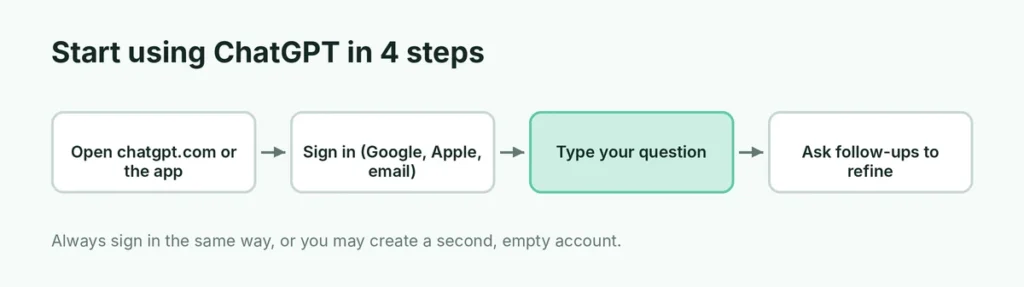
- Open chatgpt.com in your browser, or open the ChatGPT app.
- Tap Sign up (or Log in if you already have an account).
- Choose Continue with Google, Apple or Microsoft, or enter your email and create a password.
- Confirm your email and enter your name and date of birth if asked.
Always sign in the same way afterward. Signing in with a different method can create a second, separate account with none of your chats.
Step 2: Understand the screen
- Message box (bottom): where you type or speak your request.
- Chat / Work switcher (top): Chat is for quick questions and conversations; Work is for longer, multi-step tasks like research reports or spreadsheets, on plans that include it.
- Sidebar (left, or the menu on mobile): your past chats, Projects and settings.
- Model picker: on paid plans you can choose faster or more thorough “thinking” options. On the free plan, ChatGPT picks for you.
Step 3: Ask your first question
Type anything, just like you’d ask a knowledgeable friend:
- “Explain how a 401(k) works in simple terms.”
- “Plan a 3-day trip to Chicago in November on a mid-range budget.”
- “Write a polite email asking my landlord to fix the heating.”
Press Enter (or the send arrow). ChatGPT answers in seconds. Then keep the conversation going: “Make it shorter”, “Add a table”, “Explain point 2 in more detail”. It remembers everything earlier in the same chat.
How to write prompts that get great answers
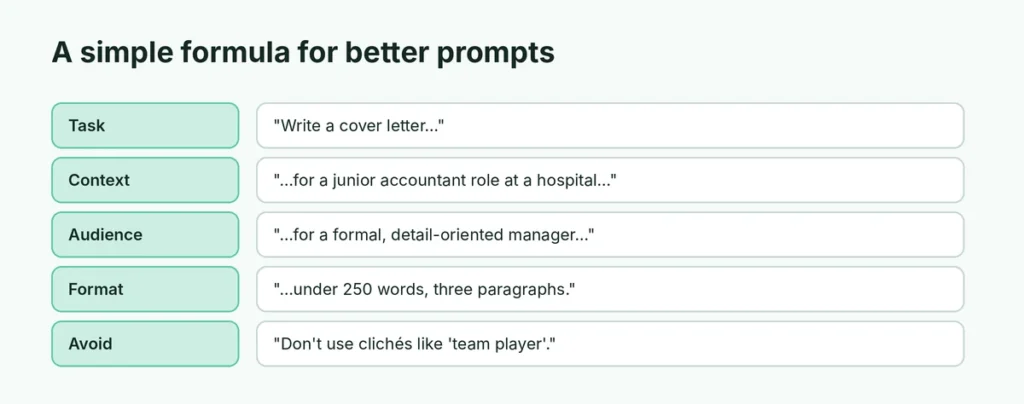
The quality of the answer depends on how clearly you ask. A simple formula works well:
| Include | Example |
|---|---|
| The task | “Write a cover letter…” |
| The context | “…for a junior accountant role at a hospital…” |
| Who it’s for | “…the hiring manager is formal and detail-oriented…” |
| The format | “…under 250 words, three short paragraphs.” |
| What to avoid | “Don’t use clichés like ‘team player’.” |
More tips:
- Give examples of the style you want (“Write it like this: …”).
- Ask for options: “Give me five subject lines” beats asking for one.
- Ask it to ask you questions: “Before you start, ask me anything you need to know.”
- Paste in the material it should work from, like meeting notes or a long email, instead of describing it.
Useful things to try
Upload files and photos. Tap the + or paperclip button to add a PDF, spreadsheet or photo. Ask “Summarize this contract in plain English” or “What’s wrong with my plant?” with a photo.
Talk instead of typing. Tap the microphone to dictate, or the voice button for a spoken conversation, which is great for practicing a language or brainstorming while you walk.
Create images. Ask “Create an image of a cozy reading nook with plants” and refine it with follow-ups.
Search the web. For current information such as news, prices or opening hours, ChatGPT can search the web and show its sources. Ask for links, then open them to check.
Use Projects. Group related chats and files, like “Kitchen remodel” or “Job search”, so ChatGPT keeps the context together.
Try the Work tab for bigger tasks. On plans that include it, Work can research a topic across many sources and produce a finished report, spreadsheet or presentation. Here’s how ChatGPT Work replaced agent mode and how to use it.
Free vs. paid plans
The free plan includes ChatGPT’s standard model, web search, file uploads, voice and image creation, with daily limits on the more demanding features. Paid plans such as Plus add a more capable model, much higher limits and the full Work tab. Most people should start free and upgrade only if they keep hitting limits. Here’s a detailed comparison: ChatGPT Free vs Plus.
Use ChatGPT safely
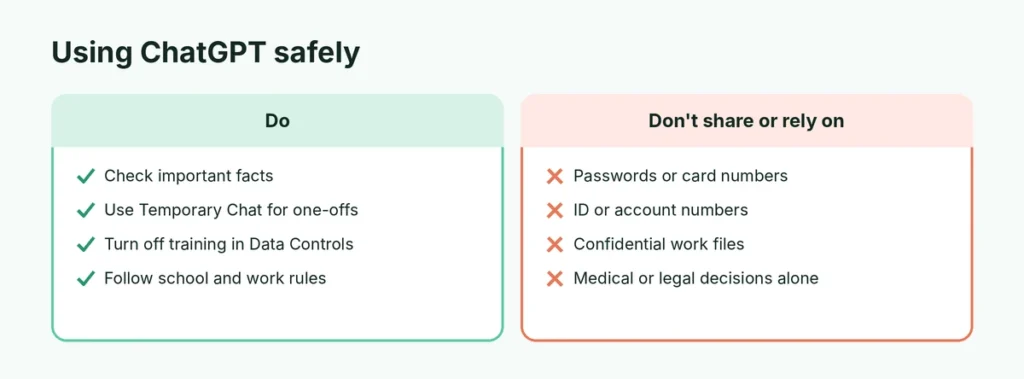
- Check important facts. ChatGPT can sound confident and still be wrong. Verify medical, legal, financial and news information with reliable sources.
- Don’t share secrets. Avoid entering passwords, full card numbers, ID numbers or confidential work documents.
- Control your data. In Settings → Data Controls, you can stop your chats from being used to improve the models. Here’s how to stop AI chatbots training on your data.
- Use Temporary Chat for one-off questions you don’t want saved in your history.
- Follow your school or employer’s rules on using AI for assignments or work.
Ideas for everyday use
| Area | Try asking |
|---|---|
| Email and writing | “Rewrite this message to sound friendlier but still firm.” |
| Learning | “Teach me the basics of investing with a quiz at the end.” |
| Cooking | “What can I make with chicken, rice, spinach and lemon?” |
| Travel | “Make a packing list for a week in London in December.” |
| Work | “Turn these notes into a meeting summary with action items.” |
| Tech help | “My Windows laptop is slow; walk me through checks step by step.” |
8 prompts you can copy and adapt
- “Summarize this in five bullet points for a busy manager: [paste text].”
- “Explain [topic] like I’m 12, then give me a harder explanation.”
- “Turn these notes into a polite email to [person] asking for [request]: [notes].”
- “Create a weekly meal plan for two adults, under $80, no pork, with a shopping list.”
- “I’m preparing for a job interview as a [role]. Ask me 10 likely questions one at a time and give feedback on my answers.”
- “Compare [option A] and [option B] in a table with pros, cons and costs.”
- “Proofread this and list every change you made: [text].”
- “Give me a step-by-step plan to [goal] in 30 days, with one small task per day.”
Replace the brackets with your own details. The more context you add, the better the result.
ChatGPT on your phone vs. your computer
The phone app is best for voice conversations, quick questions on the go and snapping photos to ask about. The computer (browser or desktop app) is better for longer writing, uploading documents and working with spreadsheets. Your chats sync between them when you sign in to the same account, so you can start on one and finish on the other.
Common beginner problems
The answer is too long. Add “in 3 bullet points” or “under 100 words.”
The answer is too generic. Give more context: your situation, goal, and audience.
It forgot something from earlier. Very long chats can lose early details. Start a new chat and paste a short summary of what matters.
It won’t load or stops answering. See what to do when ChatGPT is not working.
The short version
Go to chatgpt.com or install the app, sign in with Google, Apple, Microsoft or email, and type your question. Be specific about the task, context, audience and format, then refine with follow-ups. Upload files, use voice, create images and search the web from the same box. Start on the free plan, check important facts yourself, and keep personal details out of your chats.