By
By 
ChatGPT won’t load, answers stop halfway, the app keeps logging you out, or you just see an error and nothing else. Most of the time the fix takes under a minute, and the trick is knowing which kind of problem you have: an outage on OpenAI’s side, a problem with your connection or browser, your account, or a usage limit.
Short answer: first check status.openai.com. If ChatGPT is down, wait; nothing on your side will fix it. If it’s up, refresh the page or restart the app, turn off your VPN, try a private browser window or the ChatGPT app, and sign out and back in. If you see a message about limits, you’ve hit your plan’s usage cap and need to wait or switch models.
Last updated: October 2026. ChatGPT now has a Chat tab and a Work tab, and runs on GPT-6 models; the fixes below apply to both.
First, figure out which problem you have
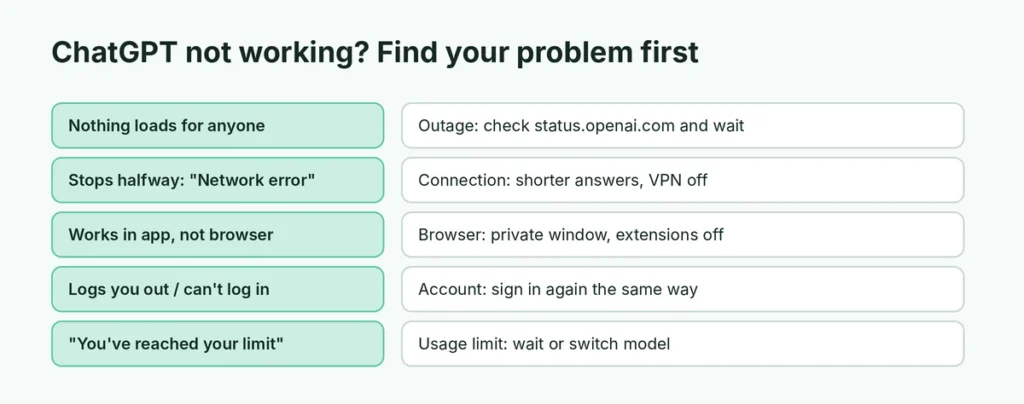
| What you see | Most likely cause | Jump to |
|---|---|---|
| Nothing loads, or “Something went wrong” for everyone | ChatGPT outage | Step 1 |
| Answers stop halfway with “Network error” | Connection drops during long replies | Step 3 |
| Works in the app but not the browser | Browser extension or stored site data | Step 4 |
| Keeps logging you out or won’t log in | Account or session problem | Step 5 |
| “You’ve reached your limit” or similar | Plan usage limit | Step 6 |
| Voice, images or file uploads don’t work | Feature-specific issue | Step 7 |
Step 1: Check whether ChatGPT is down
- Open status.openai.com.
- Look at ChatGPT (and Work if you use it). Green means operational; yellow or red means degraded performance or an outage.
If there’s an incident, the problem isn’t on your side. Most outages are fixed within an hour or two. You can subscribe to updates on the status page so you know when it’s back. Social media and outage-tracking sites also show quickly if many people have the same problem.
Step 2: Do the quick resets
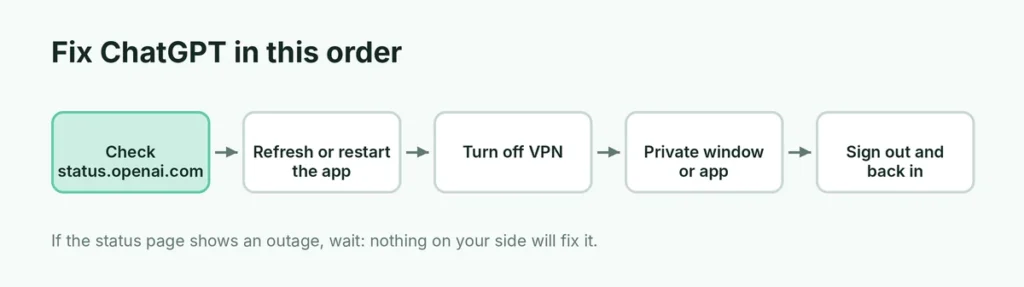
These solve a surprising number of problems:
- Refresh the page (F5, or pull down in the app) or close and reopen the app.
- Start a new chat. A very long conversation can become slow or fail to load.
- Check your internet by opening another website.
- Restart your device if other apps are acting up too.
Copy anything important from the conversation before refreshing, in case the last answer disappears.
Step 3: Fix errors on long answers
If ChatGPT starts answering and then stops with “Network error” or “Error in message stream”, your connection is dropping while the long answer streams in. Try:
- asking for the answer in parts (“Do the first three sections, then stop”),
- turning off your VPN or proxy,
- switching from Wi-Fi to mobile data or the other way around.
Our detailed guide covers every variation of this: how to fix ChatGPT “Network error” and “Something went wrong”, including what each error message means.
Step 4: Fix the browser
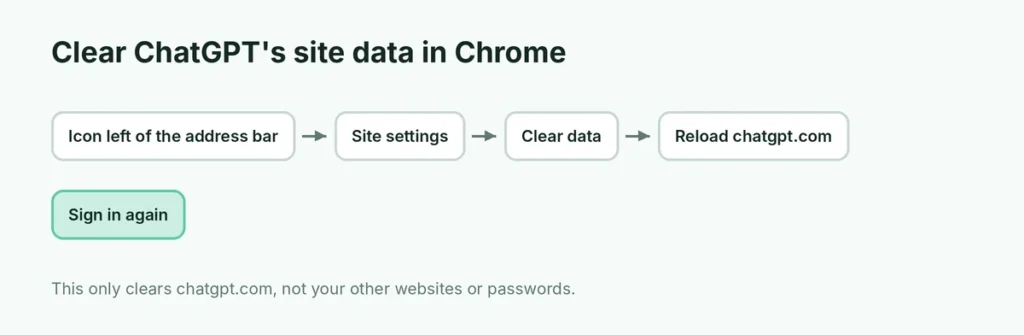
If ChatGPT works on your phone but not on your computer, the browser is usually to blame:
- Try a private window (Ctrl + Shift + N in Chrome and Edge, Cmd + Shift + N on a Mac). If it works there, an extension or stored data is the problem.
- Disable extensions, especially ad blockers, VPN or privacy extensions and “AI helper” add-ons that modify the ChatGPT page.
- Clear site data for chatgpt.com only: click the icon left of the address bar → Site settings or Cookies and site data → clear, then sign in again.
- Update your browser to the latest version. ChatGPT’s newer interactive answers need an up-to-date browser.
- Try another browser to rule out a browser-specific problem.
Step 5: Fix login and account problems
- Sign out and back in using the same method you signed up with (Google, Apple, Microsoft or email). Using a different method can create a second, empty account.
- Check the email for a verification code or link, including the spam folder.
- “Too many requests” during login usually clears after a few minutes; don’t keep retrying.
- Account deactivated or suspended messages need OpenAI support; use the help option at help.openai.com.
If chats seem to be missing, check that you’re signed in to the right account, and look in Projects or archived chats in the sidebar.
Step 6: Hit a usage limit?
Every plan has limits, and they’re not always obvious:
- Free and Go plans have tighter limits on the most capable model, file uploads, image generation and some tools. When you reach them, ChatGPT may switch you to a lighter model or ask you to wait.
- Plus and Pro plans have much higher limits, but heavy use of advanced features, including Work, can still run out.
If the message mentions a limit or a time to try again, that’s what’s happening; nothing is broken. Wait until the reset time, or pick a different model or tab. Here’s what each plan includes: ChatGPT Free vs Plus.
Step 7: When one feature doesn’t work
Voice mode doesn’t hear you. Check that the app has microphone permission in your phone’s settings, and that no other app is using the microphone.
Image or file uploads fail. Check the file size and type, try a smaller file, and make sure you haven’t reached your upload limit for the day.
Web search or apps don’t respond. Try again in a new chat. Connected apps (like Gmail or Google Drive) may need to be reconnected in Settings → Apps (the name can vary).
Work tab is missing. Work isn’t available on every plan or in every region yet, and it needs an up-to-date app. Update the ChatGPT app or try the web version.
Common ChatGPT error messages at a glance
| Message | What it means | What to do |
|---|---|---|
| “Something went wrong” | General server or session error | Refresh; check the status page |
| “Network error” | The answer was cut off mid-stream | Ask for a shorter answer; turn off VPN |
| “Too many requests” | Too many messages in a short time, or a usage limit | Wait a few minutes or until the reset time |
| “Unable to load conversation” | That chat’s history didn’t load | Refresh, or open it in the app |
| “Unusual activity detected” | An automated security check, often caused by a VPN or shared network | Turn off the VPN, try another network |
| “Hmm… something seems to have gone wrong” | A temporary glitch | Refresh or start a new chat |
The exact wording changes from time to time, but the fixes stay the same.
Protect your work while ChatGPT is down
- Keep long prompts in a notes app before sending them, so you can paste them again if a chat fails.
- Copy important answers into a document instead of relying on chat history.
- Use Projects for ongoing work so files and context are kept together and easy to reopen.
- Export your data occasionally from Settings → Data Controls → Export data if you rely on old chats.
ChatGPT not working on your phone
- Update the app from the App Store or Google Play.
- Force close and reopen it.
- Check mobile data permission: on iPhone, Settings → Apps → ChatGPT → turn on Cellular Data; on Android, check Settings → Apps → ChatGPT → Mobile data.
- Clear the app cache on Android (Settings → Apps → ChatGPT → Storage → Clear cache). On iPhone, delete and reinstall the app; your chats are stored in your account, not on the phone.
- Turn off Low Data Mode or data saver while using ChatGPT.
ChatGPT not working at work or school
Many company and school networks block or limit AI tools. If ChatGPT works on your phone’s mobile data but not on the office Wi-Fi, the network is blocking it. Ask your IT department; don’t try to bypass the block with a VPN, which may break workplace rules.
Still not working?
- Try another device to see if the problem follows your account or stays with the device.
- Wait an hour. Short incidents sometimes aren’t on the status page yet.
- Contact OpenAI support through help.openai.com with the time, device, browser and exact error message.
While you wait, other AI assistants such as Gemini, Claude or Copilot can cover the gap for quick questions. If you’re using AI tools for anything personal, it’s also worth knowing how to stop AI chatbots training on your data.
The short version
Check status.openai.com first. If ChatGPT is up, refresh or restart the app, start a new chat, turn off your VPN, and try a private window or the mobile app. Errors on long answers mean a shaky connection: ask for shorter replies. Login problems usually clear after signing out and in with the same method. Messages about limits mean you’ve used your plan’s allowance, not that anything is broken.