By
By 
If you followed an older guide to ChatGPT’s agent mode, you may have noticed it’s gone: there’s no “Agent” option in the tools menu, and typing /agent no longer works. That’s because OpenAI has retired agent mode and moved its abilities into ChatGPT Work, a separate tab for longer, multi-step tasks that can research, use apps and websites, and hand you a finished document, spreadsheet or presentation.
Short answer: ChatGPT agent mode has been replaced by ChatGPT Work. To use it, open ChatGPT on the web, in the mobile app or in the desktop app, switch from Chat to Work using the toggle at the top (on mobile, the dropdown at the top of the screen), describe the whole task and the result you want, then review and approve any actions it asks to take. Work is included with paid plans such as Plus and Pro.
Last updated: October 2026. OpenAI changes these features often; menu names and limits may differ slightly in your app.
What happened to ChatGPT agent mode?
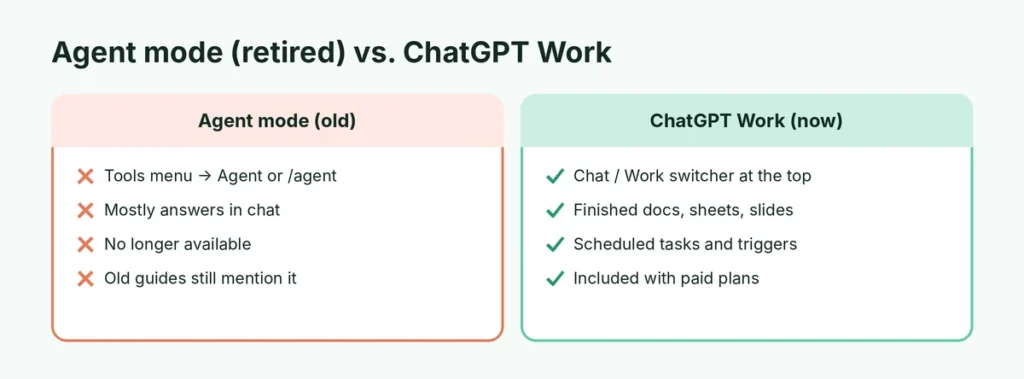
| Agent mode (old) | ChatGPT Work (now) | |
|---|---|---|
| How to open it | Tools menu → Agent, or /agent | Chat / Work switcher at the top |
| What it does | Browses websites and completes tasks | Researches, analyzes, uses apps and sites, creates finished files |
| Output | Mostly answers in the chat | Documents, spreadsheets, presentations, reports and more |
| Repeating tasks | Scheduled tasks | Scheduled tasks, plus triggers on some plans |
| Status | Retired | Current |
OpenAI’s help page for agent mode now says it is no longer available and points users to ChatGPT Work for multi-step tasks and to a separate cloud browser for website workflows.
Who can use ChatGPT Work?
Work is available on eligible paid plans, including Plus and the Pro tiers, as well as business and education workspaces. Paid plans include a usage allowance for Work, and heavier tasks use more of it. Availability on the free plan has been limited and may vary by app and region, so if you don’t see the Work option, update the app or check your plan in Settings.
How to use ChatGPT Work, step by step
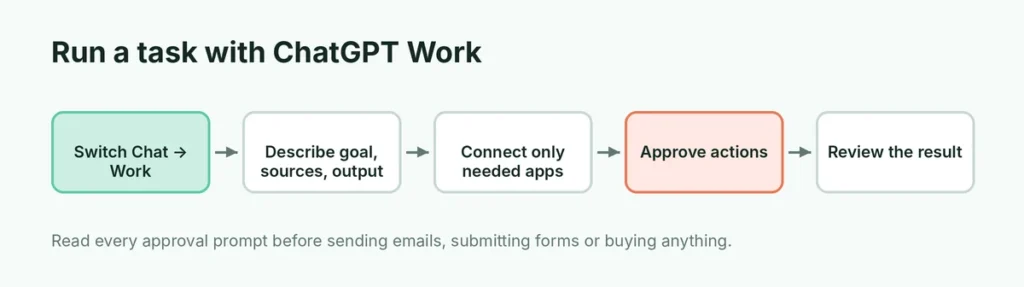
- Open ChatGPT on chatgpt.com, the iPhone or Android app, or the Windows or Mac desktop app.
- Switch to Work: use the Chat / Work toggle at the top of the page. On mobile, tap the dropdown at the top of the screen and choose Work.
- Describe the task in full. Say what you want, which sources to use or avoid, the format of the result, and any limits (see the examples below).
- Connect apps if needed. If the task needs your Gmail, Google Drive, Notion or other apps, connect them when asked, and only the ones the task really needs.
- Let it work, and watch the progress. Work shows what it’s doing step by step. You can send a message to steer it, pause it, or stop it.
- Approve important actions. Before anything with consequences, such as sending an email or submitting a form, Work asks for your approval on screen. Read these prompts carefully.
- Review the result. Open the finished file or report, check the facts and numbers, and ask for changes.
How to write a good Work request
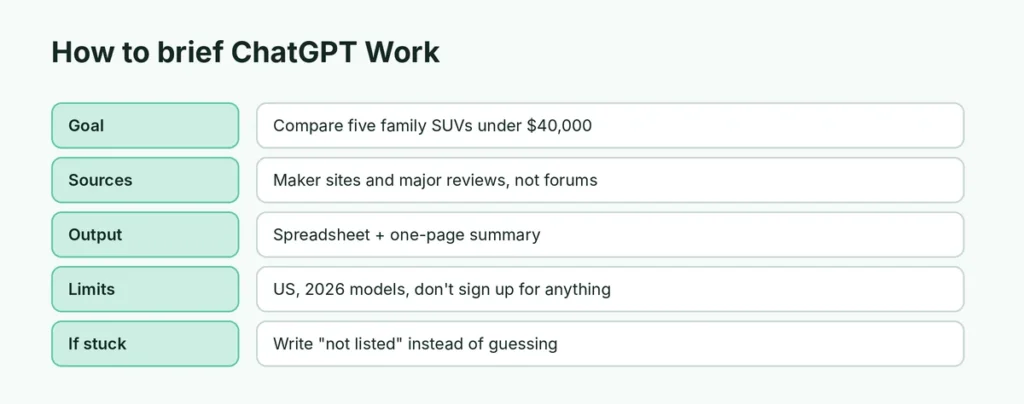
Work does best with a clear brief, like one you’d give a capable assistant:
| Part of the brief | Example |
|---|---|
| Goal | “Compare the five most popular family SUVs under $40,000.” |
| Sources | “Use manufacturer sites and major review sites; ignore forums.” |
| Output | “Make a spreadsheet with price, fuel economy, safety rating and cargo space, plus a one-page summary.” |
| Limits | “US models only, 2026 model year. Don’t sign up for anything.” |
| If stuck | “If a price isn’t listed, write ‘not listed’ instead of guessing.” |
Vague requests (“research cars for me”) lead to vague results and use more of your allowance.
Example requests you can copy
- Shopping research: “Find the five best-reviewed robot vacuums under $400 sold in the US. Make a table with price, battery life, mapping and pet-hair performance, and link each source. Don’t buy or sign up for anything.”
- Trip planning: “Plan a 4-day trip to Denver in March for two adults. Include a day-by-day itinerary, estimated costs, and a packing list as a document.”
- Budget: “Using the attached bank export, group my spending by category for the last three months and build a spreadsheet with a monthly chart.”
- Weekly briefing: “Every Monday morning, summarize the most important news about electric cars from the past week in 10 bullet points with links.”
- Job search: “Find 10 remote project-manager jobs posted this week, list the requirements, and draft a short tailored intro for the top three.”
Adjust the details, keep the structure: goal, sources, output, limits.
Tips to save your usage allowance
- Start in Chat for quick questions, and switch to Work only for real multi-step tasks.
- Break huge jobs into stages and check each result before continuing.
- Upload the files it needs instead of asking it to search for them.
- Stop a task early if it heads in the wrong direction, then restate the brief.
What ChatGPT Work is good for
- Research reports: comparing products, summarizing a topic from many sources, building a reading list.
- Spreadsheets and analysis: cleaning up data you upload, building a budget, analyzing survey results.
- Presentations and documents: turning notes into a slide deck, drafting a report with sources.
- Repeating tasks: a weekly news summary on a topic, or a monthly check of prices, using scheduled tasks.
- Work across your apps: finding and summarizing emails or files from connected apps, on plans and workspaces that allow it.
What it can’t do (or shouldn’t)
- Solve CAPTCHAs or get past sites that block automated visits.
- Guarantee accuracy. Like regular ChatGPT, it can misread a page or get a number wrong. Check anything important.
- Read your computer’s files from the web or mobile app. Only the desktop app can work with local files, and only the ones you allow.
- Replace your judgment on purchases, legal matters, health or money.
Stay safe when ChatGPT acts for you
Because Work can visit websites and use your connected apps, a few habits matter:
- Connect only the apps a task needs, and disconnect ones you don’t use.
- Read every approval prompt before tapping approve, especially for emails, forms, purchases or deletions.
- Avoid untrusted websites. Pages can hide instructions meant to trick AI agents (“prompt injection”). If Work starts doing something you didn’t ask for, stop it.
- Don’t give it passwords in the chat. When a login is needed, sign in yourself in the secure browser view it offers.
- Review your data settings. Here’s how to stop AI chatbots training on your data.
Work vs. Chat vs. Codex
- Chat: quick questions, writing help, explanations, brainstorming. Fast and conversational.
- Work: longer tasks with several steps that should end in a finished result.
- Codex: OpenAI’s separate tool for software development and coding tasks.
If you’re new to ChatGPT altogether, start with our beginner’s guide: how to use ChatGPT.
Common problems
I don’t see the Work option. Update the ChatGPT app, check you’re signed in to a plan that includes Work, and try the web version.
“/agent” doesn’t do anything. Agent mode has been retired. Use the Work switcher instead.
The task stopped or ran out of usage. Long tasks use more of your plan’s allowance. Break big jobs into smaller steps, or check your usage in Settings.
It got stuck on a website. Some sites block automated browsing. Ask it to use a different source, or do that step yourself.
Something isn’t loading at all. See what to do when ChatGPT is not working.
The short version
ChatGPT agent mode is gone; its abilities now live in ChatGPT Work. Switch from Chat to Work at the top of ChatGPT, describe the task with its goal, sources, output format and limits, connect only the apps you need, approve actions carefully, and review the finished file. Work is included with paid plans like Plus and Pro, and it’s best for multi-step research, documents and spreadsheets rather than quick questions.