By
By 
A Windows 11 bootable USB drive lets you install Windows 11 on a new PC, do a clean reinstall when your computer is slow or broken, or repair a PC that won’t start. Microsoft gives you a free tool that builds the USB for you in about 20 to 40 minutes, and you don’t need a product key to make it.
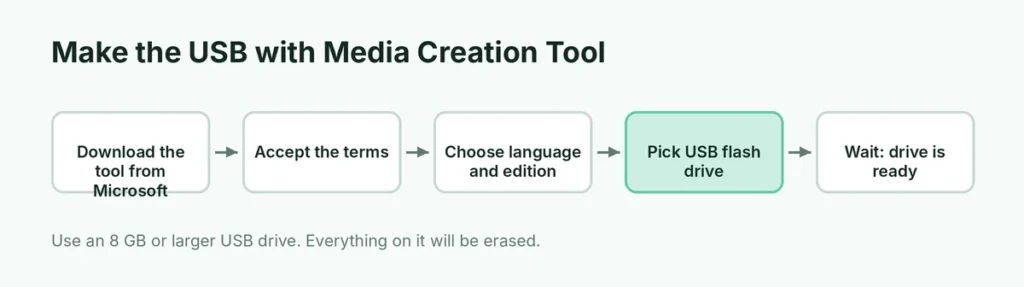
Short answer: plug in a USB flash drive of at least 8 GB (everything on it will be erased). On a working Windows PC, download the Media Creation Tool from Microsoft’s Download Windows 11 page, run it, accept the terms, choose your language and edition, select USB flash drive, pick your drive and click Next. When it says Your USB flash drive is ready, you’re done.
Last updated: October 2026. The current release is Windows 11 version 25H2; the steps are the same for newer versions.
What you need
- A USB flash drive of 8 GB or more. A USB 3.0 drive is much faster. Everything on it will be deleted, so copy off any files first.
- A working Windows PC with an internet connection to create the drive (a Mac works too, see below).
- About 30 minutes, mostly waiting for the download.
- A Windows 11 license to activate Windows after installing. Most PCs that came with Windows 10 or 11 activate automatically using a digital license; you don’t need a key to create the USB.
Method 1: Microsoft’s Media Creation Tool (recommended)
- Go to Microsoft’s Download Windows 11 page (microsoft.com/software-download/windows11).
- Under Create Windows 11 Installation Media, click Download Now and open the downloaded file (mediacreationtool.exe).
- Click Yes if Windows asks for permission, then Accept the license terms.
- Keep Use the recommended options for this PC ticked, or untick it to choose a different language and edition. Click Next.
- Choose USB flash drive and click Next.
- Select your USB drive from the list. If it’s not listed, click Refresh drive list. Click Next.
- Wait while the tool downloads Windows 11 and builds the drive. You can keep using the PC.
- When you see Your USB flash drive is ready, click Finish.
The tool picks the right settings automatically, so this is the safest choice if you just want a working installer.
Method 2: Download the ISO and use Rufus
Rufus is a free, popular tool that makes bootable drives from a Windows ISO file. It’s useful when the Media Creation Tool fails, or when you want extra options.
- On Microsoft’s Download Windows 11 page, go to Download Windows 11 Disk Image (ISO) for x64 devices, select Windows 11, click Download Now, choose your language and download the 64-bit ISO.
- Download Rufus from its official website (rufus.ie) and open it.
- Under Device, select your USB drive.
- Click Select and choose the Windows 11 ISO.
- Keep Partition scheme: GPT and Target system: UEFI (non CSM) for modern PCs.
- Click Start.
- Rufus shows a Windows User Experience box with extra options (see below). Untick everything if you’re installing on a normal, supported PC, and click OK.
- Confirm that the drive will be erased, and wait until the status bar says READY.
About the extra Rufus options
Rufus can remove some Windows 11 requirements, such as TPM 2.0, Secure Boot and the 4 GB RAM check, and skip the Microsoft account sign-in to create a local account. These are handy for older computers, but installing Windows 11 on an unsupported PC means Microsoft may not provide all updates, and you may run into problems later. Back up your files first if you go this route.
Method 3: Create a Windows 11 USB on a Mac
The Media Creation Tool and Rufus only run on Windows. On a Mac:
- The easiest way is to borrow a Windows PC for 30 minutes and use Method 1.
- Alternatively, download the ISO on the Mac and use a cross-platform tool such as balenaEtcher or Ventoy. Copying the ISO with Finder doesn’t work, because the drive must be made bootable, and one of the Windows files can be too large for common USB formats. Results vary with these tools, so the Windows-based methods are more reliable.
How to boot from the USB drive
- Plug the USB drive into the PC you want to install Windows on.
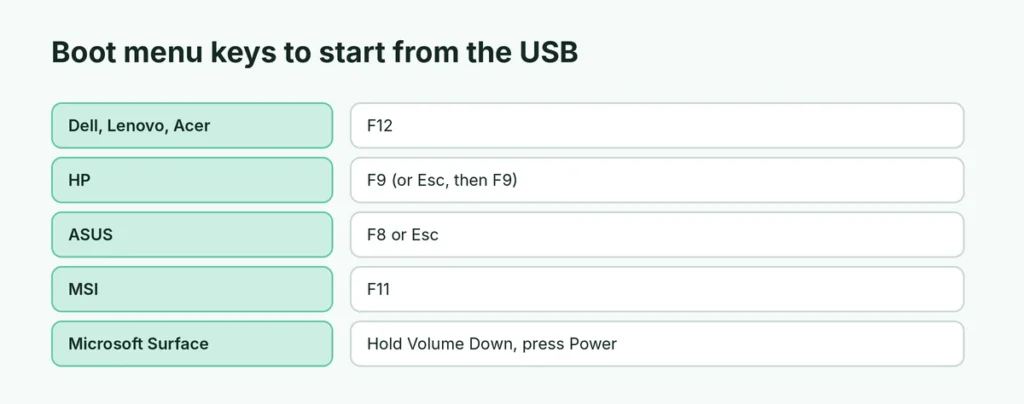
- Restart the PC and press the boot menu key as soon as the logo appears. Common keys:
| PC brand | Boot menu key |
|---|---|
| Dell | F12 |
| HP | F9 (or Esc, then F9) |
| Lenovo | F12, or the Novo button on some models |
| Acer | F12 |
| ASUS | F8 or Esc |
| MSI | F11 |
| Microsoft Surface | Hold Volume Down while pressing Power |
- Choose your USB drive from the list (it may show as UEFI: USB followed by the brand).
- Windows Setup starts. Choose your language and click Next, then Install now, and follow the steps.
If the PC goes straight to your old Windows, restart and try again, pressing the key repeatedly right after you power on. On a Lenovo laptop that won’t start at all, see how to turn on a Lenovo laptop first.
You can also start the USB from inside Windows: go to Settings → System → Recovery → Advanced startup → Restart now, then choose Use a device and select the USB.
Clean install or upgrade: what happens to your files?
| What you choose in Setup | Your files | Your apps |
|---|---|---|
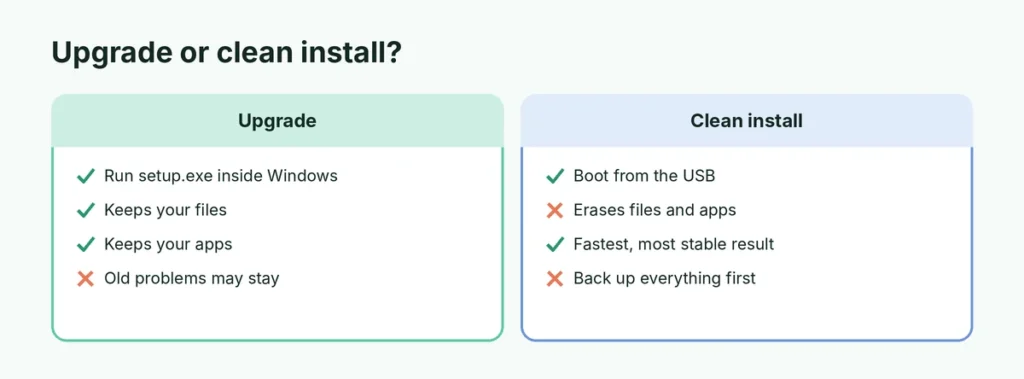
| Upgrade (run setup.exe from the USB inside Windows) | Kept | Kept |
| Custom: Install Windows only and delete partitions | Erased | Erased |
| Custom and install on another drive | Old drive untouched | Need reinstalling |
A clean install gives the fastest, most stable result, but back up your files first: documents, photos and browser passwords. Copy them to an external drive or a cloud service; here’s a comparison of free cloud storage if you need space.
Windows 11 requirements, in short
Windows 11 officially needs a 64-bit processor from roughly 2018 or newer, 4 GB of RAM, 64 GB of storage, TPM 2.0 and Secure Boot. Run Microsoft’s PC Health Check app on the computer to see if it qualifies. Most PCs sold since 2019 meet the requirements, though TPM or Secure Boot sometimes need to be turned on in the BIOS.
What else a Windows 11 USB can do
Keep the drive in a drawer even after installing. It’s useful when things go wrong:
- Repair a PC that won’t start: boot from the USB, choose your language, then click Repair your computer instead of Install now. From there you can use Startup Repair, System Restore or Uninstall Updates.
- Reset a PC you can’t sign in to: from the same repair menu, choose Troubleshoot → Reset this PC.
- Install Windows on a new SSD: after replacing a drive, the USB installs Windows onto the empty disk.
Recreate the USB every year or so, so it contains a recent version of Windows and needs fewer updates after installing.
How long does the installation take?
On a modern PC with an SSD, installing Windows 11 from a USB 3.0 drive takes about 15 to 30 minutes, plus another 10 to 20 minutes for setup questions and first updates. Older PCs with hard drives can take an hour or more. Keep laptops plugged in the whole time.
Common problems
“We can’t find a USB flash drive.” Unplug the drive and plug it into another port, preferably directly into the PC rather than a hub. Click Refresh drive list. Very old or faulty drives can fail; try a different one.
The Media Creation Tool shows an error code. Run it as administrator, temporarily turn off your antivirus, and make sure you have free space on your C: drive. If it still fails, use Method 2 with the ISO and Rufus.
The PC won’t boot from the USB. Check that you picked the UEFI entry in the boot menu. In the BIOS, make sure USB boot is allowed. For older PCs that only support legacy BIOS, recreate the drive in Rufus with MBR and BIOS (or UEFI-CSM).
“This PC can’t run Windows 11.” The PC doesn’t meet the requirements. Check that TPM 2.0 and Secure Boot are enabled in the BIOS, or keep using your current Windows version.
Setup asks for a product key. Click I don’t have a product key. If the PC had Windows 10 or 11 before, it usually activates automatically once you’re online.
The short version
Use an 8 GB+ USB drive (it will be erased) and Microsoft’s free Media Creation Tool: choose USB flash drive, pick your drive and wait for Your USB flash drive is ready. Alternatively, download the Windows 11 ISO and write it with Rufus using GPT and UEFI. Boot from the USB with your PC’s boot menu key (often F12), back up your files before a clean install, and skip the product key if your PC already had Windows.