By
By 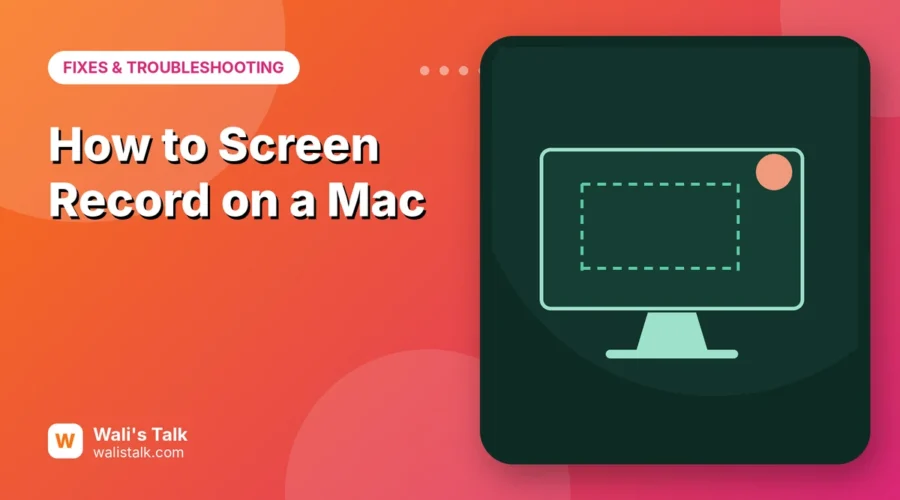
Every Mac can record its screen without installing anything. One keyboard shortcut opens a small toolbar that records the whole screen or just part of it, with your microphone if you want narration. The one thing it can’t do out of the box is record the sound your Mac is playing, like audio from a video or a call, so this guide also covers the safe, free workaround for that.
Short answer: press Shift + Command + 5. In the toolbar that appears, choose Record Entire Screen or Record Selected Portion, click Options to pick a microphone and save location, then click Record. To stop, click the Stop button in the menu bar or press Command + Control + Esc. The video saves to your Desktop as a .mov file.
Last updated: October 2026. Works on macOS Mojave (10.14) and later, including recent versions.
The Screenshot toolbar at a glance
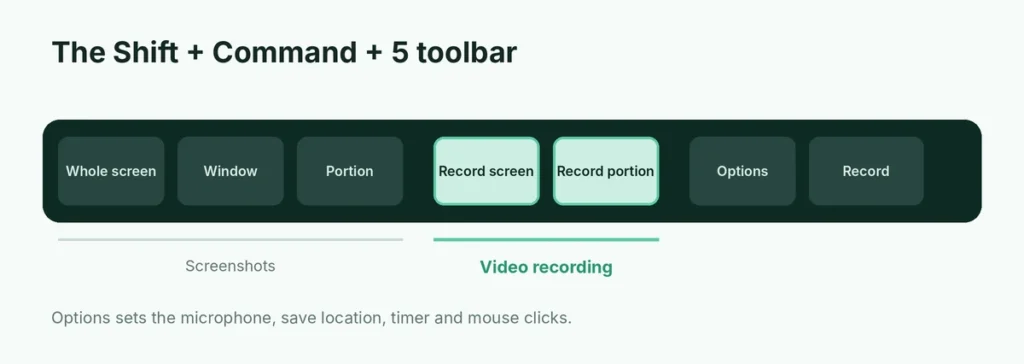
When you press Shift + Command + 5, a toolbar appears at the bottom of the screen. From left to right:
| Button | What it does |
|---|---|
| Capture Entire Screen | Screenshot of the whole screen |
| Capture Selected Window | Screenshot of one window |
| Capture Selected Portion | Screenshot of an area you drag |
| Record Entire Screen | Video of the whole screen |
| Record Selected Portion | Video of an area you drag |
| Options | Microphone, save location, timer, show clicks |
| Record / Capture | Starts the recording or screenshot |
The two Record buttons have a small circle in the corner of the icon; those are the ones for video.
How to record your whole Mac screen
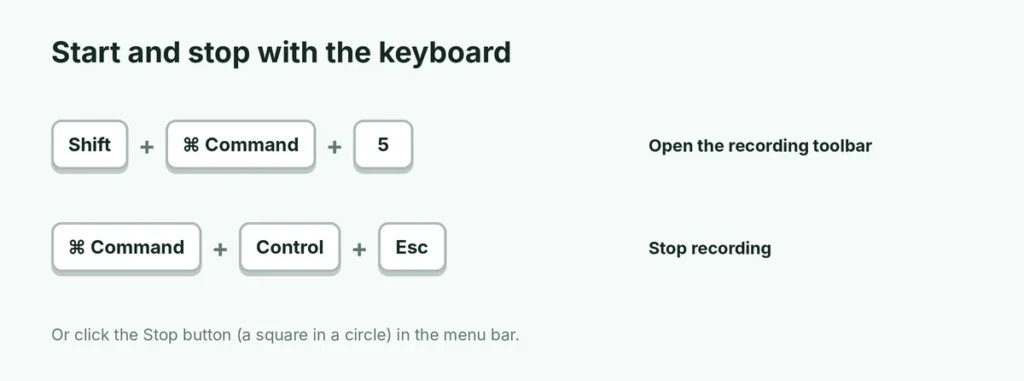
- Press Shift + Command + 5.
- Click Record Entire Screen (the fourth button).
- If you have more than one display, click the screen you want to record. Otherwise click Record.
- Do what you want to capture.
- To stop, click the Stop button (a square in a circle) in the menu bar at the top of the screen, or press Command + Control + Esc.
A thumbnail appears in the bottom-right corner for a few seconds. Click it to trim or share right away, or ignore it and the video saves automatically.
How to record part of the screen
- Press Shift + Command + 5.
- Click Record Selected Portion (the fifth button).
- Drag the box to cover the area you want. Drag its edges to resize it, or drag inside it to move it.
- Click Record.
- Stop with the Stop button in the menu bar or Command + Control + Esc.
Recording only part of the screen keeps files smaller and hides your other windows, tabs and notifications.
Record with your voice
The built-in recorder doesn’t record any sound unless you choose a microphone:
- Press Shift + Command + 5 and click Options.
- Under Microphone, choose MacBook Microphone (or Built-in Microphone), or a USB or Bluetooth headset if you have one.
- Start recording as normal.
A headset microphone usually sounds clearer than the laptop’s built-in one and picks up less keyboard noise.
Other useful Options
- Save to: choose Desktop, Documents, Clipboard, Mail, Messages or Other Location. Picking a dedicated folder stops your Desktop filling up with recordings.
- Timer: start recording after 5 or 10 seconds, giving you time to get ready.
- Show Mouse Clicks: draws a circle every time you click, which makes tutorials much easier to follow.
- Show Floating Thumbnail: turn this off if you don’t want the preview in the corner after each recording.
- Remember Last Selection: keeps the same recording area next time.
How to record your Mac’s own sound (system audio)
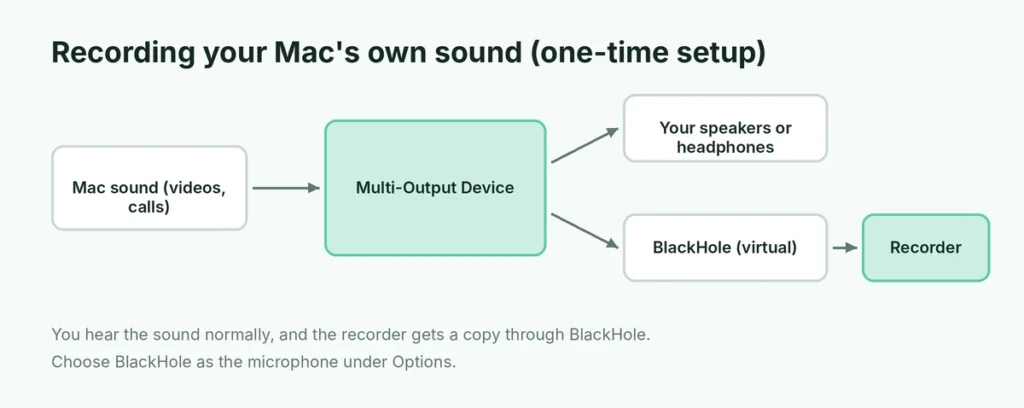
The built-in tool records your microphone, not the sound coming out of your Mac’s speakers. That’s why a recording of a YouTube video or a Zoom call can come out silent. There are three common solutions:
Option 1: Use a free virtual audio driver
Free, open-source tools such as BlackHole create a virtual audio device that sends your Mac’s sound to the recorder.
- Install BlackHole from its official website or GitHub page (avoid copies on download sites).
- Open Audio MIDI Setup (in Applications → Utilities) and create a Multi-Output Device that includes your speakers or headphones and BlackHole, so you can still hear the sound.
- Set that Multi-Output Device as your sound output in System Settings → Sound.
- In the Shift + Command + 5 toolbar, open Options and choose BlackHole as the microphone.
This takes 10 minutes to set up once and then works every time. Remember to switch your sound output back afterwards if anything sounds odd.
Option 2: Use a recording app with system audio built in
Free apps such as OBS Studio can record system audio and your microphone together, with more control over quality, and are widely used for tutorials and streaming. They take a little longer to learn than the built-in tool.
Option 3: Use the app’s own recording feature
If you’re recording a meeting, use the meeting app’s built-in recording (Zoom, Microsoft Teams and Google Meet all have one on many plans). It captures everyone’s audio properly and tells participants they’re being recorded.
How much space do Mac recordings take?
Built-in recordings are saved at your screen’s full resolution, so they’re large on Retina displays. As a rough guide, one minute of a full-screen recording can take 100 MB to 500 MB depending on what’s on screen; static documents create smaller files than videos or games. Recording a selected portion instead of the full screen, and exporting at 1080p afterwards, keeps files manageable. Delete raw recordings you’ve already exported, especially on MacBooks with smaller drives.
Is it legal to record your screen?
Recording your own work is fine. Recording other people, such as video calls, lectures or private messages, can require their consent depending on where you and they live. Several US states and many countries require everyone on a call to agree to recording. When in doubt, say at the start that you’re recording, or use the meeting app’s built-in recording, which notifies everyone.
Using QuickTime Player instead
QuickTime Player, which comes with every Mac, can also record the screen:
- Open QuickTime Player (in Applications).
- Choose File → New Screen Recording. The same Screenshot toolbar appears.
- Choose your options and click Record.
The advantage is that the recording opens in QuickTime when you stop, ready to trim (Edit → Trim) and export.
Trim, compress and share your recording
- Trim: open the recording, press Command + T in QuickTime (or click the thumbnail right after recording), drag the yellow handles and click Trim.
- Make it smaller: in QuickTime choose File → Export As and pick a lower resolution, such as 1080p or 720p. Screen recordings at full Retina resolution can be huge.
- Share: right-click the file and choose Share, or upload it to a cloud drive and send a link. Here’s how the free cloud storage options compare.
Mac screen recording shortcuts
| Shortcut | What it does |
|---|---|
| Shift + Command + 5 | Opens the screenshot and recording toolbar |
| Command + Control + Esc | Stops a recording in progress |
| Esc | Closes the toolbar without recording |
| Shift + Command + 3 | Screenshot of the whole screen |
| Shift + Command + 4 | Screenshot of a selected area |
| Command + T (in QuickTime) | Trim the open video |
Record your screen and webcam together
For tutorials or presentations, showing your face in a corner makes the video more personal. Without extra apps:
- Open QuickTime Player and choose File → New Movie Recording. A webcam window appears.
- In the menu bar choose View → Float on Top, and resize the window to a small corner.
- Press Shift + Command + 5 and record the screen as usual. The floating webcam window is captured in the recording.
On recent Macs with Apple silicon, video apps also offer Presenter Overlay in the video effects menu, which places you over your shared screen during calls.
Common problems
“Screen recording” permission prompts. If you record with another app such as OBS, macOS asks for permission. Go to System Settings → Privacy & Security → Screen & System Audio Recording (called Screen Recording on older versions) and turn the app on.
The recording is black for some apps. Streaming services like Netflix and Apple TV protect their videos, so they record as black. This is intentional.
Can’t find the recording. Check your Desktop first, then the folder set under Options → Save to. Files are named like “Screen Recording 2026-10-17 at 10.15.32”.
Command + Control + Esc does nothing. The shortcut only works while a recording is running. Use the Stop button in the menu bar instead.
Built-in tool or a dedicated app?
For quick how-to videos, bug reports and short demos, the built-in toolbar is ideal: it’s free, private and always available. Consider a dedicated app like OBS Studio only if you need system audio without extra setup, recording several sources at once, live streaming, or detailed editing.
Whichever tool you use, do a 10-second test recording first to check the microphone level and that the right screen or area is selected. It’s much quicker than discovering a silent or cropped video after a long session.
The short version
Press Shift + Command + 5, choose Record Entire Screen or Record Selected Portion, set your microphone under Options, and click Record. Stop with the menu bar button or Command + Control + Esc; the video saves to your Desktop. To capture your Mac’s own sound, add a free virtual audio driver like BlackHole or use OBS Studio. Recording your phone instead? Here’s how to screen record on iPhone.