By
By 
Sometimes you want to make a call without the other person seeing your number: calling a business you don’t want marketing calls from, a private seller from an online listing, or someone you’d rather not give your number to. This is called hiding your caller ID, and every phone can do it, either for one call or for every call you make.
Short answer: for a single call in the US or Canada, dial *67 before the number (for example *67 555 123 4567). In the UK dial 141 first, and in Australia 1831. To hide your number on every call, turn off Show My Caller ID on iPhone (Settings → Apps → Phone), or set Caller ID to Hide number in your Android phone’s call settings. If the option is missing, your carrier controls it.
Last updated: October 2026. Codes and menu names can vary by carrier and phone model.
One call or every call?
| Method | Hides your number for | Works on | Easy to undo? |
|---|---|---|---|
| Dial a prefix code (*67, 141, 1831) | One call | Any phone, any carrier that supports it | Yes, nothing to change |
| iPhone setting | Every call | iPhone, on carriers that allow it | Yes, switch it back on |
| Android setting | Every call | Most Android phones | Yes |
| Ask your carrier | Every call, all devices on the line | Any phone | Yes, but you have to ask again |
For occasional private calls, the prefix code is simplest. If you want privacy on every call, use the phone setting or your carrier.
Method 1: Hide your number for one call (prefix codes)
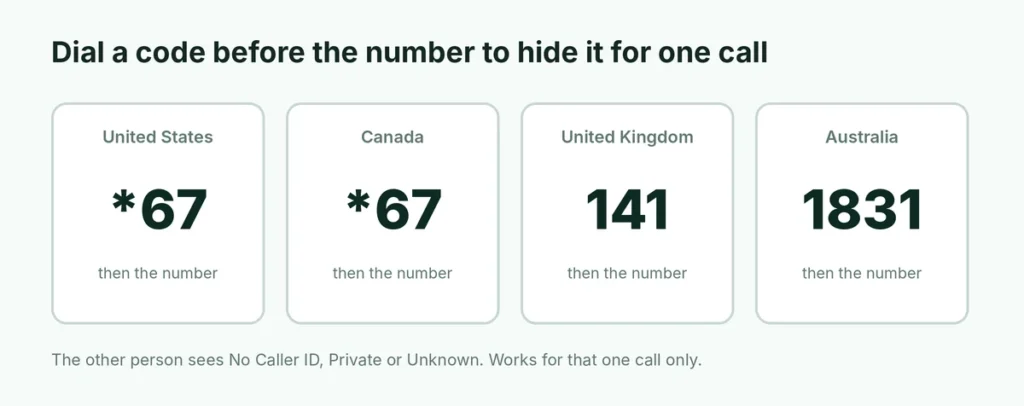
Type the code before the full phone number, exactly as you’d normally dial it:
| Country | Code | Example |
|---|---|---|
| United States | *67 | *67 212 555 0123 |
| Canada | *67 | *67 416 555 0123 |
| United Kingdom | 141 | 141 020 7946 0123 |
| Australia | 1831 | 1831 02 5550 1234 |
(The numbers above are examples of the format only.)
The person you call will see No Caller ID, Private, Unknown or Blocked instead of your number. The code works only for that one call, so you need to dial it each time.
Saving it in a contact: if you call the same number privately often, edit the contact and add the code in front of the number, for example *67 followed by the number. Every call from that contact is then hidden automatically.
Method 2: Hide your number on iPhone for every call
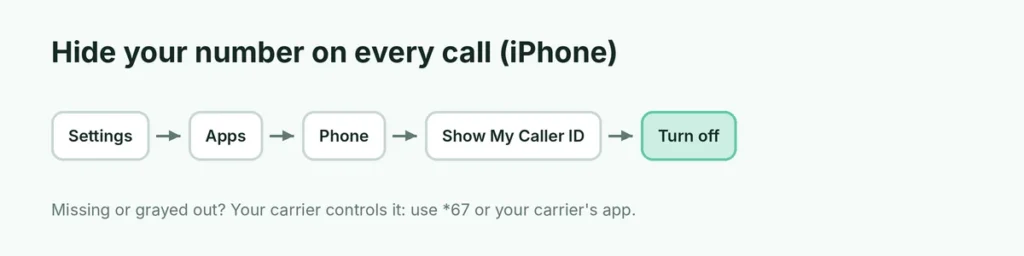
- Open Settings.
- Tap Apps, then Phone (on iOS 17 and earlier, tap Phone directly in Settings).
- Tap Show My Caller ID.
- Turn Show My Caller ID off.
From now on, all your outgoing calls hide your number. To make one call that does show your number while this is off, dial *82 before the number in the US and Canada.
“Show My Caller ID” is missing or grayed out
Some carriers don’t let the iPhone control caller ID and manage it from your account instead. In the US this is common on Verizon and some prepaid carriers. If you can’t change the setting:
- use *67 for individual calls, or
- turn on caller ID blocking in your carrier’s app or account website, or by calling customer service (611 from your phone on most US carriers).
Method 3: Hide your number on Android
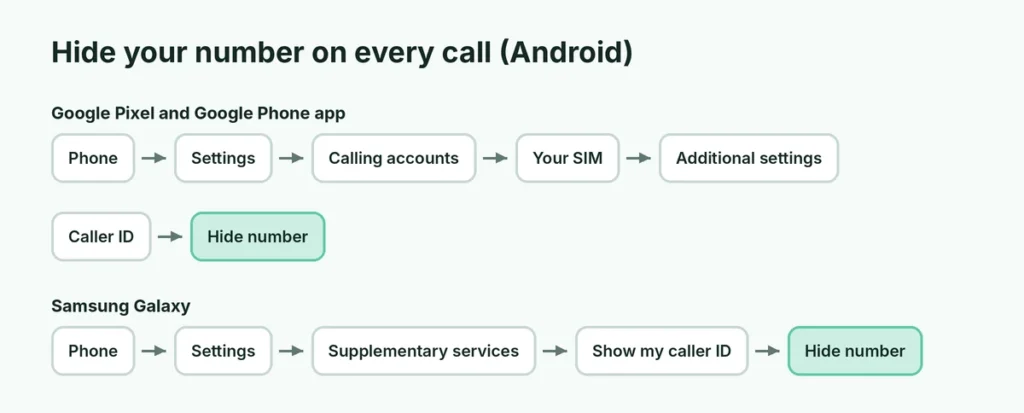
Menu names differ between phone makers, but the setting is always in the Phone app’s settings.
Google Pixel and phones using the Google Phone app
- Open the Phone app.
- Tap the three dots (top right) → Settings.
- Tap Calling accounts, then your SIM card.
- Tap Additional settings (or Supplementary services).
- Tap Caller ID and choose Hide number.
Samsung Galaxy
- Open the Phone app.
- Tap the three dots → Settings.
- Tap Supplementary services (on some versions, More settings or Other call settings).
- Tap Show my caller ID and choose Hide number.
If you choose Network default, your carrier decides. If Hide number doesn’t stick or calls still show your number, your carrier is overriding the setting; contact them or use *67.
Method 4: Ask your carrier to block it permanently
Carrier-level blocking hides your number on every call from that line, no matter which phone you use. In the US:
- AT&T: call customer service (611) or ask about per-line caller ID blocking.
- Verizon: use the My Verizon app or call *611.
- T-Mobile: manage it in your account on the T-Mobile website or app, or call 611.
In the UK, Canada and Australia, contact your mobile provider or check its app; many offer permanent number withholding for free.
How to check that your number is really hidden
Before relying on it, test it:
- Ask a friend or family member if you can test-call them, or call your own second line or landline.
- Dial with your chosen method (the code, or with the phone setting turned off).
- Check what their screen shows: No Caller ID, Private, Unknown or Blocked means it worked. If they see your number, the method isn’t supported on your carrier.
Test again after changing carriers, getting a new SIM or eSIM, or updating your phone, because carrier settings can reset.
Internet calls show your account, not a hidden number
Prefix codes and caller ID settings only apply to normal phone calls over your mobile network. Calls made through apps work differently:
- WhatsApp, Telegram, Signal and FaceTime calls always show your account (your phone number, username or Apple Account) to the person you call. There’s no way to hide it inside these apps.
- Wi-Fi Calling is still a normal phone call, so caller ID settings and codes do apply.
If you want to call through an app without revealing your main number, the app must be registered with a different number.
Hiding your number on a landline
Home phones work the same way: dial *67 (US and Canada), 141 (UK) or 1831 (Australia) before the number. For permanent blocking on a landline, ask your phone provider; in the UK many providers call this “permanent number withholding” and offer it free.
When your number is shown anyway
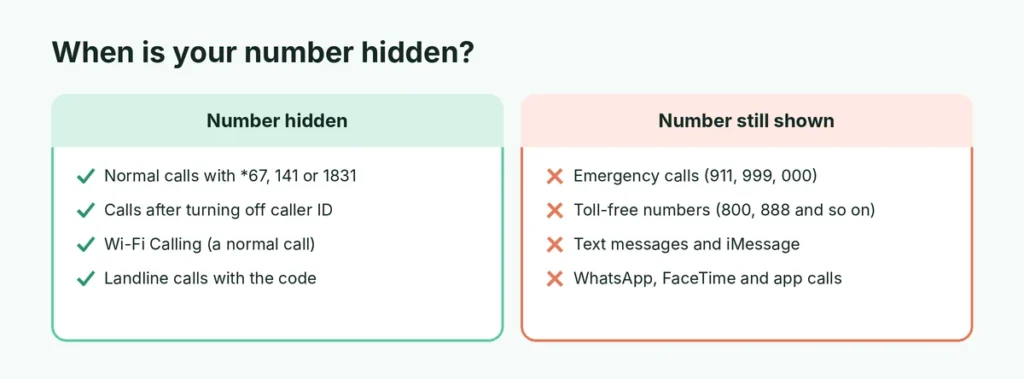
Hiding your caller ID doesn’t work in every situation:
- Emergency calls (911, 999, 112, 000) always show your number and location, so help can reach you.
- Toll-free numbers (such as 800, 833, 855, 866, 877, 888 in the US) can usually see your number through a separate system.
- Some businesses and people reject private calls. Many phones, including iPhones with Silence Unknown Callers or Call Screening turned on, send hidden numbers straight to voicemail or screen them.
If your call keeps going to voicemail, the person may have blocked anonymous calls. Try calling with your number visible, or send a text first.
Texting without showing your number
Caller ID blocking only works for calls, not text messages. SMS and iMessage always show your number or Apple Account. If you need to message someone without sharing your personal number, options include:
- a separate number from a second SIM or eSIM,
- a reputable second-number app,
- messaging through the platform you met them on (for example the marketplace’s own chat).
Calling a business privately
Many companies use your number to look up your account and may ask for it anyway. If you’re calling only to ask a general question, such as opening hours or a price, a hidden number is fine. If you’re calling about an existing account, order or appointment, showing your number usually gets you helped faster, because their system can find you automatically.
Some doctors’ offices and banks also call you from hidden numbers. If you’re expecting an important call, consider turning off Silence Unknown Callers or Call Screening for the day, so those calls can get through.
Is hiding your number legal?
Yes. Hiding your own caller ID for privacy is legal in the US, UK, Canada and Australia. What’s illegal is spoofing: making it look like you’re calling from a different number to deceive or harm someone. Hiding your number is fine; faking someone else’s isn’t.
Keep in mind that a hidden number doesn’t make you anonymous. Your carrier still knows who made the call, and police can obtain the records.
Should you hide your number?
| Hide it when | Show it when |
|---|---|
| Calling a seller or buyer from an online listing | Calling family, friends or your doctor |
| Calling a company to ask a question | Returning a missed call (they won’t recognize a private number) |
| Calling someone you don’t want to share your number with | You need them to call you back |
Because so many people ignore private calls, hiding your number by default on every call often means fewer answered calls. For most people, hiding it only when needed, with *67 or the local code, works best.
The short version
Dial *67 (US and Canada), 141 (UK) or 1831 (Australia) before a number to hide your caller ID for that call. To hide it on every call, turn off Show My Caller ID on iPhone or choose Hide number under Caller ID in your Android phone’s call settings, or ask your carrier. Emergency services and toll-free numbers still see your number, and texts always show it. If unwanted calls are the reason you want privacy, here’s how to stop spam calls on iPhone, and how to message someone on WhatsApp without saving their number.