By
When a website tells you to “enable cookies” in Chrome on your iPhone, it usually can’t remember your login, your cart or a payment step. Chrome on iPhone keeps cookies on by default, so the problem is normally a setting that blocks third-party cookies, an Incognito tab, or a content blocker. Here’s how to allow cookies in Chrome on iPhone, fix the most common “cookies are disabled” errors, and do the same in Safari.
Short answer: in Chrome on iPhone, tap ⋯ (bottom right) → Settings → Privacy and security → Third-party cookies and choose Allow third-party cookies. Make sure you’re in a normal tab, not Incognito, then close and reopen the website. In Safari, go to Settings → Apps → Safari → Advanced and turn off Block All Cookies.
Applies to: Google Chrome for iPhone and iPad and Safari on iOS 18, iOS 26 and iOS 27, October 2026. Menu names can change slightly between Chrome updates.
How to enable cookies in Chrome on iPhone
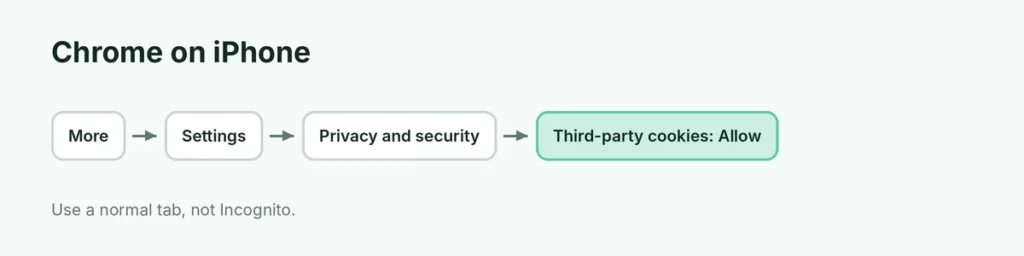
- Open Chrome.
- Tap the ⋯ (More) button at the bottom right, then Settings.
- Tap Privacy and security.
- Tap Third-party cookies and select Allow third-party cookies.
- Go back to the website and reload it.
Chrome doesn’t have a switch to turn off all cookies on iPhone, so normal (first-party) cookies are always on. The third-party setting matters for logins, payments and embedded content that come from a different website, such as “Sign in with Google,” PayPal checkouts or school and work portals.
Still says cookies are disabled? Check these
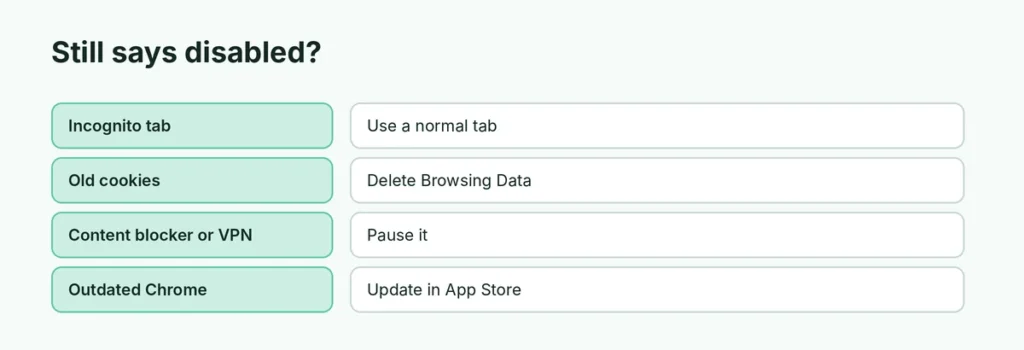
| Cause | Fix |
|---|---|
| You’re in an Incognito tab | Open the site in a normal tab; Incognito starts fresh and clears cookies when closed |
| Third-party cookies blocked | Allow them as shown above |
| Old or broken cookies for that site | Delete cookies (below) and sign in again |
| A content blocker or VPN app | Pause it and try again |
| Screen Time restrictions | Settings → Screen Time → Content & Privacy Restrictions |
| Outdated Chrome | Update Chrome in the App Store |
Clear cookies in Chrome on iPhone
Broken cookies cause just as many sign-in problems as blocked ones:
- In Chrome, tap ⋯ → Delete Browsing Data (or Settings → Privacy and security → Delete Browsing Data).
- Choose a Time range (pick All Time if a site has been broken for a while).
- Tick Cookies, Site Data and tap Delete Browsing Data.
You’ll be signed out of most websites afterwards. For more on this, see how to clear cache on iPhone.
How to enable cookies in Safari on iPhone
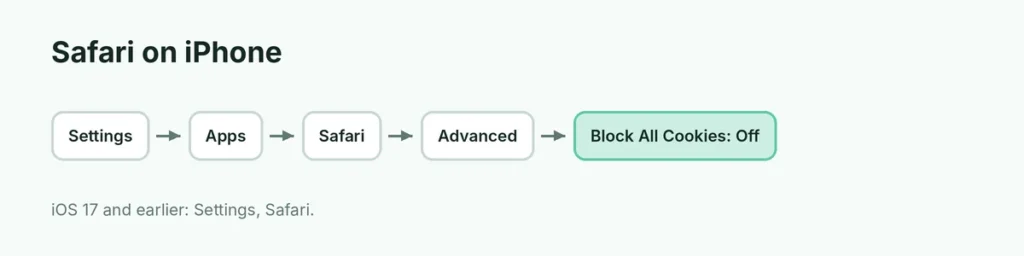
- Open the Settings app.
- Tap Apps → Safari (on iOS 17 and earlier, just Safari).
- Tap Advanced and turn off Block All Cookies.
- Optional: if a site still fails, temporarily turn off Prevent Cross-Site Tracking on the main Safari settings page, then turn it back on afterwards.
Should you allow third-party cookies?
Third-party cookies help sign-ins and payments work across websites, but advertisers also use them to follow you from site to site. A sensible approach:
- Allow them if a site you trust (your bank, school or work) needs them.
- Use Incognito for browsing you don’t want remembered.
- Clear cookies now and then to remove old tracking data.
To limit what’s saved in the first place, see how to delete search history on iPhone.
Related guides
- How to turn off the pop-up blocker
- How to turn off Incognito mode
- How to make Chrome your default browser
The short version
Chrome on iPhone has cookies on by default. If a site says they’re disabled, tap ⋯ → Settings → Privacy and security → Third-party cookies → Allow third-party cookies, use a normal tab instead of Incognito, and clear that site’s cookies if it still fails. In Safari, turn off Block All Cookies in Settings → Apps → Safari → Advanced.
Sources
- CookieScript: How to enable cookies on iPhone
- SlashGear: How to enable cookies on iPhone, and why you might want to
- Apple Support: Delete your Safari history, cache, and cookies on iPhone